

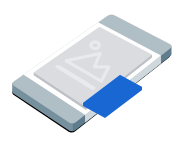
تبلیغات تصویر در تصویر (PiP) در یک پنجره شناور نمایش داده میشوند که روی محتوای صفحه، مانند مقالات، فیدها یا گیمپلی، باقی میماند. این فرمت به کاربران اجازه میدهد در حالی که تبلیغ قابل مشاهده است، با برنامه شما تعامل داشته باشند. برای نمایش تبلیغاتی که کل صفحه را اشغال نمیکنند، این فرمت را انتخاب کنید.
این راهنما درخواست و نمایش تبلیغات تصویر در تصویر در برنامه شما با استفاده از GMA Next-Gen SDK را پوشش میدهد.
قبل از اینکه شروع کنی
قبل از ادامه، موارد زیر را انجام دهید:
نسخه
1.4.0یا بالاتر GMA Next-Gen SDK را نصب کنید.تبلیغات آزمایشی را فعال کنید و از شناسه واحد تبلیغات آزمایشی زیر استفاده کنید:
/21775744923/example/picture-in-picture
بارگذاری یک تبلیغ
برای بارگذاری یک شیء PictureInPictureAd ، یک درخواست تبلیغ ایجاد کنید و متد load را فراخوانی کنید:
کاتلین
جاوا
AD_UNIT_ID با شناسه واحد تبلیغاتی خود جایگزین کنید.
نمایش تبلیغ
برای نمایش تبلیغ تصویر در تصویر روی صفحه، گزینههای تصویر در تصویر خود را پیکربندی کنید و متد show را فراخوانی کنید. مثال زیر موقعیت پیشفرض تبلیغ و محدوده نمایش را روی صفحه تنظیم میکند:
کاتلین
private fun showPictureInPictureAd(activity: Activity) {
  // Capture the ad reference saved from the onAdLoaded callback.
  val ad = pipAd
  if (ad != null) {
    val options =
      PictureInPictureAdOptions.Builder()
        // Uses the Google Mobile Ads SDK's default screen position.
        .setPosition(PictureInPictureAdPosition.DEFAULT)
        // Binds the ad lifecycle to the host screen.
        .setPresentationScope(PictureInPictureAdPresentationScope.SCREEN)
        .build()
    ad.show(activity, options)
  } else {
    Log.d(TAG, "No ad to show.")
  }
}
جاوا
private void showPictureInPictureAd(@NonNull Activity activity) {
  // Use the ad reference saved from the onAdLoaded callback.
  if (pipAd != null) {
    PictureInPictureAdOptions options =
        new PictureInPictureAdOptions.Builder()
            // Uses the Google Mobile Ads SDK's default screen position.
            .setPosition(PictureInPictureAdPosition.DEFAULT)
            // Binds the ad lifecycle to the host screen.
            .setPresentationScope(PictureInPictureAdPresentationScope.SCREEN)
            .build();
    pipAd.show(activity, options);
  } else {
    Log.d(TAG, "No ad to show.");
  }
}
موقعیت را تنظیم کنید
به طور پیشفرض، GMA Next-Gen SDK یک تبلیغ تصویر در تصویر را در گوشه پایین سمت راست صفحه نمایش میدهد، زمانی که برای اولین بار نمایش داده میشود، یا در آخرین موقعیت شناخته شده اگر قبلاً نمایش داده شده باشد. برای سفارشیسازی محل نمایش تبلیغ، موقعیت را در گزینههای تصویر در تصویر خود تنظیم کنید. مثال زیر موقعیت را در بالای محتوا در گوشه بالا سمت چپ صفحه نمایش میدهد:
کاتلین
private fun createTopLeftPositionOptions(): PictureInPictureAdOptions {
  return PictureInPictureAdOptions.Builder()
    // Sets the ad position to the top-left corner of the screen.
    .setPosition(PictureInPictureAdPosition.TOP_LEFT)
    .build()
}
جاوا
private PictureInPictureAdOptions createTopLeftPositionOptions() {
  return new PictureInPictureAdOptions.Builder()
      // Sets the ad position to the top-left corner of the screen.
      .setPosition(PictureInPictureAdPosition.TOP_LEFT)
      .build();
}
برای مشاهدهی تمام موقعیتهای موجود، به PictureInPictureAdPosition مراجعه کنید.
محدوده ارائه را تنظیم کنید
به طور پیشفرض، GMA Next-Gen SDK یک تبلیغ تصویر در تصویر را به صفحه میزبان فعلی متصل میکند. GMA Next-Gen SDK وقتی سلسله مراتب نمای صفحه میزبان دیگر در حافظه نباشد، تبلیغ را رد میکند. برای اینکه تبلیغ پس از حذف صفحه میزبان از حافظه قابل مشاهده باشد، محدوده ارائه را روی برنامه تنظیم کنید:
کاتلین
private fun createApplicationScopedOptions(): PictureInPictureAdOptions {
  return PictureInPictureAdOptions.Builder()
    // Keeps the ad visible beyond the host screen's lifecycle.
    .setPresentationScope(PictureInPictureAdPresentationScope.APPLICATION)
    .build()
}
جاوا
private PictureInPictureAdOptions createApplicationScopedOptions() {
  return new PictureInPictureAdOptions.Builder()
      // Keeps the ad visible beyond the host screen's lifecycle.
      .setPresentationScope(PictureInPictureAdPresentationScope.APPLICATION)
      .build();
}
برای اطلاعات بیشتر، به بخش «تبلیغ را در تمام صفحات نمایش قابل مشاهده نگه دارید» مراجعه کنید.
تنظیم فراخوانی رویداد تبلیغ
برای مدیریت رویدادهای چرخه عمر تبلیغات تصویر در تصویر، قبل از نمایش تبلیغ، رویداد فراخوانی را روی آن تنظیم کنید. این فراخوانی رویدادهای استاندارد مانند کلیکها و نمایشها را گزارش میدهد. این فراخوانی همچنین رویدادهای خاص تصویر در تصویر مانند زمان نمایش یا پنهان شدن تبلیغ را گزارش میدهد:
کاتلین
private fun setAdEventCallback(pipAd: PictureInPictureAd) {
  pipAd.adEventCallback =
    object : PictureInPictureAdEventCallback {
      override fun onAdShown() {
        Log.d(TAG, "Picture-in-Picture ad shown.")
      }

      override fun onAdHidden() {
        Log.d(TAG, "Picture-in-Picture ad hidden.")
      }

      override fun onAdImpression() {
        Log.d(TAG, "Picture-in-Picture ad recorded an impression.")
      }

      override fun onAdClicked() {
        Log.d(TAG, "Picture-in-Picture ad recorded a click.")
      }

      override fun onAdShowedFullScreenContent() {
        Log.d(TAG, "Picture-in-Picture ad showed full screen content.")
      }

      override fun onAdDismissedFullScreenContent() {
        Log.d(TAG, "Picture-in-Picture ad dismissed full screen content.")
      }

      override fun onAdFailedToShowFullScreenContent(
        fullScreenContentError: FullScreenContentError
      ) {
        Log.w(
          TAG,
          "Picture-in-Picture ad failed to show full screen content: $fullScreenContentError",
        )
      }

      override fun onAdPaid(value: AdValue) {
        Log.d(TAG, "Picture-in-Picture ad paid: ${value.valueMicros} ${value.currencyCode}")
      }
    }
}
جاوا
private void setAdEventCallback(@NonNull PictureInPictureAd pipAd) {
  pipAd.setAdEventCallback(
      new PictureInPictureAdEventCallback() {
        @Override
        public void onAdShown() {
          Log.d(TAG, "Picture-in-Picture ad shown.");
        }

        @Override
        public void onAdHidden() {
          Log.d(TAG, "Picture-in-Picture ad hidden.");
        }

        @Override
        public void onAdImpression() {
          Log.d(TAG, "Picture-in-Picture ad recorded an impression.");
        }

        @Override
        public void onAdClicked() {
          Log.d(TAG, "Picture-in-Picture ad recorded a click.");
        }

        @Override
        public void onAdShowedFullScreenContent() {
          Log.d(TAG, "Picture-in-Picture ad showed full screen content.");
        }

        @Override
        public void onAdDismissedFullScreenContent() {
          Log.d(TAG, "Picture-in-Picture ad dismissed full screen content.");
        }

        @Override
        public void onAdFailedToShowFullScreenContent(
            @NonNull FullScreenContentError fullScreenContentError) {
          Log.w(
              TAG,
              "Picture-in-Picture ad failed to show full screen content: "
                  + fullScreenContentError);
        }

        @Override
        public void onAdPaid(@NonNull AdValue value) {
          Log.d(
              TAG,
              "Picture-in-Picture ad paid: "
                  + value.getValueMicros()
                  + " "
                  + value.getCurrencyCode());
        }
      });
}
مخفی کردن تبلیغ
برای حذف تبلیغ شناور از صفحه، متد hide را فراخوانی کنید. این متد رویداد ad hidden را فراخوانی میکند:
کاتلین
private fun hidePictureInPictureAd() {
  // Capture the ad reference saved from the onAdLoaded callback.
  val ad = pipAd
  if (ad != null) {
    ad.hide()
  } else {
    Log.d(TAG, "No ad to hide.")
  }
}
جاوا
private void hidePictureInPictureAd() {
  // Use the ad reference saved from the onAdLoaded callback.
  if (pipAd != null) {
    pipAd.hide();
  } else {
    Log.d(TAG, "No ad to hide.");
  }
}
منابع تبلیغاتی را پاکسازی کنید
To avoid memory leaks, drop your reference to the ad object when your app finishes using the ad. For example, when your app no longer displays or interacts with the ad again. For screen-scoped ads, drop the reference when your app removes the host screen from memory. For app-scoped ads, retain the ad reference while the user navigates across screens, and drop the reference when the user dismisses the ad:
کاتلین
private fun cleanUpPictureInPictureAd() {
  pipAd?.destroy()
  pipAd = null
}
جاوا
private void cleanUpPictureInPictureAd() {
  // Use the ad reference saved from the onAdLoaded callback.
  if (pipAd != null) {
    pipAd.destroy();
    pipAd = null;
  }
}
تبلیغ را در تمام صفحات نمایش قابل مشاهده نگه دارید
When you set the presentation scope to the application, the picture-in-picture ad remains visible even when your app removes the hosting screen from memory. To interact with or dismiss the ad when the user navigates away from the host screen, your app must retain access to the picture-in-picture ad. We recommend holding the ad in an app-level singleton or shared state manager rather than in a single screen's instance variable.
برای مثالهایی در مورد نحوهی نمایش یک تبلیغ در تمام صفحات نمایش، به برنامههای نمونهی زیر مراجعه کنید:
،
تبلیغات تصویر در تصویر (PiP) در یک پنجره شناور نمایش داده میشوند که روی محتوای صفحه، مانند مقالات، فیدها یا گیمپلی، باقی میماند. این فرمت به کاربران اجازه میدهد در حالی که تبلیغ قابل مشاهده است، با برنامه شما تعامل داشته باشند. برای نمایش تبلیغاتی که کل صفحه را اشغال نمیکنند، این فرمت را انتخاب کنید.
این راهنما درخواست و نمایش تبلیغات تصویر در تصویر در برنامه شما با استفاده از GMA Next-Gen SDK را پوشش میدهد.
قبل از اینکه شروع کنی
قبل از ادامه، موارد زیر را انجام دهید:
نسخه
1.4.0یا بالاتر GMA Next-Gen SDK را نصب کنید.تبلیغات آزمایشی را فعال کنید و از شناسه واحد تبلیغات آزمایشی زیر استفاده کنید:
/21775744923/example/picture-in-picture
بارگذاری یک تبلیغ
برای بارگذاری یک شیء PictureInPictureAd ، یک درخواست تبلیغ ایجاد کنید و متد load را فراخوانی کنید:
کاتلین
جاوا
AD_UNIT_ID با شناسه واحد تبلیغاتی خود جایگزین کنید.
نمایش تبلیغ
برای نمایش تبلیغ تصویر در تصویر روی صفحه، گزینههای تصویر در تصویر خود را پیکربندی کنید و متد show را فراخوانی کنید. مثال زیر موقعیت پیشفرض تبلیغ و محدوده نمایش را روی صفحه تنظیم میکند:
کاتلین
private fun showPictureInPictureAd(activity: Activity) {
  // Capture the ad reference saved from the onAdLoaded callback.
  val ad = pipAd
  if (ad != null) {
    val options =
      PictureInPictureAdOptions.Builder()
        // Uses the Google Mobile Ads SDK's default screen position.
        .setPosition(PictureInPictureAdPosition.DEFAULT)
        // Binds the ad lifecycle to the host screen.
        .setPresentationScope(PictureInPictureAdPresentationScope.SCREEN)
        .build()
    ad.show(activity, options)
  } else {
    Log.d(TAG, "No ad to show.")
  }
}
جاوا
private void showPictureInPictureAd(@NonNull Activity activity) {
  // Use the ad reference saved from the onAdLoaded callback.
  if (pipAd != null) {
    PictureInPictureAdOptions options =
        new PictureInPictureAdOptions.Builder()
            // Uses the Google Mobile Ads SDK's default screen position.
            .setPosition(PictureInPictureAdPosition.DEFAULT)
            // Binds the ad lifecycle to the host screen.
            .setPresentationScope(PictureInPictureAdPresentationScope.SCREEN)
            .build();
    pipAd.show(activity, options);
  } else {
    Log.d(TAG, "No ad to show.");
  }
}
موقعیت را تنظیم کنید
به طور پیشفرض، GMA Next-Gen SDK یک تبلیغ تصویر در تصویر را در گوشه پایین سمت راست صفحه نمایش میدهد، زمانی که برای اولین بار نمایش داده میشود، یا در آخرین موقعیت شناخته شده اگر قبلاً نمایش داده شده باشد. برای سفارشیسازی محل نمایش تبلیغ، موقعیت را در گزینههای تصویر در تصویر خود تنظیم کنید. مثال زیر موقعیت را در بالای محتوا در گوشه بالا سمت چپ صفحه نمایش میدهد:
کاتلین
private fun createTopLeftPositionOptions(): PictureInPictureAdOptions {
  return PictureInPictureAdOptions.Builder()
    // Sets the ad position to the top-left corner of the screen.
    .setPosition(PictureInPictureAdPosition.TOP_LEFT)
    .build()
}
جاوا
private PictureInPictureAdOptions createTopLeftPositionOptions() {
  return new PictureInPictureAdOptions.Builder()
      // Sets the ad position to the top-left corner of the screen.
      .setPosition(PictureInPictureAdPosition.TOP_LEFT)
      .build();
}
برای مشاهدهی تمام موقعیتهای موجود، به PictureInPictureAdPosition مراجعه کنید.
محدوده ارائه را تنظیم کنید
به طور پیشفرض، GMA Next-Gen SDK یک تبلیغ تصویر در تصویر را به صفحه میزبان فعلی متصل میکند. GMA Next-Gen SDK وقتی سلسله مراتب نمای صفحه میزبان دیگر در حافظه نباشد، تبلیغ را رد میکند. برای اینکه تبلیغ پس از حذف صفحه میزبان از حافظه قابل مشاهده باشد، محدوده ارائه را روی برنامه تنظیم کنید:
کاتلین
private fun createApplicationScopedOptions(): PictureInPictureAdOptions {
  return PictureInPictureAdOptions.Builder()
    // Keeps the ad visible beyond the host screen's lifecycle.
    .setPresentationScope(PictureInPictureAdPresentationScope.APPLICATION)
    .build()
}
جاوا
private PictureInPictureAdOptions createApplicationScopedOptions() {
  return new PictureInPictureAdOptions.Builder()
      // Keeps the ad visible beyond the host screen's lifecycle.
      .setPresentationScope(PictureInPictureAdPresentationScope.APPLICATION)
      .build();
}
برای اطلاعات بیشتر، به بخش «تبلیغ را در تمام صفحات نمایش قابل مشاهده نگه دارید» مراجعه کنید.
تنظیم فراخوانی رویداد تبلیغ
برای مدیریت رویدادهای چرخه عمر تبلیغات تصویر در تصویر، قبل از نمایش تبلیغ، رویداد فراخوانی را روی آن تنظیم کنید. این فراخوانی رویدادهای استاندارد مانند کلیکها و نمایشها را گزارش میدهد. این فراخوانی همچنین رویدادهای خاص تصویر در تصویر مانند زمان نمایش یا پنهان شدن تبلیغ را گزارش میدهد:
کاتلین
private fun setAdEventCallback(pipAd: PictureInPictureAd) {
  pipAd.adEventCallback =
    object : PictureInPictureAdEventCallback {
      override fun onAdShown() {
        Log.d(TAG, "Picture-in-Picture ad shown.")
      }

      override fun onAdHidden() {
        Log.d(TAG, "Picture-in-Picture ad hidden.")
      }

      override fun onAdImpression() {
        Log.d(TAG, "Picture-in-Picture ad recorded an impression.")
      }

      override fun onAdClicked() {
        Log.d(TAG, "Picture-in-Picture ad recorded a click.")
      }

      override fun onAdShowedFullScreenContent() {
        Log.d(TAG, "Picture-in-Picture ad showed full screen content.")
      }

      override fun onAdDismissedFullScreenContent() {
        Log.d(TAG, "Picture-in-Picture ad dismissed full screen content.")
      }

      override fun onAdFailedToShowFullScreenContent(
        fullScreenContentError: FullScreenContentError
      ) {
        Log.w(
          TAG,
          "Picture-in-Picture ad failed to show full screen content: $fullScreenContentError",
        )
      }

      override fun onAdPaid(value: AdValue) {
        Log.d(TAG, "Picture-in-Picture ad paid: ${value.valueMicros} ${value.currencyCode}")
      }
    }
}
جاوا
private void setAdEventCallback(@NonNull PictureInPictureAd pipAd) {
  pipAd.setAdEventCallback(
      new PictureInPictureAdEventCallback() {
        @Override
        public void onAdShown() {
          Log.d(TAG, "Picture-in-Picture ad shown.");
        }

        @Override
        public void onAdHidden() {
          Log.d(TAG, "Picture-in-Picture ad hidden.");
        }

        @Override
        public void onAdImpression() {
          Log.d(TAG, "Picture-in-Picture ad recorded an impression.");
        }

        @Override
        public void onAdClicked() {
          Log.d(TAG, "Picture-in-Picture ad recorded a click.");
        }

        @Override
        public void onAdShowedFullScreenContent() {
          Log.d(TAG, "Picture-in-Picture ad showed full screen content.");
        }

        @Override
        public void onAdDismissedFullScreenContent() {
          Log.d(TAG, "Picture-in-Picture ad dismissed full screen content.");
        }

        @Override
        public void onAdFailedToShowFullScreenContent(
            @NonNull FullScreenContentError fullScreenContentError) {
          Log.w(
              TAG,
              "Picture-in-Picture ad failed to show full screen content: "
                  + fullScreenContentError);
        }

        @Override
        public void onAdPaid(@NonNull AdValue value) {
          Log.d(
              TAG,
              "Picture-in-Picture ad paid: "
                  + value.getValueMicros()
                  + " "
                  + value.getCurrencyCode());
        }
      });
}
مخفی کردن تبلیغ
برای حذف تبلیغ شناور از صفحه، متد hide را فراخوانی کنید. این متد رویداد ad hidden را فراخوانی میکند:
کاتلین
private fun hidePictureInPictureAd() {
  // Capture the ad reference saved from the onAdLoaded callback.
  val ad = pipAd
  if (ad != null) {
    ad.hide()
  } else {
    Log.d(TAG, "No ad to hide.")
  }
}
جاوا
private void hidePictureInPictureAd() {
  // Use the ad reference saved from the onAdLoaded callback.
  if (pipAd != null) {
    pipAd.hide();
  } else {
    Log.d(TAG, "No ad to hide.");
  }
}
منابع تبلیغاتی را پاکسازی کنید
To avoid memory leaks, drop your reference to the ad object when your app finishes using the ad. For example, when your app no longer displays or interacts with the ad again. For screen-scoped ads, drop the reference when your app removes the host screen from memory. For app-scoped ads, retain the ad reference while the user navigates across screens, and drop the reference when the user dismisses the ad:
کاتلین
private fun cleanUpPictureInPictureAd() {
  pipAd?.destroy()
  pipAd = null
}
جاوا
private void cleanUpPictureInPictureAd() {
  // Use the ad reference saved from the onAdLoaded callback.
  if (pipAd != null) {
    pipAd.destroy();
    pipAd = null;
  }
}
تبلیغ را در تمام صفحات نمایش قابل مشاهده نگه دارید
When you set the presentation scope to the application, the picture-in-picture ad remains visible even when your app removes the hosting screen from memory. To interact with or dismiss the ad when the user navigates away from the host screen, your app must retain access to the picture-in-picture ad. We recommend holding the ad in an app-level singleton or shared state manager rather than in a single screen's instance variable.
برای مثالهایی در مورد نحوهی نمایش یک تبلیغ در تمام صفحات نمایش، به برنامههای نمونهی زیر مراجعه کنید:
،
تبلیغات تصویر در تصویر (PiP) در یک پنجره شناور نمایش داده میشوند که روی محتوای صفحه، مانند مقالات، فیدها یا گیمپلی، باقی میماند. این فرمت به کاربران اجازه میدهد در حالی که تبلیغ قابل مشاهده است، با برنامه شما تعامل داشته باشند. برای نمایش تبلیغاتی که کل صفحه را اشغال نمیکنند، این فرمت را انتخاب کنید.
این راهنما درخواست و نمایش تبلیغات تصویر در تصویر در برنامه شما با استفاده از GMA Next-Gen SDK را پوشش میدهد.
قبل از اینکه شروع کنی
قبل از ادامه، موارد زیر را انجام دهید:
نسخه
1.4.0یا بالاتر GMA Next-Gen SDK را نصب کنید.تبلیغات آزمایشی را فعال کنید و از شناسه واحد تبلیغات آزمایشی زیر استفاده کنید:
/21775744923/example/picture-in-picture
بارگذاری یک تبلیغ
برای بارگذاری یک شیء PictureInPictureAd ، یک درخواست تبلیغ ایجاد کنید و متد load را فراخوانی کنید:
کاتلین
جاوا
AD_UNIT_ID با شناسه واحد تبلیغاتی خود جایگزین کنید.
نمایش تبلیغ
برای نمایش تبلیغ تصویر در تصویر روی صفحه، گزینههای تصویر در تصویر خود را پیکربندی کنید و متد show را فراخوانی کنید. مثال زیر موقعیت پیشفرض تبلیغ و محدوده نمایش را روی صفحه تنظیم میکند:
کاتلین
private fun showPictureInPictureAd(activity: Activity) {
  // Capture the ad reference saved from the onAdLoaded callback.
  val ad = pipAd
  if (ad != null) {
    val options =
      PictureInPictureAdOptions.Builder()
        // Uses the Google Mobile Ads SDK's default screen position.
        .setPosition(PictureInPictureAdPosition.DEFAULT)
        // Binds the ad lifecycle to the host screen.
        .setPresentationScope(PictureInPictureAdPresentationScope.SCREEN)
        .build()
    ad.show(activity, options)
  } else {
    Log.d(TAG, "No ad to show.")
  }
}
جاوا
private void showPictureInPictureAd(@NonNull Activity activity) {
  // Use the ad reference saved from the onAdLoaded callback.
  if (pipAd != null) {
    PictureInPictureAdOptions options =
        new PictureInPictureAdOptions.Builder()
            // Uses the Google Mobile Ads SDK's default screen position.
            .setPosition(PictureInPictureAdPosition.DEFAULT)
            // Binds the ad lifecycle to the host screen.
            .setPresentationScope(PictureInPictureAdPresentationScope.SCREEN)
            .build();
    pipAd.show(activity, options);
  } else {
    Log.d(TAG, "No ad to show.");
  }
}
موقعیت را تنظیم کنید
به طور پیشفرض، GMA Next-Gen SDK یک تبلیغ تصویر در تصویر را در گوشه پایین سمت راست صفحه نمایش میدهد، زمانی که برای اولین بار نمایش داده میشود، یا در آخرین موقعیت شناخته شده اگر قبلاً نمایش داده شده باشد. برای سفارشیسازی محل نمایش تبلیغ، موقعیت را در گزینههای تصویر در تصویر خود تنظیم کنید. مثال زیر موقعیت را در بالای محتوا در گوشه بالا سمت چپ صفحه نمایش میدهد:
کاتلین
private fun createTopLeftPositionOptions(): PictureInPictureAdOptions {
  return PictureInPictureAdOptions.Builder()
    // Sets the ad position to the top-left corner of the screen.
    .setPosition(PictureInPictureAdPosition.TOP_LEFT)
    .build()
}
جاوا
private PictureInPictureAdOptions createTopLeftPositionOptions() {
  return new PictureInPictureAdOptions.Builder()
      // Sets the ad position to the top-left corner of the screen.
      .setPosition(PictureInPictureAdPosition.TOP_LEFT)
      .build();
}
برای مشاهدهی تمام موقعیتهای موجود، به PictureInPictureAdPosition مراجعه کنید.
محدوده ارائه را تنظیم کنید
به طور پیشفرض، GMA Next-Gen SDK یک تبلیغ تصویر در تصویر را به صفحه میزبان فعلی متصل میکند. GMA Next-Gen SDK وقتی سلسله مراتب نمای صفحه میزبان دیگر در حافظه نباشد، تبلیغ را رد میکند. برای اینکه تبلیغ پس از حذف صفحه میزبان از حافظه قابل مشاهده باشد، محدوده ارائه را روی برنامه تنظیم کنید:
کاتلین
private fun createApplicationScopedOptions(): PictureInPictureAdOptions {
  return PictureInPictureAdOptions.Builder()
    // Keeps the ad visible beyond the host screen's lifecycle.
    .setPresentationScope(PictureInPictureAdPresentationScope.APPLICATION)
    .build()
}
جاوا
private PictureInPictureAdOptions createApplicationScopedOptions() {
  return new PictureInPictureAdOptions.Builder()
      // Keeps the ad visible beyond the host screen's lifecycle.
      .setPresentationScope(PictureInPictureAdPresentationScope.APPLICATION)
      .build();
}
برای اطلاعات بیشتر، به بخش «تبلیغ را در تمام صفحات نمایش قابل مشاهده نگه دارید» مراجعه کنید.
تنظیم فراخوانی رویداد تبلیغ
برای مدیریت رویدادهای چرخه عمر تبلیغات تصویر در تصویر، قبل از نمایش تبلیغ، رویداد فراخوانی را روی آن تنظیم کنید. این فراخوانی رویدادهای استاندارد مانند کلیکها و نمایشها را گزارش میدهد. این فراخوانی همچنین رویدادهای خاص تصویر در تصویر مانند زمان نمایش یا پنهان شدن تبلیغ را گزارش میدهد:
کاتلین
private fun setAdEventCallback(pipAd: PictureInPictureAd) {
  pipAd.adEventCallback =
    object : PictureInPictureAdEventCallback {
      override fun onAdShown() {
        Log.d(TAG, "Picture-in-Picture ad shown.")
      }

      override fun onAdHidden() {
        Log.d(TAG, "Picture-in-Picture ad hidden.")
      }

      override fun onAdImpression() {
        Log.d(TAG, "Picture-in-Picture ad recorded an impression.")
      }

      override fun onAdClicked() {
        Log.d(TAG, "Picture-in-Picture ad recorded a click.")
      }

      override fun onAdShowedFullScreenContent() {
        Log.d(TAG, "Picture-in-Picture ad showed full screen content.")
      }

      override fun onAdDismissedFullScreenContent() {
        Log.d(TAG, "Picture-in-Picture ad dismissed full screen content.")
      }

      override fun onAdFailedToShowFullScreenContent(
        fullScreenContentError: FullScreenContentError
      ) {
        Log.w(
          TAG,
          "Picture-in-Picture ad failed to show full screen content: $fullScreenContentError",
        )
      }

      override fun onAdPaid(value: AdValue) {
        Log.d(TAG, "Picture-in-Picture ad paid: ${value.valueMicros} ${value.currencyCode}")
      }
    }
}
جاوا
private void setAdEventCallback(@NonNull PictureInPictureAd pipAd) {
  pipAd.setAdEventCallback(
      new PictureInPictureAdEventCallback() {
        @Override
        public void onAdShown() {
          Log.d(TAG, "Picture-in-Picture ad shown.");
        }

        @Override
        public void onAdHidden() {
          Log.d(TAG, "Picture-in-Picture ad hidden.");
        }

        @Override
        public void onAdImpression() {
          Log.d(TAG, "Picture-in-Picture ad recorded an impression.");
        }

        @Override
        public void onAdClicked() {
          Log.d(TAG, "Picture-in-Picture ad recorded a click.");
        }

        @Override
        public void onAdShowedFullScreenContent() {
          Log.d(TAG, "Picture-in-Picture ad showed full screen content.");
        }

        @Override
        public void onAdDismissedFullScreenContent() {
          Log.d(TAG, "Picture-in-Picture ad dismissed full screen content.");
        }

        @Override
        public void onAdFailedToShowFullScreenContent(
            @NonNull FullScreenContentError fullScreenContentError) {
          Log.w(
              TAG,
              "Picture-in-Picture ad failed to show full screen content: "
                  + fullScreenContentError);
        }

        @Override
        public void onAdPaid(@NonNull AdValue value) {
          Log.d(
              TAG,
              "Picture-in-Picture ad paid: "
                  + value.getValueMicros()
                  + " "
                  + value.getCurrencyCode());
        }
      });
}
مخفی کردن تبلیغ
برای حذف تبلیغ شناور از صفحه، متد hide را فراخوانی کنید. این متد رویداد ad hidden را فراخوانی میکند:
کاتلین
private fun hidePictureInPictureAd() {
  // Capture the ad reference saved from the onAdLoaded callback.
  val ad = pipAd
  if (ad != null) {
    ad.hide()
  } else {
    Log.d(TAG, "No ad to hide.")
  }
}
جاوا
private void hidePictureInPictureAd() {
  // Use the ad reference saved from the onAdLoaded callback.
  if (pipAd != null) {
    pipAd.hide();
  } else {
    Log.d(TAG, "No ad to hide.");
  }
}
منابع تبلیغاتی را پاکسازی کنید
To avoid memory leaks, drop your reference to the ad object when your app finishes using the ad. For example, when your app no longer displays or interacts with the ad again. For screen-scoped ads, drop the reference when your app removes the host screen from memory. For app-scoped ads, retain the ad reference while the user navigates across screens, and drop the reference when the user dismisses the ad:
کاتلین
private fun cleanUpPictureInPictureAd() {
  pipAd?.destroy()
  pipAd = null
}
جاوا
private void cleanUpPictureInPictureAd() {
  // Use the ad reference saved from the onAdLoaded callback.
  if (pipAd != null) {
    pipAd.destroy();
    pipAd = null;
  }
}
تبلیغ را در تمام صفحات نمایش قابل مشاهده نگه دارید
When you set the presentation scope to the application, the picture-in-picture ad remains visible even when your app removes the hosting screen from memory. To interact with or dismiss the ad when the user navigates away from the host screen, your app must retain access to the picture-in-picture ad. We recommend holding the ad in an app-level singleton or shared state manager rather than in a single screen's instance variable.
برای مثالهایی در مورد نحوهی نمایش یک تبلیغ در تمام صفحات نمایش، به برنامههای نمونهی زیر مراجعه کنید: