
This page explains how to use Google Apps Script's Vertex AI advanced service (which connects to the Agent Platform API) to prompt the Gemini 2.5 Flash model to generate text.
To learn more about the Vertex AI advanced service, see the reference documentation.
Objectives
- Set up your environment.
- Create an Apps Script project that uses the Vertex AI advanced service to connect to the Agent Platform.
- Run the script to generate text.
Prerequisites
- A Google Cloud project with billing enabled. To check that an existing project has billing enabled, see Verify the billing status of your projects. To create a project and set up billing, see Create a Google Cloud project.
Set up your environment
This section explains how to configure and set up your environment in the Google Cloud console and Apps Script.
Enable the Agent Platform API in your Cloud project
In the Google Cloud console, open your Google Cloud project and enable the Agent Platform API (formerly Vertex AI API):
Confirm that you're enabling the API in the correct Cloud project, then click Next.
Confirm that you're enabling the correct API, then click Enable.
Create and set up your Apps Script project
To create and set up your Apps Script project, complete the following steps:
- Go to script.google.com.
- Click New project to create an Apps Script project.
- At the top left, click Untitled project.
- Name your script Agent Platform quickstart and click Rename.
Set up the Vertex AI advanced service
To enable the Vertex AI advanced service (which connects to the Agent Platform API) and set up the code, do the following:
- In the script editor, go to Services and click Add a service
 .
. - In the drop-down menu, select Vertex AI API and click Add.
Open the
Code.gsfile and replace its contents with the following code:/** * Main entry point to test the Agent Platform integration. */ function main() { const prompt = 'What is Apps Script in one sentence?'; try { const response = callVertexAI(prompt); console.log(`Response: ${response}`); } catch (error) { console.error(`Failed to call Agent Platform: ${error.message}`); } } /** * Calls the Gemini model on Agent Platform. * * @param {string} prompt - The user's input prompt. * @return {string} The text generated by the model. */ function callVertexAI(prompt) { // Configuration const projectId = 'GOOGLE_CLOUD_PROJECT_ID'; const region = 'us-central1'; const modelName = 'gemini-2.5-flash'; const model = `projects/${projectId}/locations/${region}/publishers/google/models/${modelName}`; const payload = { contents: [{ role: 'user', parts: [{ text: prompt }] }], generationConfig: { temperature: 0.1, maxOutputTokens: 2048 } }; // Execute the request using the Vertex AI Advanced Service (which wraps the Agent Platform API) const response = VertexAI.Endpoints.generateContent(payload, model); // Use optional chaining for safe property access return response?.candidates?.[0]?.content?.parts?.[0]?.text || 'No response generated.'; }Replace
GOOGLE_CLOUD_PROJECT_IDwith the project ID of your Cloud project.Click Save
 .
.
Test the script
- In the script editor, click Run to run the
mainfunction. - If prompted, authorize the script.
- Click Execution log to view the response.
The advanced service calls the Gemini model on Agent Platform and returns a response to the prompt,
What is Apps Script in one sentence?.
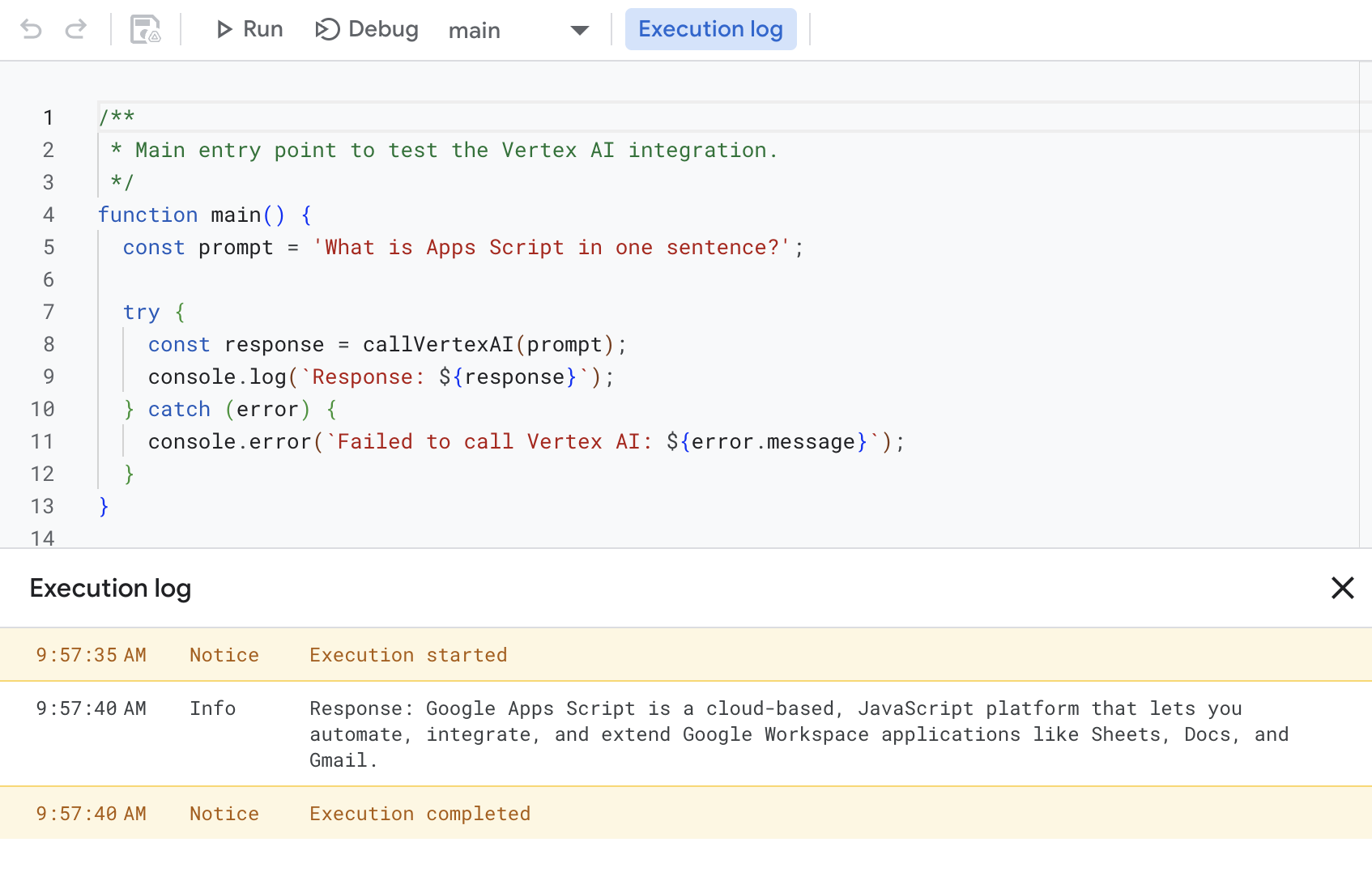
For example, the execution log returns a response such as the following:
Response: Google Apps Script is a cloud-based, JavaScript platform that lets you
automate, integrate, and extend Google Workspace applications like Sheets, Docs,
and Gmail.
Clean up
To avoid incurring charges to your Google Cloud account for the resources used in this tutorial, we recommend that you delete the Cloud project.
- In the Google Cloud console, go to the Manage resources page. Click Menu > IAM & Admin > Manage Resources.
- In the project list, select the project you want to delete and then click Delete .
- In the dialog, type the project ID and then click Shut down to delete the project.
To avoid incurring charges to your Google Cloud account for the resources used in this quickstart, we recommend that you delete the Cloud project.