

本頁面說明如何使用 Google Apps Script 的 Vertex AI 進階服務,向 Gemini 2.5 Flash 模型發送提示詞,生成文字。
如要進一步瞭解 Vertex AI 進階服務,請參閱參考文件。
目標
- 設定環境。
- 建立使用 Vertex AI 進階服務的 Apps Script 專案。
- 執行指令碼來生成文字。
必要條件
- 已啟用計費功能的 Google Cloud 專案。如要確認現有專案是否已啟用計費功能,請參閱「確認專案的帳單狀態」。如要建立專案及設定帳單,請參閱「建立 Google Cloud 專案」。
設定環境
本節說明如何在 Google Cloud 控制台和 Apps Script 中設定環境。
在雲端專案中啟用 Vertex AI API
在 Google Cloud 控制台中開啟 Google Cloud 雲端專案,並啟用 Vertex AI API:
確認您要在正確的雲端專案中啟用 API,然後按一下 下一步。
確認要啟用的 API 正確無誤,然後按一下「啟用」。
建立及設定 Apps Script 專案
如要建立及設定 Apps Script 專案,請完成下列步驟:
- 前往 script.google.com。
- 點選「新專案」,建立 Apps Script 專案。
- 按一下左上方的「未命名專案」。
- 將指令碼命名為「Vertex AI quickstart」,然後按一下「Rename」。
設定 Vertex AI 進階服務
如要啟用 Vertex AI 進階服務並設定程式碼,請按照下列步驟操作:
- 在指令碼編輯器中,前往「服務」,然後按一下「新增服務」圖示
 。
。 - 在下拉式選單中選取「Vertex AI API」,然後按一下「新增」。
開啟
Code.gs檔案,並將內容替換為下列程式碼:/** * Main entry point to test the Vertex AI integration. */ function main() { const prompt = 'What is Apps Script in one sentence?'; try { const response = callVertexAI(prompt); console.log(`Response: ${response}`); } catch (error) { console.error(`Failed to call Vertex AI: ${error.message}`); } } /** * Calls the Vertex AI Gemini model. * * @param {string} prompt - The user's input prompt. * @return {string} The text generated by the model. */ function callVertexAI(prompt) { // Configuration const projectId = 'GOOGLE_CLOUD_PROJECT_ID'; const region = 'us-central1'; const modelName = 'gemini-2.5-flash'; const model = `projects/${projectId}/locations/${region}/publishers/google/models/${modelName}`; const payload = { contents: [{ role: 'user', parts: [{ text: prompt }] }], generationConfig: { temperature: 0.1, maxOutputTokens: 2048 } }; // Execute the request using the Vertex AI Advanced Service const response = VertexAI.Endpoints.generateContent(payload, model); // Use optional chaining for safe property access return response?.candidates?.[0]?.content?.parts?.[0]?.text || 'No response generated.'; }將
GOOGLE_CLOUD_PROJECT_ID替換為 Cloud 專案的專案 ID。按一下「儲存」
 。
。
測試指令碼
- 在指令碼編輯器中,按一下「執行」,執行
main函式。 - 如果系統提示,請授權執行指令碼。
- 按一下「執行記錄」,即可查看 Vertex AI 的回覆。
Vertex AI 服務會傳回提示的回覆,What is Apps Script in one sentence?。
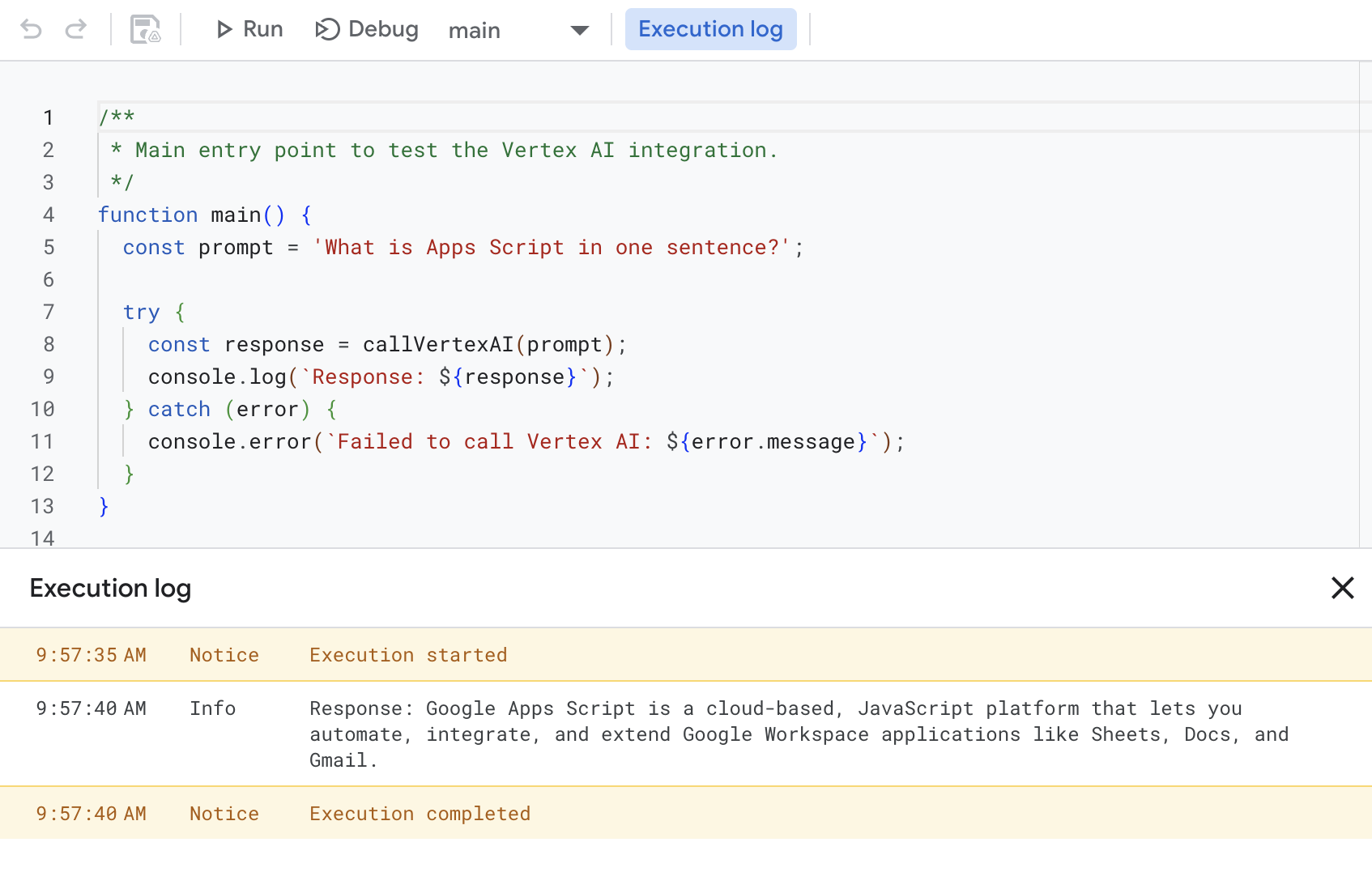
舉例來說,執行記錄會傳回類似以下的回應:
Response: Google Apps Script is a cloud-based, JavaScript platform that lets you
automate, integrate, and extend Google Workspace applications like Sheets, Docs,
and Gmail.
清除所用資源
為避免系統向您的 Google Cloud 帳戶收取本教學課程中所用資源的相關費用,建議您刪除 Cloud 專案。
- 在 Google Cloud 控制台中前往「管理資源」頁面。依序點選「選單」「IAM 與管理」>「管理資源」>。
- 在專案清單中選取要刪除的專案,然後按一下「刪除」圖示 。
- 在對話方塊中輸入專案 ID,然後按一下「Shut down」(關機) 即可刪除專案。
如要避免系統向您的 Google Cloud 帳戶收取本快速入門導覽課程所用資源的費用,建議您刪除雲端專案。