

ประเภทการลิงก์ OAuth รองรับขั้นตอน OAuth 2.0 มาตรฐานอุตสาหกรรม 2 ขั้นตอน ซึ่งเรียกว่า implicit และขั้นตอนของรหัสการให้สิทธิ์
ในขั้นตอนการเขียนโค้ดแบบโดยนัย Google จะเปิดปลายทางการให้สิทธิ์ในเบราว์เซอร์ของผู้ใช้ เมื่อลงชื่อเข้าใช้สําเร็จ คุณจะส่งคืนโทเค็นเพื่อการเข้าถึงที่ใช้ได้นานแก่ Google ตอนนี้โทเค็นเพื่อการเข้าถึงนี้รวมอยู่ในคําขอทุกรายการที่ส่งจาก Assistant ไปยังการดําเนินการของคุณแล้ว
ในกระบวนการรหัสการให้สิทธิ์ คุณต้องมีปลายทาง 2 จุด ได้แก่
- ปลายทางการให้สิทธิ์ ซึ่งมีหน้าที่นําเสนอ UI การลงชื่อเข้าใช้แก่ผู้ใช้ที่ไม่ได้ลงชื่อเข้าใช้ และยินยอมให้มีการเข้าถึงการเข้าถึงที่ขอในรูปของรหัสการให้สิทธิ์ระยะสั้น
- ปลายทางของการแลกเปลี่ยนโทเค็นที่มีหน้าที่รับผิดชอบการแลกเปลี่ยน 2 ประเภท ได้แก่
- แลกเปลี่ยนรหัสการให้สิทธิ์สําหรับโทเค็นการรีเฟรชที่ใช้ได้นานและโทเค็นเพื่อการเข้าถึงที่ใช้ได้นาน การแลกเปลี่ยนนี้จะเกิดขึ้นเมื่อผู้ใช้เข้าสู่ กระบวนการเชื่อมโยงบัญชี
- แลกเปลี่ยนโทเค็นการรีเฟรชที่ใช้ได้นานกับโทเค็นเพื่อการเข้าถึงที่ใช้ได้ในระยะสั้น Exchange นี้จะเกิดขึ้นเมื่อ Google ต้องการโทเค็นเพื่อการเข้าถึงใหม่เนื่องจากโทเค็นหมดอายุ
แม้ว่าขั้นตอนการใช้รหัสโดยนัยจะง่ายกว่า Google ขอแนะนําว่าโทเค็นเพื่อการเข้าถึงที่ออกโดยใช้โฟลว์โดยนัยไม่มีวันหมดอายุ เนื่องจากการใช้การหมดอายุของโทเค็นด้วยขั้นตอนโดยนัยบังคับให้ผู้ใช้ลิงก์บัญชีอีกครั้ง หากคุณต้องการใช้การหมดอายุของโทเค็นด้วยเหตุผลด้านความปลอดภัย คุณควรพิจารณาการใช้ขั้นตอนการตรวจสอบสิทธิ์แทน
ใช้การลิงก์บัญชี OAuth
กำหนดค่าโปรเจ็กต์
หากต้องการกำหนดค่าโปรเจ็กต์ให้ใช้การลิงก์บัญชี OAuth ให้ทำตามขั้นตอนต่อไปนี้
- เปิดคอนโซล Actions และเลือกโปรเจ็กต์ที่ต้องการใช้
- คลิกแท็บพัฒนา แล้วเลือกการลิงก์บัญชี
- เปิดใช้สวิตช์ข้างการลิงก์บัญชี
- ในส่วนการสร้างบัญชี ให้เลือกไม่ ฉันต้องการอนุญาตให้สร้างบัญชีบนเว็บไซต์ของฉันเท่านั้น
ในส่วนประเภทการลิงก์ ให้เลือก OAuth และ Implicit
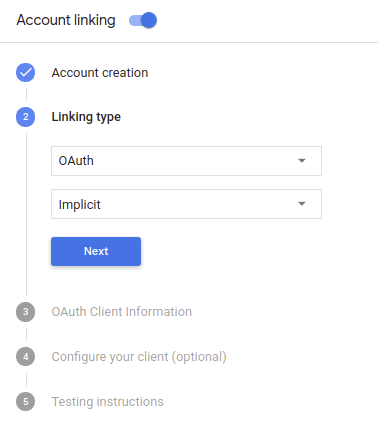
ในส่วนข้อมูลลูกค้า ให้ทำดังนี้
- กำหนดค่าให้กับรหัสไคลเอ็นต์ที่ออกโดย Actions to Google เพื่อระบุ คำขอที่มาจาก Google
- แทรก URL สำหรับปลายทาง Authorization และ Token Exchange
- คลิกบันทึก
ใช้เซิร์ฟเวอร์ OAuth
บริการของคุณจะให้สิทธิ์เพื่อรองรับขั้นตอนโดยนัยของ OAuth 2.0 ปลายทางที่พร้อมใช้งานผ่าน HTTPS ปลายทางนี้มีหน้าที่ในการตรวจสอบสิทธิ์และ ได้รับความยินยอมจากผู้ใช้ในการเข้าถึงข้อมูล ปลายทางการให้สิทธิ์ แสดง UI การลงชื่อเข้าใช้แก่ผู้ใช้ที่ยังไม่ได้ลงชื่อเข้าใช้และบันทึกไว้ ความยินยอมต่อการเข้าถึงที่ขอ
เมื่อการดำเนินการของคุณจำเป็นต้องเรียกใช้ API ที่ได้รับอนุญาตของบริการ Google จะใช้ ปลายทางนี้เพื่อขอสิทธิ์จากผู้ใช้เพื่อเรียกใช้ API เหล่านี้ใน แทน
เซสชันโฟลว์แบบโดยนัยของ OAuth 2.0 ทั่วไปที่ Google เป็นผู้เริ่มต้นจะมี ขั้นตอนดังต่อไปนี้
- Google จะเปิดปลายทางการให้สิทธิ์ในเบราว์เซอร์ของผู้ใช้ ผู้ใช้ ลงชื่อเข้าใช้หากยังไม่ได้ลงชื่อเข้าใช้ และให้สิทธิ์แก่ Google ในการเข้าถึง ข้อมูลของตนเองกับ API ของคุณ หากผู้ใช้ยังไม่ได้ให้สิทธิ์
- บริการของคุณจะสร้างโทเค็นเพื่อการเข้าถึงและส่งไปยัง Google โดยการเปลี่ยนเส้นทางเบราว์เซอร์ของผู้ใช้กลับไปยัง Google ด้วยโทเค็นเพื่อการเข้าถึง ที่แนบมากับคำขอ
- Google จะเรียกใช้ API ของบริการ และแนบโทเค็นเพื่อการเข้าถึงกับ คำขอแต่ละรายการ บริการของคุณยืนยันว่าโทเค็นเพื่อการเข้าถึงให้สิทธิ์ Google การอนุญาตให้เข้าถึง API จากนั้นจึงเรียก API
จัดการคำขอการให้สิทธิ์
เมื่อการดำเนินการของคุณต้องลิงก์บัญชีผ่านขั้นตอนโดยนัย OAuth2 Google จะส่งผู้ใช้ไปยังปลายทางการให้สิทธิ์พร้อมคำขอที่มี พารามิเตอร์ต่อไปนี้
| พารามิเตอร์ปลายทางการให้สิทธิ์ | |
|---|---|
client_id |
รหัสไคลเอ็นต์ที่คุณกำหนดให้กับ Google |
redirect_uri |
URL ที่คุณส่งการตอบกลับคำขอนี้ |
state |
มูลค่าการทำบัญชีที่ส่งกลับไปยัง Google ไม่เปลี่ยนแปลงใน URI การเปลี่ยนเส้นทาง |
response_type |
ประเภทของค่าที่จะแสดงในคำตอบ สำหรับ OAuth 2.0 โดยปริยาย
ประเภทการตอบกลับจะเป็น token เสมอ |
ตัวอย่างเช่น หากปลายทางการให้สิทธิ์อยู่ที่ https://myservice.example.com/auth
คำขออาจมีลักษณะดังนี้
GET https://myservice.example.com/auth?client_id=GOOGLE_CLIENT_ID&redirect_uri=REDIRECT_URI&state=STATE_STRING&response_type=token
สำหรับปลายทางการให้สิทธิ์ในการจัดการคำขอลงชื่อเข้าใช้ ให้ทำตามขั้นตอนต่อไปนี้
ยืนยันค่า
client_idและredirect_uriเพื่อ ป้องกันการให้สิทธิ์เข้าถึงแอปไคลเอ็นต์ที่ไม่ได้ตั้งใจหรือกำหนดค่าไม่ถูกต้อง- ยืนยันว่า
client_idตรงกับรหัสไคลเอ็นต์ที่คุณ ที่มอบหมายให้กับ Google - ยืนยันว่า URL ที่ระบุโดย
redirect_uriจะมีรูปแบบต่อไปนี้https://oauth-redirect.googleusercontent.com/r/YOUR_PROJECT_ID
- ยืนยันว่า
ตรวจสอบว่าผู้ใช้ลงชื่อเข้าใช้บริการของคุณหรือไม่ หากผู้ใช้ไม่ได้เซ็น ดำเนินการตามขั้นตอนการลงชื่อเข้าใช้หรือลงชื่อสมัครใช้บริการของคุณ
สร้างโทเค็นเพื่อการเข้าถึงที่ Google จะใช้เพื่อเข้าถึง API ของคุณ โทเค็นเพื่อการเข้าถึงสามารถเป็นค่าสตริงใดก็ได้ แต่จะต้องแสดงถึง ผู้ใช้และไคลเอ็นต์ที่ใช้โทเค็นและต้องคาดเดาไม่ได้
ส่งการตอบกลับ HTTP ที่เปลี่ยนเส้นทางเบราว์เซอร์ของผู้ใช้ไปยัง URL ที่ระบุโดยพารามิเตอร์
redirect_uriรวม พารามิเตอร์ต่อไปนี้ในส่วนย่อยของ URLaccess_token: โทเค็นเพื่อการเข้าถึงที่คุณเพิ่งสร้างtoken_type: สตริงbearerstate: ค่าสถานะที่ไม่มีการแก้ไขจากค่าเดิม คำขอ ตัวอย่างของ URL ที่ได้มีดังนี้https://oauth-redirect.googleusercontent.com/r/YOUR_PROJECT_ID#access_token=ACCESS_TOKEN&token_type=bearer&state=STATE_STRING
เครื่องจัดการการเปลี่ยนเส้นทาง OAuth 2.0 ของ Google จะได้รับโทเค็นเพื่อการเข้าถึงและยืนยัน
ค่า state ยังไม่มีการเปลี่ยนแปลง หลังจากที่ Google ได้รับ
โทเค็นเพื่อการเข้าถึงสำหรับบริการของคุณ Google จะแนบโทเค็นไปกับการเรียกครั้งต่อๆ ไป
ไปยังการดำเนินการของคุณได้โดยเป็นส่วนหนึ่งของ AppRequest
เริ่มขั้นตอนการตรวจสอบสิทธิ์
ใช้จุดประสงค์ของตัวช่วยในการลงชื่อเข้าใช้บัญชี เพื่อเริ่มขั้นตอนการตรวจสอบสิทธิ์ ข้อมูลโค้ดต่อไปนี้อธิบายวิธี ส่งคำตอบใน Dialogflow และ Actions SDK เพื่อใช้ตัวช่วยนี้
Dialogflow
const {dialogflow, SignIn} = require('actions-on-google');
const app = dialogflow({
  // REPLACE THE PLACEHOLDER WITH THE CLIENT_ID OF YOUR ACTIONS PROJECT
  clientId: CLIENT_ID,
});
// Intent that starts the account linking flow.
app.intent('Start Signin', (conv) => {
  conv.ask(new SignIn('To get your account details'));
});
@ForIntent("Start Signin")
public ActionResponse text(ActionRequest request) {
  ResponseBuilder rb = getResponseBuilder(request);
  return rb.add(new SignIn().setContext("To get your account details")).build();
}
{
  "payload": {
    "google": {
      "expectUserResponse": true,
      "richResponse": {
        "items": [
          {
            "simpleResponse": {
              "textToSpeech": "PLACEHOLDER"
            }
          }
        ]
      },
      "userStorage": "{\"data\":{}}",
      "systemIntent": {
        "intent": "actions.intent.SIGN_IN",
        "data": {
          "@type": "type.googleapis.com/google.actions.v2.SignInValueSpec",
          "optContext": "To get your account details"
        }
      }
    }
  },
  "outputContexts": [
    {
      "name": "/contexts/_actions_on_google",
      "lifespanCount": 99,
      "parameters": {
        "data": "{}"
      }
    }
  ]
}
Actions SDK:
const {actionssdk, SignIn} = require('actions-on-google');
const app = actionssdk({
  // REPLACE THE PLACEHOLDER WITH THE CLIENT_ID OF YOUR ACTIONS PROJECT
  clientId: CLIENT_ID,
});
// Intent that starts the account linking flow.
app.intent('actions.intent.TEXT', (conv) => {
  conv.ask(new SignIn('To get your account details'));
});
@ForIntent("actions.intent.TEXT")
public ActionResponse text(ActionRequest request) {
  ResponseBuilder rb = getResponseBuilder(request);
  return rb.add(new SignIn().setContext("To get your account details")).build();
}
{
  "expectUserResponse": true,
  "expectedInputs": [
    {
      "inputPrompt": {
        "richInitialPrompt": {
          "items": [
            {
              "simpleResponse": {
                "textToSpeech": "PLACEHOLDER"
              }
            }
          ]
        }
      },
      "possibleIntents": [
        {
          "intent": "actions.intent.SIGN_IN",
          "inputValueData": {
            "@type": "type.googleapis.com/google.actions.v2.SignInValueSpec",
            "optContext": "To get your account details"
          }
        }
      ]
    }
  ],
  "conversationToken": "{\"data\":{}}",
  "userStorage": "{\"data\":{}}"
}
จัดการคำขอเข้าถึงข้อมูล
หากคําขอ Assistant มีโทเค็นเพื่อการเข้าถึง ก่อนอื่นให้ตรวจสอบว่าโทเค็นเพื่อการเข้าถึงถูกต้อง (และไม่หมดอายุ) แล้วเรียกข้อมูลบัญชีผู้ใช้ที่เชื่อมโยงจากฐานข้อมูล