/**
 * @OnlyCurrentDoc Limits the script to only accessing the current sheet.
 */

/**
 * A special function that runs when the spreadsheet is open, used to add a
 * custom menu to the spreadsheet.
 */
function onOpen() {
  try {
    const spreadsheet = SpreadsheetApp.getActive();
    const menuItems = [
      { name: "Prepare sheet...", functionName: "prepareSheet_" },
      { name: "Generate step-by-step...", functionName: "generateStepByStep_" },
    ];
    spreadsheet.addMenu("Directions", menuItems);
  } catch (e) {
    // TODO (Developer) - Handle Exception
    console.log(`Failed with error: %s${e.error}`);
  }
}

/**
 * A custom function that converts meters to miles.
 *
 * @param {Number} meters The distance in meters.
 * @return {Number} The distance in miles.
 */
function metersToMiles(meters) {
  if (typeof meters !== "number") {
    return null;
  }
  return (meters / 1000) * 0.621371;
}

/**
 * A custom function that gets the driving distance between two addresses.
 *
 * @param {String} origin The starting address.
 * @param {String} destination The ending address.
 * @return {Number} The distance in meters.
 */
function drivingDistance(origin, destination) {
  const directions = getDirections_(origin, destination);
  return directions.routes[0].legs[0].distance.value;
}

/**
 * A function that adds headers and some initial data to the spreadsheet.
 */
function prepareSheet_() {
  try {
    const sheet = SpreadsheetApp.getActiveSheet().setName("Settings");
    const headers = [
      "Start Address",
      "End Address",
      "Driving Distance (meters)",
      "Driving Distance (miles)",
    ];
    const initialData = [
      "350 5th Ave, New York, NY 10118",
      "405 Lexington Ave, New York, NY 10174",
    ];
    sheet.getRange("A1:D1").setValues([headers]).setFontWeight("bold");
    sheet.getRange("A2:B2").setValues([initialData]);
    sheet.setFrozenRows(1);
    sheet.autoResizeColumns(1, 4);
  } catch (e) {
    // TODO (Developer) - Handle Exception
    console.log(`Failed with error: %s${e.error}`);
  }
}

/**
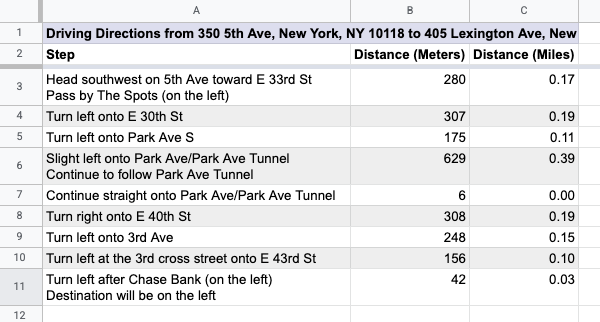
 * Creates a new sheet containing step-by-step directions between the two
 * addresses on the "Settings" sheet that the user selected.
 */
function generateStepByStep_() {
  try {
    const spreadsheet = SpreadsheetApp.getActive();
    const settingsSheet = spreadsheet.getSheetByName("Settings");
    settingsSheet.activate();

    // Prompt the user for a row number.
    const selectedRow = Browser.inputBox(
      "Generate step-by-step",
      "Please enter the row number of" +
        " the" +
        " addresses to use" +
        ' (for example, "2"):',
      Browser.Buttons.OK_CANCEL,
    );
    if (selectedRow === "cancel") {
      return;
    }
    const rowNumber = Number(selectedRow);
    if (
      Number.isNaN(rowNumber) ||
      rowNumber < 2 ||
      rowNumber > settingsSheet.getLastRow()
    ) {
      Browser.msgBox(
        "Error",
        Utilities.formatString('Row "%s" is not valid.', selectedRow),
        Browser.Buttons.OK,
      );
      return;
    }

    // Retrieve the addresses in that row.
    const row = settingsSheet.getRange(rowNumber, 1, 1, 2);
    const rowValues = row.getValues();
    const origin = rowValues[0][0];
    const destination = rowValues[0][1];
    if (!origin || !destination) {
      Browser.msgBox(
        "Error",
        "Row does not contain two addresses.",
        Browser.Buttons.OK,
      );
      return;
    }

    // Get the raw directions information.
    const directions = getDirections_(origin, destination);

    // Create a new sheet and append the steps in the directions.
    const sheetName = `Driving Directions for Row ${rowNumber}`;
    let directionsSheet = spreadsheet.getSheetByName(sheetName);
    if (directionsSheet) {
      directionsSheet.clear();
      directionsSheet.activate();
    } else {
      directionsSheet = spreadsheet.insertSheet(
        sheetName,
        spreadsheet.getNumSheets(),
      );
    }
    const sheetTitle = Utilities.formatString(
      "Driving Directions from %s to %s",
      origin,
      destination,
    );
    const headers = [
      [sheetTitle, "", ""],
      ["Step", "Distance (Meters)", "Distance (Miles)"],
    ];
    const newRows = [];
    for (const step of directions.routes[0].legs[0].steps) {
      // Remove HTML tags from the instructions.
      const instructions = step.html_instructions
        .replace(/<br>|<div.*?>/g, "\n")
        .replace(/<.*?>/g, "");
      newRows.push([instructions, step.distance.value]);
    }
    directionsSheet.getRange(1, 1, headers.length, 3).setValues(headers);
    directionsSheet
      .getRange(headers.length + 1, 1, newRows.length, 2)
      .setValues(newRows);
    directionsSheet
      .getRange(headers.length + 1, 3, newRows.length, 1)
      .setFormulaR1C1("=METERSTOMILES(R[0]C[-1])");

    // Format the new sheet.
    directionsSheet.getRange("A1:C1").merge().setBackground("#ddddee");
    directionsSheet.getRange("A1:2").setFontWeight("bold");
    directionsSheet.setColumnWidth(1, 500);
    directionsSheet.getRange("B2:C").setVerticalAlignment("top");
    directionsSheet.getRange("C2:C").setNumberFormat("0.00");
    const stepsRange = directionsSheet
      .getDataRange()
      .offset(2, 0, directionsSheet.getLastRow() - 2);
    setAlternatingRowBackgroundColors_(stepsRange, "#ffffff", "#eeeeee");
    directionsSheet.setFrozenRows(2);
    SpreadsheetApp.flush();
  } catch (e) {
    // TODO (Developer) - Handle Exception
    console.log(`Failed with error: %s${e.error}`);
  }
}

/**
 * Sets the background colors for alternating rows within the range.
 * @param {Range} range The range to change the background colors of.
 * @param {string} oddColor The color to apply to odd rows (relative to the
 *     start of the range).
 * @param {string} evenColor The color to apply to even rows (relative to the
 *     start of the range).
 */
function setAlternatingRowBackgroundColors_(range, oddColor, evenColor) {
  const backgrounds = [];
  for (let row = 1; row <= range.getNumRows(); row++) {
    const rowBackgrounds = [];
    for (let column = 1; column <= range.getNumColumns(); column++) {
      if (row % 2 === 0) {
        rowBackgrounds.push(evenColor);
      } else {
        rowBackgrounds.push(oddColor);
      }
    }
    backgrounds.push(rowBackgrounds);
  }
  range.setBackgrounds(backgrounds);
}

/**
 * A shared helper function used to obtain the full set of directions
 * information between two addresses. Uses the Apps Script Maps Service.
 *
 * @param {String} origin The starting address.
 * @param {String} destination The ending address.
 * @return {Object} The directions response object.
 */
function getDirections_(origin, destination) {
  const directionFinder = Maps.newDirectionFinder();
  directionFinder.setOrigin(origin);
  directionFinder.setDestination(destination);
  const directions = directionFinder.getDirections();
  if (directions.status !== "OK") {
    throw directions.error_message;
  }
  return directions;
}