

Page Summary
-
Troubleshooting is a vital part of development, involving finding, understanding, and debugging errors in scripts.
-
Errors displayed in scripts are primarily either syntax errors, which violate JavaScript grammar and are detected upon saving, or runtime errors, which occur during execution due to incorrect function or class usage.
-
Beyond explicit error messages, subtle errors can cause unexpected results, requiring debugging techniques like logging, checking executions, or using the debugger with breakpoints.
-
Issues can also arise from exceeding service quotas, temporary server unavailability, insufficient authorization, domain policies restricting services like Drive API, problems with user identity access, missing or deleted libraries, or using multiple Google Accounts simultaneously.
Even the most experienced developer rarely writes code correctly on the first try, making troubleshooting an important part of the development process. This section covers techniques to find, understand, and debug errors in your scripts.
Error messages
When your script encounters an error, an error message appears with a line number. There are two basic types of errors: syntax errors and runtime errors.
Syntax errors
Syntax errors occur when code doesn't follow JavaScript grammar and are detected when you save the script. For example, the following snippet contains a syntax error:
function emailDataRow(rowNumber) {
  var sheet = SpreadsheetApp.getActiveSheet();
  var data = sheet.getDataRange().getValues();
  var rowData = data[rowNumber-1].join(" ";
  MailApp.sendEmail('john@example.com',
                    'Data in row ' + rowNumber,
                    rowData);
}
The issue is a missing ) character at the end of line 4. When you save the
script, the following error appears:
Missing ) after argument list. (line 4)
These errors are found immediately, making them straightforward to troubleshoot. Only valid code is saved into your project.
Runtime errors
Runtime errors occur when a function or class is used incorrectly and are detected when the script runs. For example, the following code causes a runtime error:
function emailDataRow(rowNumber) {
  var sheet = SpreadsheetApp.getActiveSheet();
  var data = sheet.getDataRange().getValues();
  var rowData = data[rowNumber-1].join(" ");
  MailApp.sendEmail('john',
                    'Data in row ' + rowNumber,
                    rowData);
}
While the code is formatted correctly, "john" is an invalid email address. The following error is thrown:
Invalid email: john (line 5)
These errors are challenging because data is often pulled from external sources like spreadsheets or forms. Use debugging techniques to identify the cause.
Common errors
The following is a list of common errors and their causes.
Service invoked too many times: <action name>
This error indicates you exceeded your daily quota for an action, such as sending too many emails. Quotas vary by account type and are subject to change. View limits in the Apps Script quota documentation.
Server not available. or Server error occurred, please try again.
Possible causes include:
- A Google server is temporarily unavailable. Wait and try again.
- An error in your script lacks a corresponding message. Try debugging to isolate the problem.
- A bug exists in Google Apps Script. Search for and file bug reports in Bugs.
Authorization is required to perform that action.
The script lacks the authorization needed to run. When a script runs from a trigger or as a service, an authorization dialog cannot be presented.
To authorize the script, open the script editor and run any function. If the script uses new unauthorized services, you must re-authorize it.
Triggers that fire before authorization or after expiration often cause this error. If an add-on causes this, use the add-on again to re-authorize. Remove problematic triggers:
- In the Apps Script project, click Triggers .
- Next to the trigger, click More > Delete trigger.
Alternatively, uninstall the add-on.
Other actions, such as a user selectively denying required scopes during authorization on a surface that supports granular permissions, can also cause these errors. If a script runs in the background (such as on an installable trigger) and tries to use a service that the user did not authorize, it fails immediately. See the authorization scopes page to learn how to protect trigger executions.
Access denied: DriveApp or The domain policy has disabled third-party Drive apps
Google Workspace administrators can disable the Drive API for their domain, which prevents users from using Drive apps or Apps Script add-ons that use the Drive service.
If an add-on or web app is published for domain-wide installation and installed by an administrator, the script functions even if the Drive API is disabled.
The script does not have permission to get the active user's identity.
The active user's identity and email are unavailable. This results from calls
to Session.getActiveUser()
or Session.getEffectiveUser()
in authorization modes other than AuthMode.FULL.
If your script runs on a trigger, you can find the authorization mode in the
authMode property of the Apps Script event object.
Troubleshoot this based on the authorization mode:
- In
AuthMode.FULL, consider usingSession.getEffectiveUser()instead. - In
AuthMode.LIMITED, ensure that the owner has authorized the script. - In other authorization modes, avoid calling either method.
- If you are a Google Workspace customer newly experiencing this warning from an installable trigger, ensure that the trigger is running as a user within your organization.
Library is missing
A library might be reported as missing if too many people access it simultaneously. To resolve this:
- Copy the library's code directly into your script.
- Copy and deploy the library from your own account.
- If the library isn't required for your script to function, remove the library from your script project.
Error occurred due to a missing library version or a deployment version. Error code Not_Found
This error message indicates one of the following:
- The script version used by a deployment was deleted. To resolve this, edit the deployment and select a different script version.
- A library version used by the script was deleted. To resolve this, in the script editor under "Libraries," find the library and update to a different version or remove the library. To update, click the version number and select a different version. To remove, click More > Remove.
- A library includes another library, and that library's version was deleted. To resolve this, contact the library's author or use a different version of the library that your script uses.
Error 400: invalid_scope when calling Google Chat API with the advanced service
If you encounter Error 400: invalid_scope with the error message
Some requested scopes cannot be shown,
it means you haven't specified any authorization scopes in the
Apps Script project's appsscript.json file. In most cases,
Apps Script automatically determines what scopes a script needs,
but when you use the Chat advanced service, you must manually add
the authorization scopes that your script uses to your
Apps Script project's manifest file. See
Setting explicit scopes.
To resolve the error, add the appropriate authorization scopes
to the Apps Script project's appsscript.json file as part of
the oauthScopes array. For example, to call the
spaces.messages.create
method, add the following:
"oauthScopes": [
  "https://www.googleapis.com/auth/chat.messages.create"
]
UrlFetch calls to <URL> are not permitted by your admin
Google Workspace administrators can use an allowlist to control external domain access. Contact your administrator to add the URL to the allowlist.
Permissions policy violation
This error occurs when an application using
HTMLService attempts to execute Web APIs that
require sensitive permissions, such as navigator.mediaDevices.getUserMedia()
for camera or microphone access. The Apps Script sandboxed
environment restricts these features to protect user security.
Host the functionality that requires these permissions on a separate domain (outside of Apps Script) and open it in a new window or tab. You can then post the captured data or responses back to your Apps Script application as shown in this example.
Code.gs
function doGet(e) {
  return HtmlService.createHtmlOutputFromFile('Index')
      .setTitle('Media Devices Example');
}
function processCameraData(data) {
  Logger.log('Received data from client-side: ' + data);
  // Process data as needed
}
Index.html
<!DOCTYPE html>
<html>
  <head>
    <base target="_top">
  </head>
  <body>
    <button id="open-camera">Open Camera in New Window</button>
    <script>
      document.getElementById('open-camera').addEventListener('click', function() {
        // URL for external domain handling camera access & posting data back.
        // External page uses getUserMedia & window.opener.postMessage(...).
        var externalUrl = 'https://your-external-domain.com/camera';
        window.open(externalUrl, 'cameraWindow', 'width=600,height=400');
      });

      // Listen for messages from the external window.
      window.addEventListener('message', function(event) {
        // Check event.origin to ensure message is from the expected source.
        if (event.origin !== 'https://your-external-domain.com') {
          return;
        }
        console.log('Data received from external window:', event.data);
        // Send data to server-side Apps Script.
        google.script.run.processCameraData(event.data);
      });
    </script>
  </body>
</html>
<Class> / Apiary.<Service Name> is disabled. Please contact your administrator to enable it
Google Apps Script adheres to your organization's data regions policy. This error occurs when your administrators have turned on advanced settings to disable features that process data globally for Google Docs and Google Drive. Some Apps Script features rely on services that process data globally. Consequently, some services might not function as expected if they are required to comply with a particular data region policy. If you are using any Apps Script class or advanced service that requires global data processing, your script might encounter an error message similar to the following screenshot:
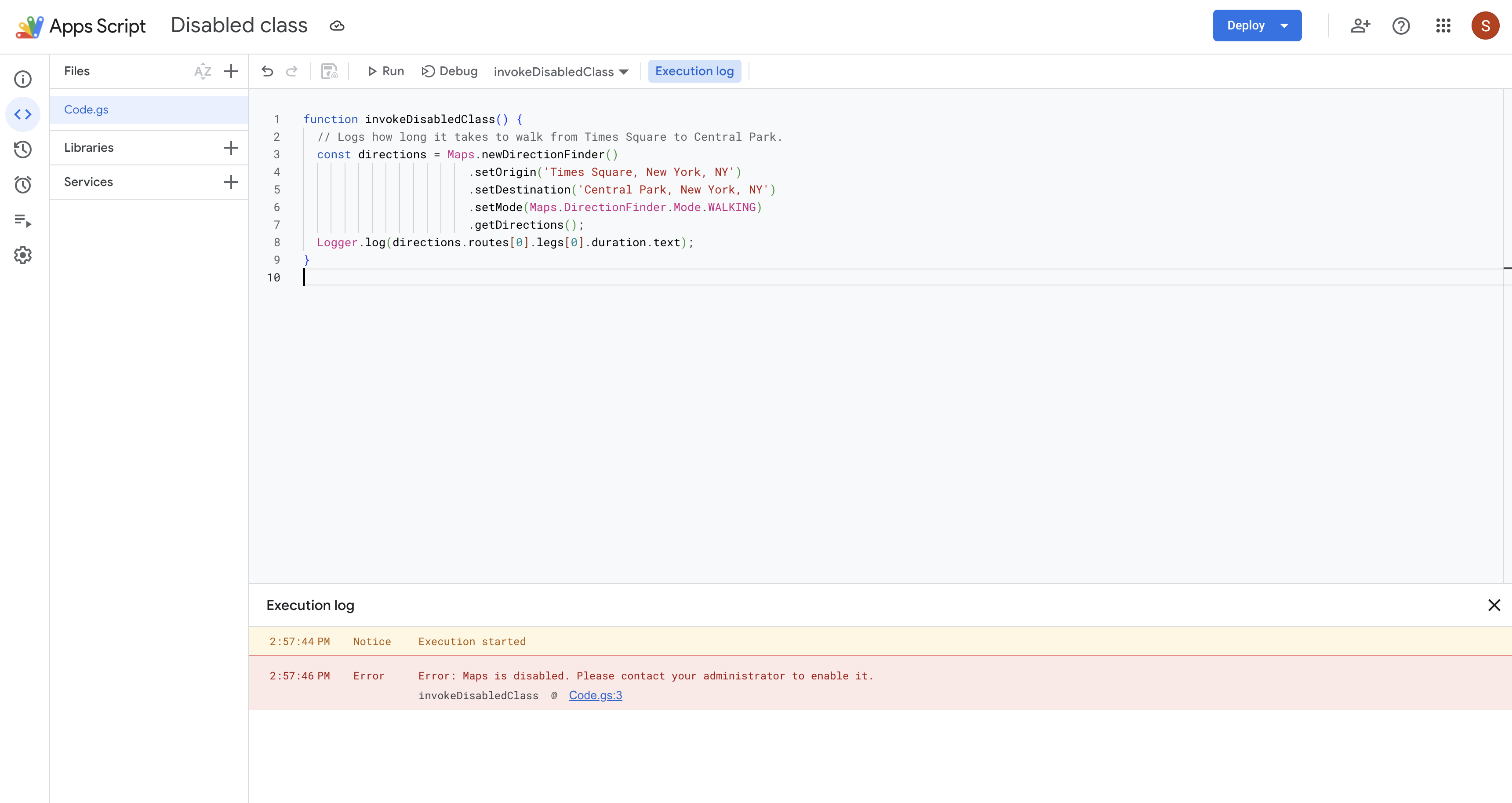
Script execution fails under data region policy (Rhino runtime)
In alignment with data residency compliance and modern runtime standards, scripts running on the deprecated legacy Rhino runtime aren't supported under strict data region policies. If an organization applies a data region policy to a user or organizational unit, scripts on the legacy Rhino runtime fail to execute.
To resolve this issue, migrate your script to the V8 runtime.
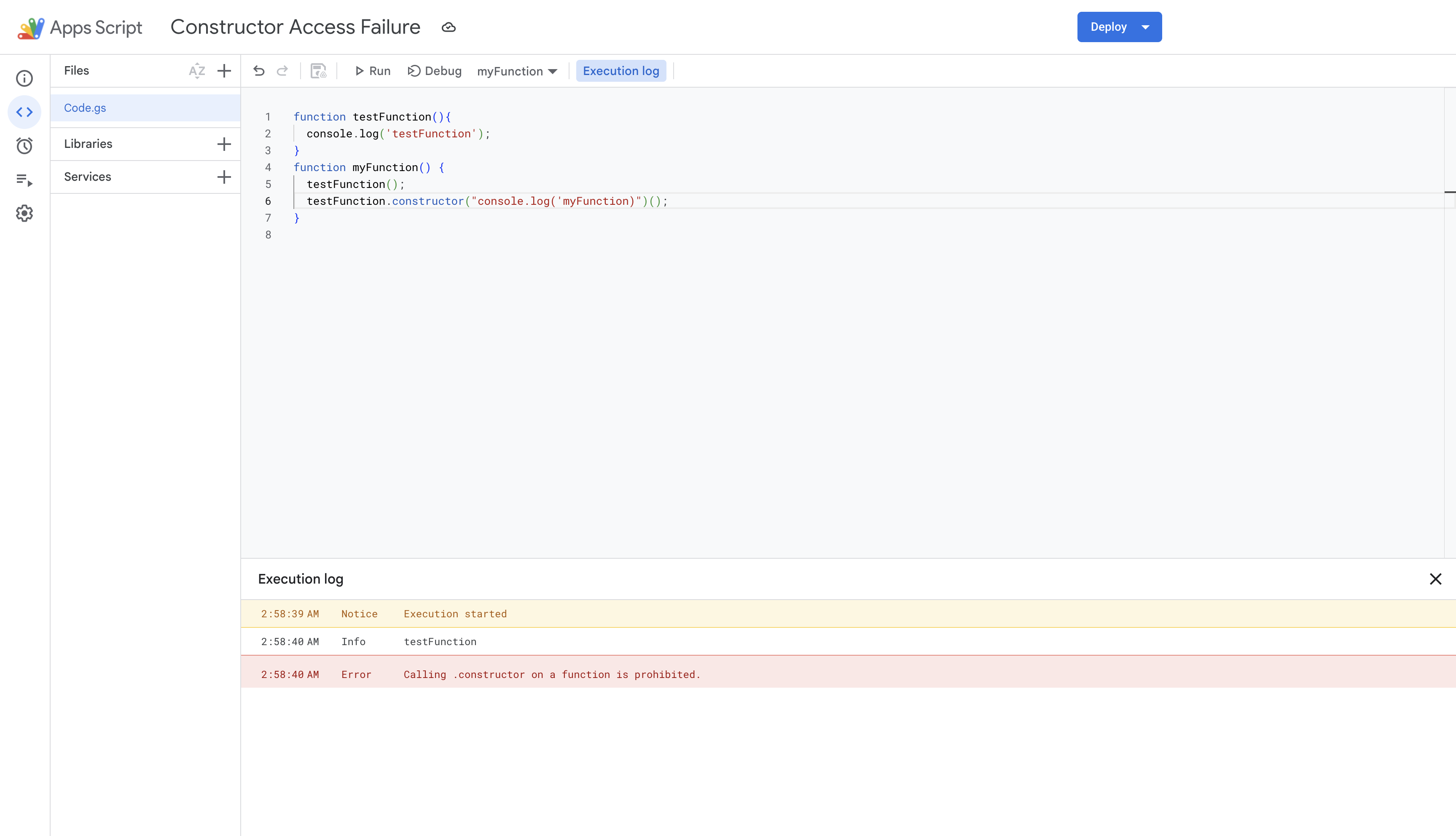
Calling .constructor on a function is prohibited.
This error occurs when a script attempts to call or invoke the .constructor
property on a function (including calls using .apply(), .call(), or the
Reflect API). Apps Script blocks this call to prevent the
dynamic creation of new functions from strings (such as
func.constructor('code')()), which is a security measure.
To resolve this:
- Access the global object safely: If your script or an imported library
uses
func.constructor('return this')()to access the global scope, replace it withglobalThisor referencethisdirectly in the global context. - Avoid creating functions from strings: Do not use the
.constructorproperty to dynamically construct or invoke functions. Instead, define functions using standard function declarations.
Debugging
Some errors are subtle and don't trigger messages. For example, your code might be able to execute, but the results are unexpected. Use the following strategies to investigate scripts that behave unexpectedly.
Logging
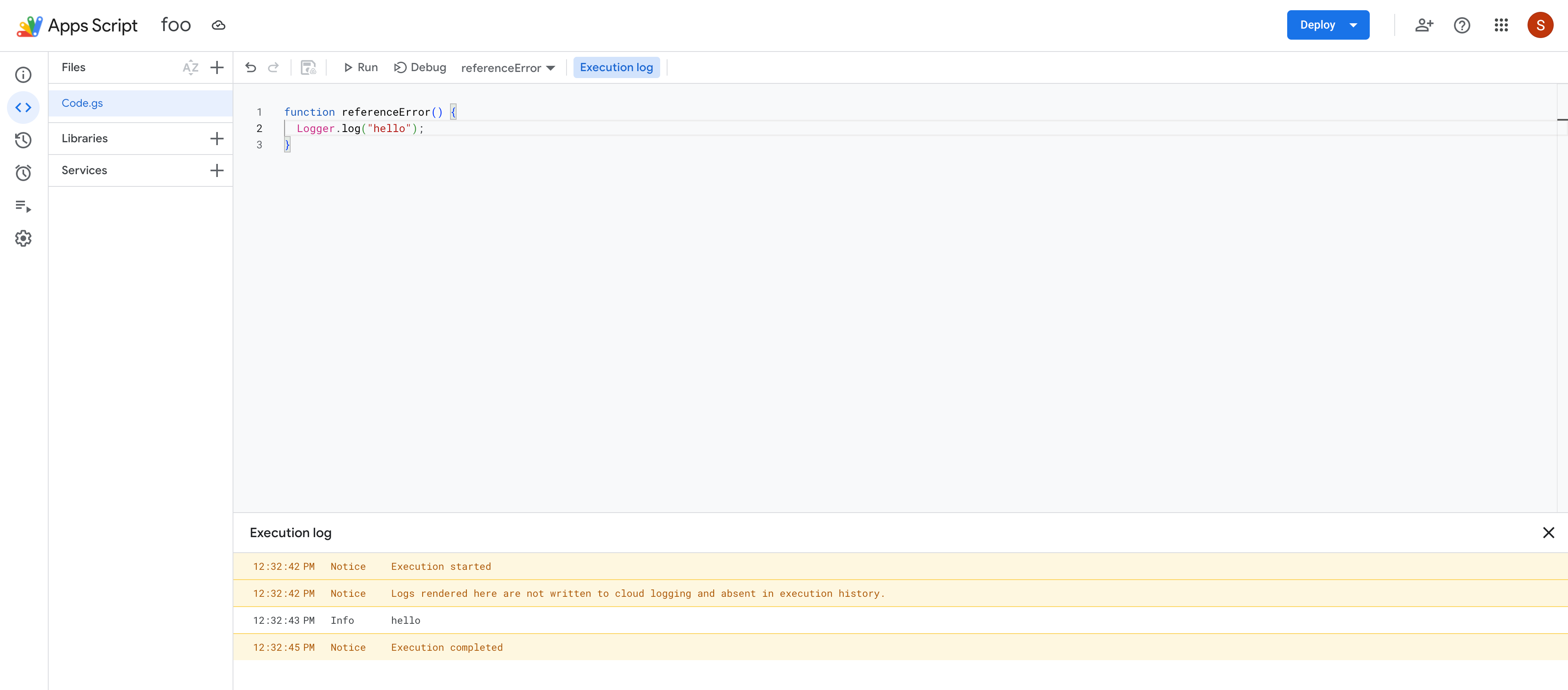
Record information as a script executes using the Cloud logging service or the Logger and console services in the script editor.
If your administrators have turned on advanced settings for data regions, and some of your scripts were created before 2018, you might see a message indicating that Cloud Logging is stopped for the associated Cloud project to comply with data regionalization requirement.
Error Reporting
To use Error Reporting in Google Cloud, use a standard, user-managed project instead of a default project.
When you use a standard project, runtime errors are automatically recorded in Google Cloud Error Reporting. View Cloud logs and error reports in the Google Cloud console.
Executions
Google Apps Script records every execution, including Cloud logs. To view executions, click Executions .
Checking service status
Check for Google Workspace service outages on the Google Workspace Status Dashboard.
Use the debugger and breakpoints
To locate problems in your script, you can run it in debug mode. When run in debug mode, a script pauses when it hits a breakpoint, which is a line you've highlighted in your script that you think may have a problem. When a script pauses it displays the value of each variable at that point in time, allowing you to inspect the inner workings of a script without having to add a lot of logging statements.
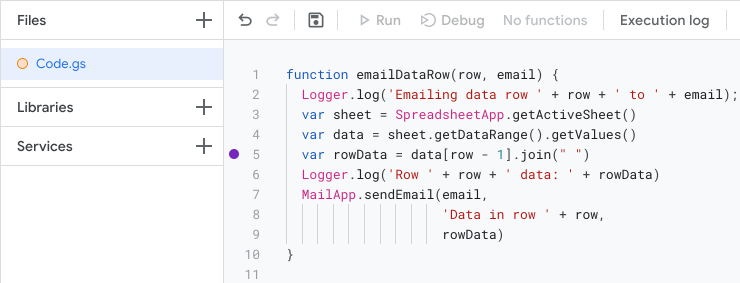
Add a breakpoint
To add a breakpoint, hover over the line number of the line you want to add the breakpoint to. At the left of the line number, click the circle. The below image shows an example of a breakpoint added to a script:
Run a script in debug mode
To run the script in debug mode, at the top of the editor click Debug.
Before the script runs the line with the breakpoint it pauses and displays a table of debug information. You can use this table to inspect data like the values of parameters and the information stored in objects.
To control how the script is run, at the top of the Debugger panel, use the "Step in", "Step over", and "Step out" buttons. These let you run the script one line at a time and inspect how values change over time.
Error: Source code for the current line is not available
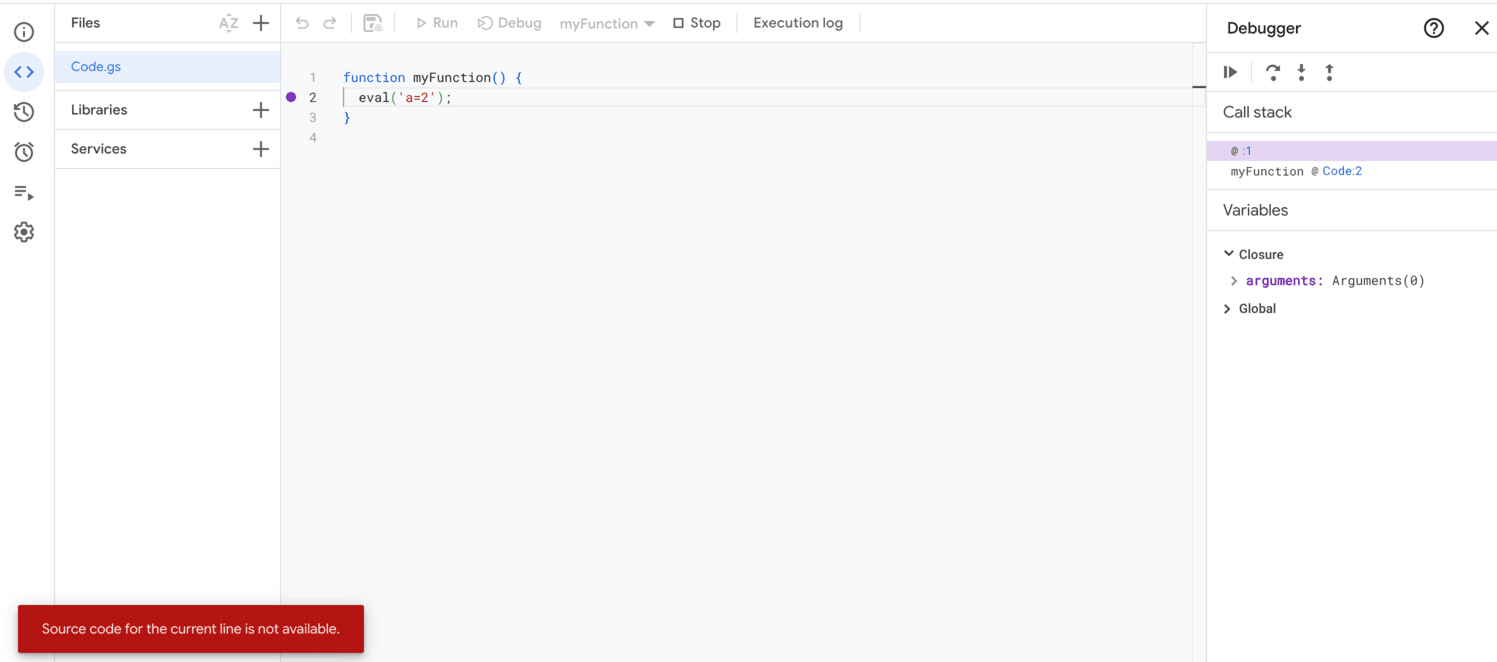
This error appears when an active debugging file is not available.
Google Apps Script does not support displaying dynamically generated
JavaScript (JS) scripts in the script editor, such as those generated using
eval() and new Function(). These scripts are created and executed
within the V8 engine but are not represented as standalone files in the editor.
If you step-into these scripts, you will encounter this error.
For example, consider the following code:
function myFunction() {
  eval('a=2');
}
When eval() is invoked, its argument is treated as JS code and runs as a
dynamically created script inside the V8 engine. If you step-into eval(), this
error appears. If the script includes a //# sourceURL comment, its name
is shown in the call stack. Otherwise, it appears as an unnamed entry.
Despite the error message, the debugging session remains active, and execution can continue. To proceed, continue to step in, step out or resume execution. However, this error continues to appear as long as the execution remains within the scope of the dynamic script. After execution moves out of the dynamic script, debugging continues without this error.
Issues with multiple Google Accounts
If you're logged into multiple Google Accounts at the same time, you might have trouble accessing your add-ons and web apps. Multi-login, or being logged into multiple Google Accounts at once, isn't supported for Apps Script, add-ons, or web apps.
If you open the Apps Script editor while logged in to more than one account, Google prompts you to choose the account you want to proceed with.
If you open a web app or add-on and experience multi-login issues, try one of the following solutions:
- Log out of all your Google Accounts and only log in to the one that has the add-on or web app you want to access.
- Open an incognito window in Google Chrome, or an equivalent private browsing window, and log in to the Google Account that has the add-on or web app you want to access.
Getting help
Visit our Support page to ask questions or file bugs.