

Page Summary
-
This guide explains how to integrate the LINE Ads Network into a Flutter app using Google Mobile Ads SDK mediation for waterfall integrations.
-
The LINE Ads Network Ad Manager mediation adapter supports bidding and waterfall integrations, and banner, interstitial, rewarded, and native ad formats.
-
Requirements include the latest Google Mobile Ads SDK, Flutter 3.7.0 or higher, specific Android and iOS versions, and a working Flutter project configured with Google Mobile Ads SDK.
-
Integration involves setting up configurations in the LINE Ads Network UI to add applications and create ad placements, noting the Application ID and Slot ID.
-
You need to set up LINE Ads Network demand in the Ad Manager UI and import the LINE Ads Network SDK and adapter into your Flutter project.
-
Testing your implementation requires enabling and verifying test ads using single ad source testing in ad inspector.
This guide shows you how to use Google Mobile Ads Flutter Plugin to load and display ads from LY Ads Network using mediation, covering waterfall integrations. It covers how to add LY Ads Network to an ad unit's mediation configuration, and how to integrate the LY Ads Network SDK and adapter into a Flutter app.
Supported integrations and ad formats
The Ad Manager mediation adapter for LY Ads Network has the following capabilities:
| Integration | |
|---|---|
| Bidding | |
| Waterfall | |
| Formats | |
| Banner | |
| Interstitial | |
| Rewarded | |
| Native | |
Prerequisites
Before you continue, verify the following:
- Latest Google Mobile Ads Flutter Plugin version.
- Flutter framework version 3.7.0 or later.
- To deploy on Android
- Android API level 24 or later.
- To deploy on iOS
- iOS deployment target of 13.0 or later.
- A working Flutter project configured with Google Mobile Ads Flutter Plugin. See Set up Google Mobile Ads Flutter Plugin for details.
- Set up mediation.
Step 1: Set up configurations in LY Ads Network UI
Sign up and log in to your LY Ads Network account.
Add a new application
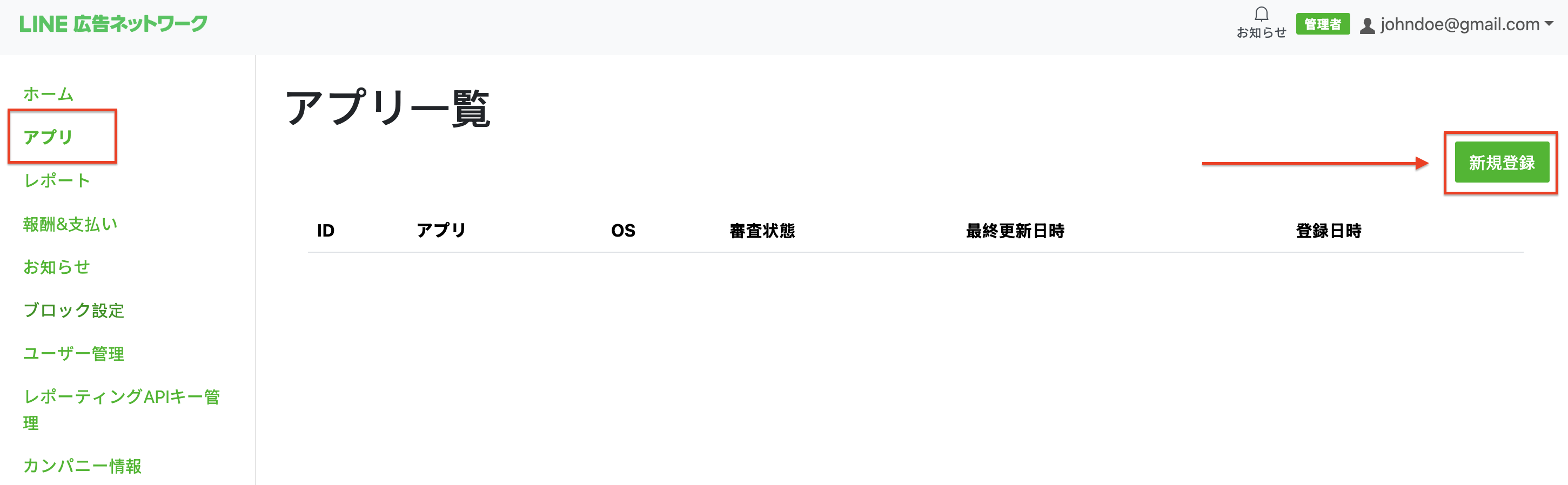
Navigate to the App tab and click the New registration button.
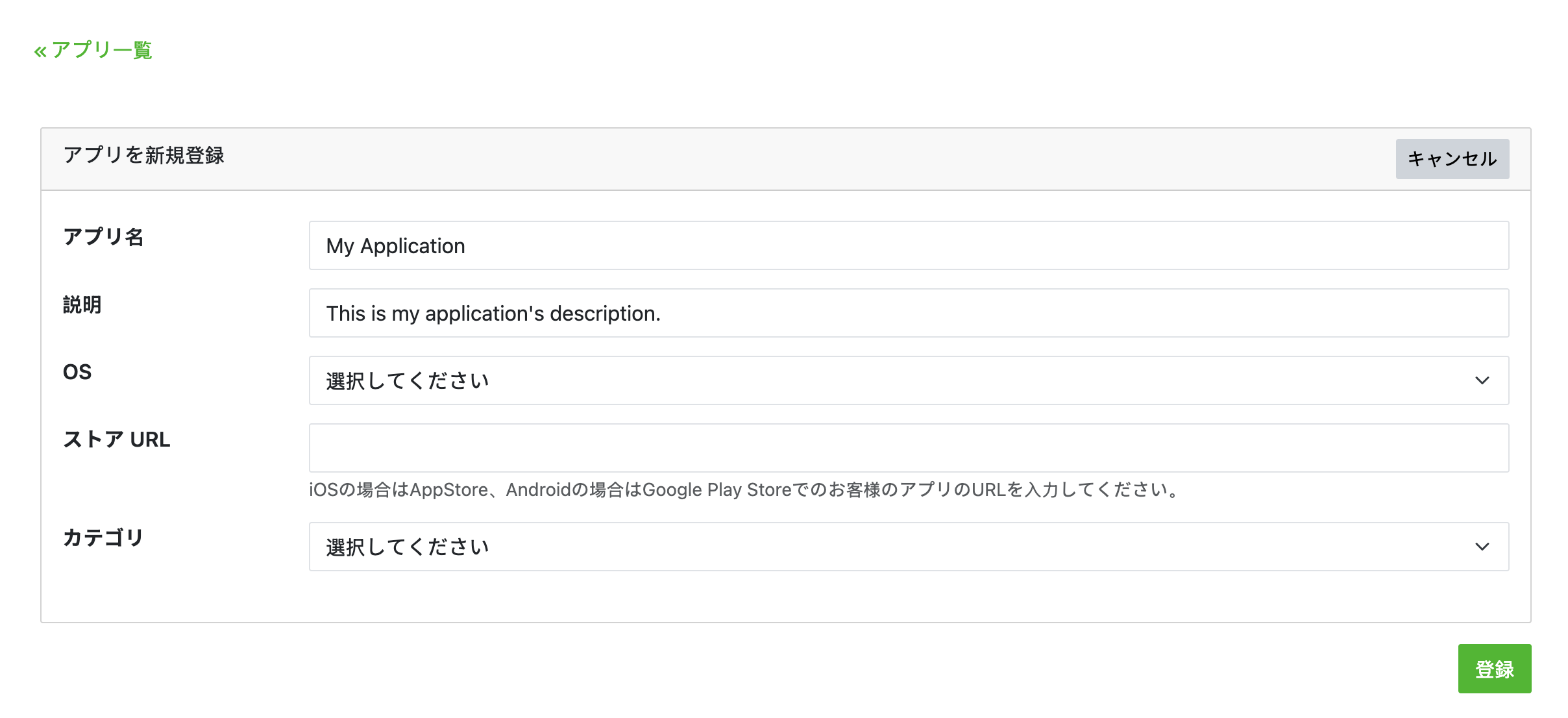
Fill out the form and click registration.
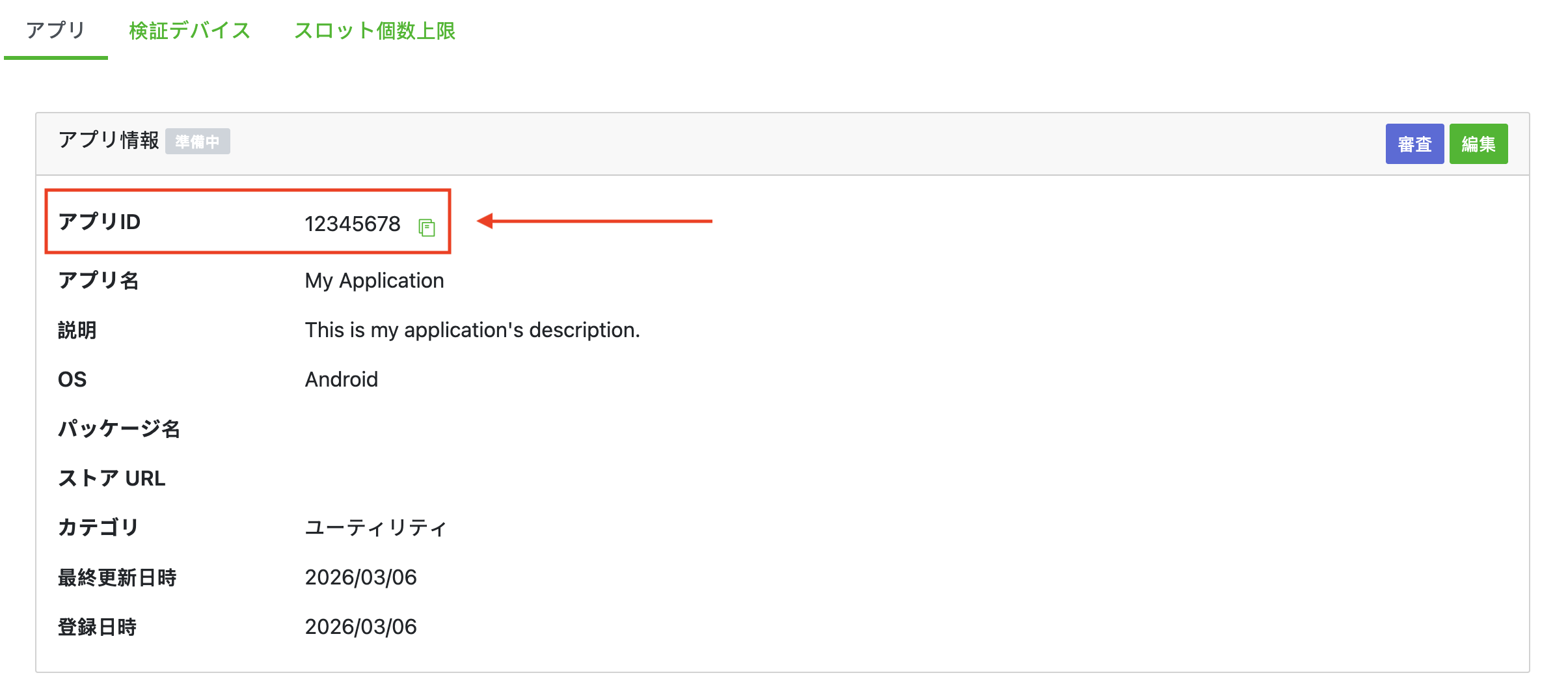
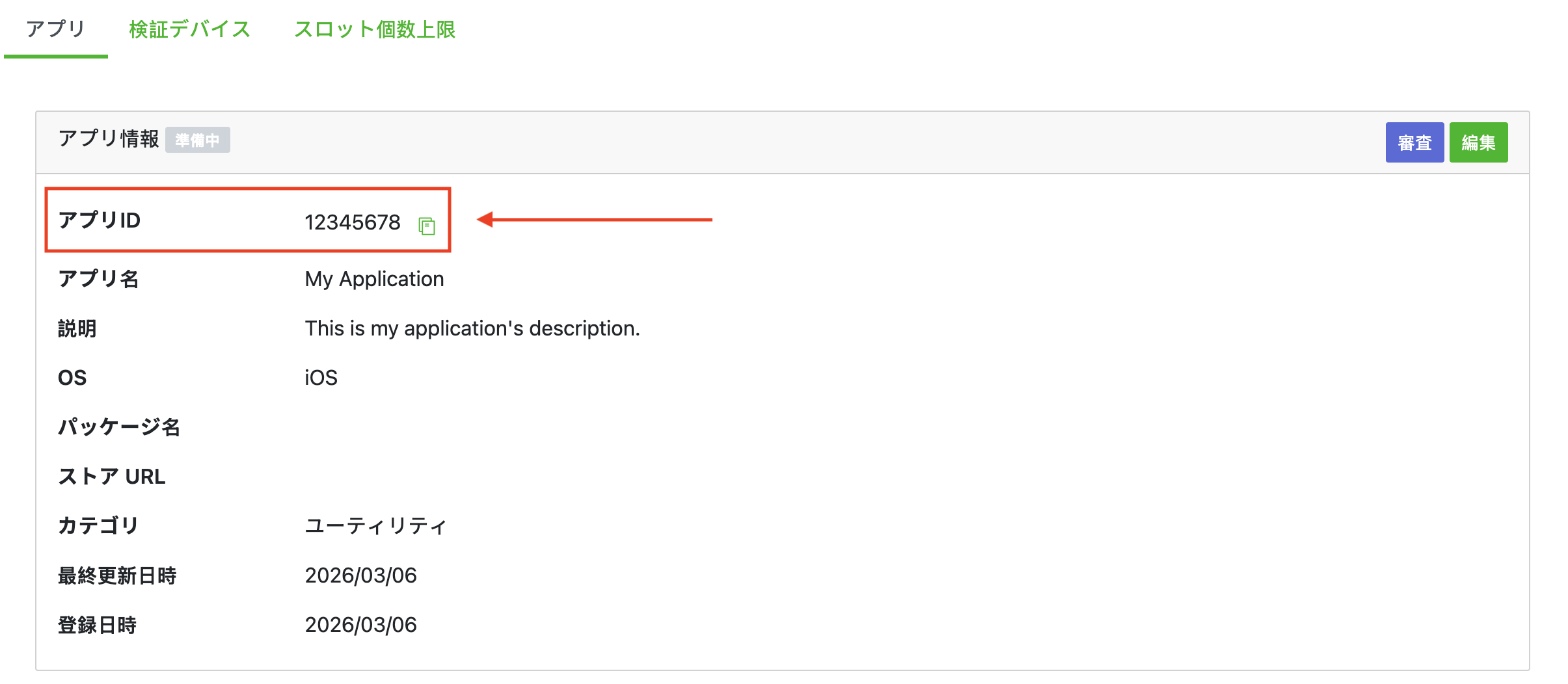
Take note of the App ID.
Android
iOS
Create an ad slot
On the App tab, select your app to view your app's details. Under the Slot section, click Add.

Fill out the form for details about the slot. For Bidding Type, select Standard to configure this slot for waterfall mediation, or Google SDK Bidding to configure this slot for Bidding. Click Create once the form is filled.
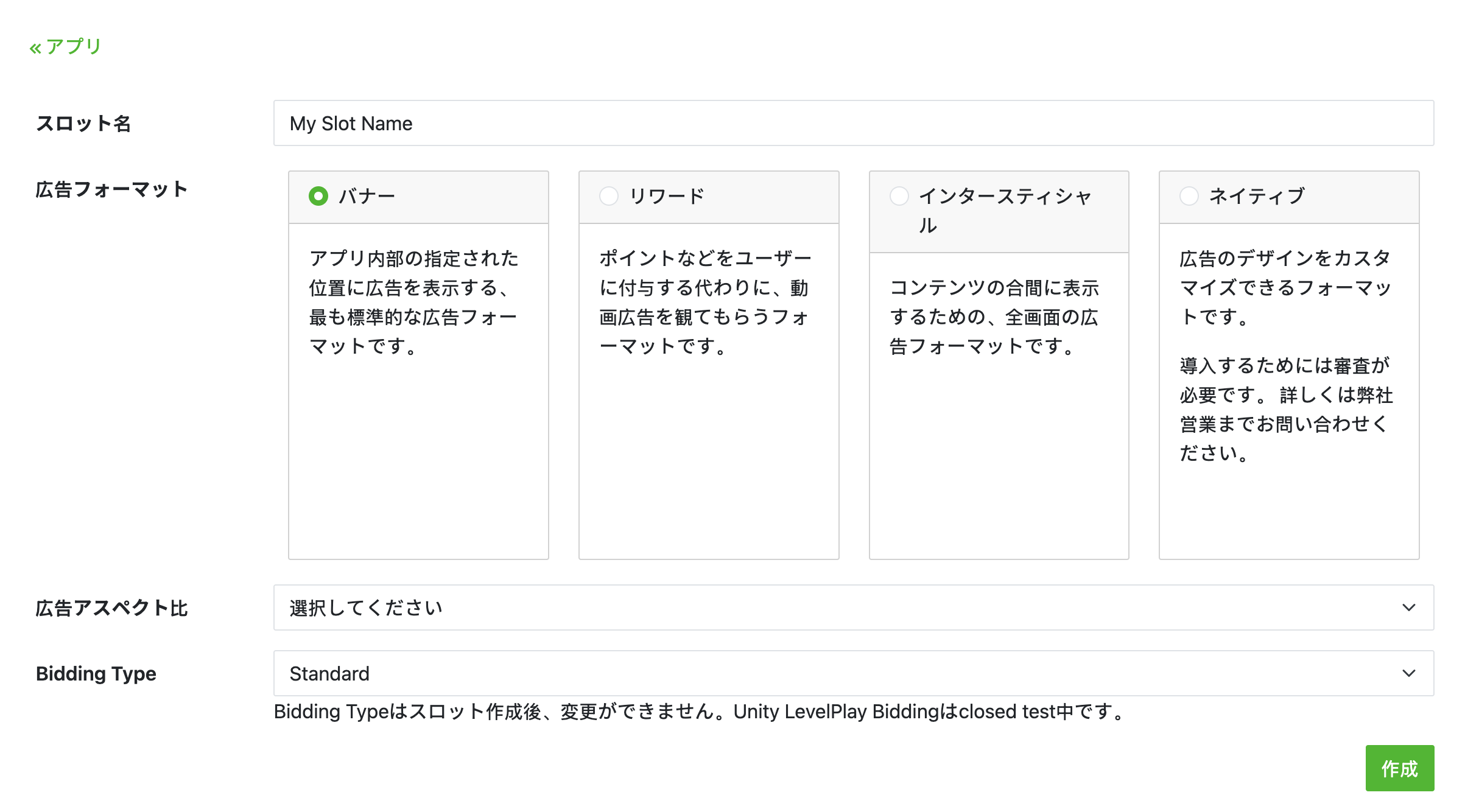
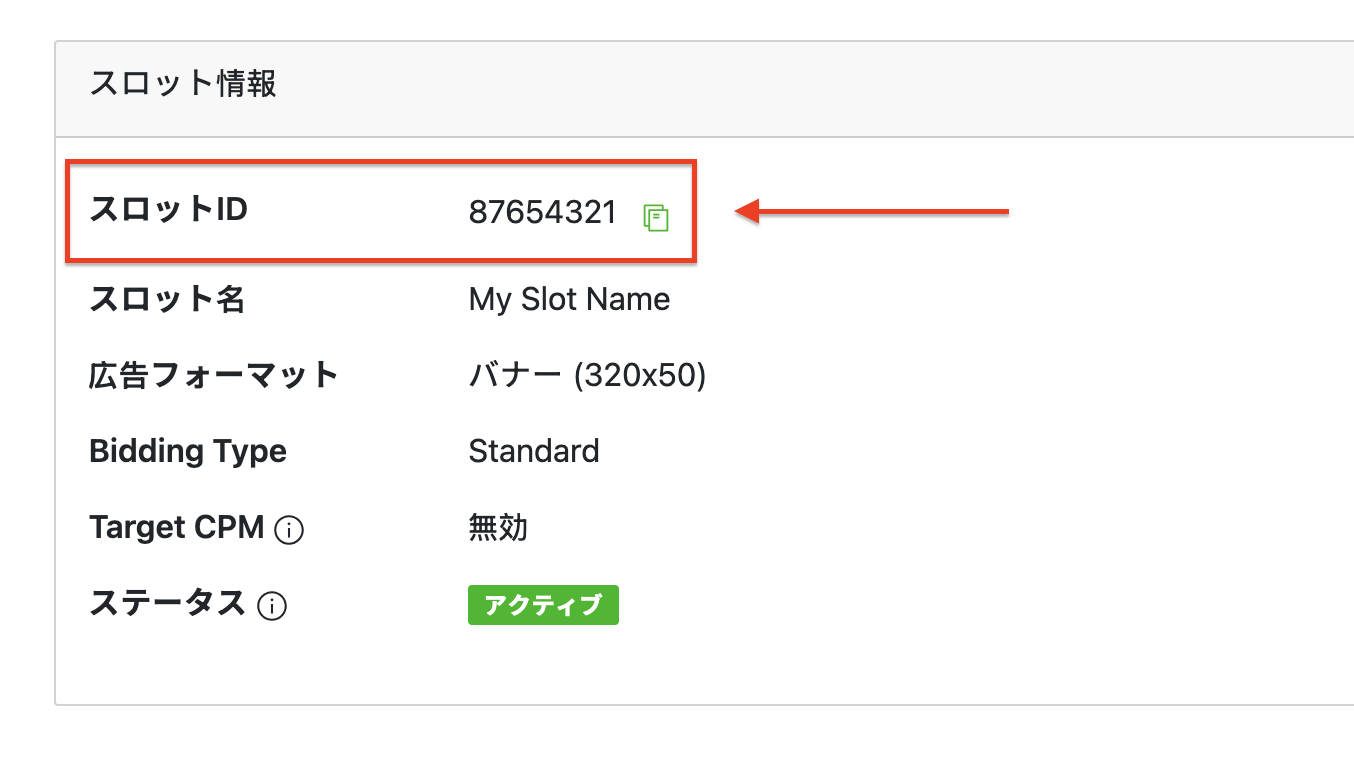
Take note of the Slot ID.
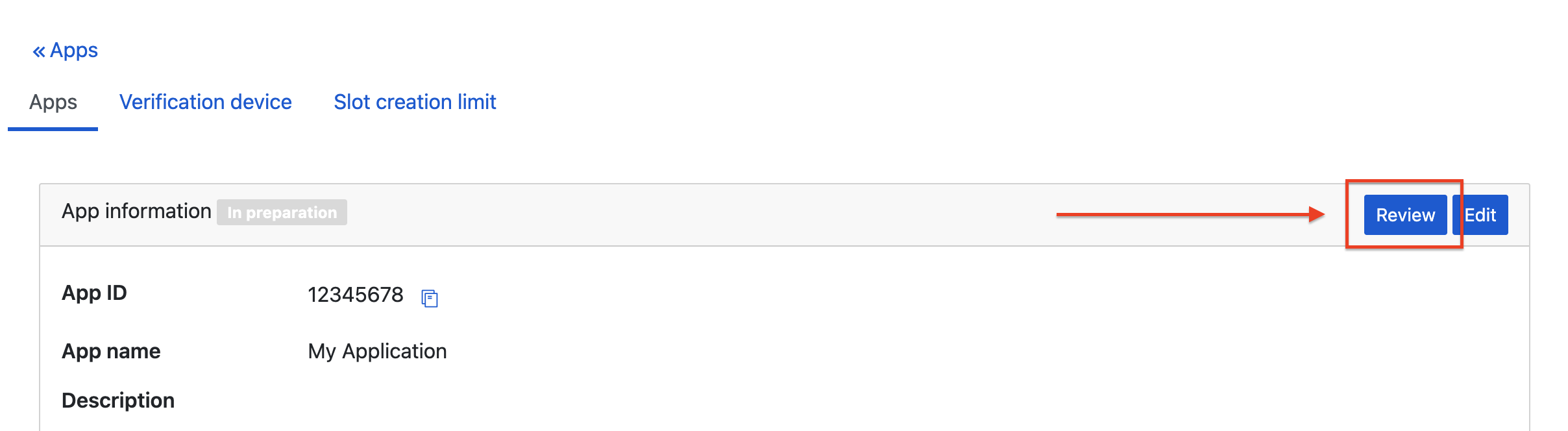
After you create your first slot, click Review on your app's detail page to get approval from LY Ads Network. This may take some time. Contact your LY Ads Network representative if you have any questions.
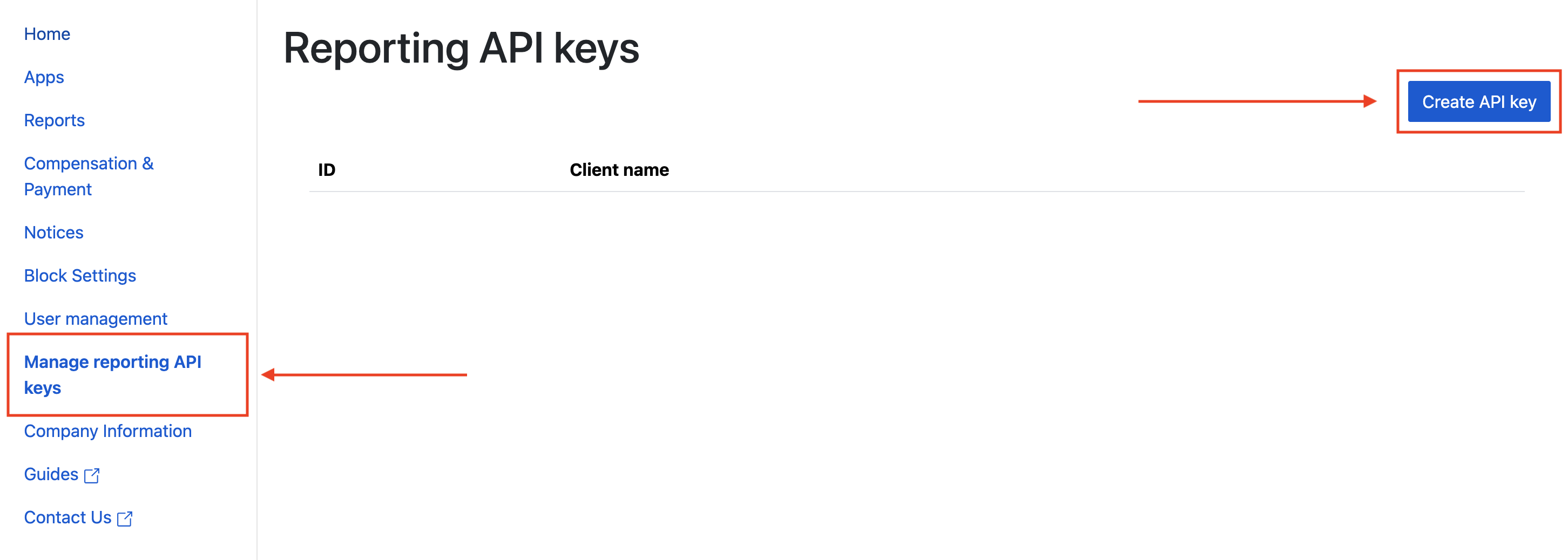
Create a Reporting API Key
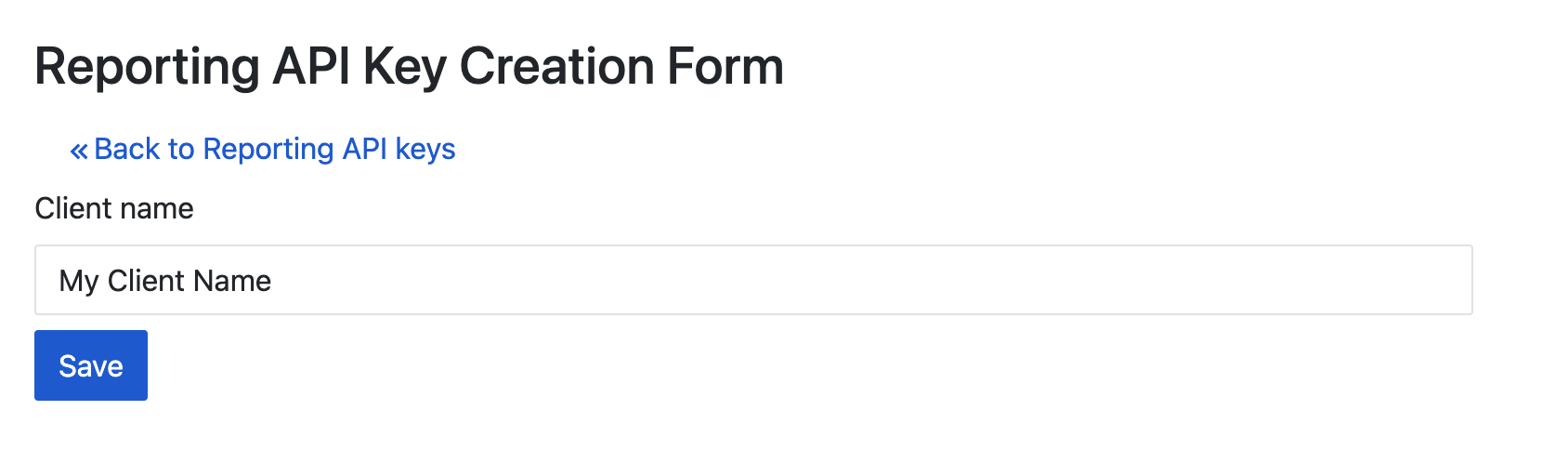
Navigate to the Managing reporting API keys tab and click the Create API key button.
Fill out the form and click Save.
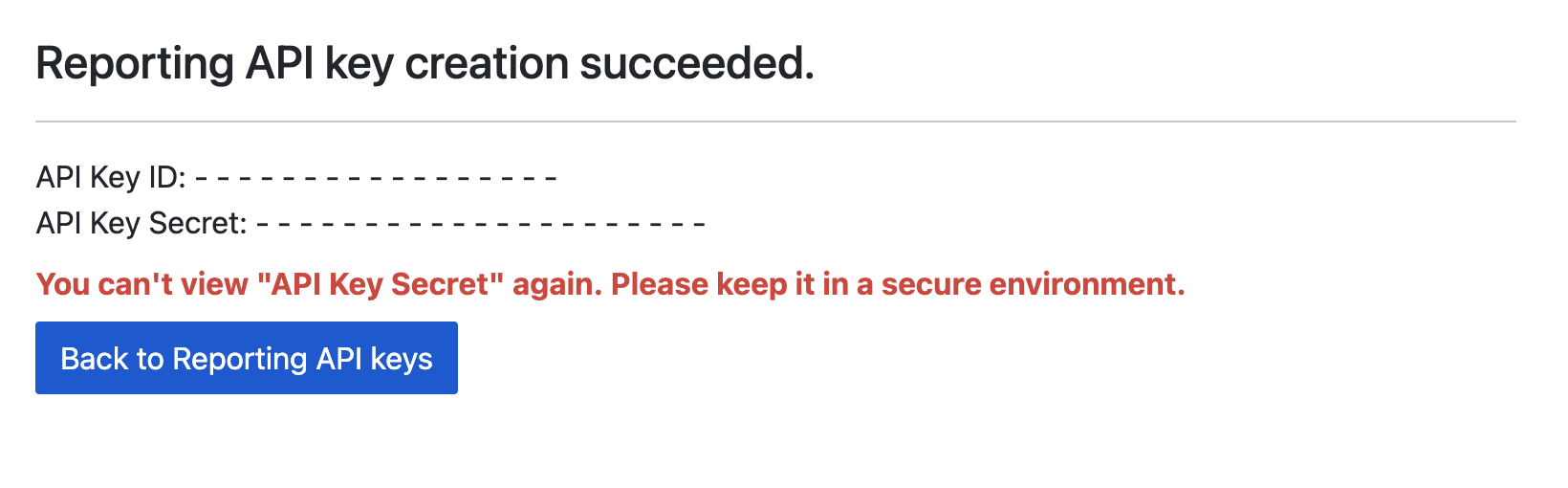
Take note of your API Key ID and API Key Secret.
Update your app-ads.txt
Authorized Sellers for Apps app-ads.txt is an IAB Tech Lab initiative that helps ensure your
app ad inventory is only sold through channels you've identified as authorized. To prevent a
significant loss in ad revenue, you'll need to implement an app-ads.txt file.
If you haven't done so already,
create an app-ads.txt file for Ad Manager.
To implement app-ads.txt for LY Ads Network, see
About app-ads.txt.
Step 2: Set up LY Ads Network demand in Ad Manager UI
Configure mediation settings for your ad unit
Android
For instructions, see step 2 in the guide for Android.
iOS
For instructions, see step 2 in the guide for iOS.
Step 3: Import the LY Ads Network SDK and adapter
Integration through pub.dev
Add the following dependency with the latest versions of the
LY Ads Network SDK and adapter in your
package's pubspec.yaml file:
dependencies:
  gma_mediation_line: ^2.1.3
Manual Integration
Download the latest version of Google Mobile Ads mediation plugin for
LY Ads Network,
extract the downloaded file, and add the extracted plugin folder
(and its contents) to your Flutter project. Then, reference the plugin in your
pubspec.yaml file by adding the following dependency:
dependencies:
  gma_mediation_line:
    path: path/to/local/package
Step 4: Add required code
Android
No additional code is required for LY Ads Network integration.
iOS
SKAdNetwork integration
Follow LY Ads Network's documentation
to add the SKAdNetwork identifiers to your project's Info.plist file.
Step 5: Test your implementation
Enable test ads
Make sure you register your test device for Ad Manager.
Verify test ads
To verify that you are receiving test ads from LY Ads Network, enable single ad source testing in ad inspector using the LY Ads Network ad source(s).
Optional steps
Network-specific parameters
The LY Ads Network Flutter mediation plugin supports the following
additional request parameter which can be passed to the adapter through the
LineMediationExtras class:
-
enableAdSound: Specifies the default sound start state of banner, interstitial and rewarded ads.
Here's a code example of how to create an ad request that sets these parameters:
LineMediationExtras lineExtras = LineMediationExtras(enableAdSound: true)

AdRequest request = AdRequest(
    keywords: <String>['foo', 'bar'],
    contentUrl: 'http://foo.com/bar.html',
    mediationExtras: [lineExtras],
);
Error codes
If the adapter fails to receive an ad from LY Ads Network,
publishers can check the underlying error from the ad response using
ResponseInfo under the following classes:
Android
com.line.ads
com.google.ads.mediation.line.LineMediationAdapter
iOS
GADMediationAdapterLine
Here are the codes and accompanying messages thrown by the LY Ads Network adapter when an ad fails to load:
Android
| Error code | Domain | Reason |
|---|---|---|
| 1-10 | com.five_corp.ad | LY Ads Network SDK returned an SDK-specific error. See LY Ads Network's documentation for more details. |
| 101 | com.google.ads.mediation.line | Missing or invalid Application ID. |
| 102 | com.google.ads.mediation.line | Missing or invalid Slot ID. |
| 103 | com.google.ads.mediation.line | The requested ad size does not match a LY Ads Network supported banner ad size. |
| 104 | com.google.ads.mediation.line | Failed to load an interstitial or rewarded ad due to missing activity context. |
| 105 | com.google.ads.mediation.line | LY Ads Network SDK failed to show an interstitial or rewarded ad. |
| 106 | com.google.ads.mediation.line | Failed to load a native ad due to missing assets. |
| 107 | com.google.ads.mediation.line | FiveAd SDK returned a null ad loader. |
iOS
| Error code | Domain | Reason |
|---|---|---|
| 1-10 | Sent by LY Ads Network SDK | LY Ads Network SDK returned an SDK-specific error. See LY Ads Network's documentation for more details. |
| 101 | com.google.ads.mediation.line | Invalid server parameters (e.g. Missing Application ID or Slot ID). |
| 102 | com.google.ads.mediation.line | The requested ad size does not match a LY Ads Network supported banner ad size. |
| 103 | com.google.ads.mediation.line | Failed to load an information icon image asset in native ad. |
| 104 | com.google.ads.mediation.line | Failed to collect signals for bidding. |
| 105 | com.google.ads.mediation.line | Failed to initialize the LINE Ads SDK ad loader. |
Line Flutter Mediation Adapter Changelog
Version 2.2.0 (In progress)
Version 2.1.3
- Updated to support Google Mobile Ads Flutter Plugin version 9.1.0.
- Added Swift Package Manager support.
- Supports Line Android adapter version 3.1.1.1.
- Supports Line iOS adapter version 3.0.1.2.
- Built and tested with the Google Mobile Ads Flutter Plugin version 9.1.0
Version 2.1.2
- Supports Line Android adapter version 3.1.1.1.
- Supports Line iOS adapter version 3.0.1.2.
- Built and tested with the Google Mobile Ads Flutter Plugin version 9.0.0
Version 2.1.1
- Supports Line Android adapter version 3.1.1.0.
- Supports Line iOS adapter version 3.0.1.2.
- Built and tested with the Google Mobile Ads Flutter Plugin version 9.0.0
Version 2.1.0
- Updated minimum Flutter version to 3.38.1
- Updated to support Google Mobile Ads Flutter Plugin version 8.0.0
- Supports Line Android adapter version 3.1.0.0.
- Supports Line iOS adapter version 3.0.1.0.
- Built and tested with the Google Mobile Ads Flutter Plugin version 8.0.0
Version 2.0.0
- Updated minimum Flutter version to 3.35.1
- Updated to support Google Mobile Ads Flutter Plugin version 7.0.0
- Supports Line Android adapter version 3.0.1.0.
- Supports Line iOS adapter version 3.0.0.0.
- Built and tested with the Google Mobile Ads Flutter Plugin version 7.0.0
Version 1.0.6
- Supports Line Android adapter version 2.9.20251028.0.
- Supports Line iOS adapter version 2.9.20251119.0.
- Built and tested with the Google Mobile Ads Flutter Plugin version 6.0.0
Version 1.0.5
- Supports Line Android adapter version 2.9.20250924.1.
- Supports Line iOS adapter version 2.9.20250930.0.
- Built and tested with the Google Mobile Ads Flutter Plugin version 6.0.0
Version 1.0.4
- Supports Line Android adapter version 2.9.20250718.0.
- Supports Line iOS adapter version 2.9.20250512.0.
- Built and tested with the Google Mobile Ads Flutter Plugin version 6.0.0
Version 1.0.3
- Supports Line Android adapter version 2.9.20250519.0.
- Supports Line iOS adapter version 2.9.20250512.0.
- Built and tested with the Google Mobile Ads Flutter Plugin version 6.0.0
Version 1.0.2
- Supports Line Android adapter version 2.9.20250317.1.
- Supports Line iOS adapter version 2.9.20241106.3.
- Built and tested with the Google Mobile Ads Flutter Plugin version 6.0.0
Version 1.0.1
- Supports Line Android adapter version 2.9.20250110.1.
- Supports Line iOS adapter version 2.9.20241106.2.
- Built and tested with the Google Mobile Ads Flutter Plugin version 5.3.1.
Version 1.0.0
- Initial release.
- Supports Line Android adapter version 2.9.20250110.0.
- Supports Line iOS adapter version 2.9.20241106.1.
- Built and tested with the Google Mobile Ads Flutter Plugin version 5.3.1.