Combinar datos en una presentación

Una aplicación útil de la API de Presentaciones de Google es combinar información de una o más fuentes de datos en una presentación de diapositivas con plantilla.

En esta página, se describe cómo puedes tomar datos de una fuente externa y, luego, insertarlos en una presentación de plantilla existente. El concepto es similar al de una combinación de correspondencia con un procesador de texto y una hoja de cálculo.

Existen varios motivos por los que este enfoque es útil:

  • Los diseñadores pueden ajustar el diseño de una presentación con facilidad mediante el editor de Presentaciones de Google. Esto es mucho más fácil que ajustar los parámetros de tu app para establecer el diseño de la diapositiva renderizada.

  • Separar el contenido de la presentación es un principio de diseño conocido con muchos beneficios.
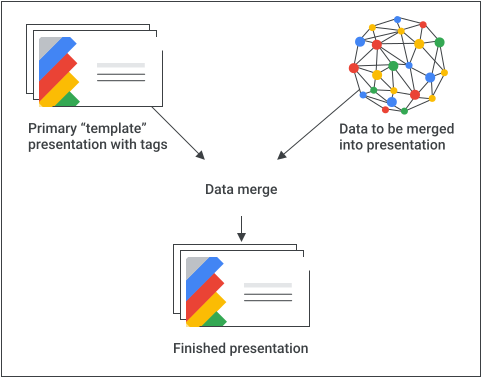
Diagrama conceptual de una combinación.

Una receta básica

Este es un ejemplo de cómo puedes usar la API de Presentaciones para combinar datos en una presentación:

  1. Crea la presentación como deseas que aparezca con contenido de marcador de posición para ayudarte con el diseño.

  2. Para cada elemento de contenido que insertarás, reemplaza el contenido del marcador de posición por una etiqueta. Las etiquetas son cuadros de texto o formas con una cadena única. Asegúrate de usar cadenas que no es probable que aparezcan con normalidad. Por ejemplo, {{account-holder-name}} podría ser una buena etiqueta.

  3. En tu código, usa la API de Google Drive para crear una copia de la presentación.

  4. En tu código, usa el batchUpdate método de la API de Presentaciones, con un conjunto de replaceAllText solicitudes, para realizar todas las sustituciones de texto en la presentación. Usa replaceAllShapesWithImage solicitudes para realizar sustituciones de imágenes en toda la presentación.

Una vez que hayas creado una presentación con etiquetas, asegúrate de crear una copia y usar la API de Presentaciones para manipularla. No uses la API de Presentaciones para manipular tu copia "plantilla" principal.

En las siguientes secciones, se incluyen fragmentos de código que ilustran parte de este proceso. También puedes mirar el video anterior para ver un ejemplo completo (en Python) que combina varios de los conceptos de las siguientes secciones.

Combinar texto

Puedes usar una replaceAllText solicitud para reemplazar todas las instancias de una cadena de texto determinada en una presentación por texto nuevo. Para las combinaciones, esto es más simple que buscar y reemplazar cada instancia de texto de forma individual. Uno de los motivos por los que este es el enfoque más sofisticado es que los IDs de los elementos de la página son difíciles de predecir, en especial, a medida que los colaboradores refinan y mantienen la presentación de la plantilla.

Ejemplo

En este ejemplo, se usa la API de Drive para copiar una presentación de plantilla y crear una instancia nueva de la presentación. Luego, se usa la API de Hojas de cálculo de Google para leer datos de una hoja de cálculo de Hojas de cálculo y, por último, se usa la API de Presentaciones para actualizar la nueva presentación.

En el ejemplo, se toman datos de 3 celdas en una fila de un rango con nombre en la hoja de cálculo. Luego, se sustituyen esos datos en la presentación donde aparecen las cadenas {{customer-name}}, {{case-description}}, o {{total-portfolio}}.

Apps Script

slides/api/Snippets.gs
/**
 * Use the Sheets API to load data, one record per row.
 * @param {string} templatePresentationId
 * @param {string} dataSpreadsheetId
 * @returns {*[]}
 */
function textMerging(templatePresentationId, dataSpreadsheetId) {
  const responses = [];
  const dataRangeNotation = "Customers!A2:M6";
  try {
    const values = SpreadsheetApp.openById(dataSpreadsheetId)
      .getRange(dataRangeNotation)
      .getValues();

    // For each record, create a new merged presentation.
    for (let i = 0; i < values.length; ++i) {
      const row = values[i];
      const customerName = row[2]; // name in column 3
      const caseDescription = row[5]; // case description in column 6
      const totalPortfolio = row[11]; // total portfolio in column 12

      // Duplicate the template presentation using the Drive API.
      const copyTitle = `${customerName} presentation`;
      let copyFile = {
        title: copyTitle,
        parents: [{ id: "root" }],
      };
      copyFile = Drive.Files.copy(copyFile, templatePresentationId);
      const presentationCopyId = copyFile.id;

      // Create the text merge (replaceAllText) requests for this presentation.
      const requests = [
        {
          replaceAllText: {
            containsText: {
              text: "{{customer-name}}",
              matchCase: true,
            },
            replaceText: customerName,
          },
        },
        {
          replaceAllText: {
            containsText: {
              text: "{{case-description}}",
              matchCase: true,
            },
            replaceText: caseDescription,
          },
        },
        {
          replaceAllText: {
            containsText: {
              text: "{{total-portfolio}}",
              matchCase: true,
            },
            replaceText: `${totalPortfolio}`,
          },
        },
      ];

      // Execute the requests for this presentation.
      const result = Slides.Presentations.batchUpdate(
        {
          requests: requests,
        },
        presentationCopyId,
      );
      // Count the total number of replacements made.
      let numReplacements = 0;
      for (const reply of result.replies) {
        numReplacements += reply.replaceAllText.occurrencesChanged;
      }
      console.log(
        "Created presentation for %s with ID: %s",
        customerName,
        presentationCopyId,
      );
      console.log("Replaced %s text instances", numReplacements);
    }
  } catch (err) {
    // TODO (Developer) - Handle exception
    console.log("Failed with error: %s", err.error);
  }
}

Go

slides/snippets/presentations.go
// Use the Sheets API to load data, one record per row.
dataRangeNotation := "Customers!A2:M6"
sheetsResponse, _ := sheetsService.Spreadsheets.Values.Get(dataSpreadsheetId, dataRangeNotation).Do()
values := sheetsResponse.Values

// For each record, create a new merged presentation.
for _, row := range values {
	customerName := row[2].(string)
	caseDescription := row[5].(string)
	totalPortfolio := row[11].(string)

	// Duplicate the template presentation using the Drive API.
	copyTitle := customerName + " presentation"
	file := drive.File{
		Title: copyTitle,
	}
	presentationFile, _ := driveService.Files.Copy(templatePresentationId, &file).Do()
	presentationId := presentationFile.Id

	// Create the text merge (replaceAllText) requests for this presentation.
	requests := []*slides.Request{{
		ReplaceAllText: &slides.ReplaceAllTextRequest{
			ContainsText: &slides.SubstringMatchCriteria{
				Text:      "{{customer-name}}",
				MatchCase: true,
			},
			ReplaceText: customerName,
		},
	}, {
		ReplaceAllText: &slides.ReplaceAllTextRequest{
			ContainsText: &slides.SubstringMatchCriteria{
				Text:      "{{case-description}}",
				MatchCase: true,
			},
			ReplaceText: caseDescription,
		},
	}, {
		ReplaceAllText: &slides.ReplaceAllTextRequest{
			ContainsText: &slides.SubstringMatchCriteria{
				Text:      "{{total-portfolio}}",
				MatchCase: true,
			},
			ReplaceText: totalPortfolio,
		},
	}}

	// Execute the requests for this presentation.
	body := &slides.BatchUpdatePresentationRequest{
		Requests: requests,
	}
	response, _ := slidesService.Presentations.BatchUpdate(presentationId, body).Do()

Java

slides/snippets/src/main/java/TextMerging.java
import com.google.api.client.googleapis.json.GoogleJsonError;
import com.google.api.client.googleapis.json.GoogleJsonResponseException;
import com.google.api.client.http.HttpRequestInitializer;
import com.google.api.client.http.javanet.NetHttpTransport;
import com.google.api.client.json.gson.GsonFactory;
import com.google.api.services.drive.Drive;
import com.google.api.services.drive.model.File;
import com.google.api.services.sheets.v4.Sheets;
import com.google.api.services.sheets.v4.model.ValueRange;
import com.google.api.services.slides.v1.Slides;
import com.google.api.services.slides.v1.SlidesScopes;
import com.google.api.services.slides.v1.model.BatchUpdatePresentationRequest;
import com.google.api.services.slides.v1.model.BatchUpdatePresentationResponse;
import com.google.api.services.slides.v1.model.ReplaceAllTextRequest;
import com.google.api.services.slides.v1.model.Request;
import com.google.api.services.slides.v1.model.Response;
import com.google.api.services.slides.v1.model.SubstringMatchCriteria;
import com.google.auth.http.HttpCredentialsAdapter;
import com.google.auth.oauth2.GoogleCredentials;

import java.io.IOException;
import java.util.ArrayList;
import java.util.Arrays;
import java.util.List;

/* Class to demonstrate the use of Slides Text Merging API */
public class TextMerging {
  /**
   * Changes specified texts with data from spreadsheet.
   *
   * @param templatePresentationId - id of the presentation.
   * @param dataSpreadsheetId      - id of the spreadsheet containing data.
   * @return merged presentation id
   * @throws IOException - if credentials file not found.
   */
  public static List<BatchUpdatePresentationResponse> textMerging(
      String templatePresentationId, String dataSpreadsheetId) throws IOException {
        /* Load pre-authorized user credentials from the environment.
           TODO(developer) - See https://developers.google.com/identity for
            guides on implementing OAuth2 for your application. */
    GoogleCredentials credentials = GoogleCredentials.getApplicationDefault()
        .createScoped(Arrays.asList(SlidesScopes.PRESENTATIONS,
            SlidesScopes.DRIVE, SlidesScopes.SPREADSHEETS));
    HttpRequestInitializer requestInitializer = new HttpCredentialsAdapter(
        credentials);

    // Create the slides API client
    Slides service = new Slides.Builder(new NetHttpTransport(),
        GsonFactory.getDefaultInstance(),
        requestInitializer)
        .setApplicationName("Slides samples")
        .build();

    // Create the drive API client
    Drive driveService = new Drive.Builder(new NetHttpTransport(),
        GsonFactory.getDefaultInstance(),
        requestInitializer)
        .setApplicationName("Slides samples")
        .build();

    // Create the sheets API client
    Sheets sheetsService = new Sheets.Builder(new NetHttpTransport(),
        GsonFactory.getDefaultInstance(),
        requestInitializer)
        .setApplicationName("Slides samples")
        .build();

    List<BatchUpdatePresentationResponse> responses = new ArrayList<>(5);
    // Use the Sheets API to load data, one record per row.
    String dataRangeNotation = "Customers!A2:M6";
    ValueRange sheetsResponse = sheetsService.spreadsheets().values()
        .get(dataSpreadsheetId, dataRangeNotation).execute();
    List<List<Object>> values = sheetsResponse.getValues();

    try {
      // For each record, create a new merged presentation.
      for (List<Object> row : values) {
        String customerName = row.get(2).toString();     // name in column 3
        String caseDescription = row.get(5).toString();  // case description in column 6
        String totalPortfolio = row.get(11).toString();  // total portfolio in column 12

        // Duplicate the template presentation using the Drive API.
        String copyTitle = customerName + " presentation";
        File content = new File().setName(copyTitle);
        File presentationFile =
            driveService.files().copy(templatePresentationId, content).execute();
        String presentationId = presentationFile.getId();

        // Create the text merge (replaceAllText) requests for this presentation.
        List<Request> requests = new ArrayList<>();
        requests.add(new Request()
            .setReplaceAllText(new ReplaceAllTextRequest()
                .setContainsText(new SubstringMatchCriteria()
                    .setText("{{customer-name}}")
                    .setMatchCase(true))
                .setReplaceText(customerName)));
        requests.add(new Request()
            .setReplaceAllText(new ReplaceAllTextRequest()
                .setContainsText(new SubstringMatchCriteria()
                    .setText("{{case-description}}")
                    .setMatchCase(true))
                .setReplaceText(caseDescription)));
        requests.add(new Request()
            .setReplaceAllText(new ReplaceAllTextRequest()
                .setContainsText(new SubstringMatchCriteria()
                    .setText("{{total-portfolio}}")
                    .setMatchCase(true))
                .setReplaceText(totalPortfolio)));

        // Execute the requests for this presentation.
        BatchUpdatePresentationRequest body =
            new BatchUpdatePresentationRequest().setRequests(requests);
        BatchUpdatePresentationResponse response =
            service.presentations().batchUpdate(presentationId, body).execute();

        // Count total number of replacements made.
        int numReplacements = 0;
        for (Response resp : response.getReplies()) {
          numReplacements += resp.getReplaceAllText().getOccurrencesChanged();
        }
        // Prints the merged presentation id and count of replacements.
        System.out.println("Created merged presentation for " +
            customerName + " with ID: " + presentationId);
        System.out.println("Replaced " + numReplacements + " text instances.");
      }
    } catch (NullPointerException ne) {
      System.out.println("Text not found to replace with image.");
    } catch (GoogleJsonResponseException e) {
      // TODO(developer) - handle error appropriately
      GoogleJsonError error = e.getDetails();
      if (error.getCode() == 404) {
        System.out.printf("Presentation not found with id '%s'.\n", templatePresentationId);
      } else {
        throw e;
      }
    }
    return responses;
  }
}

JavaScript

slides/snippets/slides_text_merging.js
function textMerging(templatePresentationId, dataSpreadsheetId, callback) {
  // Use the Sheets API to load data, one record per row.
  const responses = [];
  const dataRangeNotation = 'Customers!A2:M6';
  try {
    gapi.client.sheets.spreadsheets.values.get({
      spreadsheetId: dataSpreadsheetId,
      range: dataRangeNotation,
    }).then((sheetsResponse) => {
      const values = sheetsResponse.result.values;
      // For each record, create a new merged presentation.
      for (let i = 0; i < values.length; ++i) {
        const row = values[i];
        const customerName = row[2]; // name in column 3
        const caseDescription = row[5]; // case description in column 6
        const totalPortfolio = row[11]; // total portfolio in column 12

        // Duplicate the template presentation using the Drive API.
        const copyTitle = customerName + ' presentation';
        const request = {
          name: copyTitle,
        };
        gapi.client.drive.files.copy({
          fileId: templatePresentationId,
          requests: request,
        }).then((driveResponse) => {
          const presentationCopyId = driveResponse.result.id;

          // Create the text merge (replaceAllText) requests for this presentation.
          const requests = [{
            replaceAllText: {
              containsText: {
                text: '{{customer-name}}',
                matchCase: true,
              },
              replaceText: customerName,
            },
          }, {
            replaceAllText: {
              containsText: {
                text: '{{case-description}}',
                matchCase: true,
              },
              replaceText: caseDescription,
            },
          }, {
            replaceAllText: {
              containsText: {
                text: '{{total-portfolio}}',
                matchCase: true,
              },
              replaceText: totalPortfolio,
            },
          }];

          // Execute the requests for this presentation.
          gapi.client.slides.presentations.batchUpdate({
            presentationId: presentationCopyId,
            requests: requests,
          }).then((batchUpdateResponse) => {
            const result = batchUpdateResponse.result;
            responses.push(result.replies);
            // Count the total number of replacements made.
            let numReplacements = 0;
            for (let i = 0; i < result.replies.length; ++i) {
              numReplacements += result.replies[i].replaceAllText.occurrencesChanged;
            }
            console.log(`Created presentation for ${customerName} with ID: ${presentationCopyId}`);
            console.log(`Replaced ${numReplacements} text instances`);
            if (responses.length === values.length) { // callback for the last value
              if (callback) callback(responses);
            }
          });
        });
      }
    });
  } catch (err) {
    document.getElementById('content').innerText = err.message;
    return;
  }
}

Node.js

slides/snippets/slides_text_merging.js
import {GoogleAuth} from 'google-auth-library';
import {google} from 'googleapis';

/**
 * Merges text from a spreadsheet into a template presentation.
 * @param {string} templatePresentationId The ID of the template presentation.
 * @param {string} dataSpreadsheetId The ID of the spreadsheet containing the data.
 */
async function textMerging(templatePresentationId, dataSpreadsheetId) {
  // Authenticate with Google and get an authorized client.
  const auth = new GoogleAuth({
    scopes: [
      'https://www.googleapis.com/auth/presentations',
      'https://www.googleapis.com/auth/drive',
      'https://www.googleapis.com/auth/spreadsheets',
    ],
  });

  // Create new clients for Slides, Sheets, and Drive APIs.
  const slidesService = google.slides({version: 'v1', auth});
  const sheetsService = google.sheets({version: 'v4', auth});
  const driveService = google.drive({version: 'v2', auth});

  // Use the Sheets API to load data from the spreadsheet.
  const dataRangeNotation = 'A2:M6';
  const sheetsResponse = await sheetsService.spreadsheets.values.get({
    spreadsheetId: dataSpreadsheetId,
    range: dataRangeNotation,
  });
  const values = sheetsResponse.data.values;

  // For each row of data, create a new presentation by copying the template
  // and replacing the placeholder text with the data.
  for (let i = 0; i < values.length; ++i) {
    const row = values[i];
    const customerName = row[2]; // Column 3
    const caseDescription = row[5]; // Column 6
    const totalPortfolio = row[11]; // Column 12

    // Duplicate the template presentation.
    const title = `${customerName} presentation`;
    const driveResponse = await driveService.files.copy({
      fileId: templatePresentationId,
      requestBody: {
        title,
      },
    });
    const presentationCopyId = driveResponse.data.id;

    // Create the text merge requests for this presentation.
    const requests = [
      {
        replaceAllText: {
          containsText: {
            text: '{{customer-name}}',
            matchCase: true,
          },
          replaceText: customerName,
        },
      },
      {
        replaceAllText: {
          containsText: {
            text: '{{case-description}}',
            matchCase: true,
          },
          replaceText: caseDescription,
        },
      },
      {
        replaceAllText: {
          containsText: {
            text: '{{total-portfolio}}',
            matchCase: true,
          },
          replaceText: totalPortfolio,
        },
      },
    ];

    // Execute the requests to replace the placeholder text.
    const batchUpdateResponse = await slidesService.presentations.batchUpdate({
      presentationId: presentationCopyId,
      requestBody: {
        requests,
      },
    });
    const result = batchUpdateResponse.data;

    // Count the total number of replacements made.
    let numReplacements = 0;
    for (let i = 0; i < result.replies.length; ++i) {
      numReplacements += result.replies[i].replaceAllText.occurrencesChanged;
    }
    console.log(
      `Created presentation for ${customerName} with ID: ${presentationCopyId}`,
    );
    console.log(`Replaced ${numReplacements} text instances.`);
  }
}

PHP

slides/snippets/src/SlidesTextMerging.php
<?php
use Google\Client;
use Google\Service\Drive;
use Google\Service\Slides;
use Google\Service\Slides\Request;

function textMerging($templatePresentationId, $dataSpreadsheetId)
{

    /* Load pre-authorized user credentials from the environment.
       TODO(developer) - See https://developers.google.com/identity for
        guides on implementing OAuth2 for your application. */
    $client = new Google\Client();
    $client->useApplicationDefaultCredentials();
    $client->addScope(Google\Service\Drive::DRIVE);
    $slidesService = new Google_Service_Slides($client);
    $driveService = new Google_Service_Drive($client);
    $sheetsService = new Google_Service_Sheets($client);
    try {
        $responses = array();
        // Use the Sheets API to load data, one record per row.
        $dataRangeNotation = 'Customers!A2:M6';
        $sheetsResponse =
            $sheetsService->spreadsheets_values->get($dataSpreadsheetId, $dataRangeNotation);
        $values = $sheetsResponse['values'];

        // For each record, create a new merged presentation.
        foreach ($values as $row) {
            $customerName = $row[2];     // name in column 3
            $caseDescription = $row[5];  // case description in column 6
            $totalPortfolio = $row[11];  // total portfolio in column 12

            // Duplicate the template presentation using the Drive API.
            $copy = new Google_Service_Drive_DriveFile(array(
                'name' => $customerName . ' presentation'
            ));
            $driveResponse = $driveService->files->copy($templatePresentationId, $copy);
            $presentationCopyId = $driveResponse->id;

            // Create the text merge (replaceAllText) requests for this presentation.
            $requests = array();
            $requests[] = new Google_Service_Slides_Request(array(
                'replaceAllText' => array(
                    'containsText' => array(
                        'text' => '{{customer-name}}',
                        'matchCase' => true
                    ),
                    'replaceText' => $customerName
                )
            ));
            $requests[] = new Google_Service_Slides_Request(array(
                'replaceAllText' => array(
                    'containsText' => array(
                        'text' => '{{case-description}}',
                        'matchCase' => true
                    ),
                    'replaceText' => $caseDescription
                )
            ));
            $requests[] = new Google_Service_Slides_Request(array(
                'replaceAllText' => array(
                    'containsText' => array(
                        'text' => '{{total-portfolio}}',
                        'matchCase' => true
                    ),
                    'replaceText' => $totalPortfolio
                )
            ));

            // Execute the requests for this presentation.
            $batchUpdateRequest = new Google_Service_Slides_BatchUpdatePresentationRequest(array(
                'requests' => $requests
            ));
            $response =
                $slidesService->presentations->batchUpdate($presentationCopyId, $batchUpdateRequest);
            $responses[] = $response;
            // Count the total number of replacements made.
            $numReplacements = 0;
            foreach ($response->getReplies() as $reply) {
                $numReplacements += $reply->getReplaceAllText()->getOccurrencesChanged();
            }
            printf("Created presentation for %s with ID: %s\n", $customerName, $presentationCopyId);
            printf("Replaced %d text instances.\n", $numReplacements);
        }
        return $responses;
    } catch (Exception $e) {
        echo 'Message: ' . $e->getMessage();
    }
}

Python

slides/snippets/slides_text_merging.py
import google.auth
from googleapiclient.discovery import build
from googleapiclient.errors import HttpError


def text_merging(template_presentation_id, data_spreadsheet_id):
  """
  Run Text merging the user has access to.
  Load pre-authorized user credentials from the environment.
  TODO(developer) - See https://developers.google.com/identity
  for guides on implementing OAuth2 for the application.
  """
  creds, _ = google.auth.default()
  # pylint: disable=maybe-no-member

  try:
    service = build("slides", "v1", credentials=creds)
    sheets_service = build("sheets", "v4", credentials=creds)
    drive_service = build("drive", "v3", credentials=creds)
    # Use the Sheets API to load data, one record per row.
    data_range_notation = "Customers!A2:M6"
    sheets_response = (
        sheets_service.spreadsheets()
        .values()
        .get(spreadsheetId=data_spreadsheet_id, range=data_range_notation)
        .execute()
    )
    values = sheets_response.get("values")

    # For each record, create a new merged presentation.
    for row in values:
      customer_name = row[2]  # name in column 3
      case_description = row[5]  # case description in column 6
      total_portfolio = row[11]  # total portfolio in column 12

      # Duplicate the template presentation using the Drive API.
      copy_title = customer_name + " presentation"
      body = {"name": copy_title}
      drive_response = (
          drive_service.files()
          .copy(fileId=template_presentation_id, body=body)
          .execute()
      )
      presentation_copy_id = drive_response.get("id")

      # Create the text merge (replaceAllText) requests
      # for this presentation.
      requests = [
          {
              "replaceAllText": {
                  "containsText": {
                      "text": "{{customer-name}}",
                      "matchCase": True,
                  },
                  "replaceText": customer_name,
              }
          },
          {
              "replaceAllText": {
                  "containsText": {
                      "text": "{{case-description}}",
                      "matchCase": True,
                  },
                  "replaceText": case_description,
              }
          },
          {
              "replaceAllText": {
                  "containsText": {
                      "text": "{{total-portfolio}}",
                      "matchCase": True,
                  },
                  "replaceText": total_portfolio,
              }
          },
      ]

      # Execute the requests for this presentation.
      body = {"requests": requests}
      response = (
          service.presentations()
          .batchUpdate(presentationId=presentation_copy_id, body=body)
          .execute()
      )

      # Count the total number of replacements made.
      num_replacements = 0
      for reply in response.get("replies"):
        if reply.get("occurrencesChanged") is not None:
          num_replacements += reply.get("replaceAllText").get(
              "occurrencesChanged"
          )
      print(
          "Created presentation for "
          f"{customer_name} with ID: {presentation_copy_id}"
      )
      print(f"Replaced {num_replacements} text instances")

  except HttpError as error:
    print(f"An error occurred: {error}")
    return error


if __name__ == "__main__":
  # Put the template_presentation_id, data_spreadsheet_id
  # of slides

  text_merging(
      "10QnVUx1X2qHsL17WUidGpPh_SQhXYx40CgIxaKk8jU4",
      "17eqFZl_WK4WVixX8PjvjfLD77DraoFwMDXeiHB3dvuM",
  )

Ruby

slides/snippets/lib/file_snippets.rb
# Use the Sheets API to load data, one record per row.
data_range_notation = 'Customers!A2:M6'
sheets_response = sheets_service.get_spreadsheet_values(
  data_spreadsheet_id,
  data_range_notation
)
values = sheets_response.values

# For each record, create a new merged presentation.
values.each do |row|
  customer_name = row[2]       # name in column 3
  case_description = row[5]    # case description in column 6
  total_portfolio = row[11]    # total portfolio in column 12

  # Duplicate the template presentation using the Drive API.
  copy_title = customer_name + ' presentation'
  body = Google::Apis::SlidesV1::Presentation.new
  body.title = copy_title
  drive_response = drive_service.copy_file(template_presentation_id, body)
  presentation_copy_id = drive_response.id

  # Create the text merge (replace_all_text) requests for this presentation.
  requests = [] << {
    replace_all_text: {
      contains_text: {
        text:       '{{customer-name}}',
        match_case: true
      },
      replace_text:  customer_name
    }
  } << {
    replace_all_text: {
      contains_text: {
        text:       '{{case-description}}',
        match_case: true
      },
      replace_text:  case_description
    }
  } << {
    replace_all_text: {
      contains_text: {
        text:       '{{total-portfolio}}',
        match_case: true
      },
      replace_text:  total_portfolio
    }
  }

  # Execute the requests for this presentation.
  req = Google::Apis::SlidesV1::BatchUpdatePresentationRequest.new(requests: requests)
  response = slides_service.batch_update_presentation(
    presentation_copy_id,
    req
  )

Combinar imágenes

También puedes combinar imágenes en tu presentación con una replaceAllShapesWithImage solicitud. Esta solicitud reemplaza todas las instancias de formas que contienen la cadena de texto proporcionada por la imagen proporcionada. La solicitud posiciona y ajusta automáticamente la imagen para que quepa dentro de los límites de la forma de la etiqueta, mientras conserva la relación de aspecto de la imagen.

Ejemplo

En este ejemplo, se usa la API de Google Drive para copiar una presentación de plantilla y crear una instancia nueva de la presentación. Luego, se usa la API de Presentaciones para encontrar cualquier forma con el texto {{company-logo}} y reemplazarla por una imagen del logotipo de la empresa. La solicitud también reemplaza cualquier forma con el texto {{customer-graphic}} por una imagen diferente.

Apps Script

slides/api/Snippets.gs
/**
 * Duplicate the template presentation using the Drive API.
 * @param {string} templatePresentationId
 * @param {string} imageUrl
 * @param {string} customerName
 * @returns {*}
 */
function imageMerging(templatePresentationId, imageUrl, customerName) {
  const logoUrl = imageUrl;
  const customerGraphicUrl = imageUrl;

  const copyTitle = `${customerName} presentation`;
  let copyFile = {
    title: copyTitle,
    parents: [{ id: "root" }],
  };

  try {
    copyFile = Drive.Files.copy(copyFile, templatePresentationId);
    const presentationCopyId = copyFile.id;

    // Create the image merge (replaceAllShapesWithImage) requests.
    const requests = [
      {
        replaceAllShapesWithImage: {
          imageUrl: logoUrl,
          imageReplaceMethod: "CENTER_INSIDE",
          containsText: {
            text: "{{company-logo}}",
            matchCase: true,
          },
        },
      },
      {
        replaceAllShapesWithImage: {
          imageUrl: customerGraphicUrl,
          imageReplaceMethod: "CENTER_INSIDE",
          containsText: {
            text: "{{customer-graphic}}",
            matchCase: true,
          },
        },
      },
    ];

    // Execute the requests for this presentation.
    const batchUpdateResponse = Slides.Presentations.batchUpdate(
      {
        requests: requests,
      },
      presentationCopyId,
    );
    let numReplacements = 0;
    for (const reply of batchUpdateResponse.replies) {
      numReplacements += reply.replaceAllShapesWithImage.occurrencesChanged;
    }
    console.log("Created merged presentation with ID: %s", presentationCopyId);
    console.log("Replaced %s shapes with images.", numReplacements);

    return batchUpdateResponse;
  } catch (err) {
    // TODO (Developer) - Handle exception
    console.log("Failed with error: %s", err.error);
  }
}

Go

slides/snippets/presentations.go
// Duplicate the template presentation using the Drive API.
copyTitle := customerName + " presentation"
file := drive.File{
	Title: copyTitle,
}
presentationFile, _ := driveService.Files.Copy(templatePresentationId, &file).Do()
presentationId := presentationFile.Id

// Create the image merge (replaceAllShapesWithImage) requests.
requests := []*slides.Request{{
	ReplaceAllShapesWithImage: &slides.ReplaceAllShapesWithImageRequest{
		ImageUrl:      logoURL,
		ReplaceMethod: "CENTER_INSIDE",
		ContainsText: &slides.SubstringMatchCriteria{
			Text:      "{{company-logo}}",
			MatchCase: true,
		},
	},
}, {
	ReplaceAllShapesWithImage: &slides.ReplaceAllShapesWithImageRequest{
		ImageUrl:      customerGraphicURL,
		ReplaceMethod: "CENTER_INSIDE",
		ContainsText: &slides.SubstringMatchCriteria{
			Text:      "{{customer-graphic}}",
			MatchCase: true,
		},
	},
}}

// Execute the requests for this presentation.
body := &slides.BatchUpdatePresentationRequest{Requests: requests}
response, _ := slidesService.Presentations.BatchUpdate(presentationId, body).Do()

// Count total number of replacements made.
var numReplacements int64 = 0
for _, resp := range response.Replies {
	numReplacements += resp.ReplaceAllShapesWithImage.OccurrencesChanged
}
fmt.Printf("Created merged presentation with ID %s\n", presentationId)
fmt.Printf("Replaced %d shapes instances with images.\n", numReplacements)

Java

slides/snippets/src/main/java/ImageMerging.java
import com.google.api.client.http.HttpRequestInitializer;
import com.google.api.client.http.javanet.NetHttpTransport;
import com.google.api.client.json.gson.GsonFactory;
import com.google.api.services.drive.Drive;
import com.google.api.services.drive.model.File;
import com.google.api.services.slides.v1.Slides;
import com.google.api.services.slides.v1.SlidesScopes;
import com.google.api.services.slides.v1.model.BatchUpdatePresentationRequest;
import com.google.api.services.slides.v1.model.BatchUpdatePresentationResponse;
import com.google.api.services.slides.v1.model.Request;
import com.google.api.services.slides.v1.model.Response;
import com.google.api.services.slides.v1.model.ReplaceAllShapesWithImageRequest;
import com.google.api.services.slides.v1.model.SubstringMatchCriteria;
import com.google.auth.http.HttpCredentialsAdapter;
import com.google.auth.oauth2.GoogleCredentials;

import java.io.IOException;
import java.util.ArrayList;
import java.util.Arrays;
import java.util.List;

/* Class to demonstrate the use of Slides Image Merging API */
public class ImageMerging {
  /**
   * Changes specified texts into images.
   *
   * @param templatePresentationId - id of the presentation.
   * @param imageUrl               - Url of the image.
   * @param customerName           - Name of the customer.
   * @return merged presentation id
   * @throws IOException - if credentials file not found.
   */
  public static BatchUpdatePresentationResponse imageMerging(String templatePresentationId,
                                                             String imageUrl,
                                                             String customerName)
      throws IOException {
        /* Load pre-authorized user credentials from the environment.
           TODO(developer) - See https://developers.google.com/identity for
            guides on implementing OAuth2 for your application. */
    GoogleCredentials credentials = GoogleCredentials.getApplicationDefault()
        .createScoped(Arrays.asList(SlidesScopes.PRESENTATIONS,
            SlidesScopes.DRIVE));
    HttpRequestInitializer requestInitializer = new HttpCredentialsAdapter(
        credentials);

    // Create the slides API client
    Slides service = new Slides.Builder(new NetHttpTransport(),
        GsonFactory.getDefaultInstance(),
        requestInitializer)
        .setApplicationName("Slides samples")
        .build();

    // Create the drive API client
    Drive driveService = new Drive.Builder(new NetHttpTransport(),
        GsonFactory.getDefaultInstance(),
        requestInitializer)
        .setApplicationName("Slides samples")
        .build();

    // Duplicate the template presentation using the Drive API.
    String copyTitle = customerName + " presentation";
    File content = new File().setName(copyTitle);
    File presentationFile =
        driveService.files().copy(templatePresentationId, content).execute();
    String presentationId = presentationFile.getId();

    // Create the image merge (replaceAllShapesWithImage) requests.
    List<Request> requests = new ArrayList<>();
    requests.add(new Request()
        .setReplaceAllShapesWithImage(new ReplaceAllShapesWithImageRequest()
            .setImageUrl(imageUrl)
            .setImageReplaceMethod("CENTER_INSIDE")
            .setContainsText(new SubstringMatchCriteria()
                .setText("{{company-logo}}")
                .setMatchCase(true))));

    // Execute the requests.
    BatchUpdatePresentationRequest body =
        new BatchUpdatePresentationRequest().setRequests(requests);
    BatchUpdatePresentationResponse response =
        service.presentations().batchUpdate(presentationId, body).execute();

    int numReplacements = 0;
    try {
      // Count total number of replacements made.
      for (Response resp : response.getReplies()) {
        numReplacements += resp.getReplaceAllShapesWithImage().getOccurrencesChanged();
      }

      // Prints the merged presentation id and count of replacements.
      System.out.println("Created merged presentation with ID: " + presentationId);
      System.out.println("Replaced " + numReplacements + " shapes instances with images.");
    } catch (NullPointerException ne) {
      System.out.println("Text not found to replace with image.");
    }
    return response;
  }
}

JavaScript

slides/snippets/slides_image_merging.js
function imageMerging(
    templatePresentationId,
    imageUrl,
    customerName,
    callback,
) {
  const logoUrl = imageUrl;
  const customerGraphicUrl = imageUrl;

  // Duplicate the template presentation using the Drive API.
  const copyTitle = customerName + ' presentation';
  try {
    gapi.client.drive.files
        .copy({
          fileId: templatePresentationId,
          resource: {
            name: copyTitle,
          },
        })
        .then((driveResponse) => {
          const presentationCopyId = driveResponse.result.id;

          // Create the image merge (replaceAllShapesWithImage) requests.
          const requests = [
            {
              replaceAllShapesWithImage: {
                imageUrl: logoUrl,
                replaceMethod: 'CENTER_INSIDE',
                containsText: {
                  text: '{{company-logo}}',
                  matchCase: true,
                },
              },
            },
            {
              replaceAllShapesWithImage: {
                imageUrl: customerGraphicUrl,
                replaceMethod: 'CENTER_INSIDE',
                containsText: {
                  text: '{{customer-graphic}}',
                  matchCase: true,
                },
              },
            },
          ];
          // Execute the requests for this presentation.
          gapi.client.slides.presentations
              .batchUpdate({
                presentationId: presentationCopyId,
                requests: requests,
              })
              .then((batchUpdateResponse) => {
                let numReplacements = 0;
                for (
                  let i = 0;
                  i < batchUpdateResponse.result.replies.length;
                  ++i
                ) {
                  numReplacements +=
                batchUpdateResponse.result.replies[i].replaceAllShapesWithImage
                    .occurrencesChanged;
                }
                console.log(
                    `Created merged presentation with ID: ${presentationCopyId}`,
                );
                console.log(`Replaced ${numReplacements} shapes with images.`);
                if (callback) callback(batchUpdateResponse.result);
              });
        });
  } catch (err) {
    document.getElementById('content').innerText = err.message;
    return;
  }
}

Node.js

slides/snippets/slides_image_merging.js
import {GoogleAuth} from 'google-auth-library';
import {google} from 'googleapis';

/**
 * Replaces shapes in a presentation with images.
 * @param {string} templatePresentationId The ID of the template presentation.
 * @param {string} imageUrl The URL of the image to use.
 * @param {string} customerName The name of the customer for the new presentation title.
 * @return {Promise<object>} The response from the batch update.
 */
async function imageMerging(templatePresentationId, imageUrl, customerName) {
  // Authenticate with Google and get an authorized client.
  const auth = new GoogleAuth({
    scopes: [
      'https://www.googleapis.com/auth/presentations',
      'https://www.googleapis.com/auth/drive',
    ],
  });

  // Create new clients for Slides and Drive APIs.
  const slidesService = google.slides({version: 'v1', auth});
  const driveService = google.drive({version: 'v2', auth});

  const logoUrl = imageUrl;
  const customerGraphicUrl = imageUrl;

  // Duplicate the template presentation.
  const copyTitle = `${customerName} presentation`;
  const driveResponse = await driveService.files.copy({
    fileId: templatePresentationId,
    requestBody: {
      name: copyTitle,
    },
  });
  const presentationCopyId = driveResponse.data.id;

  // Create the image merge requests.
  const requests = [
    {
      replaceAllShapesWithImage: {
        imageUrl: logoUrl,
        replaceMethod: 'CENTER_INSIDE',
        containsText: {
          text: '{{company-logo}}',
          matchCase: true,
        },
      },
    },
    {
      replaceAllShapesWithImage: {
        imageUrl: customerGraphicUrl,
        replaceMethod: 'CENTER_INSIDE',
        containsText: {
          text: '{{customer-graphic}}',
          matchCase: true,
        },
      },
    },
  ];

  // Execute the requests to replace the shapes with images.
  const batchUpdateResponse = await slidesService.presentations.batchUpdate({
    presentationId: presentationCopyId,
    requestBody: {
      requests,
    },
  });

  // Count the total number of replacements made.
  let numReplacements = 0;
  for (let i = 0; i < batchUpdateResponse.data.replies.length; ++i) {
    numReplacements +=
      batchUpdateResponse.data.replies[i].replaceAllShapesWithImage
        .occurrencesChanged;
  }
  console.log(`Created merged presentation with ID: ${presentationCopyId}`);
  console.log(`Replaced ${numReplacements} shapes with images.`);
  return batchUpdateResponse.data;
}

PHP

slides/snippets/src/SlidesImageMerging.php
<?php
use Google\Client;
use Google\Service\Drive;
use Google\Service\Slides;
use Google\Service\DriveFile;
use Google\Service\Slides\Request;


function imageMerging($templatePresentationId, $imageUrl, $customerName)
{
    /* Load pre-authorized user credentials from the environment.
       TODO(developer) - See https://developers.google.com/identity for
        guides on implementing OAuth2 for your application. */
    $client = new Google\Client();
    $client->useApplicationDefaultCredentials();
    $client->addScope(Google\Service\Drive::DRIVE);
    $slidesService = new Google_Service_Slides($client);
    $driveService = new Google_Service_Drive($client);
    // Duplicate the template presentation using the Drive API.
    $copy = new Google_Service_Drive_DriveFile([
        'name' => $customerName . ' presentation'
    ]);

    $driveResponse = $driveService->files->copy($templatePresentationId, $copy);
    $presentationCopyId = $driveResponse->id;

    // Create the image merge (replaceAllShapesWithImage) requests.

    $requests[] = new Google_Service_Slides_Request([
        'replaceAllShapesWithImage' => [
            'imageUrl' => $imageUrl,
            'replaceMethod' => 'CENTER_INSIDE',
            'containsText' => [
                'text' => '{{company-logo}}',
                'matchCase' => true
            ]
        ]
    ]);
    $requests[] = new Google_Service_Slides_Request([
        'replaceAllShapesWithImage' => [
            'imageUrl' => $imageUrl,
            'replaceMethod' => 'CENTER_INSIDE',
            'containsText' => [
                'text' => '{{customer-graphic}}',
                'matchCase' => true
            ]
        ]
    ]);

    // Execute the requests.
    $batchUpdateRequest = new Google_Service_Slides_BatchUpdatePresentationRequest([
        'requests' => $requests
    ]);
    $response =
        $slidesService->presentations->batchUpdate($presentationCopyId, $batchUpdateRequest);

    // Count the total number of replacements made.
    $numReplacements = 0;
    foreach ($response->getReplies() as $reply) {
        $numReplacements += $reply->getReplaceAllShapesWithImage()->getOccurrencesChanged();
    }
    printf("Created presentation for %s with ID: %s\n", $customerName, $presentationCopyId);
    printf("Replaced %d shapes with images.\n", $numReplacements);
    return $response;
}

Python

slides/snippets/slides_image_merging.py
import google.auth
from googleapiclient.discovery import build
from googleapiclient.errors import HttpError


def image_merging(template_presentation_id, image_url, customer_name):
  """image_merging require template_presentation_id,
  image_url and customer_name
  Load pre-authorized user credentials from the environment.
  TODO(developer) - See https://developers.google.com/identity
  for guides on implementing OAuth2 for the application.
  """
  creds, _ = google.auth.default()
  # pylint: disable=maybe-no-member
  try:
    slides_service = build("slides", "v1", credentials=creds)
    drive_service = build("drive", "v3", credentials=creds)
    logo_url = image_url

    customer_graphic_url = image_url

    # Duplicate the template presentation using the Drive API.
    copy_title = customer_name + " presentation"
    drive_response = (
        drive_service.files()
        .copy(fileId=template_presentation_id, body={"name": copy_title})
        .execute()
    )
    presentation_copy_id = drive_response.get("id")

    # Create the image merge (replaceAllShapesWithImage) requests.
    requests = []
    requests.append(
        {
            "replaceAllShapesWithImage": {
                "imageUrl": logo_url,
                "replaceMethod": "CENTER_INSIDE",
                "containsText": {
                    "text": "{{company-logo}}",
                    "matchCase": True,
                },
            }
        }
    )
    requests.append(
        {
            "replaceAllShapesWithImage": {
                "imageUrl": customer_graphic_url,
                "replaceMethod": "CENTER_INSIDE",
                "containsText": {
                    "text": "{{customer-graphic}}",
                    "matchCase": True,
                },
            }
        }
    )

    # Execute the requests.
    body = {"requests": requests}
    response = (
        slides_service.presentations()
        .batchUpdate(presentationId=presentation_copy_id, body=body)
        .execute()
    )

    # Count the number of replacements made.
    num_replacements = 0

    for reply in response.get("replies"):
      # add below line

      if reply.get("occurrencesChanged") is not None:
        # end tag
        num_replacements += reply.get("replaceAllShapesWithImage").get(
            "occurrencesChanged"
        )

    print(f"Created merged presentation with ID:{presentation_copy_id}")
    print(f"Replaced {num_replacements} shapes with images")
  except HttpError as error:
    print(f"An error occurred: {error}")
    print("Images is not merged")
    return error

  return response


if __name__ == "__main__":
  # Put the template_presentation_id, image_url and customer_name

  image_merging(
      "10QnVUx1X2qHsL17WUidGpPh_SQhXYx40CgIxaKk8jU4",
      "https://www.google.com/images/branding/"
      "googlelogo/2x/googlelogo_color_272x92dp.png",
      "Fake Customer",
  )

Ruby

slides/snippets/lib/file_snippets.rb
# Duplicate the template presentation using the Drive API.
copy_title = customer_name + ' presentation'
body = Google::Apis::SlidesV1::Presentation.new
body.title = copy_title
drive_response = drive_service.copy_file(template_presentation_id, body)
presentation_copy_id = drive_response.id

# Create the image merge (replace_all_shapes_with_image) requests.
requests = [] << {
  replace_all_shapes_with_image: {
    image_url:      logo_url,
    replace_method: 'CENTER_INSIDE',
    contains_text:  {
      text:       '{{company-logo}}',
      match_case: true
    }
  }
} << {
  replace_all_shapes_with_image: {
    image_url:      customer_graphic_url,
    replace_method: 'CENTER_INSIDE',
    contains_text:  {
      text:       '{{customer-graphic}}',
      match_case: true
    }
  }
}

# Execute the requests.
req = Google::Apis::SlidesV1::BatchUpdatePresentationRequest.new(requests: requests)
response = slides_service.batch_update_presentation(
  presentation_copy_id,
  req
)

# Count the number of replacements made.
num_replacements = 0
response.replies.each do |reply|
  num_replacements += reply.replace_all_shapes_with_image.occurrences_changed
end
puts "Created presentation for #{customer_name} with ID: #{presentation_copy_id}"
puts "Replaced #{num_replacements} shapes with images"

Reemplazar instancias específicas de cuadros de texto o imágenes

Las solicitudes replaceAllText y replaceAllShapesWithImage son útiles para reemplazar etiquetas en una presentación, pero a veces solo necesitas reemplazar elementos según otro criterio, como estar ubicados en una diapositiva específica.

En estos casos, debes recuperar los IDs de las formas de etiqueta que deseas reemplazar. Para los reemplazos de texto, borra el texto existente en esas formas y, luego, inserta el texto nuevo (consulta el ejemplo Editar texto en una forma especificada).

Los reemplazos de imágenes son más complejos. Para combinar una imagen, debes hacer lo siguiente:

  1. Obtener el ID de la forma de la etiqueta
  2. Copiar el tamaño y transformar la información de la etiqueta
  3. Agregar la imagen a la página con el tamaño y transformar la información
  4. Borrar la forma de la etiqueta

Conservar la relación de aspecto de la imagen mientras se ajusta al tamaño deseado puede requerir cierta atención, como se describe en la siguiente sección. Consulta también este ejemplo: Reemplazar una etiqueta de forma por una imagen.

Conservar la relación de aspecto

Cuando creas imágenes con la API de Presentaciones, los ajustes de aspecto se basan solo en el tamaño de la imagen, no en el tamaño y la transformación de los datos. Los datos de tamaño que proporcionas en la createImage solicitud se consideran el tamaño deseado de la imagen. La API ajusta la relación de aspecto de la imagen a este tamaño deseado y, luego, aplica la transformación proporcionada.

Cuando reemplazas una etiqueta por una imagen, conservas la relación de aspecto de la imagen configurando el tamaño y el ajuste de escala de la imagen de la siguiente manera:

  • ancho: Se configura como el producto del width y el scaleX de la etiqueta.
  • altura: Se configura como el producto del height y el scaleY de la etiqueta.
  • scale_x: Se configura como 1.
  • scale_y: Se configura como 1.

Esto hace que la API de Presentaciones ajuste la imagen según el tamaño visual de la etiqueta, en lugar de su tamaño sin ajustar (consulta Reemplazar una etiqueta de forma por una imagen). Si configuras los parámetros de ajuste de escala en 1, se evita que la imagen se ajuste dos veces.

Esta disposición garantiza que se conserve la relación de aspecto de la imagen y evita que la imagen supere el tamaño de la forma de la etiqueta. La imagen tiene el mismo punto central que la forma de la etiqueta.

Administrar plantillas

Para las presentaciones de plantilla que la aplicación define y posee, crea la plantilla con una cuenta dedicada que represente la aplicación. Las cuentas de servicio son una buena opción y evitan complicaciones con las políticas de Google Workspace que restringen el uso compartido.

Cuando creas instancias de presentaciones a partir de plantillas, siempre usa credenciales de usuario final. Esto les brinda a los usuarios un control total sobre la presentación resultante y evita problemas de ajuste de escala relacionados con los límites por usuario en Google Drive.

Para crear una plantilla con una cuenta de servicio, sigue estos pasos con las credenciales de la aplicación:

  1. Crea una presentación con presentations.create en la API de Presentaciones.
  2. Actualiza los permisos para permitir que los destinatarios de la presentación la lean con permissions.create en la API de Drive.
  3. Actualiza los permisos para permitir que los autores de la plantilla escriban en ella con permissions.create en la API de Drive.
  4. Edita la plantilla según sea necesario.

Para crear una instancia de la presentación, sigue estos pasos con las credenciales del usuario:

  1. Crea una copia de la plantilla con files.copy en la API de Drive.
  2. Reemplaza los valores con presentation.batchUpdate en la API de Presentaciones.