

แอปพลิเคชันที่มีประโยชน์อย่างหนึ่งของ Google Slides API คือการผสานข้อมูลจากแหล่งข้อมูลอย่างน้อย 1 แหล่งลงในชุดสไลด์เทมเพลต
หน้านี้จะอธิบายวิธีนำข้อมูลจากแหล่งภายนอกและแทรกลงในงานนำเสนอเทมเพลตที่มีอยู่ แนวคิดนี้คล้ายกับ การผสานอีเมลโดยใช้โปรแกรมประมวลผลคำและสเปรดชีต
มีเหตุผลหลายประการที่ทำให้วิธีนี้มีประโยชน์
นักออกแบบสามารถปรับแต่งการออกแบบงานนำเสนอได้อย่างละเอียดโดยใช้โปรแกรมแก้ไข Google สไลด์ ซึ่งง่ายกว่าการปรับพารามิเตอร์ในแอปเพื่อตั้งค่าการออกแบบสไลด์ที่แสดงผล
การแยกเนื้อหาออกจากงานนำเสนอเป็นหลักการออกแบบที่รู้จักกันดีซึ่งมีประโยชน์มากมาย
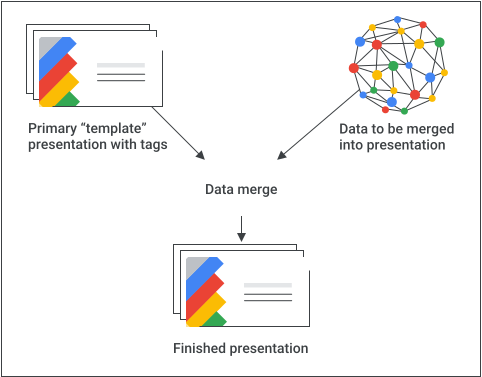
สูตรพื้นฐาน
ตัวอย่างวิธีใช้ Slides API เพื่อผสานข้อมูลลงในงานนำเสนอ
สร้างงานนำเสนอตามที่ต้องการให้ปรากฏโดยใช้เนื้อหาตัวยึดตำแหน่งเพื่อช่วยในการออกแบบ
สำหรับองค์ประกอบเนื้อหาแต่ละรายการที่จะแทรก ให้แทนที่เนื้อหาตัวยึดตำแหน่งด้วยแท็ก แท็กคือกล่องข้อความหรือรูปร่างที่มีสตริงที่ไม่ซ้ำกัน โปรดใช้สตริงที่ไม่มีแนวโน้มที่จะเกิดขึ้นตามปกติ เช่น
{{account-holder-name}}อาจเป็นแท็กที่ดีใช้ Google Drive API ในโค้ดเพื่อทำสำเนางานนำเสนอ
ใช้เมธอด
batchUpdateของ Slides API พร้อมชุดคำขอreplaceAllTextในโค้ดเพื่อทำการแทนที่ข้อความทั้งหมดในงานนำเสนอ ใช้replaceAllShapesWithImageคำขอเพื่อทำการแทนที่รูปภาพทั้งหมดในงานนำเสนอ
เมื่อสร้างชุดสไลด์ที่มีแท็กแล้ว ให้ทำสำเนาและใช้ Slides API เพื่อจัดการสำเนา อย่าใช้ Slides API เพื่อจัดการสำเนา "เทมเพลต" หลัก
ส่วนต่อไปนี้มีข้อมูลโค้ดที่แสดงให้เห็นกระบวนการบางส่วน นอกจากนี้ คุณยังดูวิดีโอด้านบนเพื่อดูตัวอย่างที่สมบูรณ์ (Python) ที่รวมแนวคิดหลายอย่างจากส่วนต่างๆ ด้านล่างได้ด้วย
ผสานข้อความ
คุณสามารถใช้replaceAllText
คำขอเพื่อแทนที่สตริงข้อความที่กำหนดทั้งหมดใน
งานนำเสนอด้วยข้อความใหม่ สำหรับการผสาน วิธีนี้ง่ายกว่าการค้นหาและแทนที่ข้อความแต่ละรายการทีละรายการ เหตุผลหนึ่งที่ทำให้วิธีนี้เป็นวิธีที่ซับซ้อนที่สุดคือการคาดการณ์รหัสองค์ประกอบของหน้าเว็บทำได้ยาก โดยเฉพาะอย่างยิ่งเมื่อผู้ทำงานร่วมกันปรับแต่งและดูแลรักษางานนำเสนอเทมเพลต
ตัวอย่าง
ตัวอย่างนี้ใช้ Drive API เพื่อคัดลอกงานนำเสนอเทมเพลต ซึ่งจะสร้างอินสแตนซ์ใหม่ของงานนำเสนอ จากนั้นจะใช้ Google Sheets API เพื่ออ่านข้อมูลจากสเปรดชีต Sheets และสุดท้ายจะใช้ Slides API เพื่ออัปเดตงานนำเสนอใหม่
ตัวอย่างนี้ใช้ข้อมูลจาก 3 เซลล์ในแถวเดียวของช่วงที่ตั้งชื่อแล้วในสเปรดชีต จากนั้นจะแทนที่ข้อมูลดังกล่าวในงานนำเสนอทุกที่ที่
สตริง {{customer-name}},
{{case-description}} หรือ
{{total-portfolio}} ปรากฏขึ้น
Apps Script
/**
 * Use the Sheets API to load data, one record per row.
 * @param {string} templatePresentationId
 * @param {string} dataSpreadsheetId
 * @returns {*[]}
 */
function textMerging(templatePresentationId, dataSpreadsheetId) {
  const responses = [];
  const dataRangeNotation = "Customers!A2:M6";
  try {
    const values = SpreadsheetApp.openById(dataSpreadsheetId)
      .getRange(dataRangeNotation)
      .getValues();

    // For each record, create a new merged presentation.
    for (let i = 0; i < values.length; ++i) {
      const row = values[i];
      const customerName = row[2]; // name in column 3
      const caseDescription = row[5]; // case description in column 6
      const totalPortfolio = row[11]; // total portfolio in column 12

      // Duplicate the template presentation using the Drive API.
      const copyTitle = `${customerName} presentation`;
      let copyFile = {
        title: copyTitle,
        parents: [{ id: "root" }],
      };
      copyFile = Drive.Files.copy(copyFile, templatePresentationId);
      const presentationCopyId = copyFile.id;

      // Create the text merge (replaceAllText) requests for this presentation.
      const requests = [
        {
          replaceAllText: {
            containsText: {
              text: "{{customer-name}}",
              matchCase: true,
            },
            replaceText: customerName,
          },
        },
        {
          replaceAllText: {
            containsText: {
              text: "{{case-description}}",
              matchCase: true,
            },
            replaceText: caseDescription,
          },
        },
        {
          replaceAllText: {
            containsText: {
              text: "{{total-portfolio}}",
              matchCase: true,
            },
            replaceText: `${totalPortfolio}`,
          },
        },
      ];

      // Execute the requests for this presentation.
      const result = Slides.Presentations.batchUpdate(
        {
          requests: requests,
        },
        presentationCopyId,
      );
      // Count the total number of replacements made.
      let numReplacements = 0;
      for (const reply of result.replies) {
        numReplacements += reply.replaceAllText.occurrencesChanged;
      }
      console.log(
        "Created presentation for %s with ID: %s",
        customerName,
        presentationCopyId,
      );
      console.log("Replaced %s text instances", numReplacements);
    }
  } catch (err) {
    // TODO (Developer) - Handle exception
    console.log("Failed with error: %s", err.error);
  }
}
Go
// Use the Sheets API to load data, one record per row.
dataRangeNotation := "Customers!A2:M6"
sheetsResponse, _ := sheetsService.Spreadsheets.Values.Get(dataSpreadsheetId, dataRangeNotation).Do()
values := sheetsResponse.Values

// For each record, create a new merged presentation.
for _, row := range values {
	customerName := row[2].(string)
	caseDescription := row[5].(string)
	totalPortfolio := row[11].(string)

	// Duplicate the template presentation using the Drive API.
	copyTitle := customerName + " presentation"
	file := drive.File{
		Title: copyTitle,
	}
	presentationFile, _ := driveService.Files.Copy(templatePresentationId, &file).Do()
	presentationId := presentationFile.Id

	// Create the text merge (replaceAllText) requests for this presentation.
	requests := []*slides.Request{{
		ReplaceAllText: &slides.ReplaceAllTextRequest{
			ContainsText: &slides.SubstringMatchCriteria{
				Text:      "{{customer-name}}",
				MatchCase: true,
			},
			ReplaceText: customerName,
		},
	}, {
		ReplaceAllText: &slides.ReplaceAllTextRequest{
			ContainsText: &slides.SubstringMatchCriteria{
				Text:      "{{case-description}}",
				MatchCase: true,
			},
			ReplaceText: caseDescription,
		},
	}, {
		ReplaceAllText: &slides.ReplaceAllTextRequest{
			ContainsText: &slides.SubstringMatchCriteria{
				Text:      "{{total-portfolio}}",
				MatchCase: true,
			},
			ReplaceText: totalPortfolio,
		},
	}}

	// Execute the requests for this presentation.
	body := &slides.BatchUpdatePresentationRequest{
		Requests: requests,
	}
	response, _ := slidesService.Presentations.BatchUpdate(presentationId, body).Do()
Java
import com.google.api.client.googleapis.json.GoogleJsonError;
import com.google.api.client.googleapis.json.GoogleJsonResponseException;
import com.google.api.client.http.HttpRequestInitializer;
import com.google.api.client.http.javanet.NetHttpTransport;
import com.google.api.client.json.gson.GsonFactory;
import com.google.api.services.drive.Drive;
import com.google.api.services.drive.model.File;
import com.google.api.services.sheets.v4.Sheets;
import com.google.api.services.sheets.v4.model.ValueRange;
import com.google.api.services.slides.v1.Slides;
import com.google.api.services.slides.v1.SlidesScopes;
import com.google.api.services.slides.v1.model.BatchUpdatePresentationRequest;
import com.google.api.services.slides.v1.model.BatchUpdatePresentationResponse;
import com.google.api.services.slides.v1.model.ReplaceAllTextRequest;
import com.google.api.services.slides.v1.model.Request;
import com.google.api.services.slides.v1.model.Response;
import com.google.api.services.slides.v1.model.SubstringMatchCriteria;
import com.google.auth.http.HttpCredentialsAdapter;
import com.google.auth.oauth2.GoogleCredentials;

import java.io.IOException;
import java.util.ArrayList;
import java.util.Arrays;
import java.util.List;

/* Class to demonstrate the use of Slides Text Merging API */
public class TextMerging {
  /**
   * Changes specified texts with data from spreadsheet.
   *
   * @param templatePresentationId - id of the presentation.
   * @param dataSpreadsheetId      - id of the spreadsheet containing data.
   * @return merged presentation id
   * @throws IOException - if credentials file not found.
   */
  public static List<BatchUpdatePresentationResponse> textMerging(
      String templatePresentationId, String dataSpreadsheetId) throws IOException {
        /* Load pre-authorized user credentials from the environment.
           TODO(developer) - See https://developers.google.com/identity for
            guides on implementing OAuth2 for your application. */
    GoogleCredentials credentials = GoogleCredentials.getApplicationDefault()
        .createScoped(Arrays.asList(SlidesScopes.PRESENTATIONS,
            SlidesScopes.DRIVE, SlidesScopes.SPREADSHEETS));
    HttpRequestInitializer requestInitializer = new HttpCredentialsAdapter(
        credentials);

    // Create the slides API client
    Slides service = new Slides.Builder(new NetHttpTransport(),
        GsonFactory.getDefaultInstance(),
        requestInitializer)
        .setApplicationName("Slides samples")
        .build();

    // Create the drive API client
    Drive driveService = new Drive.Builder(new NetHttpTransport(),
        GsonFactory.getDefaultInstance(),
        requestInitializer)
        .setApplicationName("Slides samples")
        .build();

    // Create the sheets API client
    Sheets sheetsService = new Sheets.Builder(new NetHttpTransport(),
        GsonFactory.getDefaultInstance(),
        requestInitializer)
        .setApplicationName("Slides samples")
        .build();

    List<BatchUpdatePresentationResponse> responses = new ArrayList<>(5);
    // Use the Sheets API to load data, one record per row.
    String dataRangeNotation = "Customers!A2:M6";
    ValueRange sheetsResponse = sheetsService.spreadsheets().values()
        .get(dataSpreadsheetId, dataRangeNotation).execute();
    List<List<Object>> values = sheetsResponse.getValues();

    try {
      // For each record, create a new merged presentation.
      for (List<Object> row : values) {
        String customerName = row.get(2).toString();     // name in column 3
        String caseDescription = row.get(5).toString();  // case description in column 6
        String totalPortfolio = row.get(11).toString();  // total portfolio in column 12

        // Duplicate the template presentation using the Drive API.
        String copyTitle = customerName + " presentation";
        File content = new File().setName(copyTitle);
        File presentationFile =
            driveService.files().copy(templatePresentationId, content).execute();
        String presentationId = presentationFile.getId();

        // Create the text merge (replaceAllText) requests for this presentation.
        List<Request> requests = new ArrayList<>();
        requests.add(new Request()
            .setReplaceAllText(new ReplaceAllTextRequest()
                .setContainsText(new SubstringMatchCriteria()
                    .setText("{{customer-name}}")
                    .setMatchCase(true))
                .setReplaceText(customerName)));
        requests.add(new Request()
            .setReplaceAllText(new ReplaceAllTextRequest()
                .setContainsText(new SubstringMatchCriteria()
                    .setText("{{case-description}}")
                    .setMatchCase(true))
                .setReplaceText(caseDescription)));
        requests.add(new Request()
            .setReplaceAllText(new ReplaceAllTextRequest()
                .setContainsText(new SubstringMatchCriteria()
                    .setText("{{total-portfolio}}")
                    .setMatchCase(true))
                .setReplaceText(totalPortfolio)));

        // Execute the requests for this presentation.
        BatchUpdatePresentationRequest body =
            new BatchUpdatePresentationRequest().setRequests(requests);
        BatchUpdatePresentationResponse response =
            service.presentations().batchUpdate(presentationId, body).execute();

        // Count total number of replacements made.
        int numReplacements = 0;
        for (Response resp : response.getReplies()) {
          numReplacements += resp.getReplaceAllText().getOccurrencesChanged();
        }
        // Prints the merged presentation id and count of replacements.
        System.out.println("Created merged presentation for " +
            customerName + " with ID: " + presentationId);
        System.out.println("Replaced " + numReplacements + " text instances.");
      }
    } catch (NullPointerException ne) {
      System.out.println("Text not found to replace with image.");
    } catch (GoogleJsonResponseException e) {
      // TODO(developer) - handle error appropriately
      GoogleJsonError error = e.getDetails();
      if (error.getCode() == 404) {
        System.out.printf("Presentation not found with id '%s'.\n", templatePresentationId);
      } else {
        throw e;
      }
    }
    return responses;
  }
}
JavaScript
function textMerging(templatePresentationId, dataSpreadsheetId, callback) {
  // Use the Sheets API to load data, one record per row.
  const responses = [];
  const dataRangeNotation = 'Customers!A2:M6';
  try {
    gapi.client.sheets.spreadsheets.values.get({
      spreadsheetId: dataSpreadsheetId,
      range: dataRangeNotation,
    }).then((sheetsResponse) => {
      const values = sheetsResponse.result.values;
      // For each record, create a new merged presentation.
      for (let i = 0; i < values.length; ++i) {
        const row = values[i];
        const customerName = row[2]; // name in column 3
        const caseDescription = row[5]; // case description in column 6
        const totalPortfolio = row[11]; // total portfolio in column 12

        // Duplicate the template presentation using the Drive API.
        const copyTitle = customerName + ' presentation';
        const request = {
          name: copyTitle,
        };
        gapi.client.drive.files.copy({
          fileId: templatePresentationId,
          requests: request,
        }).then((driveResponse) => {
          const presentationCopyId = driveResponse.result.id;

          // Create the text merge (replaceAllText) requests for this presentation.
          const requests = [{
            replaceAllText: {
              containsText: {
                text: '{{customer-name}}',
                matchCase: true,
              },
              replaceText: customerName,
            },
          }, {
            replaceAllText: {
              containsText: {
                text: '{{case-description}}',
                matchCase: true,
              },
              replaceText: caseDescription,
            },
          }, {
            replaceAllText: {
              containsText: {
                text: '{{total-portfolio}}',
                matchCase: true,
              },
              replaceText: totalPortfolio,
            },
          }];

          // Execute the requests for this presentation.
          gapi.client.slides.presentations.batchUpdate({
            presentationId: presentationCopyId,
            requests: requests,
          }).then((batchUpdateResponse) => {
            const result = batchUpdateResponse.result;
            responses.push(result.replies);
            // Count the total number of replacements made.
            let numReplacements = 0;
            for (let i = 0; i < result.replies.length; ++i) {
              numReplacements += result.replies[i].replaceAllText.occurrencesChanged;
            }
            console.log(`Created presentation for ${customerName} with ID: ${presentationCopyId}`);
            console.log(`Replaced ${numReplacements} text instances`);
            if (responses.length === values.length) { // callback for the last value
              if (callback) callback(responses);
            }
          });
        });
      }
    });
  } catch (err) {
    document.getElementById('content').innerText = err.message;
    return;
  }
}
Node.js
import {GoogleAuth} from 'google-auth-library';
import {google} from 'googleapis';

/**
 * Merges text from a spreadsheet into a template presentation.
 * @param {string} templatePresentationId The ID of the template presentation.
 * @param {string} dataSpreadsheetId The ID of the spreadsheet containing the data.
 */
async function textMerging(templatePresentationId, dataSpreadsheetId) {
  // Authenticate with Google and get an authorized client.
  const auth = new GoogleAuth({
    scopes: [
      'https://www.googleapis.com/auth/presentations',
      'https://www.googleapis.com/auth/drive',
      'https://www.googleapis.com/auth/spreadsheets',
    ],
  });

  // Create new clients for Slides, Sheets, and Drive APIs.
  const slidesService = google.slides({version: 'v1', auth});
  const sheetsService = google.sheets({version: 'v4', auth});
  const driveService = google.drive({version: 'v2', auth});

  // Use the Sheets API to load data from the spreadsheet.
  const dataRangeNotation = 'A2:M6';
  const sheetsResponse = await sheetsService.spreadsheets.values.get({
    spreadsheetId: dataSpreadsheetId,
    range: dataRangeNotation,
  });
  const values = sheetsResponse.data.values;

  // For each row of data, create a new presentation by copying the template
  // and replacing the placeholder text with the data.
  for (let i = 0; i < values.length; ++i) {
    const row = values[i];
    const customerName = row[2]; // Column 3
    const caseDescription = row[5]; // Column 6
    const totalPortfolio = row[11]; // Column 12

    // Duplicate the template presentation.
    const title = `${customerName} presentation`;
    const driveResponse = await driveService.files.copy({
      fileId: templatePresentationId,
      requestBody: {
        title,
      },
    });
    const presentationCopyId = driveResponse.data.id;

    // Create the text merge requests for this presentation.
    const requests = [
      {
        replaceAllText: {
          containsText: {
            text: '{{customer-name}}',
            matchCase: true,
          },
          replaceText: customerName,
        },
      },
      {
        replaceAllText: {
          containsText: {
            text: '{{case-description}}',
            matchCase: true,
          },
          replaceText: caseDescription,
        },
      },
      {
        replaceAllText: {
          containsText: {
            text: '{{total-portfolio}}',
            matchCase: true,
          },
          replaceText: totalPortfolio,
        },
      },
    ];

    // Execute the requests to replace the placeholder text.
    const batchUpdateResponse = await slidesService.presentations.batchUpdate({
      presentationId: presentationCopyId,
      requestBody: {
        requests,
      },
    });
    const result = batchUpdateResponse.data;

    // Count the total number of replacements made.
    let numReplacements = 0;
    for (let i = 0; i < result.replies.length; ++i) {
      numReplacements += result.replies[i].replaceAllText.occurrencesChanged;
    }
    console.log(
      `Created presentation for ${customerName} with ID: ${presentationCopyId}`,
    );
    console.log(`Replaced ${numReplacements} text instances.`);
  }
}
PHP
<?php
use Google\Client;
use Google\Service\Drive;
use Google\Service\Slides;
use Google\Service\Slides\Request;

function textMerging($templatePresentationId, $dataSpreadsheetId)
{

    /* Load pre-authorized user credentials from the environment.
       TODO(developer) - See https://developers.google.com/identity for
        guides on implementing OAuth2 for your application. */
    $client = new Google\Client();
    $client->useApplicationDefaultCredentials();
    $client->addScope(Google\Service\Drive::DRIVE);
    $slidesService = new Google_Service_Slides($client);
    $driveService = new Google_Service_Drive($client);
    $sheetsService = new Google_Service_Sheets($client);
    try {
        $responses = array();
        // Use the Sheets API to load data, one record per row.
        $dataRangeNotation = 'Customers!A2:M6';
        $sheetsResponse =
            $sheetsService->spreadsheets_values->get($dataSpreadsheetId, $dataRangeNotation);
        $values = $sheetsResponse['values'];

        // For each record, create a new merged presentation.
        foreach ($values as $row) {
            $customerName = $row[2];     // name in column 3
            $caseDescription = $row[5];  // case description in column 6
            $totalPortfolio = $row[11];  // total portfolio in column 12

            // Duplicate the template presentation using the Drive API.
            $copy = new Google_Service_Drive_DriveFile(array(
                'name' => $customerName . ' presentation'
            ));
            $driveResponse = $driveService->files->copy($templatePresentationId, $copy);
            $presentationCopyId = $driveResponse->id;

            // Create the text merge (replaceAllText) requests for this presentation.
            $requests = array();
            $requests[] = new Google_Service_Slides_Request(array(
                'replaceAllText' => array(
                    'containsText' => array(
                        'text' => '{{customer-name}}',
                        'matchCase' => true
                    ),
                    'replaceText' => $customerName
                )
            ));
            $requests[] = new Google_Service_Slides_Request(array(
                'replaceAllText' => array(
                    'containsText' => array(
                        'text' => '{{case-description}}',
                        'matchCase' => true
                    ),
                    'replaceText' => $caseDescription
                )
            ));
            $requests[] = new Google_Service_Slides_Request(array(
                'replaceAllText' => array(
                    'containsText' => array(
                        'text' => '{{total-portfolio}}',
                        'matchCase' => true
                    ),
                    'replaceText' => $totalPortfolio
                )
            ));

            // Execute the requests for this presentation.
            $batchUpdateRequest = new Google_Service_Slides_BatchUpdatePresentationRequest(array(
                'requests' => $requests
            ));
            $response =
                $slidesService->presentations->batchUpdate($presentationCopyId, $batchUpdateRequest);
            $responses[] = $response;
            // Count the total number of replacements made.
            $numReplacements = 0;
            foreach ($response->getReplies() as $reply) {
                $numReplacements += $reply->getReplaceAllText()->getOccurrencesChanged();
            }
            printf("Created presentation for %s with ID: %s\n", $customerName, $presentationCopyId);
            printf("Replaced %d text instances.\n", $numReplacements);
        }
        return $responses;
    } catch (Exception $e) {
        echo 'Message: ' . $e->getMessage();
    }
}
Python
import google.auth
from googleapiclient.discovery import build
from googleapiclient.errors import HttpError


def text_merging(template_presentation_id, data_spreadsheet_id):
  """
  Run Text merging the user has access to.
  Load pre-authorized user credentials from the environment.
  TODO(developer) - See https://developers.google.com/identity
  for guides on implementing OAuth2 for the application.
  """
  creds, _ = google.auth.default()
  # pylint: disable=maybe-no-member

  try:
    service = build("slides", "v1", credentials=creds)
    sheets_service = build("sheets", "v4", credentials=creds)
    drive_service = build("drive", "v3", credentials=creds)
    # Use the Sheets API to load data, one record per row.
    data_range_notation = "Customers!A2:M6"
    sheets_response = (
        sheets_service.spreadsheets()
        .values()
        .get(spreadsheetId=data_spreadsheet_id, range=data_range_notation)
        .execute()
    )
    values = sheets_response.get("values")

    # For each record, create a new merged presentation.
    for row in values:
      customer_name = row[2]  # name in column 3
      case_description = row[5]  # case description in column 6
      total_portfolio = row[11]  # total portfolio in column 12

      # Duplicate the template presentation using the Drive API.
      copy_title = customer_name + " presentation"
      body = {"name": copy_title}
      drive_response = (
          drive_service.files()
          .copy(fileId=template_presentation_id, body=body)
          .execute()
      )
      presentation_copy_id = drive_response.get("id")

      # Create the text merge (replaceAllText) requests
      # for this presentation.
      requests = [
          {
              "replaceAllText": {
                  "containsText": {
                      "text": "{{customer-name}}",
                      "matchCase": True,
                  },
                  "replaceText": customer_name,
              }
          },
          {
              "replaceAllText": {
                  "containsText": {
                      "text": "{{case-description}}",
                      "matchCase": True,
                  },
                  "replaceText": case_description,
              }
          },
          {
              "replaceAllText": {
                  "containsText": {
                      "text": "{{total-portfolio}}",
                      "matchCase": True,
                  },
                  "replaceText": total_portfolio,
              }
          },
      ]

      # Execute the requests for this presentation.
      body = {"requests": requests}
      response = (
          service.presentations()
          .batchUpdate(presentationId=presentation_copy_id, body=body)
          .execute()
      )

      # Count the total number of replacements made.
      num_replacements = 0
      for reply in response.get("replies"):
        if reply.get("occurrencesChanged") is not None:
          num_replacements += reply.get("replaceAllText").get(
              "occurrencesChanged"
          )
      print(
          "Created presentation for "
          f"{customer_name} with ID: {presentation_copy_id}"
      )
      print(f"Replaced {num_replacements} text instances")

  except HttpError as error:
    print(f"An error occurred: {error}")
    return error


if __name__ == "__main__":
  # Put the template_presentation_id, data_spreadsheet_id
  # of slides

  text_merging(
      "10QnVUx1X2qHsL17WUidGpPh_SQhXYx40CgIxaKk8jU4",
      "17eqFZl_WK4WVixX8PjvjfLD77DraoFwMDXeiHB3dvuM",
  )
Ruby
# Use the Sheets API to load data, one record per row.
data_range_notation = 'Customers!A2:M6'
sheets_response = sheets_service.get_spreadsheet_values(
  data_spreadsheet_id,
  data_range_notation
)
values = sheets_response.values

# For each record, create a new merged presentation.
values.each do |row|
  customer_name = row[2]       # name in column 3
  case_description = row[5]    # case description in column 6
  total_portfolio = row[11]    # total portfolio in column 12

  # Duplicate the template presentation using the Drive API.
  copy_title = customer_name + ' presentation'
  body = Google::Apis::SlidesV1::Presentation.new
  body.title = copy_title
  drive_response = drive_service.copy_file(template_presentation_id, body)
  presentation_copy_id = drive_response.id

  # Create the text merge (replace_all_text) requests for this presentation.
  requests = [] << {
    replace_all_text: {
      contains_text: {
        text:       '{{customer-name}}',
        match_case: true
      },
      replace_text:  customer_name
    }
  } << {
    replace_all_text: {
      contains_text: {
        text:       '{{case-description}}',
        match_case: true
      },
      replace_text:  case_description
    }
  } << {
    replace_all_text: {
      contains_text: {
        text:       '{{total-portfolio}}',
        match_case: true
      },
      replace_text:  total_portfolio
    }
  }

  # Execute the requests for this presentation.
  req = Google::Apis::SlidesV1::BatchUpdatePresentationRequest.new(requests: requests)
  response = slides_service.batch_update_presentation(
    presentation_copy_id,
    req
  )
ผสานรูปภาพ
คุณยังผสานรูปภาพลงในงานนำเสนอได้โดยใช้คำขอa
replaceAllShapesWithImage
คำขอนี้จะแทนที่รูปร่างทั้งหมดที่มีสตริงข้อความที่ระบุด้วยรูปภาพที่ระบุ คำขอจะกำหนดตำแหน่งและปรับขนาดรูปภาพโดยอัตโนมัติให้พอดีกับขอบเขตของรูปร่างแท็ก พร้อมทั้งรักษาสัดส่วนภาพของรูปภาพไว้
ตัวอย่าง
ตัวอย่างนี้ใช้ Google Drive API เพื่อคัดลอกงานนำเสนอเทมเพลต ซึ่งจะสร้างอินสแตนซ์ใหม่ของงานนำเสนอ จากนั้นจะใช้ Slides API เพื่อค้นหา
รูปร่างที่มีข้อความ {{company-logo}}
และแทนที่ด้วยรูปภาพโลโก้บริษัท นอกจากนี้ คำขอจะแทนที่
รูปร่างที่มีข้อความ {{customer-graphic}}
ด้วยรูปภาพอื่นด้วย
Apps Script
/**
 * Duplicate the template presentation using the Drive API.
 * @param {string} templatePresentationId
 * @param {string} imageUrl
 * @param {string} customerName
 * @returns {*}
 */
function imageMerging(templatePresentationId, imageUrl, customerName) {
  const logoUrl = imageUrl;
  const customerGraphicUrl = imageUrl;

  const copyTitle = `${customerName} presentation`;
  let copyFile = {
    title: copyTitle,
    parents: [{ id: "root" }],
  };

  try {
    copyFile = Drive.Files.copy(copyFile, templatePresentationId);
    const presentationCopyId = copyFile.id;

    // Create the image merge (replaceAllShapesWithImage) requests.
    const requests = [
      {
        replaceAllShapesWithImage: {
          imageUrl: logoUrl,
          imageReplaceMethod: "CENTER_INSIDE",
          containsText: {
            text: "{{company-logo}}",
            matchCase: true,
          },
        },
      },
      {
        replaceAllShapesWithImage: {
          imageUrl: customerGraphicUrl,
          imageReplaceMethod: "CENTER_INSIDE",
          containsText: {
            text: "{{customer-graphic}}",
            matchCase: true,
          },
        },
      },
    ];

    // Execute the requests for this presentation.
    const batchUpdateResponse = Slides.Presentations.batchUpdate(
      {
        requests: requests,
      },
      presentationCopyId,
    );
    let numReplacements = 0;
    for (const reply of batchUpdateResponse.replies) {
      numReplacements += reply.replaceAllShapesWithImage.occurrencesChanged;
    }
    console.log("Created merged presentation with ID: %s", presentationCopyId);
    console.log("Replaced %s shapes with images.", numReplacements);

    return batchUpdateResponse;
  } catch (err) {
    // TODO (Developer) - Handle exception
    console.log("Failed with error: %s", err.error);
  }
}
Go
// Duplicate the template presentation using the Drive API.
copyTitle := customerName + " presentation"
file := drive.File{
	Title: copyTitle,
}
presentationFile, _ := driveService.Files.Copy(templatePresentationId, &file).Do()
presentationId := presentationFile.Id

// Create the image merge (replaceAllShapesWithImage) requests.
requests := []*slides.Request{{
	ReplaceAllShapesWithImage: &slides.ReplaceAllShapesWithImageRequest{
		ImageUrl:      logoURL,
		ReplaceMethod: "CENTER_INSIDE",
		ContainsText: &slides.SubstringMatchCriteria{
			Text:      "{{company-logo}}",
			MatchCase: true,
		},
	},
}, {
	ReplaceAllShapesWithImage: &slides.ReplaceAllShapesWithImageRequest{
		ImageUrl:      customerGraphicURL,
		ReplaceMethod: "CENTER_INSIDE",
		ContainsText: &slides.SubstringMatchCriteria{
			Text:      "{{customer-graphic}}",
			MatchCase: true,
		},
	},
}}

// Execute the requests for this presentation.
body := &slides.BatchUpdatePresentationRequest{Requests: requests}
response, _ := slidesService.Presentations.BatchUpdate(presentationId, body).Do()

// Count total number of replacements made.
var numReplacements int64 = 0
for _, resp := range response.Replies {
	numReplacements += resp.ReplaceAllShapesWithImage.OccurrencesChanged
}
fmt.Printf("Created merged presentation with ID %s\n", presentationId)
fmt.Printf("Replaced %d shapes instances with images.\n", numReplacements)
Java
import com.google.api.client.http.HttpRequestInitializer;
import com.google.api.client.http.javanet.NetHttpTransport;
import com.google.api.client.json.gson.GsonFactory;
import com.google.api.services.drive.Drive;
import com.google.api.services.drive.model.File;
import com.google.api.services.slides.v1.Slides;
import com.google.api.services.slides.v1.SlidesScopes;
import com.google.api.services.slides.v1.model.BatchUpdatePresentationRequest;
import com.google.api.services.slides.v1.model.BatchUpdatePresentationResponse;
import com.google.api.services.slides.v1.model.Request;
import com.google.api.services.slides.v1.model.Response;
import com.google.api.services.slides.v1.model.ReplaceAllShapesWithImageRequest;
import com.google.api.services.slides.v1.model.SubstringMatchCriteria;
import com.google.auth.http.HttpCredentialsAdapter;
import com.google.auth.oauth2.GoogleCredentials;

import java.io.IOException;
import java.util.ArrayList;
import java.util.Arrays;
import java.util.List;

/* Class to demonstrate the use of Slides Image Merging API */
public class ImageMerging {
  /**
   * Changes specified texts into images.
   *
   * @param templatePresentationId - id of the presentation.
   * @param imageUrl               - Url of the image.
   * @param customerName           - Name of the customer.
   * @return merged presentation id
   * @throws IOException - if credentials file not found.
   */
  public static BatchUpdatePresentationResponse imageMerging(String templatePresentationId,
                                                             String imageUrl,
                                                             String customerName)
      throws IOException {
        /* Load pre-authorized user credentials from the environment.
           TODO(developer) - See https://developers.google.com/identity for
            guides on implementing OAuth2 for your application. */
    GoogleCredentials credentials = GoogleCredentials.getApplicationDefault()
        .createScoped(Arrays.asList(SlidesScopes.PRESENTATIONS,
            SlidesScopes.DRIVE));
    HttpRequestInitializer requestInitializer = new HttpCredentialsAdapter(
        credentials);

    // Create the slides API client
    Slides service = new Slides.Builder(new NetHttpTransport(),
        GsonFactory.getDefaultInstance(),
        requestInitializer)
        .setApplicationName("Slides samples")
        .build();

    // Create the drive API client
    Drive driveService = new Drive.Builder(new NetHttpTransport(),
        GsonFactory.getDefaultInstance(),
        requestInitializer)
        .setApplicationName("Slides samples")
        .build();

    // Duplicate the template presentation using the Drive API.
    String copyTitle = customerName + " presentation";
    File content = new File().setName(copyTitle);
    File presentationFile =
        driveService.files().copy(templatePresentationId, content).execute();
    String presentationId = presentationFile.getId();

    // Create the image merge (replaceAllShapesWithImage) requests.
    List<Request> requests = new ArrayList<>();
    requests.add(new Request()
        .setReplaceAllShapesWithImage(new ReplaceAllShapesWithImageRequest()
            .setImageUrl(imageUrl)
            .setImageReplaceMethod("CENTER_INSIDE")
            .setContainsText(new SubstringMatchCriteria()
                .setText("{{company-logo}}")
                .setMatchCase(true))));

    // Execute the requests.
    BatchUpdatePresentationRequest body =
        new BatchUpdatePresentationRequest().setRequests(requests);
    BatchUpdatePresentationResponse response =
        service.presentations().batchUpdate(presentationId, body).execute();

    int numReplacements = 0;
    try {
      // Count total number of replacements made.
      for (Response resp : response.getReplies()) {
        numReplacements += resp.getReplaceAllShapesWithImage().getOccurrencesChanged();
      }

      // Prints the merged presentation id and count of replacements.
      System.out.println("Created merged presentation with ID: " + presentationId);
      System.out.println("Replaced " + numReplacements + " shapes instances with images.");
    } catch (NullPointerException ne) {
      System.out.println("Text not found to replace with image.");
    }
    return response;
  }
}
JavaScript
function imageMerging(
    templatePresentationId,
    imageUrl,
    customerName,
    callback,
) {
  const logoUrl = imageUrl;
  const customerGraphicUrl = imageUrl;

  // Duplicate the template presentation using the Drive API.
  const copyTitle = customerName + ' presentation';
  try {
    gapi.client.drive.files
        .copy({
          fileId: templatePresentationId,
          resource: {
            name: copyTitle,
          },
        })
        .then((driveResponse) => {
          const presentationCopyId = driveResponse.result.id;

          // Create the image merge (replaceAllShapesWithImage) requests.
          const requests = [
            {
              replaceAllShapesWithImage: {
                imageUrl: logoUrl,
                replaceMethod: 'CENTER_INSIDE',
                containsText: {
                  text: '{{company-logo}}',
                  matchCase: true,
                },
              },
            },
            {
              replaceAllShapesWithImage: {
                imageUrl: customerGraphicUrl,
                replaceMethod: 'CENTER_INSIDE',
                containsText: {
                  text: '{{customer-graphic}}',
                  matchCase: true,
                },
              },
            },
          ];
          // Execute the requests for this presentation.
          gapi.client.slides.presentations
              .batchUpdate({
                presentationId: presentationCopyId,
                requests: requests,
              })
              .then((batchUpdateResponse) => {
                let numReplacements = 0;
                for (
                  let i = 0;
                  i < batchUpdateResponse.result.replies.length;
                  ++i
                ) {
                  numReplacements +=
                batchUpdateResponse.result.replies[i].replaceAllShapesWithImage
                    .occurrencesChanged;
                }
                console.log(
                    `Created merged presentation with ID: ${presentationCopyId}`,
                );
                console.log(`Replaced ${numReplacements} shapes with images.`);
                if (callback) callback(batchUpdateResponse.result);
              });
        });
  } catch (err) {
    document.getElementById('content').innerText = err.message;
    return;
  }
}
Node.js
import {GoogleAuth} from 'google-auth-library';
import {google} from 'googleapis';

/**
 * Replaces shapes in a presentation with images.
 * @param {string} templatePresentationId The ID of the template presentation.
 * @param {string} imageUrl The URL of the image to use.
 * @param {string} customerName The name of the customer for the new presentation title.
 * @return {Promise<object>} The response from the batch update.
 */
async function imageMerging(templatePresentationId, imageUrl, customerName) {
  // Authenticate with Google and get an authorized client.
  const auth = new GoogleAuth({
    scopes: [
      'https://www.googleapis.com/auth/presentations',
      'https://www.googleapis.com/auth/drive',
    ],
  });

  // Create new clients for Slides and Drive APIs.
  const slidesService = google.slides({version: 'v1', auth});
  const driveService = google.drive({version: 'v2', auth});

  const logoUrl = imageUrl;
  const customerGraphicUrl = imageUrl;

  // Duplicate the template presentation.
  const copyTitle = `${customerName} presentation`;
  const driveResponse = await driveService.files.copy({
    fileId: templatePresentationId,
    requestBody: {
      name: copyTitle,
    },
  });
  const presentationCopyId = driveResponse.data.id;

  // Create the image merge requests.
  const requests = [
    {
      replaceAllShapesWithImage: {
        imageUrl: logoUrl,
        replaceMethod: 'CENTER_INSIDE',
        containsText: {
          text: '{{company-logo}}',
          matchCase: true,
        },
      },
    },
    {
      replaceAllShapesWithImage: {
        imageUrl: customerGraphicUrl,
        replaceMethod: 'CENTER_INSIDE',
        containsText: {
          text: '{{customer-graphic}}',
          matchCase: true,
        },
      },
    },
  ];

  // Execute the requests to replace the shapes with images.
  const batchUpdateResponse = await slidesService.presentations.batchUpdate({
    presentationId: presentationCopyId,
    requestBody: {
      requests,
    },
  });

  // Count the total number of replacements made.
  let numReplacements = 0;
  for (let i = 0; i < batchUpdateResponse.data.replies.length; ++i) {
    numReplacements +=
      batchUpdateResponse.data.replies[i].replaceAllShapesWithImage
        .occurrencesChanged;
  }
  console.log(`Created merged presentation with ID: ${presentationCopyId}`);
  console.log(`Replaced ${numReplacements} shapes with images.`);
  return batchUpdateResponse.data;
}
PHP
<?php
use Google\Client;
use Google\Service\Drive;
use Google\Service\Slides;
use Google\Service\DriveFile;
use Google\Service\Slides\Request;


function imageMerging($templatePresentationId, $imageUrl, $customerName)
{
    /* Load pre-authorized user credentials from the environment.
       TODO(developer) - See https://developers.google.com/identity for
        guides on implementing OAuth2 for your application. */
    $client = new Google\Client();
    $client->useApplicationDefaultCredentials();
    $client->addScope(Google\Service\Drive::DRIVE);
    $slidesService = new Google_Service_Slides($client);
    $driveService = new Google_Service_Drive($client);
    // Duplicate the template presentation using the Drive API.
    $copy = new Google_Service_Drive_DriveFile([
        'name' => $customerName . ' presentation'
    ]);

    $driveResponse = $driveService->files->copy($templatePresentationId, $copy);
    $presentationCopyId = $driveResponse->id;

    // Create the image merge (replaceAllShapesWithImage) requests.

    $requests[] = new Google_Service_Slides_Request([
        'replaceAllShapesWithImage' => [
            'imageUrl' => $imageUrl,
            'replaceMethod' => 'CENTER_INSIDE',
            'containsText' => [
                'text' => '{{company-logo}}',
                'matchCase' => true
            ]
        ]
    ]);
    $requests[] = new Google_Service_Slides_Request([
        'replaceAllShapesWithImage' => [
            'imageUrl' => $imageUrl,
            'replaceMethod' => 'CENTER_INSIDE',
            'containsText' => [
                'text' => '{{customer-graphic}}',
                'matchCase' => true
            ]
        ]
    ]);

    // Execute the requests.
    $batchUpdateRequest = new Google_Service_Slides_BatchUpdatePresentationRequest([
        'requests' => $requests
    ]);
    $response =
        $slidesService->presentations->batchUpdate($presentationCopyId, $batchUpdateRequest);

    // Count the total number of replacements made.
    $numReplacements = 0;
    foreach ($response->getReplies() as $reply) {
        $numReplacements += $reply->getReplaceAllShapesWithImage()->getOccurrencesChanged();
    }
    printf("Created presentation for %s with ID: %s\n", $customerName, $presentationCopyId);
    printf("Replaced %d shapes with images.\n", $numReplacements);
    return $response;
}
Python
import google.auth
from googleapiclient.discovery import build
from googleapiclient.errors import HttpError


def image_merging(template_presentation_id, image_url, customer_name):
  """image_merging require template_presentation_id,
  image_url and customer_name
  Load pre-authorized user credentials from the environment.
  TODO(developer) - See https://developers.google.com/identity
  for guides on implementing OAuth2 for the application.
  """
  creds, _ = google.auth.default()
  # pylint: disable=maybe-no-member
  try:
    slides_service = build("slides", "v1", credentials=creds)
    drive_service = build("drive", "v3", credentials=creds)
    logo_url = image_url

    customer_graphic_url = image_url

    # Duplicate the template presentation using the Drive API.
    copy_title = customer_name + " presentation"
    drive_response = (
        drive_service.files()
        .copy(fileId=template_presentation_id, body={"name": copy_title})
        .execute()
    )
    presentation_copy_id = drive_response.get("id")

    # Create the image merge (replaceAllShapesWithImage) requests.
    requests = []
    requests.append(
        {
            "replaceAllShapesWithImage": {
                "imageUrl": logo_url,
                "replaceMethod": "CENTER_INSIDE",
                "containsText": {
                    "text": "{{company-logo}}",
                    "matchCase": True,
                },
            }
        }
    )
    requests.append(
        {
            "replaceAllShapesWithImage": {
                "imageUrl": customer_graphic_url,
                "replaceMethod": "CENTER_INSIDE",
                "containsText": {
                    "text": "{{customer-graphic}}",
                    "matchCase": True,
                },
            }
        }
    )

    # Execute the requests.
    body = {"requests": requests}
    response = (
        slides_service.presentations()
        .batchUpdate(presentationId=presentation_copy_id, body=body)
        .execute()
    )

    # Count the number of replacements made.
    num_replacements = 0

    for reply in response.get("replies"):
      # add below line

      if reply.get("occurrencesChanged") is not None:
        # end tag
        num_replacements += reply.get("replaceAllShapesWithImage").get(
            "occurrencesChanged"
        )

    print(f"Created merged presentation with ID:{presentation_copy_id}")
    print(f"Replaced {num_replacements} shapes with images")
  except HttpError as error:
    print(f"An error occurred: {error}")
    print("Images is not merged")
    return error

  return response


if __name__ == "__main__":
  # Put the template_presentation_id, image_url and customer_name

  image_merging(
      "10QnVUx1X2qHsL17WUidGpPh_SQhXYx40CgIxaKk8jU4",
      "https://www.google.com/images/branding/"
      "googlelogo/2x/googlelogo_color_272x92dp.png",
      "Fake Customer",
  )
Ruby
# Duplicate the template presentation using the Drive API.
copy_title = customer_name + ' presentation'
body = Google::Apis::SlidesV1::Presentation.new
body.title = copy_title
drive_response = drive_service.copy_file(template_presentation_id, body)
presentation_copy_id = drive_response.id

# Create the image merge (replace_all_shapes_with_image) requests.
requests = [] << {
  replace_all_shapes_with_image: {
    image_url:      logo_url,
    replace_method: 'CENTER_INSIDE',
    contains_text:  {
      text:       '{{company-logo}}',
      match_case: true
    }
  }
} << {
  replace_all_shapes_with_image: {
    image_url:      customer_graphic_url,
    replace_method: 'CENTER_INSIDE',
    contains_text:  {
      text:       '{{customer-graphic}}',
      match_case: true
    }
  }
}

# Execute the requests.
req = Google::Apis::SlidesV1::BatchUpdatePresentationRequest.new(requests: requests)
response = slides_service.batch_update_presentation(
  presentation_copy_id,
  req
)

# Count the number of replacements made.
num_replacements = 0
response.replies.each do |reply|
  num_replacements += reply.replace_all_shapes_with_image.occurrences_changed
end
puts "Created presentation for #{customer_name} with ID: #{presentation_copy_id}"
puts "Replaced #{num_replacements} shapes with images"
แทนที่กล่องข้อความหรืออินสแตนซ์รูปภาพที่เฉพาะเจาะจง
คำขอ replaceAllText
และ replaceAllShapesWithImage
มีประโยชน์สำหรับการแทนที่แท็กทั้งหมดในงานนำเสนอ แต่
บางครั้งคุณอาจต้องแทนที่องค์ประกอบตามเกณฑ์อื่น เช่น
องค์ประกอบที่อยู่ในสไลด์ที่เฉพาะเจาะจง
ในกรณีเหล่านี้ คุณต้องดึงข้อมูลรหัสของรูปร่างแท็กที่ต้องการแทนที่ สำหรับการแทนที่ข้อความ ให้ลบข้อความที่มีอยู่ ในรูปร่างเหล่านั้น แล้วแทรกข้อความใหม่ (ดูตัวอย่าง การแก้ไขข้อความในรูปร่างที่ระบุ)
การแทนที่รูปภาพมีความซับซ้อนมากกว่า หากต้องการผสานรูปภาพ คุณต้องทำดังนี้
- รับรหัสของรูปร่างแท็ก
- คัดลอกข้อมูลขนาดและการแปลงจากแท็ก
- เพิ่มรูปภาพลงในหน้าโดยใช้ข้อมูลขนาดและการแปลง
- ลบรูปร่างแท็ก
การรักษาสัดส่วนภาพของรูปภาพไว้ขณะปรับขนาดให้เป็นขนาดที่ต้องการอาจต้องใช้ความระมัดระวังตามที่อธิบายไว้ในส่วนต่อไปนี้ ดูตัวอย่างนี้ด้วย: แทนที่แท็กรูปร่างด้วยรูปภาพ
รักษาสัดส่วนภาพ
เมื่อคุณสร้างรูปภาพโดยใช้ Slides API การปรับให้พอดีกับสัดส่วนภาพจะอิงตามขนาดรูปภาพเท่านั้น ไม่ได้อิงตามข้อมูลขนาดและการแปลง ระบบจะถือว่าข้อมูลขนาดที่คุณระบุ
ใน createImage
คำขอเป็นขนาดที่ต้องการของรูปภาพ API จะปรับสัดส่วนภาพของรูปภาพให้เป็นขนาดที่ต้องการนี้ จากนั้นจึงใช้การแปลงที่ระบุ
เมื่อแทนที่แท็กด้วยรูปภาพ คุณจะรักษาสัดส่วนภาพของรูปภาพไว้โดยการตั้งค่าขนาดและการปรับขนาดของรูปภาพดังนี้
- ความกว้าง: ตั้งค่าเป็นผลคูณของ
widthและscaleXของแท็ก - height: ตั้งค่าเป็นผลคูณของ
heightและscaleYของแท็ก - scale_x: ตั้งค่าเป็น
1 - scale_y: ตั้งค่าเป็น
1
การดำเนินการนี้จะทำให้ Slides API ปรับรูปภาพให้พอดีกับสัดส่วนภาพตามขนาดที่มองเห็นได้ของ
แท็ก ไม่ใช่ขนาดที่ไม่ปรับขนาด (ดู
แทนที่แท็กรูปร่างด้วยรูปภาพ)
การตั้งค่าพารามิเตอร์การปรับขนาดเป็น 1 จะป้องกันไม่ให้รูปภาพได้รับการปรับขนาด 2 ครั้ง
การจัดเรียงนี้จะช่วยรักษาสัดส่วนภาพของรูปภาพไว้ และป้องกันไม่ให้รูปภาพมีขนาดเกินขนาดของรูปร่างแท็ก รูปภาพจะมีจุดศูนย์กลางเดียวกับรูปร่างแท็ก
จัดการเทมเพลต
สำหรับงานนำเสนอเทมเพลตที่แอปพลิเคชันกำหนดและเป็นเจ้าของ ให้สร้างเทมเพลตโดยใช้บัญชีเฉพาะที่แสดงถึงแอปพลิเคชัน บัญชีบริการ เป็นตัวเลือกที่ดีและช่วยหลีกเลี่ยงความซับซ้อนของนโยบาย Google Workspace ที่ จำกัดการแชร์
เมื่อสร้างอินสแตนซ์ของงานนำเสนอจากเทมเพลต ให้ใช้ข้อมูลเข้าสู่ระบบของผู้ใช้ปลายทางเสมอ วิธีนี้จะช่วยให้ผู้ใช้ควบคุมงานนำเสนอที่ได้ผลลัพธ์อย่างเต็มที่ และป้องกันปัญหาการปรับขนาดที่เกี่ยวข้องกับขีดจำกัดต่อผู้ใช้ใน Google ไดรฟ์
หากต้องการสร้างเทมเพลตโดยใช้บัญชีบริการ ให้ทำตามขั้นตอนต่อไปนี้ด้วยข้อมูลเข้าสู่ระบบของแอปพลิเคชัน
- สร้างงานนำเสนอโดยใช้ presentations.create ใน Slides API
- อัปเดตสิทธิ์เพื่อให้ผู้รับงานนำเสนออ่านงานนำเสนอได้โดยใช้ permissions.create ใน Drive API
- อัปเดตสิทธิ์เพื่อให้ผู้เขียนเทมเพลตเขียนงานนำเสนอได้โดยใช้ permissions.create ใน Drive API
- แก้ไขเทมเพลตตามที่จำเป็น
หากต้องการสร้างอินสแตนซ์ของงานนำเสนอ ให้ทำตามขั้นตอนต่อไปนี้ด้วยข้อมูลเข้าสู่ระบบของผู้ใช้
- สร้างสำเนาของเทมเพลตโดยใช้ files.copy ใน Drive API
- แทนที่ค่าโดยใช้ presentation.batchUpdate ใน Slides API