
Las cuentas se vinculan con el flujo de código de autorización estándar de la industria OAuth 2.0.
OAuth 2.1 y PKCE para agentes
Para los agentes de IA sin estado y las canalizaciones multimodales, se recomienda la aplicación de OAuth 2.1.
- PKCE (Clave de prueba para el intercambio de código): Se debe usar para proteger el flujo de código de autorización y evitar ataques de intercepción.
- Sin flujo implícito: El flujo implícito expone tokens de acceso en la URL, lo que representa un riesgo de seguridad para los entornos de agentes.
Tu servicio debe admitir extremos de autorización y de intercambio de tokens compatibles con OAuth 2.0/2.1.
Crea el proyecto
Para crear tu proyecto y usar la vinculación de cuentas, haz lo siguiente:
- Ve a la Consola de API de Google.
- Haz clic en Crear proyecto.
- Ingresa un nombre o acepta la sugerencia generada.
- Confirma o edita los campos restantes.
- Haz clic en Crear.
Para ver el ID del proyecto, haz lo siguiente:
- Ve a la Consola de API de Google.
- Busca tu proyecto en la tabla de la página de destino. El ID del proyecto aparece en la ID columna.
Configura la pantalla de consentimiento de OAuth
El proceso de vinculación de Cuentas de Google incluye una pantalla de consentimiento que les indica a los usuarios la aplicación que solicita acceso a sus datos, qué tipo de datos solicita y las condiciones que se aplican. Deberás configurar la pantalla de consentimiento de OAuth antes de generar un ID de cliente de la API de Google.
- Abre la página de la pantalla de consentimiento de OAuth de la consola de APIs de Google.
- Si se te solicita, selecciona el proyecto que acabas de crear.
En la página "Pantalla de consentimiento de OAuth", completa el formulario y haz clic en el botón "Guardar".
Nombre de la aplicación: Es el nombre de la aplicación que solicita el consentimiento. El nombre debe reflejar con precisión tu aplicación y ser coherente con el nombre de la aplicación que los usuarios ven en otros lugares. El nombre de la aplicación se mostrará en la pantalla de consentimiento de vinculación de cuentas.
Logotipo de la aplicación: Es una imagen en la pantalla de consentimiento que ayudará a los usuarios a reconocer tu app. El logotipo se muestra en la pantalla de consentimiento de vinculación de cuentas y en la configuración de la cuenta.
Correo electrónico de asistencia: Es para que los usuarios se comuniquen contigo si tienen preguntas sobre su consentimiento.
Permisos para las APIs de Google: Los permisos permiten que tu aplicación acceda a los datos privados de Google de tu usuario. Para el caso de uso de vinculación de Cuentas de Google, el permiso predeterminado (correo electrónico, perfil, openid) es suficiente, no es necesario agregar permisos sensibles. Por lo general, se recomienda solicitar permisos de forma incremental, en el momento en que se requiere el acceso, en lugar de hacerlo por adelantado. Obtén más información.
Dominios autorizados: Para protegerlos a ti y a tus usuarios, Google solo permite que las aplicaciones que se autentican con OAuth usen dominios autorizados. Los vínculos de tus aplicaciones deben alojarse en dominios autorizados. Obtén más información.
Vínculo a la página principal de la aplicación: Es la página principal de tu aplicación. Debe alojarse en un dominio autorizado.
Vínculo a la Política de Privacidad de la aplicación: Se muestra en la pantalla de consentimiento de vinculación de Cuentas de Google. Debe alojarse en un dominio autorizado.
Vínculo a las Condiciones del Servicio de la aplicación (opcional): Debe alojarse en un dominio autorizado.
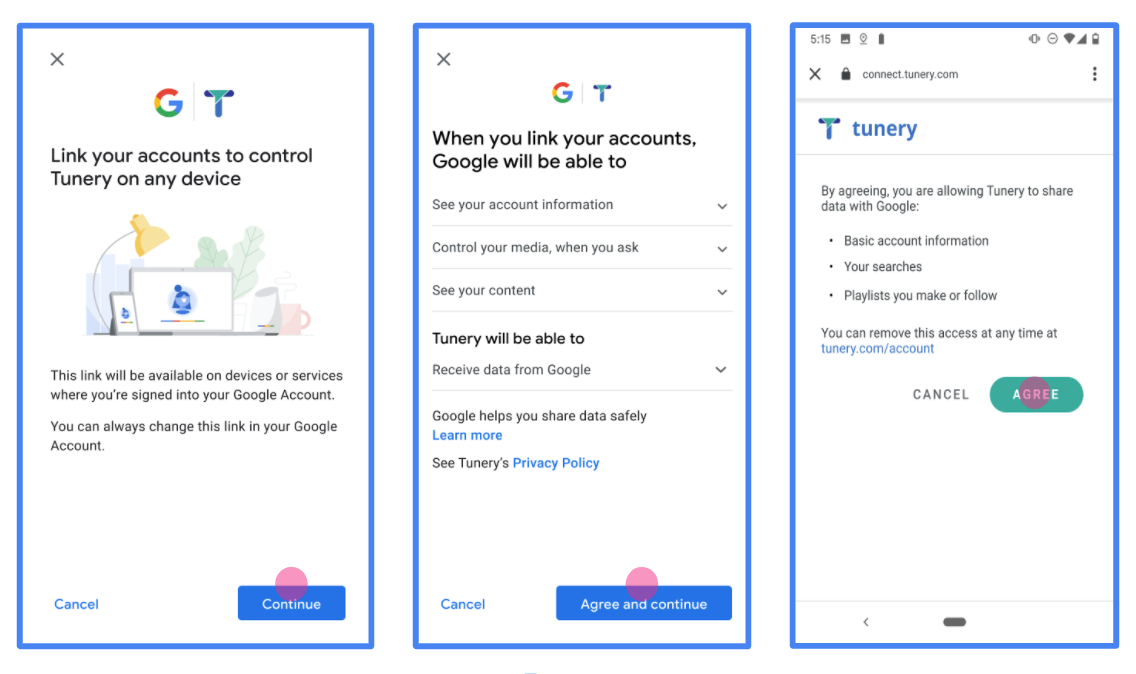
Figura 1. Pantalla de consentimiento de vinculación de Cuentas de Google para una aplicación ficticia, Tunery
Verifica el "Estado de verificación". Si tu aplicación necesita verificación, haz clic en el botón "Enviar para verificación" para enviarla. Consulta los requisitos de verificación de OAuth para obtener más detalles.
Implementa tu servidor de OAuth
An OAuth 2.0 server implementation of the authorization code flow consists of two endpoints, which your service makes available by HTTPS. The first endpoint is the authorization endpoint, which is responsible for finding or obtaining consent from users for data access. The authorization endpoint presents a sign-in UI to your users that aren't already signed in and records consent to the requested access. The second endpoint is the token exchange endpoint, which is used to obtain encrypted strings, called tokens, that authorize a user to access your service.
When a Google application needs to call one of your service's APIs, Google uses these endpoints together to get permission from your users to call these APIs on their behalf.
Google Account Linking: OAuth Authorization Code Flow
The following sequence diagram details interactions between the User, Google, and your service's endpoints.
Roles and responsibilities
The following table defines the roles and responsibilities of the actors in the Google Account Linking (GAL) OAuth flow. Note that in GAL, Google acts as the OAuth Client, while your service acts as the Identity/Service Provider.
| Actor / Component | GAL Role | Responsibilities |
|---|---|---|
| Google App / Server | OAuth Client | Initiates the flow, receives the authorization code, exchanges it for tokens, and securely stores them to access your service's APIs. |
| Your Authorization Endpoint | Authorization Server | Authenticates your users and obtains their consent to share access to their data with Google. |
| Your Token Exchange Endpoint | Authorization Server | Validates authorization codes and refresh tokens, and issues access tokens to the Google Server. |
| Google Redirect URI | Callback Endpoint | Receives the user redirect from your authorization service with the
code and state values. |
An OAuth 2.0 authorization code flow session initiated by Google has the following flow:
- Google opens your authorization endpoint in the user's browser. If the flow started on a voice-only device for an Action, Google transfers the execution to a phone.
- The user signs in, if not signed in already, and grants Google permission to access their data with your API, if they haven't already granted permission.
- Your service creates an authorization code and returns it to Google. To do so, redirect the user's browser back to Google with the authorization code attached to the request.
- Google sends the authorization code to your token exchange endpoint, which verifies the authenticity of the code and returns an access token and a refresh token. The access token is a short-lived token that your service accepts as credentials to access APIs. The refresh token is a long-lived token that Google can store and use to acquire new access tokens when they expire.
- After the user has completed the account linking flow, every subsequent request sent from Google contains an access token.
Implementation Recipe
Follow these steps to implement the Authorization Code flow.
Step 1: Handle authorization requests
When Google initiates account linking, it redirects the user to your authorization endpoint. For detailed protocol contracts and parameter requirements, see the Authorization Endpoint.
To handle the request, perform the following actions:
Validate the request:
- Confirm that the
client_idmatches the Client ID assigned to Google. - Confirm that the
redirect_urimatches the expected Google redirect URL:- Prod:
https://oauth-redirect.googleusercontent.com/r/YOUR_PARTNER_ID - Sandbox:
https://oauth-redirect-sandbox.googleusercontent.com/r/YOUR_PARTNER_ID
- Prod:
- Verify that
response_typeiscode.
- Confirm that the
Authenticate the user:
- Check if the user is signed in to your service.
- If the user is not signed in, prompt them to complete your sign-in or sign-up flow.
Generate authorization code:
- Create a unique, non-guessable authorization code associated with the user and client.
- Set the code to expire in approximately 10 minutes.
Redirect back to Google:
- Redirect the browser to the URL provided in
redirect_uri. - Append the following query parameters:
code: The authorization code you generated.state: The unmodified state value received from Google.
- Redirect the browser to the URL provided in
Step 2: Handle token exchange requests
Your token exchange endpoint processes two types of requests: exchanging codes for tokens, and refreshing expired access tokens. For detailed protocol contracts and parameter requirements, see the Token Exchange Endpoint.
A. Exchange authorization codes for tokens
When Google receives the authorization code, it calls your token exchange endpoint (POST) to retrieve tokens.
Validate the request:
- Verify
client_idandclient_secret. - Verify the authorization code is valid and not expired.
- Confirm
redirect_urimatches the value used in Step 1. - If validation fails, return an HTTP
400 Bad Requestwith{"error": "invalid_grant"}.
- Verify
Issue tokens:
- Generate a long-lived
refresh_tokenand a short-livedaccess_token(typically 1 hour). - Return an HTTP
200 OKwith the standard JSON token response.
- Generate a long-lived
B. Refresh access tokens
When the access token expires, Google requests a new one using the refresh token.
Validate the request:
- Verify
client_id,client_secret, andrefresh_token. - If validation fails, return an HTTP
400 Bad Requestwith{"error": "invalid_grant"}.
- Verify
Issue new access token:
- Generate a new short-lived
access_token. - Return an HTTP
200 OKwith the JSON token response (optionally including a new refresh token).
- Generate a new short-lived
Controla las solicitudes userinfo
El extremo userinfo es un recurso protegido de OAuth 2.0 que muestra reclamos sobre el usuario vinculado. La implementación y el alojamiento del extremo userinfo son opcionales, excepto en los siguientes casos de uso:
- Acceso a la cuenta vinculada con Google One Tap.
- Suscripción sin inconvenientes en Android TV.
Una vez que el token de acceso se recupera correctamente del extremo del token, Google envía una solicitud al extremo userinfo para recuperar la información básica de perfil del usuario vinculado.
| Encabezados de la solicitud del extremo userinfo | |
|---|---|
Authorization header |
El token de acceso del tipo portador. |
Por ejemplo, si el extremo userinfo está disponible en
https://myservice.example.com/userinfo, una solicitud podría verse de la siguiente manera:
GET /userinfo HTTP/1.1
Host: myservice.example.com
Authorization: Bearer ACCESS_TOKEN
Para que tu extremo userinfo controle las solicitudes, sigue estos pasos:
- Extrae el token de acceso del encabezado de autorización y muestra la información del usuario asociada con el token de acceso.
- Si el token de acceso no es válido, muestra un error HTTP 401 No autorizado con el encabezado de respuesta
WWW-Authenticate. A continuación, se muestra un ejemplo de una respuesta de error de userinfo:HTTP/1.1 401 Unauthorized WWW-Authenticate: error="invalid_token", error_description="The Access Token expired"
Si el token de acceso es válido, devuelve una respuesta HTTP 200 con el siguiente objeto JSON en el cuerpo del protocolo HTTPS respuesta:
{ "sub": "USER_UUID", "email": "EMAIL_ADDRESS", "given_name": "FIRST_NAME", "family_name": "LAST_NAME", "name": "FULL_NAME", "picture": "PROFILE_PICTURE", }respuesta del extremo userinfo subUn ID único que identifica al usuario en tu sistema. emailDirección de correo electrónico del usuario. given_nameOpcional: Es el nombre del usuario. family_nameOpcional: Apellido del usuario. nameOpcional: Es el nombre completo del usuario. pictureOpcional: Foto de perfil del usuario.
Cómo validar la implementación
Puedes validar tu implementación con la herramienta OAuth 2.0 Playground.
En la herramienta, sigue estos pasos:
- Haz clic en Configuración para abrir la ventana Configuración de OAuth 2.0.
- En el campo Flujo de OAuth, selecciona Del cliente.
- En el campo Extremos de OAuth, selecciona Personalizado.
- Especifica tu extremo de OAuth 2.0 y el ID de cliente que le asignaste a Google en los campos correspondientes.
- En la sección Paso 1, no selecciones ningún alcance de Google. En su lugar, deja este campo en blanco o escribe un alcance válido para tu servidor (o una cadena arbitraria si no usas alcances de OAuth). Cuando termines, haz clic en Autorizar APIs.
- En las secciones Paso 2 y Paso 3, sigue el flujo de OAuth 2.0 y verifica que cada paso funcione según lo previsto.
Puedes validar tu implementación con la herramienta de demostración de vinculación de Cuentas de Google.
En la herramienta, sigue estos pasos:
- Haz clic en el botón Acceder con Google.
- Elige la cuenta que quieras vincular.
- Ingresa el ID de servicio.
- De manera opcional, ingresa uno o más alcances para los que solicitarás acceso.
- Haz clic en Iniciar demostración.
- Cuando se te solicite, confirma que puedes dar tu consentimiento y rechazar la solicitud de vinculación.
- Confirma que se te redirecciona a tu plataforma.