
Brand verification lets an application developer verify that they have accurately represented their identity and intent as specified by Google's API Services User Data Policy. Brand verification is part of the OAuth App verification process. Completing brand verification for your Google Cloud project is a prerequisite for applying for the Basic access level for the Google Ads API.
This guide provides the step-by-step instructions to complete brand verification for your Google Cloud project.
Complete brand verification
- Go to the Google Cloud Console and select your project.
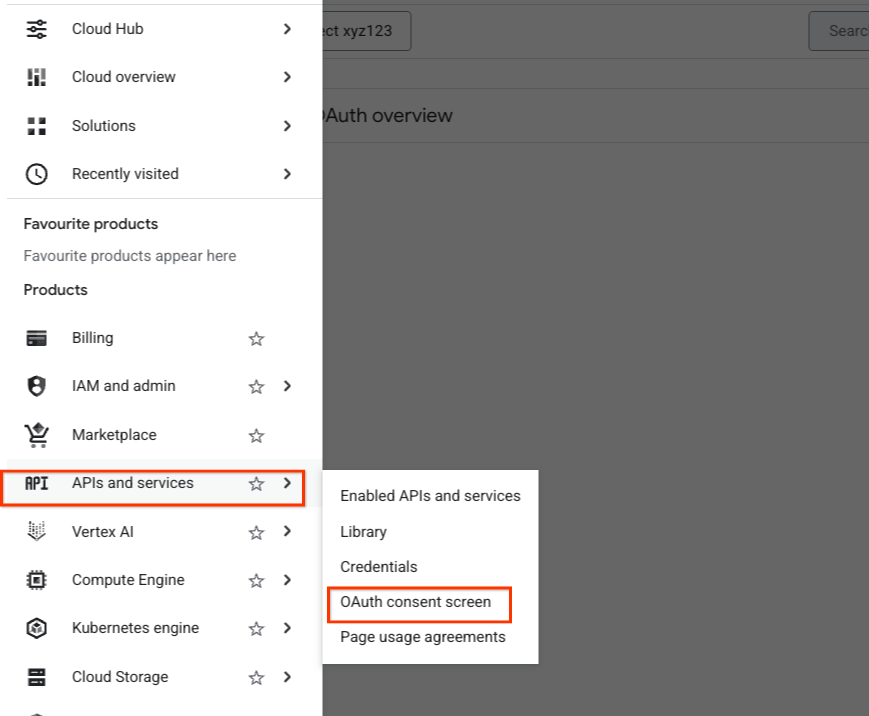
From the left menu, go to APIs & Services > OAuth consent screen.
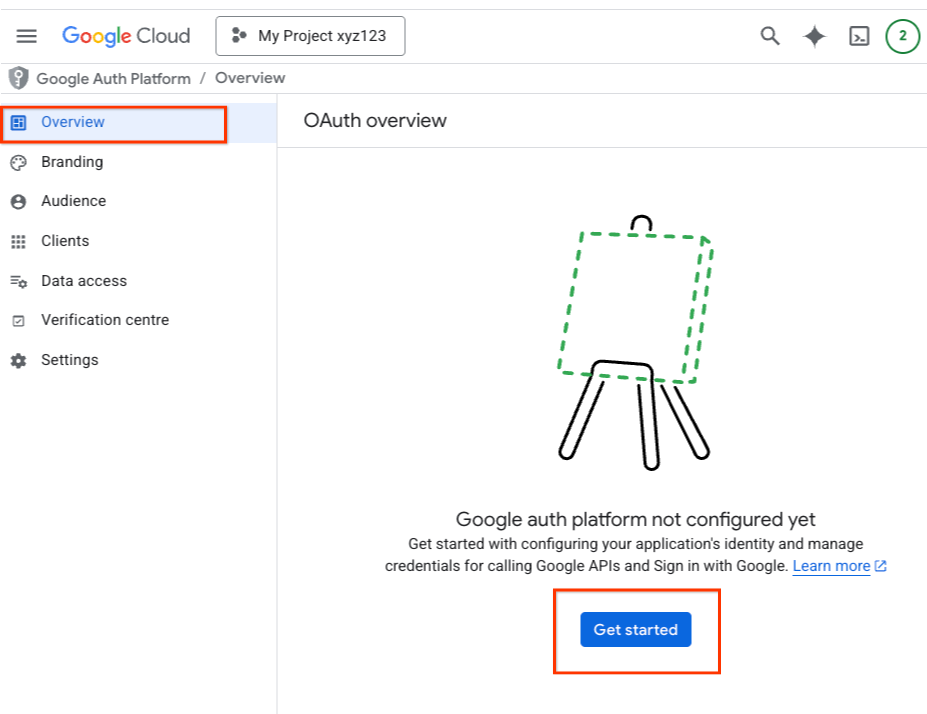
Select the Overview tab and click Get Started on the OAuth Overview page.
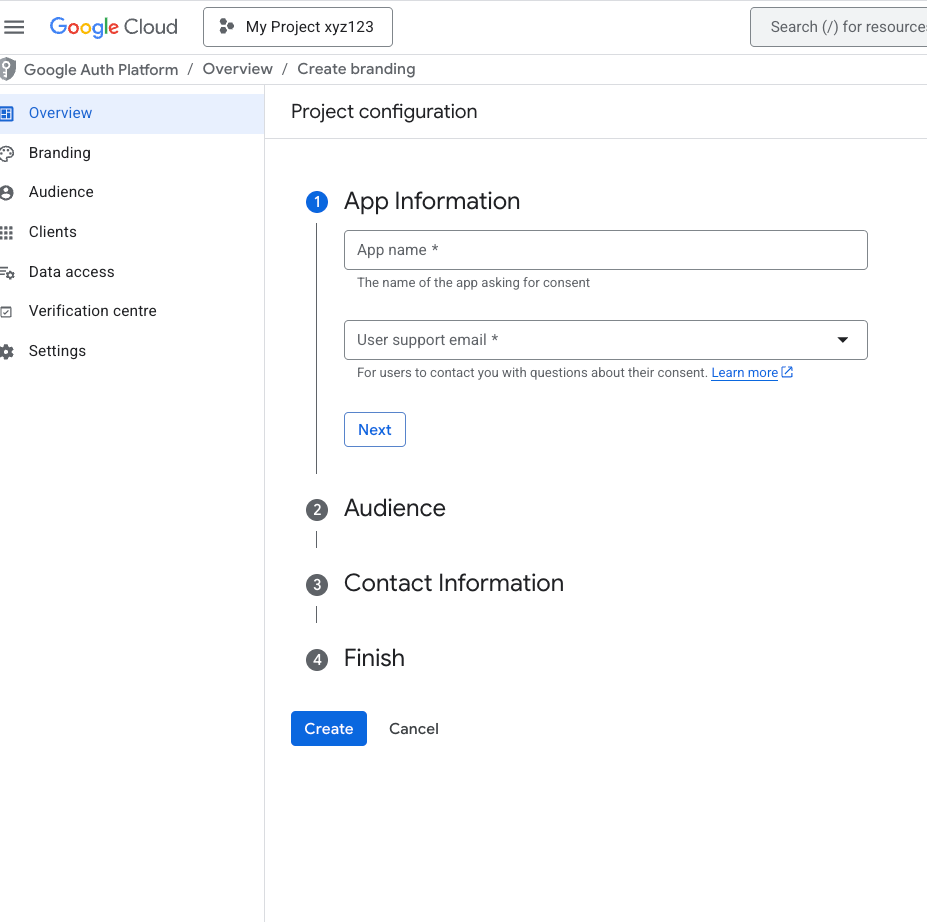
Fill in the project configuration details and click Create.
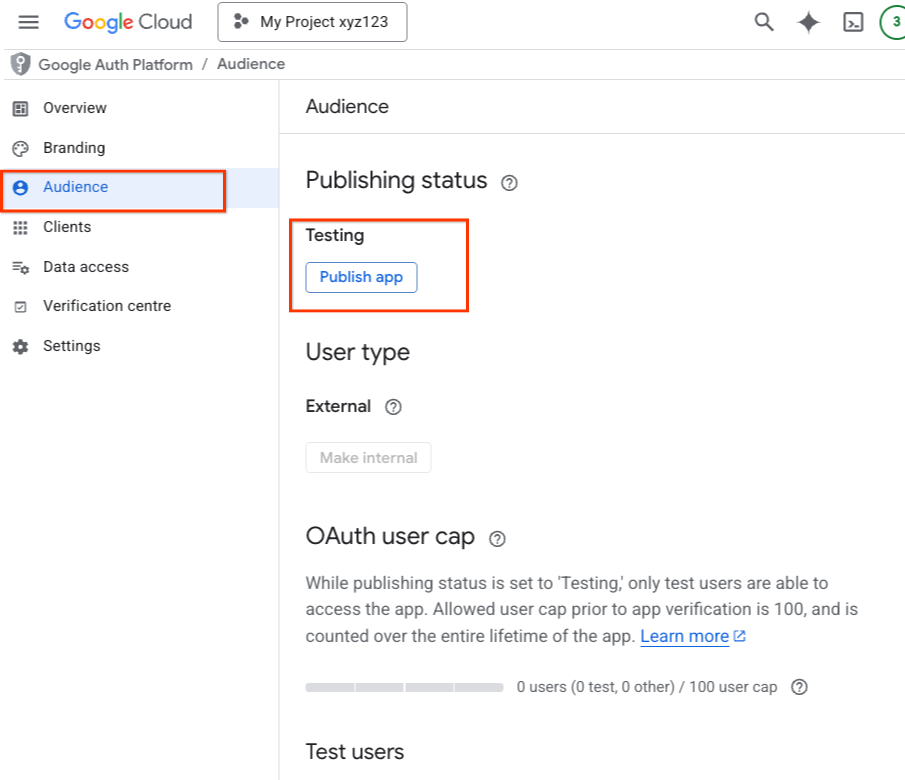
Go to the Audience tab and publish your app to production:
If you are a Google Workspace user
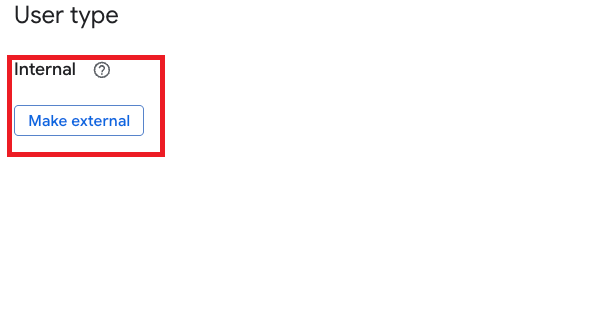
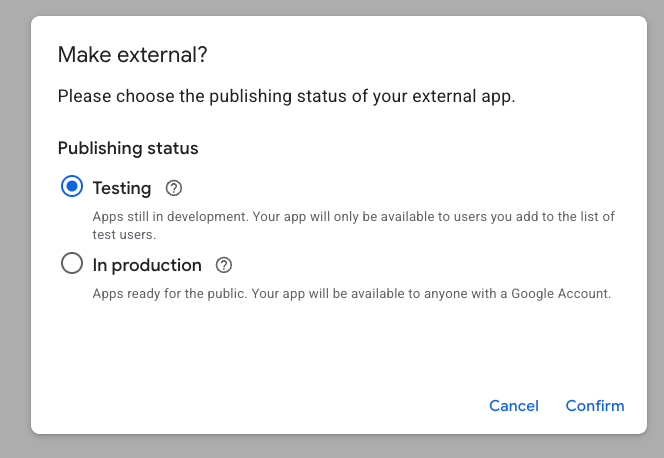
If the User type is set to Internal, click Make external.
In the dialog, select In production for the Publishing status and click Confirm.
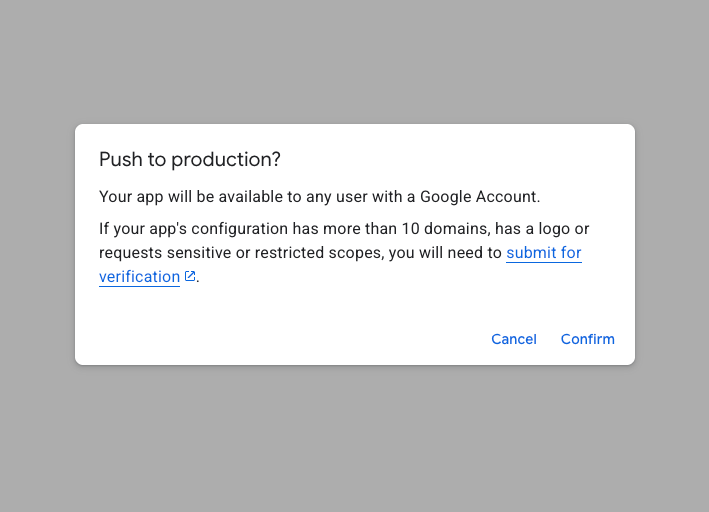
If prompted to Push to Production?, click Confirm.
If you are not a Google Workspace user
For non-Google Workspace accounts, the User type is automatically set to External.
If the Publishing status is set to Testing, click Publish app.
When prompted to Push to Production?, click Confirm.
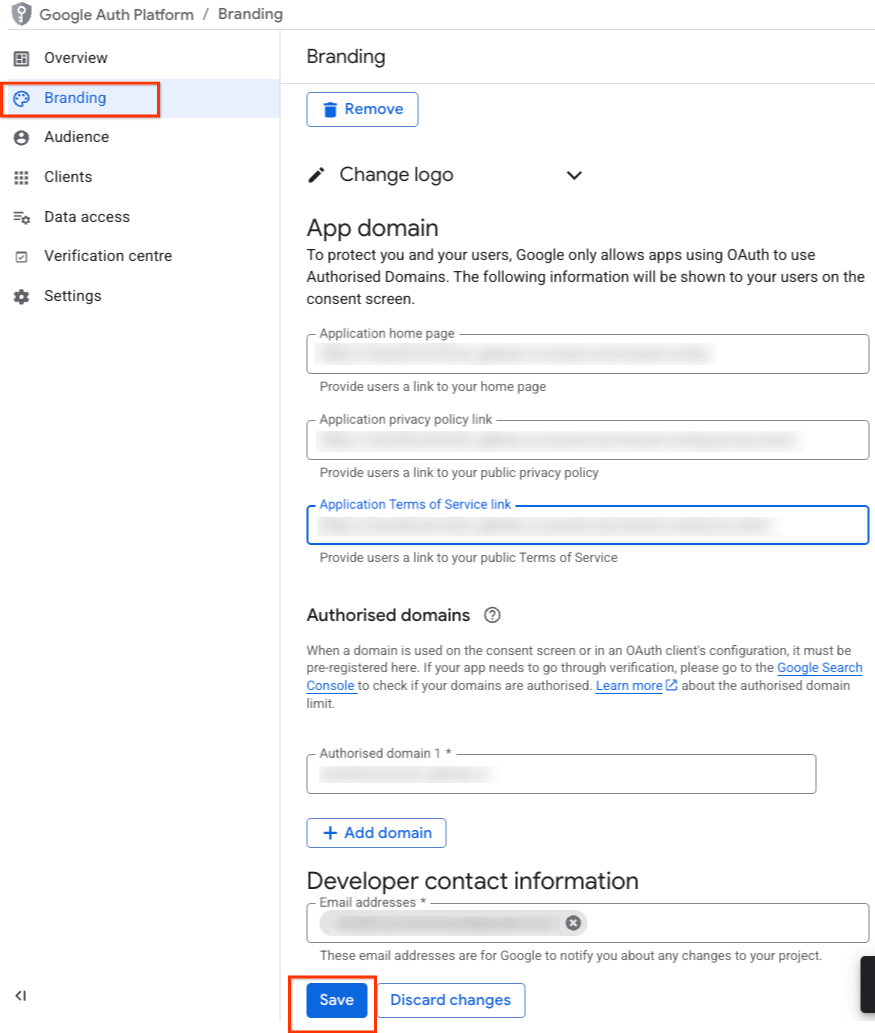
Go to the Branding tab, fill in all required branding information, and click Save.
In the top-right corner of the Branding page, click Verify Branding under Verification status.
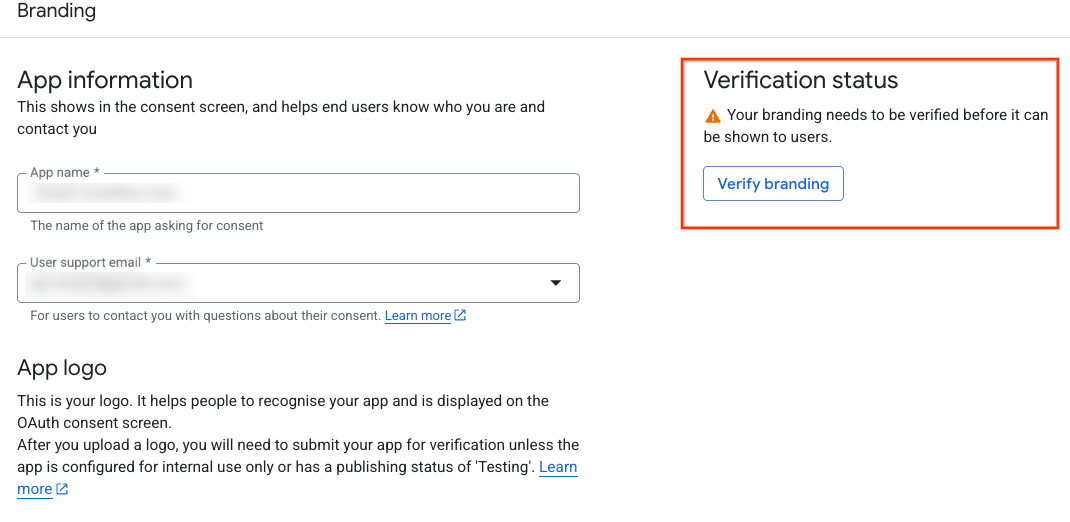
The verification process takes a few minutes to complete. If any errors occur, the page displays the errors along with steps to address them.
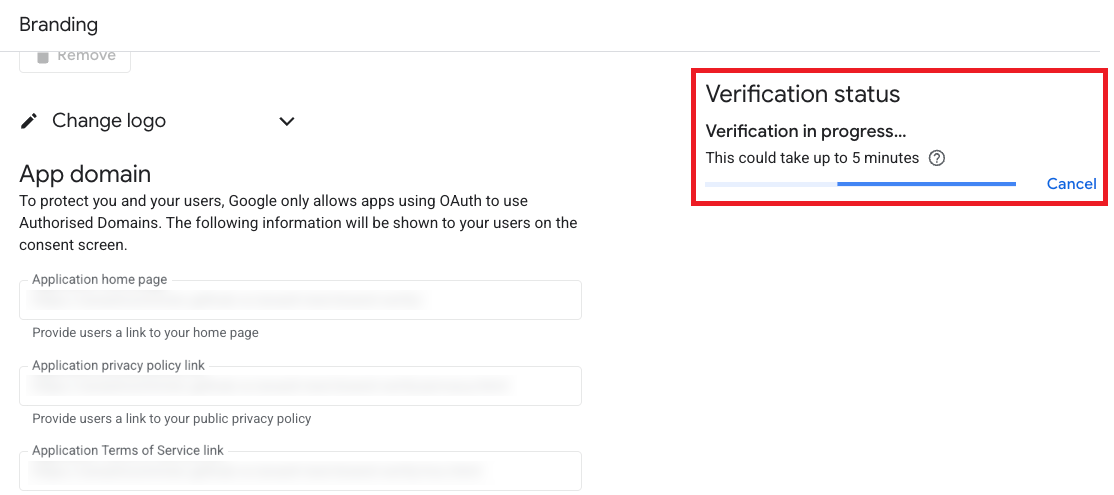
After verification completes, click Publish branding.
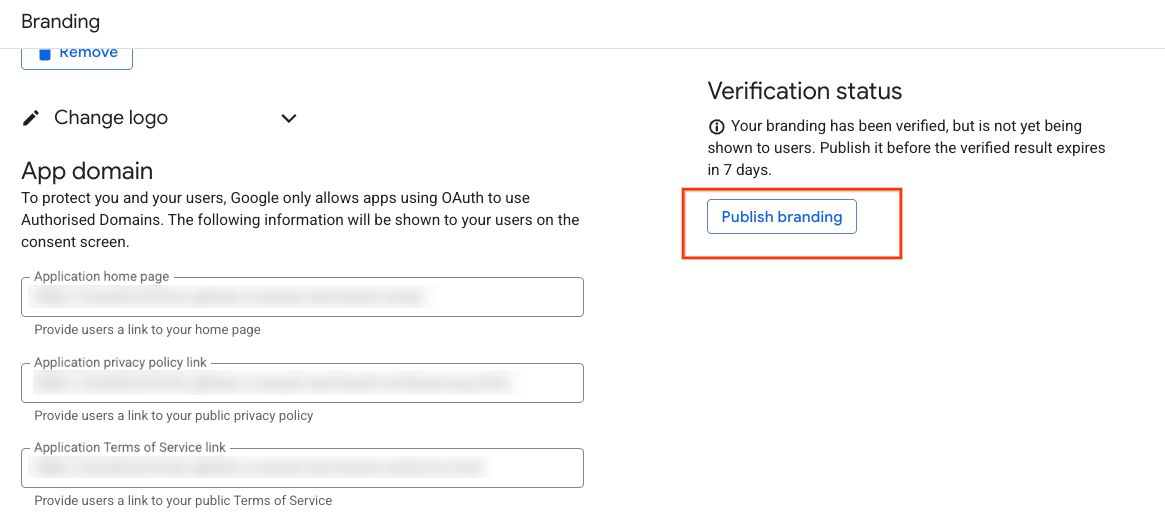
The Branding page updates to show that your project is brand verified.
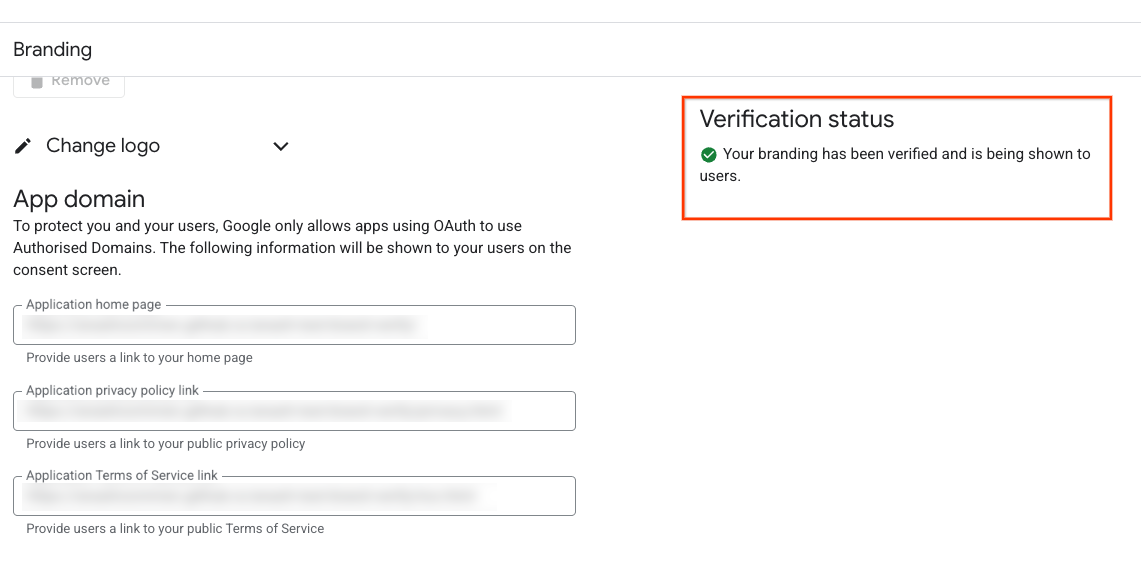
Return to the Google Ads API Overview page in the Google Cloud Console and apply for the Basic access level.
What if my application targets internal users or isn't published for production use?
Other Google Cloud documentation and UI prompts state that brand verification is not required when an application's User type is set to Internal or its Publishing status is set to Testing. However, for Google Ads API Basic access applications, this guide supersedes that guidance: you must set your application's User type to External and its Publishing status to In production.