

Page Summary
-
This guide explains how to integrate the maio SDK and adapter into a Flutter app for loading and displaying ads through Google Mobile Ads SDK mediation.
-
The maio dashboard uses Japanese text, but English equivalents are provided in the guide.
-
The maio mediation adapter supports Waterfall integration and Banner, Interstitials, Rewarded, and Native ad formats.
-
Requirements include the latest Google Mobile Ads SDK, Flutter 3.7.0 or higher, and specific Android and iOS API levels/deployment targets.
-
To set up, you need to configure settings in the maio UI to get your Media ID, Zone ID, API ID, and API KEY, then set up maio demand in the Ad Manager UI.
This guide shows you how to use Google Mobile Ads Flutter Plugin to load and display ads from maio using mediation, covering waterfall integrations. It covers how to add maio to an ad unit's mediation configuration, and how to integrate the maio SDK and adapter into a Flutter app.
The dashboard interface for maio uses Japanese text for its labels, buttons, and descriptions, and the screenshots in this guide have not been translated. However, in descriptions and instructions here, labels and buttons are referred to by their English language equivalents. "URL スキーム," for example, is "URL Scheme,".
Supported integrations and ad formats
The mediation adapter for maio has the following capabilities:
| Integration | |
|---|---|
| Bidding | |
| Waterfall | |
| Formats | |
| App Open | |
| Banner | |
| Interstitial | |
| Rewarded | |
| Rewarded Interstitial | |
| Native | |
Prerequisites
Before you continue, verify the following:
- Latest Google Mobile Ads Flutter Plugin version.
- Flutter framework version 3.7.0 or later.
- To deploy on Android
- Android API level 24 or later.
- To deploy on iOS
- iOS deployment target of 15.0 or later.
- A working Flutter project configured with Google Mobile Ads Flutter Plugin. See Set up Google Mobile Ads Flutter Plugin for details.
Step 1: Set up configurations in maio UI
First, sign up or log in to your maio account. Click the Application management button on the left sidebar and click on New app.
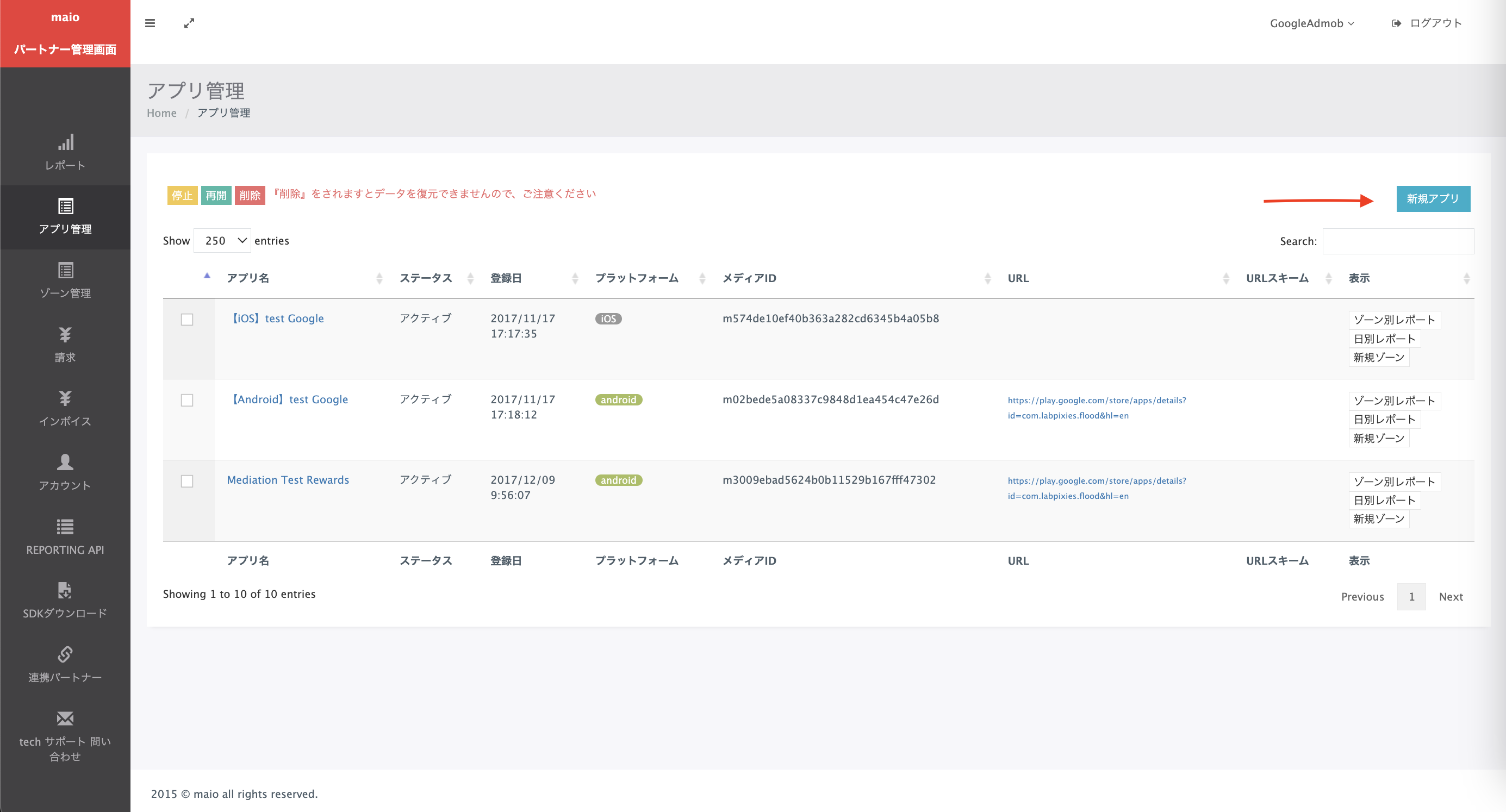
Select the tab corresponding to your preferred Ad Type.
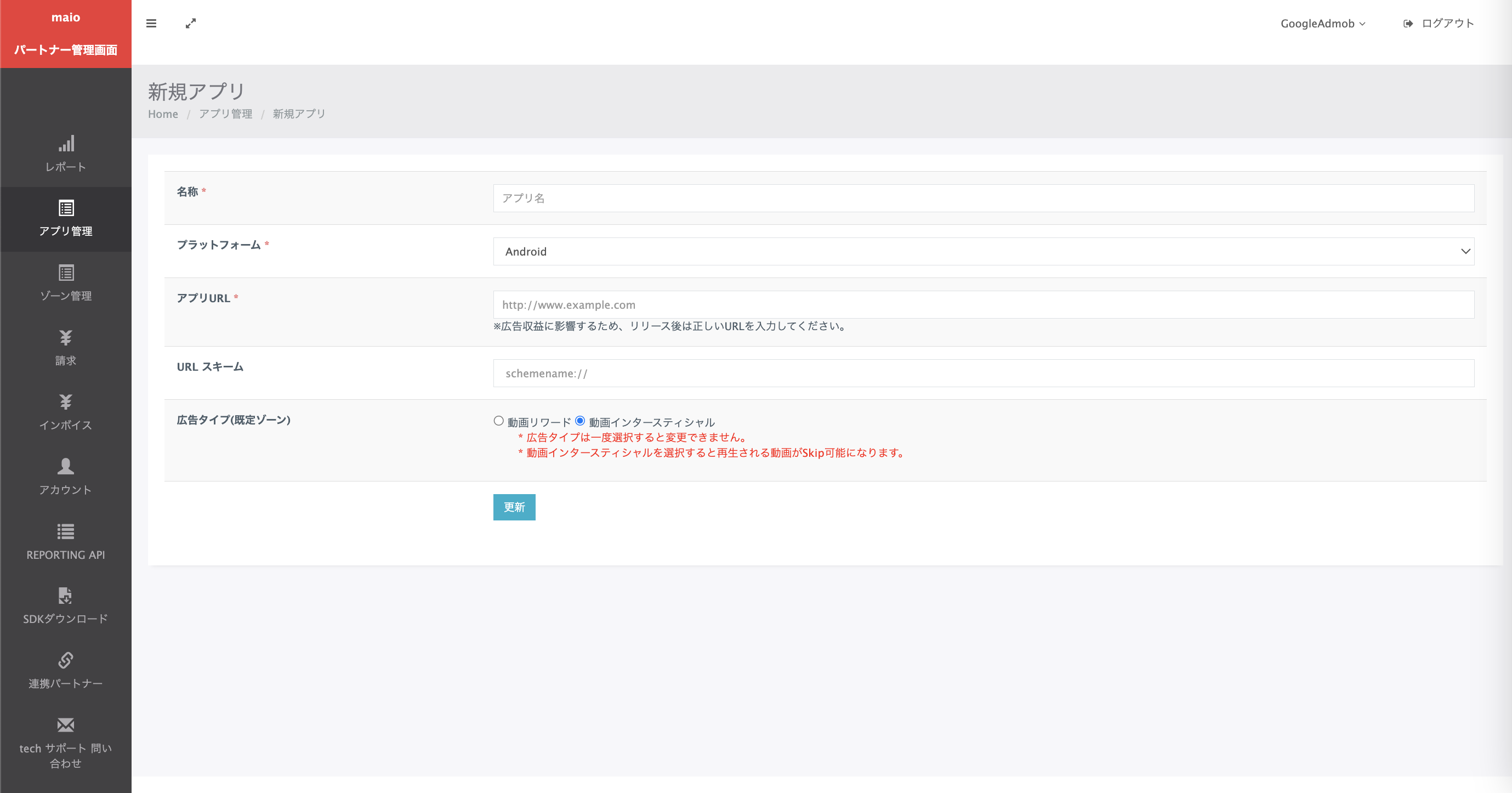
Interstitial
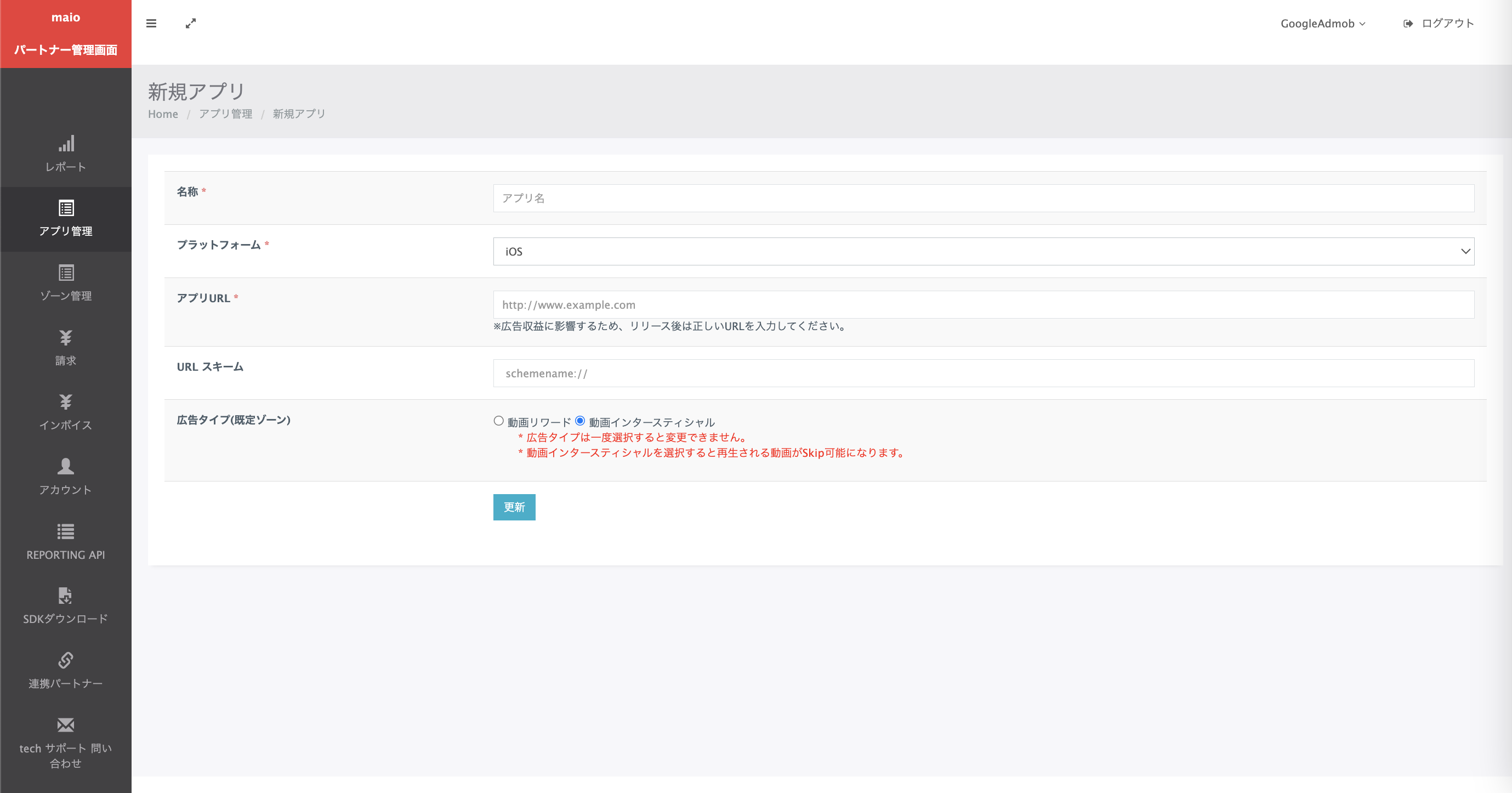
Enter the Name of your app, select the platform and provide your App URL. Select Video interstitial as the Ad Type, and then click Update.
Android
iOS
Rewarded
Enter the Name of your app, select the platform and provide your App URL. Select Video Rewards as the Ad Type, and then click Update.
Android
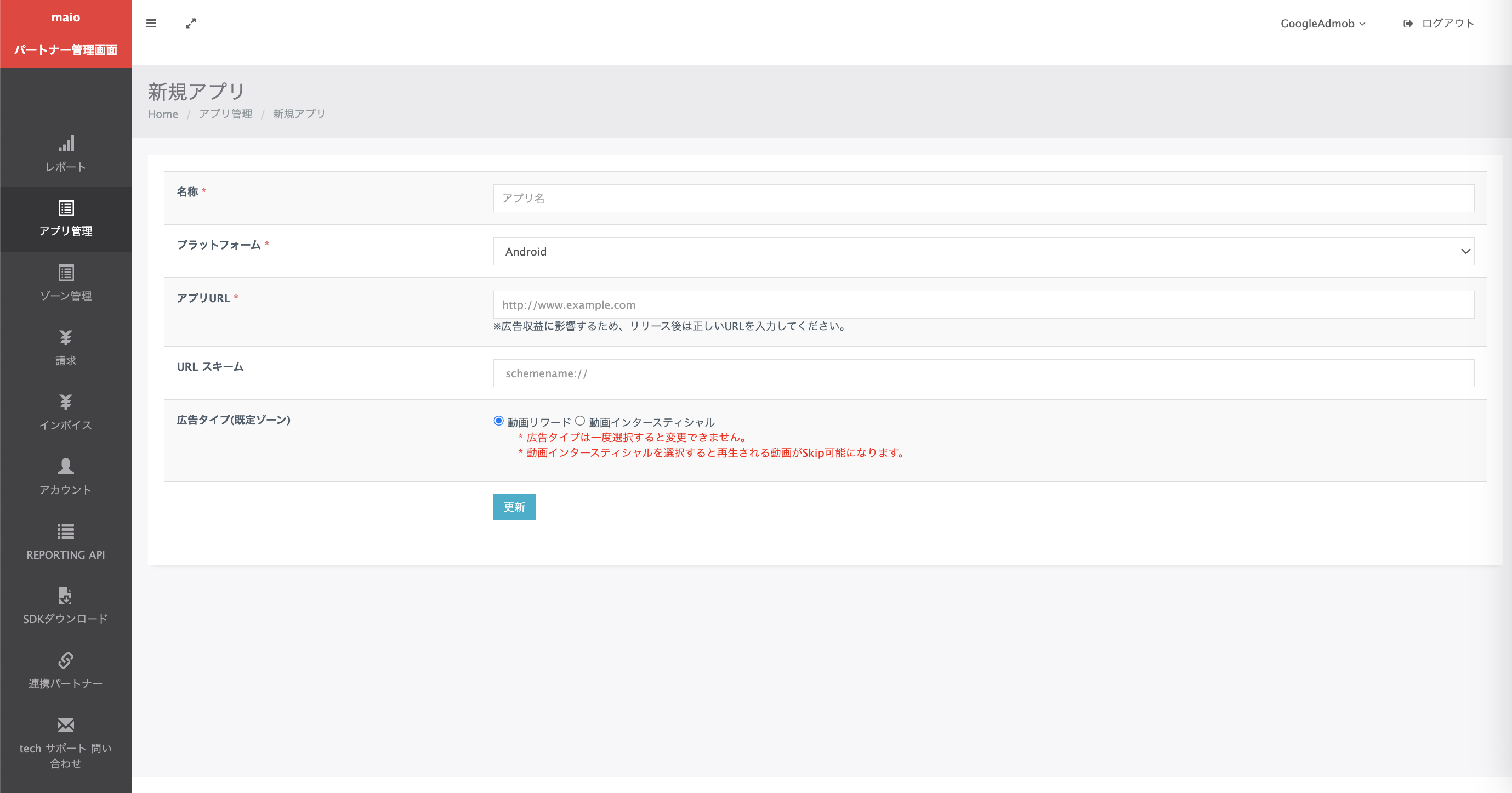
iOS
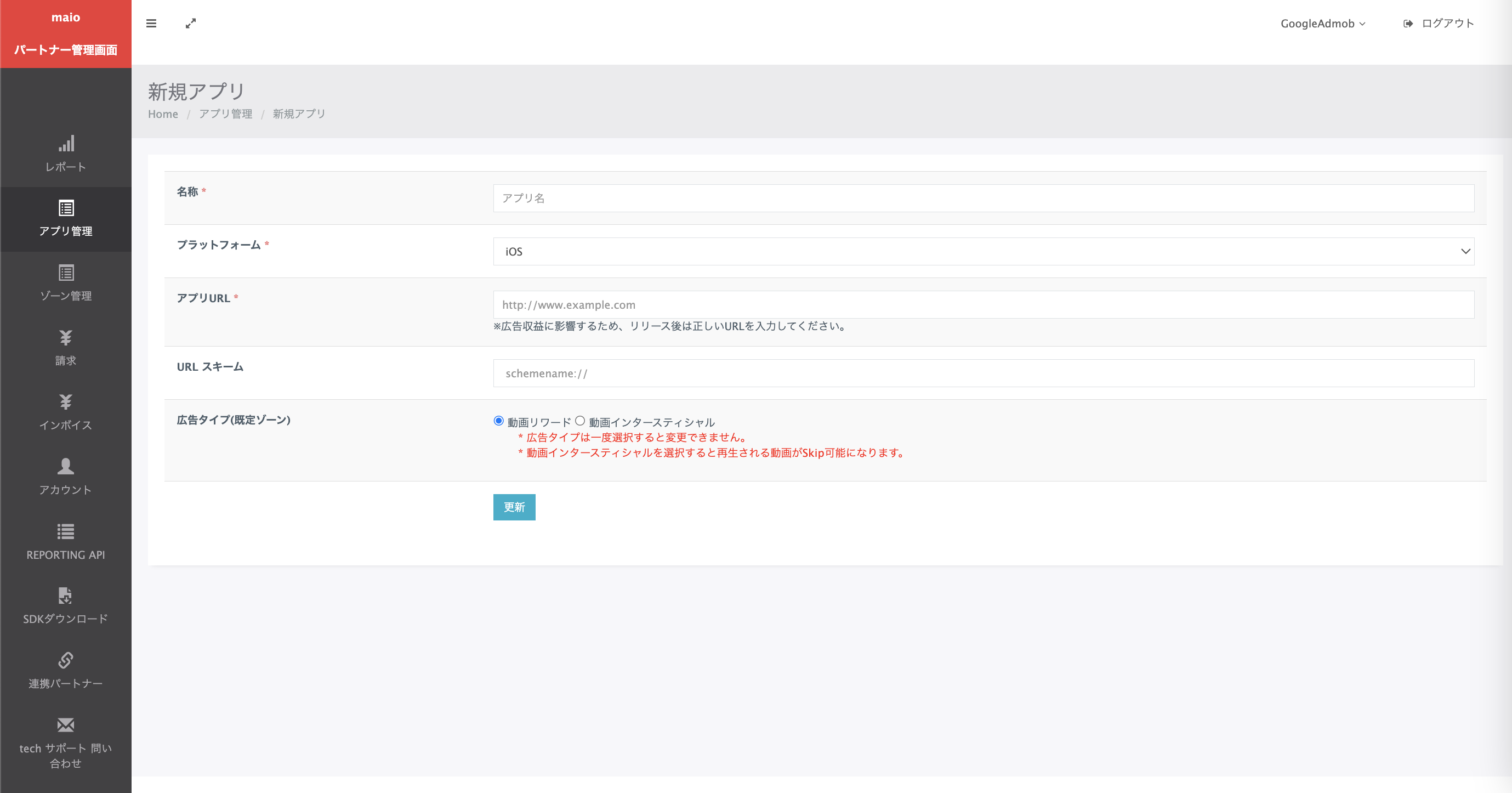
In the Application Management page, make a note of the Media ID. It's needed to set up your Ad Manager ad unit in the next section.
Android
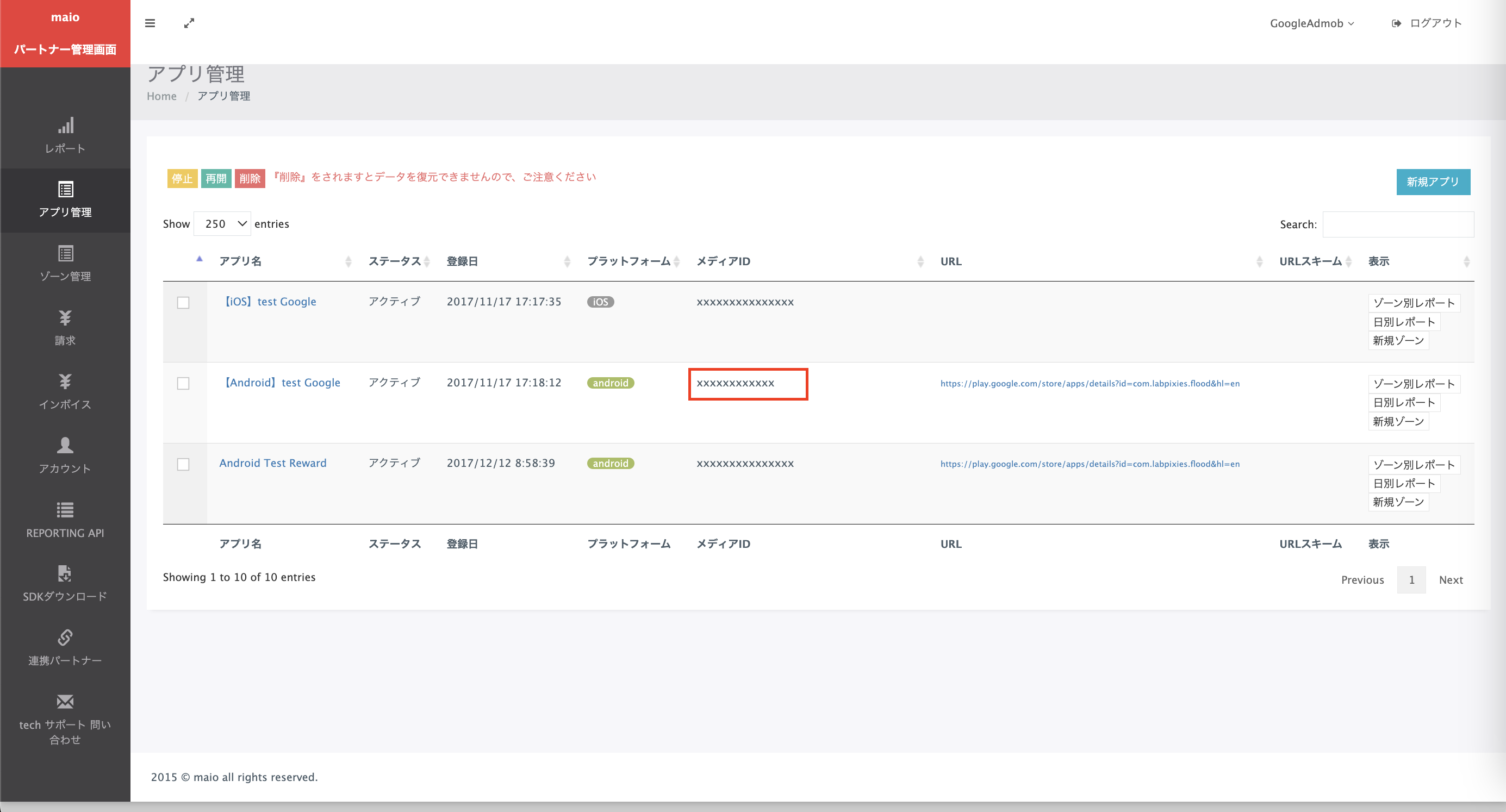
iOS
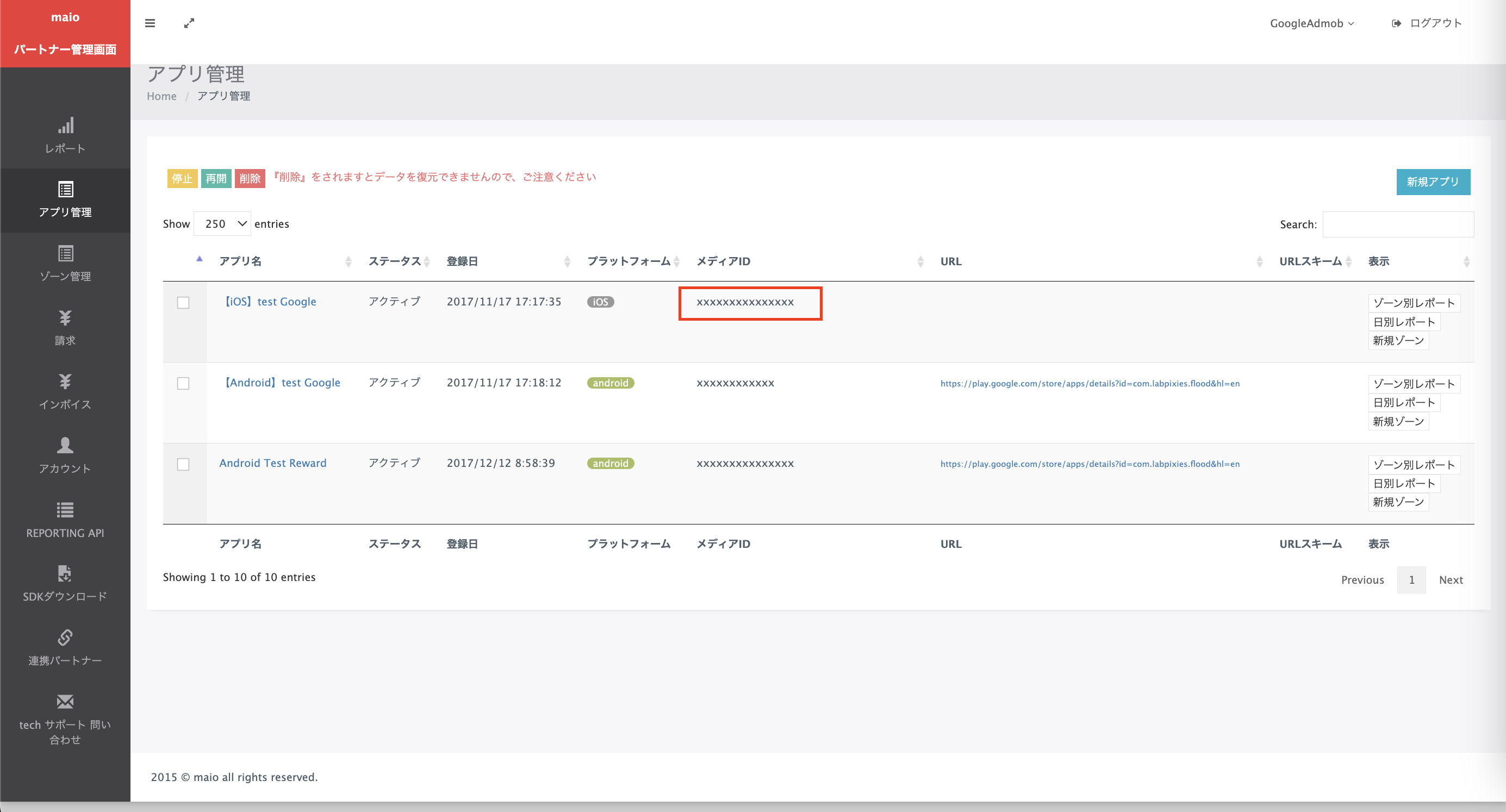
In the Zone Management page, make a note of the Zone ID. It will also be needed to set up your Ad Manager ad unit in the next section.
Android
iOS
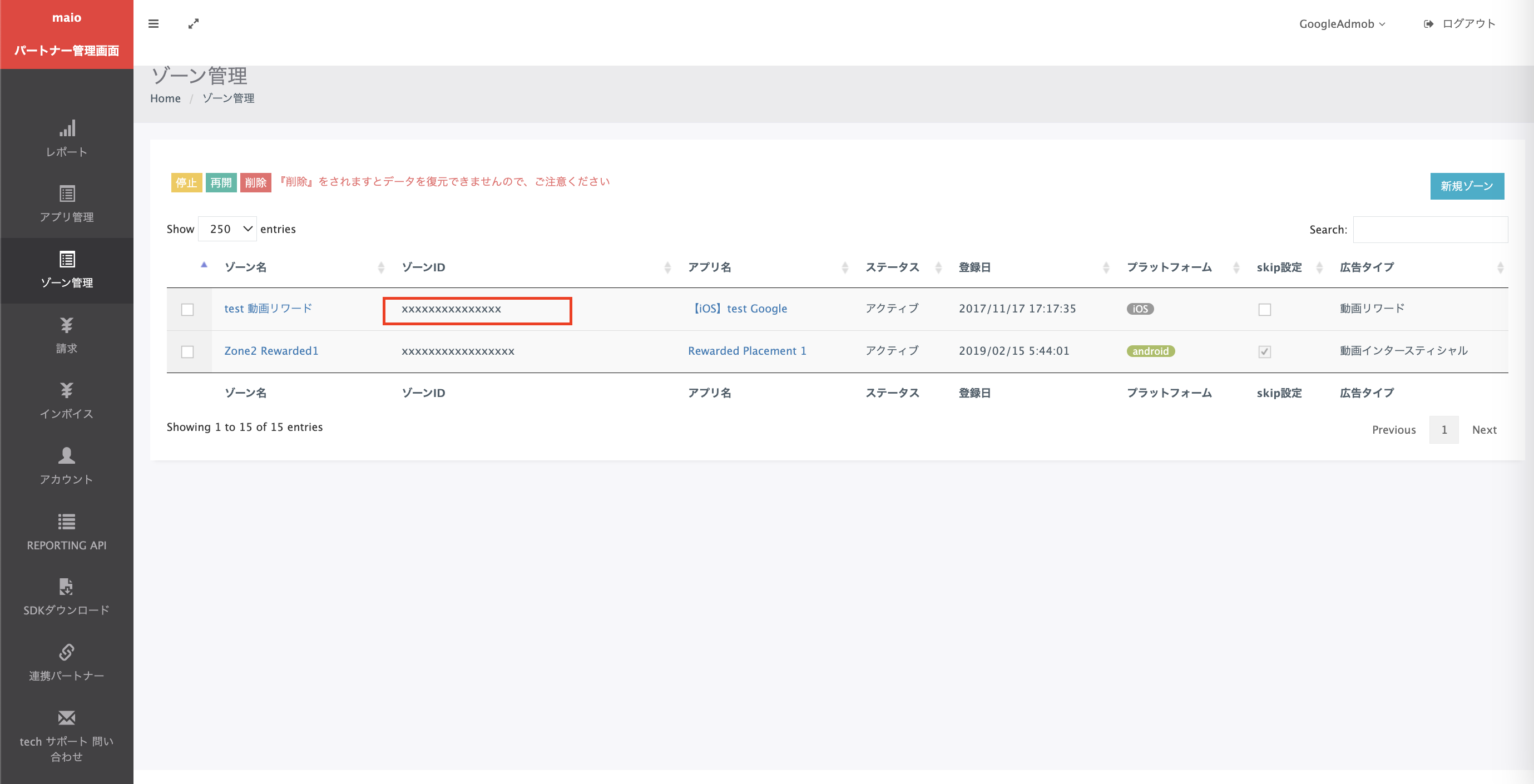
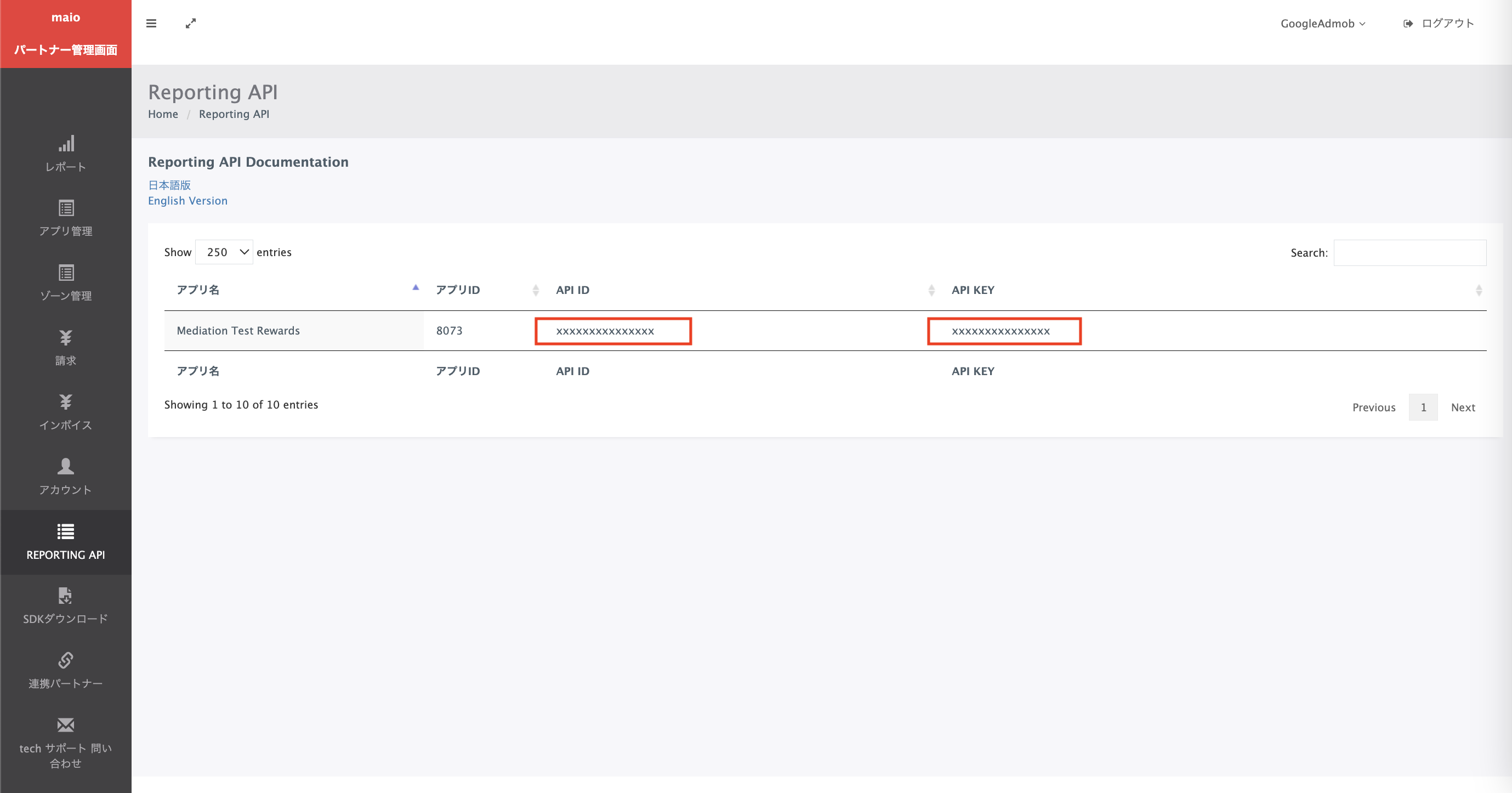
Step 2: Set up maio demand in Ad Manager UI
Configure mediation settings for your ad unit
Android
For instructions, see step 2 in the guide for Android.
iOS
For instructions, see step 2 in the guide for iOS.
Step 3: Import the maio SDK and adapter
Integration through pub.dev
(Android only) Add the following repositories to the build.gradle file inside
your project's android directory:
  repositories {
      google()
      mavenCentral()
      maven {
          url = uri("https://imobile-maio.github.io/maven")
      }
  }
Add the following dependency with the latest versions of the
maio SDK and adapter in your
package's pubspec.yaml file:
dependencies:
  gma_mediation_maio: ^1.1.8
Manual Integration
Download the latest version of Google Mobile Ads mediation plugin for
maio,
extract the downloaded file, and add the extracted plugin folder
(and its contents) to your Flutter project. Then, reference the plugin in your
pubspec.yaml file by adding the following dependency:
dependencies:
  gma_mediation_maio:
    path: path/to/local/package
Step 4: Add required code
Android
No additional code is required for maio integration.
iOS
SKAdNetwork integration
Follow maio's documentation
to add the SKAdNetwork identifiers to your project's Info.plist file.
Step 5: Test your implementation
Enable test ads
Make sure you register your test device for Ad Manager.
Publishers using version 7.26.0 or higher of Google Mobile Ads Flutter Plugin will automatically receive test ads from maio on phones and tablets registered as test devices when making requests.
Verify test ads
To verify that you are receiving test ads from maio, enable single ad source testing in ad inspector using the maio (Waterfall) ad source(s).
Error codes
If the adapter fails to receive an ad from maio, publishers can check the
underlying error from the ad response using
ResponseInfo under the
following classes:
Android
| Format | Class name |
|---|---|
| Interstitial | jp.maio.sdk.android.mediation.admob.adapter.Interstitial |
| Rewarded | jp.maio.sdk.android.mediation.admob.adapter.Rewarded |
iOS
| Format | Class name |
|---|---|
| Interstitial | GADMMaioInterstitialAdapter |
| Rewarded | GADMMaioRewardedAdapter |
Here are the codes and accompanying messages thrown by the maio adapter when an ad fails to load:
Android
| Error code | Reason |
|---|---|
| 0-10 | maio returned an SDK-specific error. See code and maio's documentation for more details. |
| 101 | Maio does not have an ad available. |
| 102 | Invalid server parameters (e.g. missing Placement ID). |
| 103 | Context used to load an ad was not an `Activity` instance. |
iOS
| Error code | Reason |
|---|---|
| 0-10 | maio returned an SDK-specific error. See maio's code for more details. |
| 101 | maio doesn't yet have an ad available. |
| 102 | Invalid server parameters (e.g. missing Placement ID). |
| 103 | The maio adapter does not support the ad format being requested. |
| 104 | An ad is already loaded for this network configuration. |
maio Flutter Mediation Adapter Changelog
Version 1.1.8
- Supports maio Android adapter version 2.0.9.1.
- Supports maio iOS adapter version 2.2.3.0.
- Built and tested with the Google Mobile Ads Flutter Plugin version 9.1.0.
Version 1.1.7
- Updated to support Google Mobile Ads Flutter Plugin version 9.1.0.
- Add Swift Package Manager support.
- Supports maio Android adapter version 2.0.9.0.
- Supports maio iOS adapter version 2.2.2.0.
- Built and tested with the Google Mobile Ads Flutter Plugin version 9.1.0.
Version 1.1.6
- Supports maio Android adapter version 2.0.9.0.
- Supports maio iOS adapter version 2.2.1.2.
- Built and tested with the Google Mobile Ads Flutter Plugin version 9.0.0.
Version 1.1.5
- Supports maio Android adapter version 2.0.8.2.
- Supports maio iOS adapter version 2.2.1.2.
- Built and tested with the Google Mobile Ads Flutter Plugin version 8.0.0.
Version 1.1.4
- Updated minimum Flutter version to 3.38.1.
- Updated to support Google Mobile Ads Flutter Plugin version 8.0.0.
- Supports maio Android adapter version 2.0.8.2.
- Supports maio iOS adapter version 2.2.1.1.
- Built and tested with the Google Mobile Ads Flutter Plugin version 8.0.0.
Version 1.1.3
- Supports maio Android adapter version 2.0.7.0.
- Supports maio iOS adapter version 2.2.0.3.
- Built and tested with the Google Mobile Ads Flutter Plugin version 6.0.0.
Version 1.1.2
- Updated minimum Flutter version to 3.35.1
- Updated to support Google Mobile Ads Flutter Plugin version 7.0.0
- Supports maio Android adapter version 2.0.8.0.
- Supports maio iOS adapter version 2.2.0.1.
Version 1.1.1
- Supports maio Android adapter version 2.0.7.0.
- Supports maio iOS adapter version 2.2.0.1.
- Built and tested with the Google Mobile Ads Flutter Plugin version 6.0.0.
Version 1.1.0
- Supports maio Android adapter version 2.0.6.0.
- Supports maio iOS adapter version 2.2.0.0.
- Built and tested with the Google Mobile Ads Flutter Plugin version 6.0.0.
Version 1.0.3
- Supports maio Android adapter version 2.0.5.0.
- Supports maio iOS adapter version 2.1.6.1.
- Built and tested with the Google Mobile Ads Flutter Plugin version 6.0.0.
Version 1.0.2
- Supports maio Android adapter version 2.0.4.0.
- Supports maio iOS adapter version 2.1.6.1.
- Built and tested with the Google Mobile Ads Flutter Plugin version 6.0.0.
Version 1.0.1
- Supports maio Android adapter version 2.0.3.1.
- Supports maio iOS adapter version 2.1.6.1.
- Built and tested with the Google Mobile Ads Flutter Plugin version 6.0.0.
Version 1.0.0
- Initial release.
- Supports maio Android adapter version 2.0.3.0.
- Supports maio iOS adapter version 2.1.6.0.
- Built and tested with the Google Mobile Ads Flutter Plugin version 5.3.1.