

Page Summary
-
IMA SDKs facilitate integrating multimedia ads into websites and apps.
-
IMA SDKs can request ads from VAST-compliant servers and manage playback.
-
IMA DAI SDKs combine ad and content video into a single stream, simplifying playback management.
-
IMA DAI SDKs support both VOD and live content.
IMA SDKs make it easy to integrate multimedia ads into your websites and apps. IMA SDKs can request ads from any VAST-compliant ad server and manage ad playback in your apps. With IMA DAI SDKs, apps make a stream request for ad and content video—either VOD or live content. The SDK then returns a combined video stream, so that you don't have to manage switching between ad and content video within your app.
Select the DAI solution you're interested in
Full service DAI
This guide covers integrating IMA DAI SDK into a video player app. If you want to view or follow along with a completed sample integration, download the BasicExample from GitHub.
IMA DAI overview
Implementing IMA DAI involves three main SDK components, as this guide demonstrates:
IMAAdDisplayContainer: A container object that sits on top of the video playback element and houses the ad UI elements.IMAAdsLoader: An object that requests streams and handles events triggered by stream request response objects. You should only instantiate one ads loader, which can be reused throughout the life of the application.IMAStreamRequest– either aIMAVODStreamRequestor aIMALiveStreamRequest: An object that defines a stream request. Stream requests can either be for video-on-demand or live streams. Live stream requests specify an asset key, while VOD requests specify a CMS ID and video ID. Both request types can optionally include an API key needed to access specified streams, and a Google Ad Manager network code for the IMA SDK to handle ads identifiers as specified in Google Ad Manager settings.IMAStreamManager: An object that handles dynamic ad insertion streams and interactions with the DAI backend. The stream manager also handles tracking pings and forwards stream and ad events to the publisher.
Prerequisites
Before you begin, you need the following:
- Xcode 13 or later
- Method for installing the IMA SDK:
- Swift Package Manager (preferred)
- CocoaPods
- A download copy of IMA SDK for tvOS
Create a new Xcode project
In Xcode, create a new tvOS project using Objective-C. Use BasicExample as the project name.
Add the IMA DAI SDK to the Xcode project
To install IMA SDK, choose a preferred method.
Recommended: Install the SDK using Swift Package Manager
The Interactive Media Ads SDK supports Swift Package Manager starting in version 4.8.2. Follow these steps to import the Swift package.
In Xcode, install the GoogleInteractiveMediaAds Swift Package by navigating to File > Add Packages.
In the prompt that appears, search for the GoogleInteractiveMediaAds Swift Package GitHub repository:
https://github.com/googleads/swift-package-manager-google-interactive-media-ads-tvosSelect the version of the GoogleInteractiveMediaAds Swift Package you want to use. For new projects, we recommend using the Up to Next Major Version.
When you're done, Xcode resolves your package dependencies and downloads them in the background. For more details on how to add package dependencies, see Apple's article.
Install the SDK using CocoaPods
CocoaPods is a dependency manager for Xcode projects and is the recommended method for installing the IMA DAI SDK. For more information on installing or using CocoaPods, see the CocoaPods documentation. Once you have CocoaPods installed, use the following instructions to install the IMA DAI SDK:
In the same directory as your BasicExample.xcodeproj file, create a text file called Podfile, and add the following configuration:
platform :tvos, '15' project 'BasicExample.xcodeproj' target "BasicExample" do pod 'GoogleAds-IMA-tvOS-SDK', '~> 4.17.0' endFrom the directory that contains the Podfile, run:
pod install --repo-updateVerify the installation succeeded by opening the BasicExample.xcworkspace file and confirming that it contains two projects: BasicExample and Pods (the dependencies installed by CocoaPods).
Manually downloading and installing the SDK
If you don't want to use Swift Package Manager, download and manually add IMA SDK to your project.
Show instructions
- From the Download page, download and extract the latest version of the IMA DAI SDK.
- Open BasicExample.xcodeproj.
- In the left pane, click the project name.
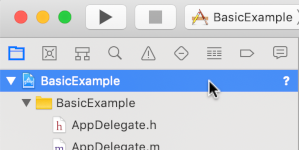
- In the center pane, click Build Phases.

- Expand the Link Binary With Libraries section.
- At the bottom of the libraries list, click the plus icon [+].
- Click Add Other.
- In the directory where you extracted the downloaded SDK, select GoogleInteractiveMediaAds.framework and click Open.
- At the bottom of the libraries list, click the plus icon [+] again.
- In the Status column, verify
GoogleInteractiveMediaAds.frameworkisRequired. - Include the
-ObjClinker flag in your build settings. For more information, see Apple QA1490.
Import IMA SDK
Add IMA framework using an import statement:
Objective-C
#import "ViewController.h"
#import <AVKit/AVKit.h>
@import GoogleInteractiveMediaAds;
Swift
import AVFoundation
import GoogleInteractiveMediaAds
import UIKit
Create a video player and integrate IMA SDK
The following example initializes IMA SDK:
Objective-C
// Live stream asset key, VOD content source and video IDs, and backup content URL.
static NSString *const kAssetKey = @"c-rArva4ShKVIAkNfy6HUQ";
static NSString *const kContentSourceID = @"2548831";
static NSString *const kVideoID = @"tears-of-steel";
static NSString *const kNetworkCode = @"21775744923";
static NSString *const kBackupStreamURLString =
@"http://googleimadev-vh.akamaihd.net/i/big_buck_bunny/bbb-,480p,720p,1080p,.mov.csmil/"
@"master.m3u8";
static const StreamType kDefaultStreamType = StreamTypeLive;
@interface ViewController () <IMAAdsLoaderDelegate,
IMAStreamManagerDelegate,
AVPlayerViewControllerDelegate>
@property(nonatomic) IMAAdsLoader *adsLoader;
@property(nonatomic) IMAAdDisplayContainer *adDisplayContainer;
@property(nonatomic) UIView *adContainerView;
@property(nonatomic) id<IMAVideoDisplay> videoDisplay;
@property(nonatomic) IMAStreamManager *streamManager;
@property(nonatomic) AVPlayerViewController *playerViewController;
@property(nonatomic, getter=isAdBreakActive) BOOL adBreakActive;
@end
@implementation ViewController
- (void)viewDidLoad {
[super viewDidLoad];
self.view.backgroundColor = [UIColor blackColor];
self.streamType = kDefaultStreamType;
[self setupAdsLoader];
[self setupPlayer];
[self setupAdContainer];
}
- (void)viewDidAppear:(BOOL)animated {
[super viewDidAppear:animated];
[self requestStream];
}
- (void)setupPlayer {
// Create a stream video player.
AVPlayer *player = [[AVPlayer alloc] init];
self.playerViewController = [[AVPlayerViewController alloc] init];
self.playerViewController.player = player;
// Attach video player to view hierarchy.
[self addChildViewController:self.playerViewController];
[self.view addSubview:self.playerViewController.view];
self.playerViewController.view.frame = self.view.bounds;
[self.playerViewController didMoveToParentViewController:self];
}
Swift
class ViewController:
UIViewController,
IMAAdsLoaderDelegate,
IMAStreamManagerDelegate,
AVPlayerViewControllerDelegate
{
// Live stream asset key, VOD content source and video IDs, Google Ad Manager network code, and
// backup content URL.
static let assetKey = "c-rArva4ShKVIAkNfy6HUQ"
static let contentSourceID = "2548831"
static let videoID = "tears-of-steel"
static let networkCode = "21775744923"
static let backupStreamURLString =
"http://googleimadev-vh.akamaihd.net/i/big_buck_bunny/bbb-,480p,720p,1080p,.mov.csmil/master.m3u8"
var adsLoader: IMAAdsLoader?
var videoDisplay: IMAAVPlayerVideoDisplay!
var adDisplayContainer: IMAAdDisplayContainer?
var adContainerView: UIView?
private var streamManager: IMAStreamManager?
private var contentPlayhead: IMAAVPlayerContentPlayhead?
private var playerViewController: AVPlayerViewController!
private var userSeekTime = 0.0
private var adBreakActive = false
private enum StreamType {
case live
/// Video on demand.
case vod
}
/// Set the stream type here.
private let currentStreamType: StreamType = .live
deinit {
NotificationCenter.default.removeObserver(self)
}
override func viewDidLoad() {
super.viewDidLoad()
self.view.backgroundColor = UIColor.black
setupAdsLoader()
setupPlayer()
setupAdContainer()
}
override func viewDidAppear(_ animated: Bool) {
super.viewDidAppear(animated)
requestStream()
}
func setupPlayer() {
let player = AVPlayer()
let playerViewController = AVPlayerViewController()
playerViewController.delegate = self
playerViewController.player = player
// Set up our content playhead and contentComplete callback.
contentPlayhead = IMAAVPlayerContentPlayhead(avPlayer: player)
NotificationCenter.default.addObserver(
self,
selector: #selector(ViewController.contentDidFinishPlaying(_:)),
name: NSNotification.Name.AVPlayerItemDidPlayToEndTime,
object: player.currentItem)
self.addChild(playerViewController)
playerViewController.view.frame = self.view.bounds
self.view.insertSubview(playerViewController.view, at: 0)
playerViewController.didMove(toParent: self)
self.playerViewController = playerViewController
}
In viewDidLoad(), setupAdsLoader() creates the IMAAdsLoader,
setupPlayer() creates the AVPlayerViewController, and setupAdContainer()
prepares the UIView for ad display. When the view becomes visible,
viewDidAppear() calls requestStream() to request the DAI stream.
To define stream request parameters, this example uses constants, such as
asset key for Live streams, or content source ID and video ID for VOD
streams. The example also uses the following components to manage the IMA SDK:
adsLoader: Handles stream requests to Google Ad Manager. We recommend using a single instance for the app's lifecycle.videoDisplay: AnIMAVideoDisplayimplementation that allows IMA to control video playback and track playback events using the AVPlayer.adDisplayContainer: Manages the view used for rendering ad UI elements and handling UI focus during ad breaks.streamManager: Manages playback of the combined ad and content stream and sends ad lifecycle events using its delegate.playerViewController: The tvOS player used to present the video stream managed by the IMA SDK.adBreakActive: A boolean flag that indicates if an ad break is playing, used to prevent seeking over ads and to manage UI focus.
Implement the IMAAdsLoader
Next, instantiate the IMAAdsLoader and attach the ad container view to the
view hierarchy.
Objective-C
- (void)setupAdsLoader {
self.adsLoader = [[IMAAdsLoader alloc] init];
self.adsLoader.delegate = self;
}
- (void)setupAdContainer {
// Attach the ad container to the view hierarchy on top of the player.
self.adContainerView = [[UIView alloc] init];
[self.view addSubview:self.adContainerView];
self.adContainerView.frame = self.view.bounds;
// Keep hidden initially, until an ad break.
self.adContainerView.hidden = YES;
}
Swift
func setupAdsLoader() {
let adsLoader = IMAAdsLoader(settings: nil)
adsLoader.delegate = self
self.adsLoader = adsLoader
}
func setupAdContainer() {
// Attach the ad container to the view hierarchy on top of the player.
let adContainerView = UIView()
self.view.addSubview(adContainerView)
adContainerView.frame = self.view.bounds
// Keep hidden initially, until an ad break.
adContainerView.isHidden = true
self.adContainerView = adContainerView
}
Make a stream request
Create a few constants to hold the stream information and then implement the stream request function to make the request.
Objective-C
- (void)requestStream {
self.videoDisplay =
[[IMAAVPlayerVideoDisplay alloc] initWithAVPlayer:self.playerViewController.player];
self.adDisplayContainer = [[IMAAdDisplayContainer alloc] initWithAdContainer:self.adContainerView
viewController:self];
// Use the streamType property to determine which request to create.
switch (self.streamType) {
case StreamTypeLive: {
IMALiveStreamRequest *request =
[[IMALiveStreamRequest alloc] initWithAssetKey:kAssetKey
networkCode:kNetworkCode
adDisplayContainer:self.adDisplayContainer
videoDisplay:self.videoDisplay
userContext:nil];
NSLog(@"IMA: Requesting Live Stream with Asset Key: %@.", kAssetKey);
request.useHLSInterstitials = YES;
[self.adsLoader requestStreamWithRequest:request];
break;
}
case StreamTypeVOD: {
IMAVODStreamRequest *request =
[[IMAVODStreamRequest alloc] initWithContentSourceID:kContentSourceID
videoID:kVideoID
networkCode:kNetworkCode
adDisplayContainer:self.adDisplayContainer
videoDisplay:self.videoDisplay
userContext:nil];
NSLog(@"IMA: Requesting VOD Stream with Video ID: %@.", kVideoID);
[self.adsLoader requestStreamWithRequest:request];
break;
}
}
}
Swift
func requestStream() {
guard let playerViewController = self.playerViewController else { return }
guard let adContainerView = self.adContainerView else { return }
guard let adsLoader = self.adsLoader else { return }
self.videoDisplay = IMAAVPlayerVideoDisplay(avPlayer: playerViewController.player!)
let adDisplayContainer = IMAAdDisplayContainer(
adContainer: adContainerView, viewController: self)
self.adDisplayContainer = adDisplayContainer
switch self.currentStreamType {
case .live:
// Create a live stream request.
let request = IMALiveStreamRequest(
assetKey: ViewController.assetKey,
networkCode: ViewController.networkCode,
adDisplayContainer: adDisplayContainer,
videoDisplay: self.videoDisplay,
pictureInPictureProxy: nil,
userContext: nil)
print("IMA: Requesting Live Stream with asset key \(ViewController.assetKey)")
request.useHLSInterstitials = true
adsLoader.requestStream(with: request)
case .vod:
// Create a VOD stream request.
let request = IMAVODStreamRequest(
contentSourceID: ViewController.contentSourceID,
videoID: ViewController.videoID,
networkCode: ViewController.networkCode,
adDisplayContainer: adDisplayContainer,
videoDisplay: self.videoDisplay,
pictureInPictureProxy: nil,
userContext: nil)
print(
"IMA: Requesting VOD Stream with content source ID \(ViewController.contentSourceID) and "
+ "video ID \(ViewController.videoID)")
adsLoader.requestStream(with: request)
}
}
Handle stream events
The IMAAdsLoader and IMAStreamManager fire events that handle
initialization, errors, and changes in stream state. These events fire over
the IMAAdsLoaderDelegate and IMAStreamManagerDelegate protocols. Listen for
an ads loaded event and initialize the stream. If an ad fails to load, play a
backup stream instead.
Objective-C
- (void)playBackupStream {
NSURL *backupStreamURL = [NSURL URLWithString:kBackupStreamURLString];
[self.videoDisplay loadStream:backupStreamURL withSubtitles:@[]];
[self.videoDisplay play];
[self startMediaSession];
}
- (void)startMediaSession {
[[AVAudioSession sharedInstance] setActive:YES error:nil];
[[AVAudioSession sharedInstance] setCategory:AVAudioSessionCategoryPlayback error:nil];
}
#pragma mark - IMAAdsLoaderDelegate
- (void)adsLoader:(IMAAdsLoader *)loader adsLoadedWithData:(IMAAdsLoadedData *)adsLoadedData {
// Initialize and listen to stream manager's events.
self.streamManager = adsLoadedData.streamManager;
self.streamManager.delegate = self;
[self.streamManager initializeWithAdsRenderingSettings:nil];
NSLog(@"Stream created with: %@.", self.streamManager.streamId);
}
- (void)adsLoader:(IMAAdsLoader *)loader failedWithErrorData:(IMAAdLoadingErrorData *)adErrorData {
// Fall back to playing the backup stream.
NSLog(@"Error loading ads: %@", adErrorData.adError.message);
[self playBackupStream];
}
Swift
@objc func contentDidFinishPlaying(_ notification: Notification) {
guard let adsLoader = self.adsLoader else { return }
adsLoader.contentComplete()
}
func startMediaSession() {
try? AVAudioSession.sharedInstance().setActive(true, options: [])
try? AVAudioSession.sharedInstance().setCategory(.playback)
}
// MARK: - IMAAdsLoaderDelegate
func adsLoader(_ loader: IMAAdsLoader, adsLoadedWith adsLoadedData: IMAAdsLoadedData) {
let streamManager = adsLoadedData.streamManager!
streamManager.delegate = self
streamManager.initialize(with: nil)
self.streamManager = streamManager
}
func adsLoader(_ loader: IMAAdsLoader, failedWith adErrorData: IMAAdLoadingErrorData) {
print("Error loading ads: \(adErrorData.adError.message)")
let streamUrl = URL(string: ViewController.backupStreamURLString)
self.videoDisplay.loadStream(streamUrl!, withSubtitles: [])
self.videoDisplay.play()
playerViewController.player?.play()
}
Handle logging and error events
The stream manager delegate can handle several events, but for basic implementations, the most important uses are to perform event logging, to prevent seek actions while ads are playing, and to handle errors.
Objective-C
#pragma mark - IMAStreamManagerDelegate
- (void)streamManager:(IMAStreamManager *)streamManager didReceiveAdEvent:(IMAAdEvent *)event {
NSLog(@"StreamManager event (%@).", event.typeString);
switch (event.type) {
case kIMAAdEvent_STREAM_STARTED: {
[self startMediaSession];
break;
}
case kIMAAdEvent_STARTED: {
// Log extended data.
NSString *extendedAdPodInfo = [[NSString alloc]
initWithFormat:@"Showing ad %zd/%zd, bumper: %@, title: %@, description: %@, contentType:"
@"%@, pod index: %zd, time offset: %lf, max duration: %lf.",
event.ad.adPodInfo.adPosition, event.ad.adPodInfo.totalAds,
event.ad.adPodInfo.isBumper ? @"YES" : @"NO", event.ad.adTitle,
event.ad.adDescription, event.ad.contentType, event.ad.adPodInfo.podIndex,
event.ad.adPodInfo.timeOffset, event.ad.adPodInfo.maxDuration];
NSLog(@"%@", extendedAdPodInfo);
break;
}
case kIMAAdEvent_AD_BREAK_STARTED: {
self.adContainerView.hidden = NO;
// Trigger an update to send focus to the ad display container.
self.adBreakActive = YES;
[self setNeedsFocusUpdate];
break;
}
case kIMAAdEvent_AD_BREAK_ENDED: {
self.adContainerView.hidden = YES;
// Trigger an update to send focus to the content player.
self.adBreakActive = NO;
[self setNeedsFocusUpdate];
break;
}
case kIMAAdEvent_ICON_FALLBACK_IMAGE_CLOSED: {
// Resume playback after the user has closed the dialog.
[self.videoDisplay play];
break;
}
default:
break;
}
}
- (void)streamManager:(IMAStreamManager *)streamManager didReceiveAdError:(IMAAdError *)error {
// Fall back to playing the backup stream.
NSLog(@"StreamManager error: %@", error.message);
[self playBackupStream];
}
Swift
// MARK: - IMAStreamManagerDelegate
func streamManager(_ streamManager: IMAStreamManager, didReceive event: IMAAdEvent) {
print("StreamManager event \(event.typeString).")
switch event.type {
case IMAAdEventType.STREAM_STARTED:
self.startMediaSession()
case IMAAdEventType.STARTED:
// Log extended data.
if let ad = event.ad {
let extendedAdPodInfo = String(
format: "Showing ad %zd/%zd, bumper: %@, title: %@, "
+ "description: %@, contentType:%@, pod index: %zd, "
+ "time offset: %lf, max duration: %lf.",
ad.adPodInfo.adPosition,
ad.adPodInfo.totalAds,
ad.adPodInfo.isBumper ? "YES" : "NO",
ad.adTitle,
ad.adDescription,
ad.contentType,
ad.adPodInfo.podIndex,
ad.adPodInfo.timeOffset,
ad.adPodInfo.maxDuration)
print("\(extendedAdPodInfo)")
}
break
case IMAAdEventType.AD_BREAK_STARTED:
if let adContainerView = self.adContainerView {
adContainerView.isHidden = false
}
// Trigger an update to send focus to the ad display container.
adBreakActive = true
setNeedsFocusUpdate()
break
case IMAAdEventType.AD_BREAK_ENDED:
if let adContainerView = self.adContainerView {
adContainerView.isHidden = true
}
// Trigger an update to send focus to the content player.
adBreakActive = false
setNeedsFocusUpdate()
break
case IMAAdEventType.ICON_FALLBACK_IMAGE_CLOSED:
// Resume playback after the user has closed the dialog.
self.videoDisplay.play()
break
default:
break
}
}
func streamManager(_ streamManager: IMAStreamManager, didReceive error: IMAAdError) {
print("StreamManager error: \(error.message ?? "Unknown Error")")
}
That's it! You're now requesting and displaying ads with the IMA DAI SDK. To learn about more advanced SDK features, see the other guides or the samples on GitHub.