
Page Summary
-
Content Security Policy (CSP) enhances web security by controlling resource loading, and this guide helps you deploy Google Tag Manager on sites using CSP.
-
To enable your Google Tag Manager container tag with CSP, it's recommended to use a nonce in the
script-srcdirective and include it in the container code snippet. -
Certain tags and features, like Custom JavaScript variables and Preview Mode, may require additional CSP directives such as
unsafe-evalor specific URLs for optimal functionality. -
For Google Analytics 4, Google Ads, and Floodlight, you need to add specific directives and URLs to your CSP to allow them to function properly.
-
Remember to consult the documentation for each tag or feature you use and include the necessary directives in your CSP for their seamless operation within the security framework.
Content Security Policy (CSP) is a widely supported Web security standard intended to prevent certain types of injection-based attacks by giving developers control over the resources loaded by their applications. Use this guide to understand how to deploy Google Tag Manager on sites that use a CSP.
Enable the container tag to use CSP
To use Google Tag Manager on a page with a CSP, the CSP must allow for the
execution of your Tag Manager container code. This code is built as inline
JavaScript code that injects the gtm.js script. There are several ways to do
this, such as the use of a nonce or a hash. The recommended method is to use a
nonce, which should be an unguessable, random value that the server generates
individually for each response. Supply the nonce value in the
Content-Security-Policy script-src-elem directive as
nonce-{SERVER-GENERATED-NONCE}, and use the nonce-aware version of the inline
Tag Manager container code. Set the nonce attribute on the inline script
element to this same value:
<!-- Google Tag Manager -->
<script nonce='{SERVER-GENERATED-NONCE}'>(function(w,d,s,l,i){w[l]=w[l]||[];w[l].push({'gtm.start':
new Date().getTime(),event:'gtm.js'});var f=d.getElementsByTagName(s)[0],
j=d.createElement(s),dl=l!='dataLayer'?'&l='+l:'';j.async=true;j.src=
'https://www.googletagmanager.com/gtm.js?id='+i+dl;var n=d.querySelector('[nonce]');
n&&j.setAttribute('nonce',n.nonce||n.getAttribute('nonce'));f.parentNode.insertBefore(j,f);
})(window,document,'script','dataLayer','GTM-XXXXXX');</script>
<!-- End Google Tag Manager -->
Tag Manager will then propagate the nonce to any scripts that it adds to the page.
There are other approaches to enabling the execution of an inline script, such as supplying the hash of the inline script in the CSP.
If the recommended nonce or hash approaches are not feasible, it is possible to
enable the Tag Manager inline script by adding the 'unsafe-inline'
directive to the CSP's script-src-elem section.
The following must be allowed by the CSP to use this approach:
| Directive | Content |
|---|---|
script-src-elem |
https://www.googletagmanager.com 'unsafe-inline' |
img-src |
https://www.googletagmanager.com |
connect-src |
https://www.googletagmanager.com https://www.google.com |
Custom JavaScript Variables
Due to how Custom JavaScript variables are implemented, they
will evaluate to undefined in the presence of a CSP unless the
'unsafe-eval' directive is given in the script-src section of the CSP.
| Directive | Content |
|---|---|
script-src |
'unsafe-eval' |
Preview Mode
In order to use Google Tag Manager's Preview Mode, the CSP must allow the following:
| Directive | Content |
|---|---|
script-src-elem |
https://www.googletagmanager.com https://tagmanager.google.com |
style-src |
https://www.googletagmanager.com https://tagmanager.google.com https://fonts.googleapis.com |
img-src |
https://www.googletagmanager.com https://ssl.gstatic.com https://www.gstatic.com |
font-src |
https://fonts.gstatic.com data: |
Google Analytics
To use Google Analytics, the CSP must allow the following:
| Directive | Content |
|---|---|
script-src-elem |
https://www.googletagmanager.com |
img-src |
https://www.googletagmanager.com https://*.google-analytics.com https://*.google.com https://*.google.<TLD> https://*.g.doubleclick.net |
connect-src |
https://www.googletagmanager.com https://*.google-analytics.com https://*.google.com https://*.google.<TLD> https://*.g.doubleclick.net https://pagead2.googlesyndication.com |
frame-src |
https://www.googletagmanager.com |
To use Google Analytics without any Ads features, the CSP must allow the following:
| Directive | Content |
|---|---|
script-src-elem |
https://www.googletagmanager.com |
img-src |
https://www.googletagmanager.com https://*.google-analytics.com |
connect-src |
https://www.googletagmanager.com https://*.google-analytics.com https://*.google.com |
Google Ads
To use a Google Ads Conversion, Remarketing, or Conversion Linker tag, the CSP must allow the following:
| Directive | Content |
|---|---|
script-src-elem |
https://www.googletagmanager.com https://www.googleadservices.com https://www.google.com |
img-src |
https://www.googletagmanager.com https://www.googleadservices.com https://googleads.g.doubleclick.net https://pagead2.googlesyndication.com https://www.google.com https://www.google.<TLD> |
connect-src |
https://www.googletagmanager.com https://www.googleadservices.com https://googleads.g.doubleclick.net https://pagead2.googlesyndication.com https://www.google.com https://www.google.<TLD> https://ad.doubleclick.net |
frame-src |
https://www.googletagmanager.com |
Google Ads User Data
To use the Google Ads user data beacons when running in secure contexts, the CSP must allow the following:
| Directive | Content |
|---|---|
script-src-elem |
https://www.googletagmanager.com |
connect-src |
https://www.google.com |
frame-src |
https://www.googletagmanager.com |
The Google ads user data beacon does not run in insecure contexts, so CSP configuration in those cases is not applicable.
Floodlight
To use Floodlight, the CSP must allow the following:
| Directive | Content |
|---|---|
img-src |
https://www.googletagmanager.com https://ad.doubleclick.net https://ade.googlesyndication.com https://adservice.google.com |
connect-src |
https://pagead2.googlesyndication.com https://www.google.com https://www.googleadservices.com https://ad.doubleclick.net |
frame-src |
https://www.googletagmanager.com |
To use Floodlight custom scripts, the CSP must also allow the following (in addition to the preceding):
| Directive | Content |
|---|---|
frame-src |
https://*.fls.doubleclick.net |
Merchant Center
To use Merchant Center, the CSP must allow the following:
| Directive | Content |
|---|---|
script-src-elem |
https://www.googletagmanager.com |
img-src |
https://*.merchant-center-analytics.goog |
connect-src |
https://*.merchant-center-analytics.goog |
Service Worker
To use the Service Worker for enhanced match, user data beacons, and Ads conversions, the CSP must allow the following:
| Directive | Content |
|---|---|
frame-src |
https://www.googletagmanager.com |
Troubleshoot with Tag Assistant
To troubleshoot Content Security Policy (CSP) issues, use Tag Assistant. Tag Assistant will display the list of resources that are blocked by your Content Security Policy.
Open Tag Assistant and Enter your website's URL. A new tab with your website opens.
If the Content Security Policy on your page is blocking a resource, a CSP issue is displayed in the Page issues section of Tag Assistant.
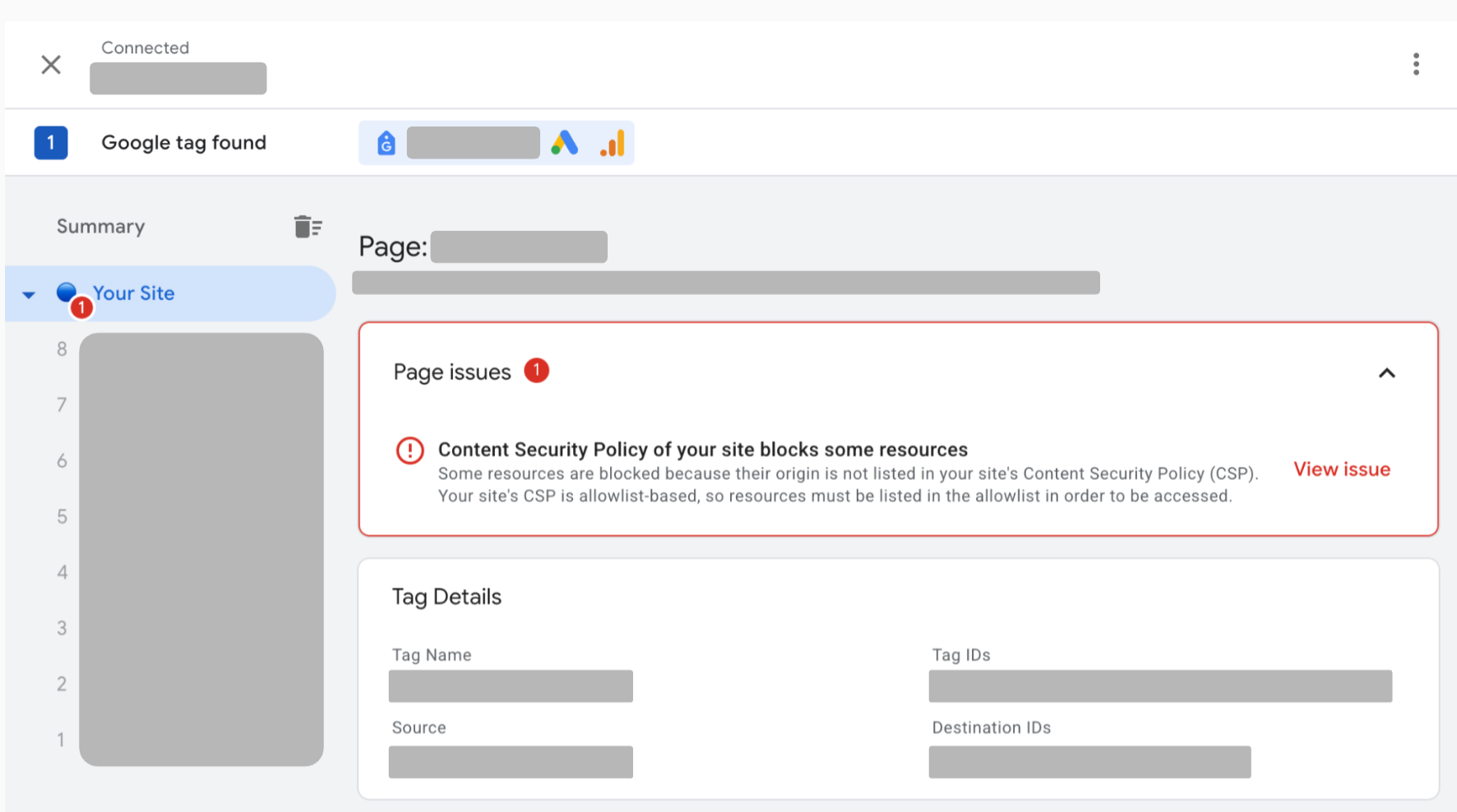
Select View issue next to the CSP issue to view the list of all blocked resources on your page.
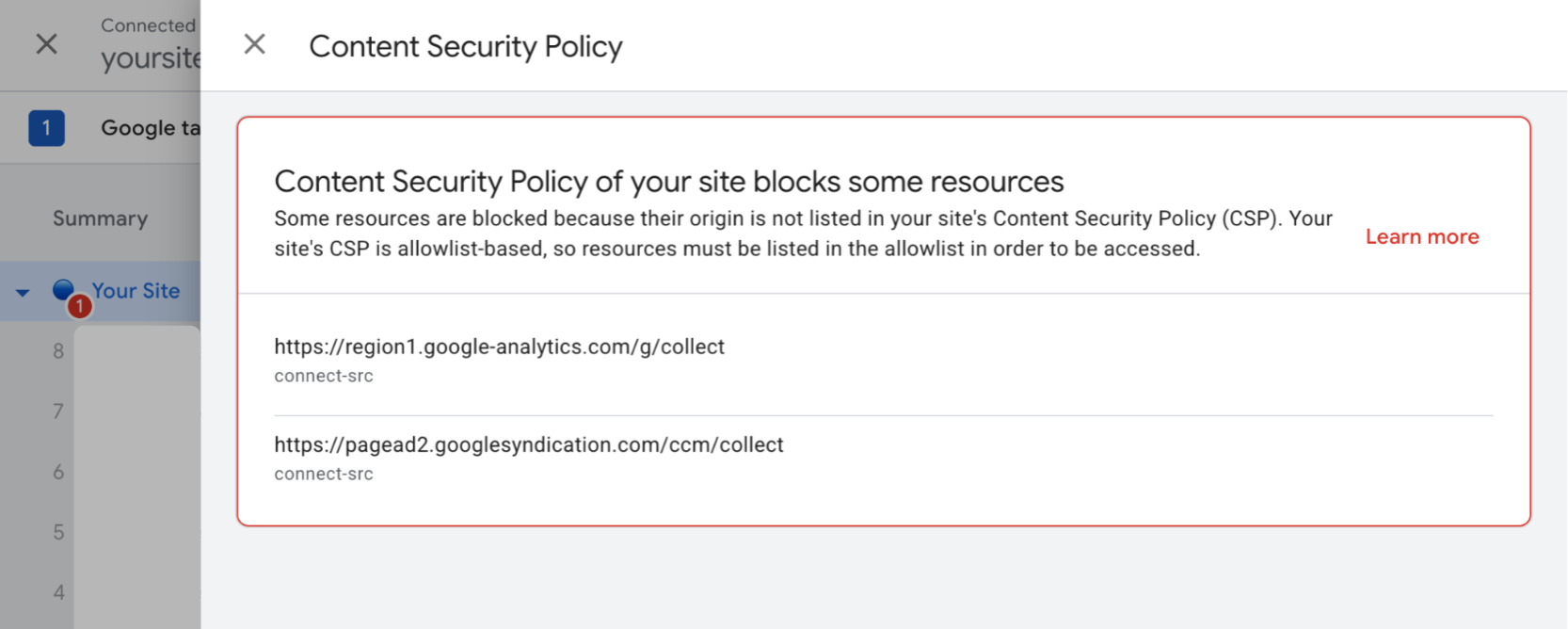
Add all blocked resources to your Content Security Policy.