
Page Summary
-
Google Pay allows users to add cards via the Google Wallet app or an issuer's app using the Push Provisioning API.
-
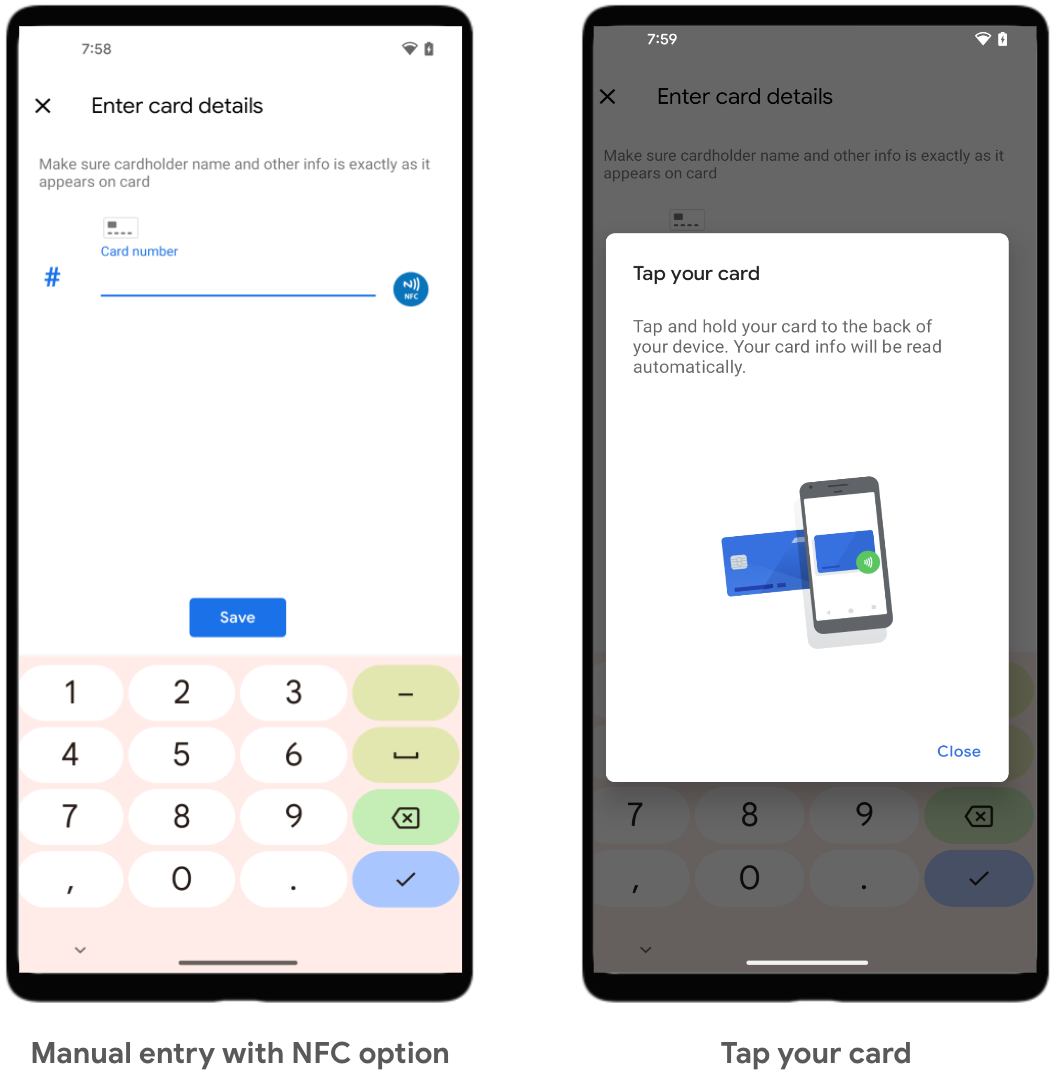
Google Pay supports various card entry methods, including OCR scanning and manual entry, and NFC-based card addition in the Netherlands.
-
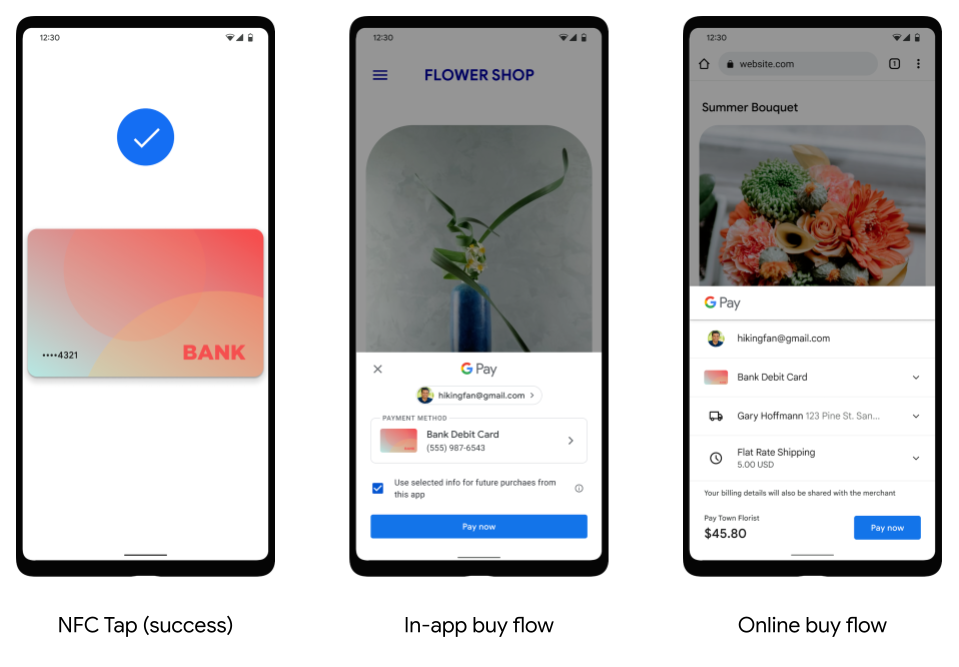
Google Pay can be used for in-store, in-app, and online payments.
-
Tokens can be deleted due to user actions, device inactivity, or security measures like removing device locks.
-
Google Pay's OCR technology supports a range of card formats and is available in numerous countries.
Google Pay has certain features and behaviors that are important for issuers to understand and incorporate into their TSP integration and pre-launch testing.
Key Google Pay UX flows
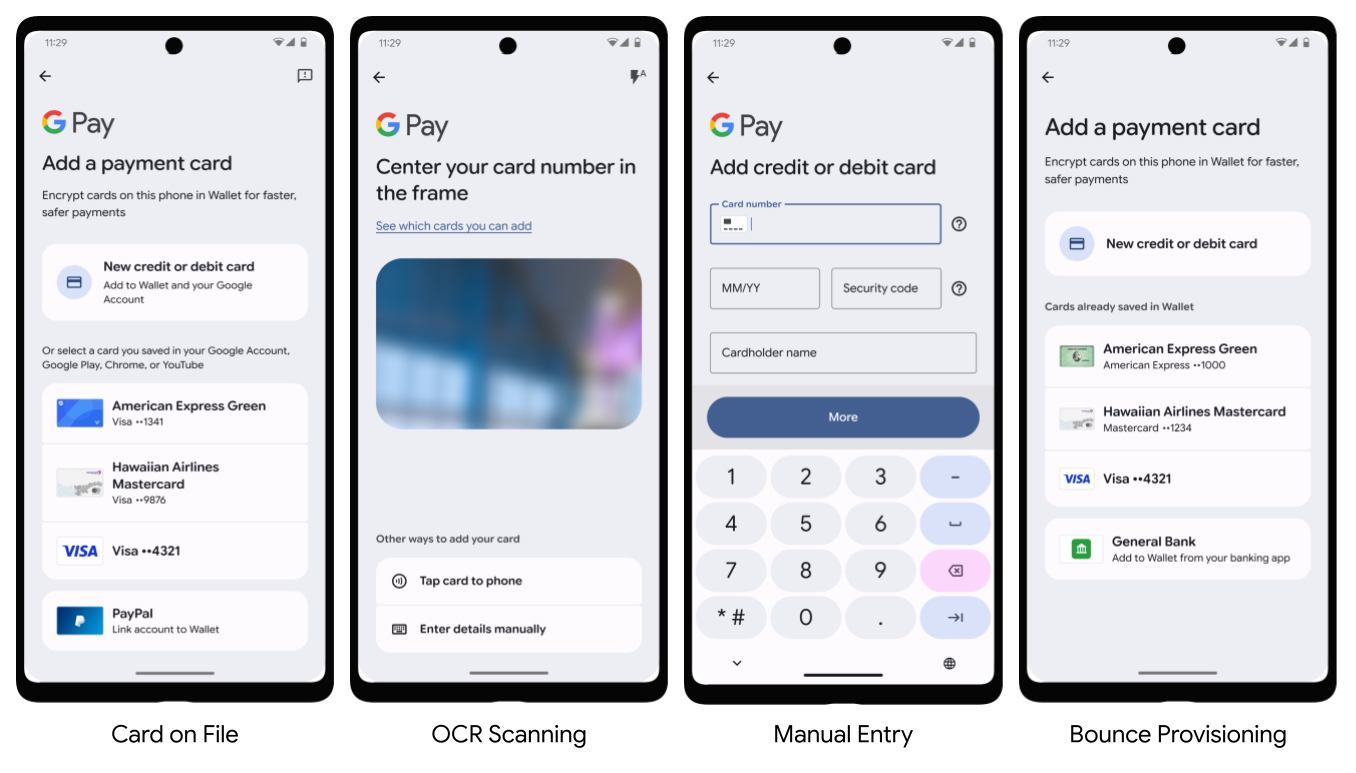
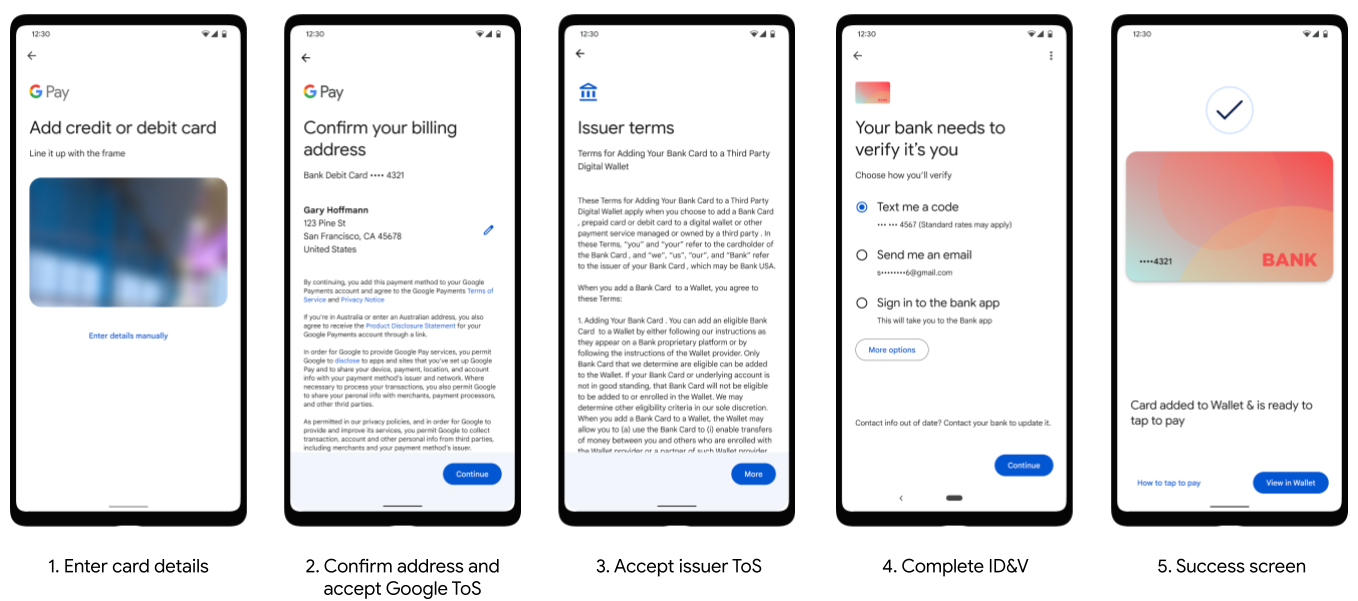
Cards can be added to Google Pay either through the Google Wallet app or an issuer's mobile banking app using Unified Android Push Provisioning API. When adding a card through Google Wallet, users can enter their card details in multiple ways:
- Card on file: If a user already has cards saved to their Google Account, they can select one from a list in Google Wallet, verify it (often with a CVC), and add it to Google Wallet.
- OCR scanning: Users can select to add a new card in Google Wallet and use their device's camera to automatically capture the card number and expiry date, then manually enter any remaining details like CVC and address. For more details, see Supported OCR formats and countries.
- Manual entry: Users can choose to type in all card details—card number, expiry date, CVC, name, and address—directly into Google Wallet.
- Bounce Provisioning: If a user begins adding a card in Google Wallet, and they have the issuer's app installed, they will be shown their issuer app as an option to continue. Clicking this option redirects them to the issuer app to complete provisioning using the Unified Android Push Provisioning flow. Issuers must support Unified Android Push Provisioning to enable Bounce Provisioning. See the Unified Android Push Provisioning and Bounce Provisioning docs for implementation details.
In the Netherlands, cards can also be added through Google Wallet using NFC, by tapping and holding the card to the back of the device:
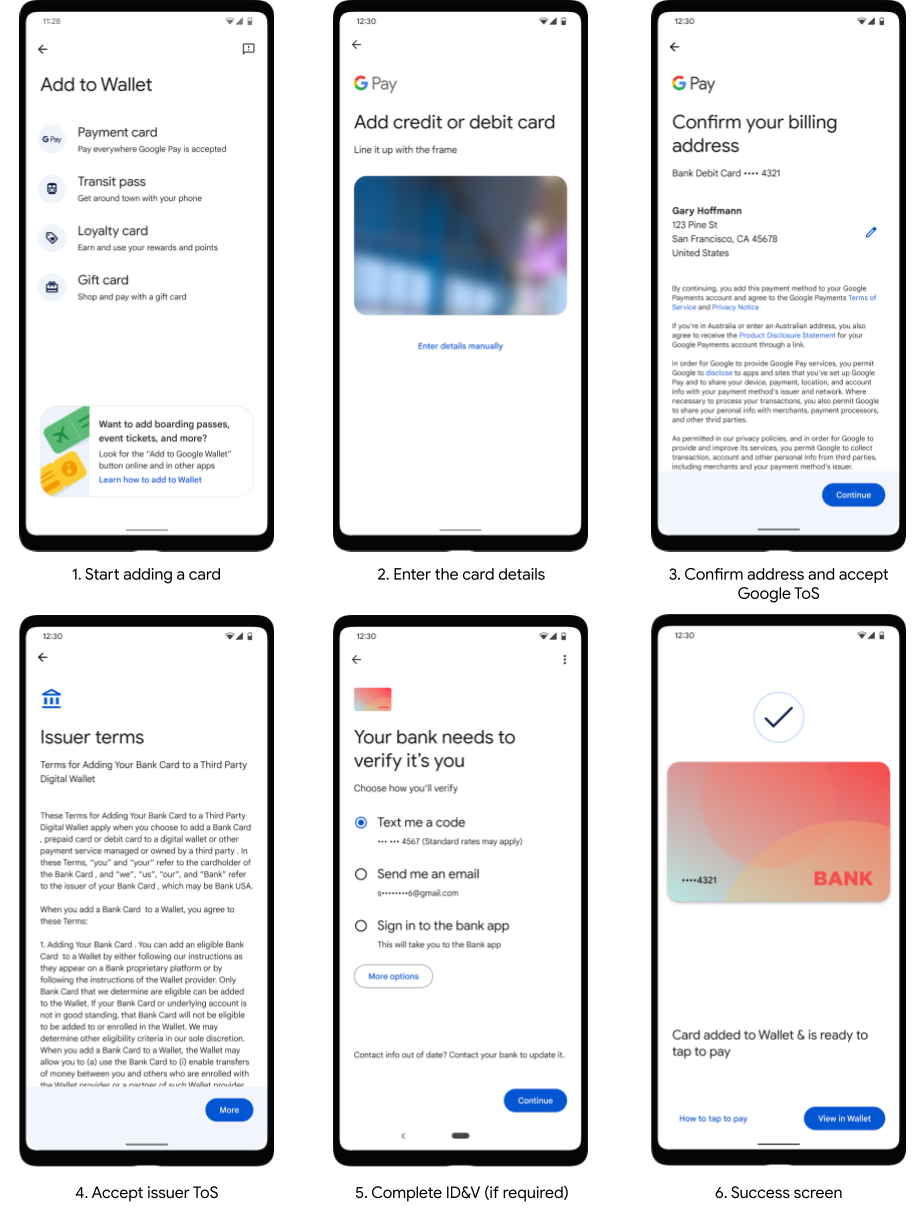
The following UX flows show common user flows for adding a card to Google Pay on a phone, tablet, and watch.
Phone and tablet tokenization experience
Wear OS by Google tokenization experience
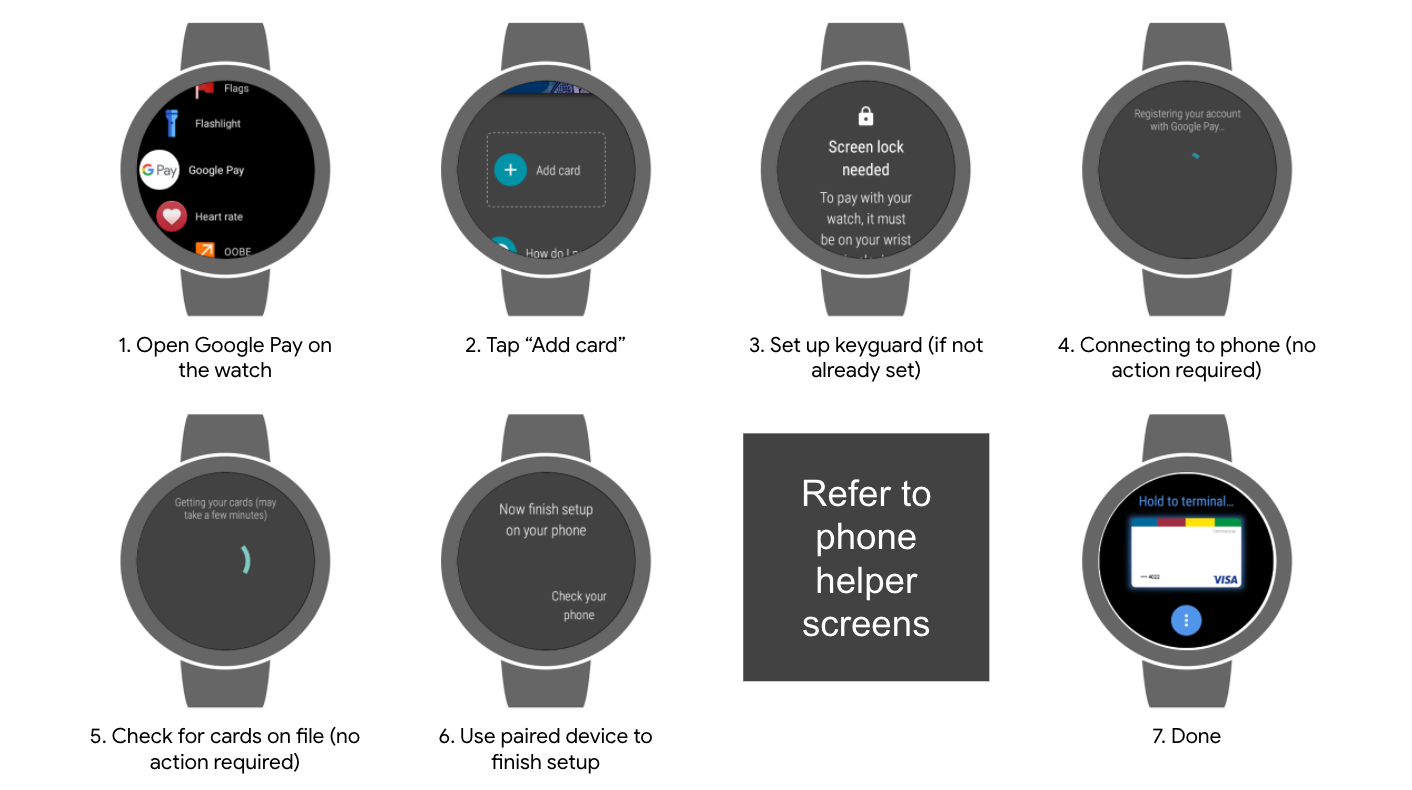
Phone helper screens:
Transaction screens
Google Pay can be used to make NFC transactions in stores, make in-app payments, and make online payments.
Skip previously accepted Terms of Service
This feature streamlines the card tokenization process by skipping the Issuer Terms of Service (ToS) screen. When a user tokenizes a card, Google receives a unique identifier for the Issuer ToS. Google then checks if the user has previously accepted a ToS with the same unique identifier.
If the user has previously accepted the Issuer ToS with the same unique identifier, then the ToS screen is skipped, and the tokenization flow continues seamlessly. Otherwise the ToS screen is displayed as normal and the user is required to accept the ToS in order to proceed with adding their card to Google Wallet. The underlying logic requires no changes from TSPs or Issuers.
For TSPs that don't support ToS unique identifiers, the ToS will always be shown.
How can a developer opt out of skipping the ToS screen?
If you have been granted access to this content, make sure you are signed in with your authorized Google account. If you are a partner who needs access, use the button below for instructions on how to request access.
Token deletion behavior
Tokens can be deleted for a variety of reasons other than a user deciding to manually delete a token using the Google Wallet app. Notably, after 90 days of device inactivity, Google Pay initiates token deletion for the given device from our servers. To be considered active, a device needs to be turned on and connect to Google's servers once every 90 days. In scenarios where a device is active, Google does not proactively delete unused tokens or tokens that are pending activation, unless the token meets one of the specific criteria listed in the following table.
| User Action | Device Tokens | TSP Tokens |
|---|---|---|
| Delete one or more tokens manually using the Google Wallet app or the Unified Android Push Provisioning API | Deleted | Deleted |
| Remove device lock (PIN, pattern) | Deleted | Deleted (best effort) |
| Remove Google Account (via Settings/Accounts) | Deleted | Deleted after 90 days |
| Factory reset | Deleted | Deleted after 90 days |
| Powered off device (or broken device that fails to power on) | N/A | Deleted after 90 days |
| Remotely wipe device using Android Device Manager | Deleted | Deleted |
| Remotely lock device using Android Device Manager | Disabled | Deleted if phone unreachable |
| Clear all data from Play Services (via Settings) | Deleted | Deleted when user opens Google Wallet app |
| Clear all data from Google Wallet app (via Settings) | Unchanged | Deleted after 90 days |
Supported OCR formats and countries
Google Pay supports OCR recognition of a variety of card formats to capture a card's PAN and expiry date. Google Pay's OCR tool supports the following card formats:
- 15 digits in a single line grouped 4-6-5
- 15 digits in a single line grouped 6-4-5
- 16 digits in a single line grouped 4-4-4-4
- 16 digits in a single line grouped 6-3-3-4
- 16 digits in a single line grouped 6-3-6-1
- 19 digits in a single line grouped 6-4-5-4
- 16 digits in a single line grouped 6-3-8
- 16 digits in a single line grouped 6-6-5
- 17 digits in a single line grouped 6-9-2
- 19 digits in a single line grouped 7-7-5
- 19 digits in a single line grouped 7-12
- 19 digits in a single line grouped without spaces
OCR for adding a card into Google Wallet is supported in all countries where Google Wallet is live. Review the list of where you can use Google Wallet for payments and storing passes to see if OCR is available in your country.
Requesting new OCR formats
If you have been granted access to this content, make sure you are signed in with your authorized Google account. If you are a partner who needs access, use the button below for instructions on how to request access.