การลิงก์ที่ง่ายขึ้นด้วย OAuth และลงชื่อเข้าใช้ด้วย Google

ภาพรวม

การลงชื่อเข้าใช้ด้วย Google ที่ใช้ OAuth พร้อมการลิงก์ที่คล่องตัวจะเพิ่มการลงชื่อเข้าใช้ด้วย Google ไว้ด้านบนของการลิงก์ OAuth ซึ่งจะมอบประสบการณ์การลิงก์ที่ราบรื่นสำหรับผู้ใช้ Google และยังช่วยให้สร้างบัญชีได้ด้วย ซึ่งจะช่วยให้ผู้ใช้สร้างบัญชีใหม่ในบริการของคุณโดยใช้บัญชี Google ได้

หากต้องการลิงก์บัญชีด้วย OAuth และลงชื่อเข้าใช้ด้วย Google ให้ทำตามขั้นตอนทั่วไปต่อไปนี้

  1. ก่อนอื่น ให้ขอความยินยอมจากผู้ใช้เพื่อเข้าถึงโปรไฟล์ Google
  2. ใช้ข้อมูลในโปรไฟล์เพื่อตรวจสอบว่ามีบัญชีผู้ใช้หรือไม่
  3. สำหรับผู้ใช้เดิม ให้ลิงก์บัญชี
  4. หากไม่พบผู้ใช้ Google ที่ตรงกันในระบบการตรวจสอบสิทธิ์ ให้ ตรวจสอบโทเค็นรหัสที่ได้รับจาก Google จากนั้นคุณจะสร้างผู้ใช้โดยอิงตามข้อมูลโปรไฟล์ที่มีอยู่ในโทเค็นรหัสได้
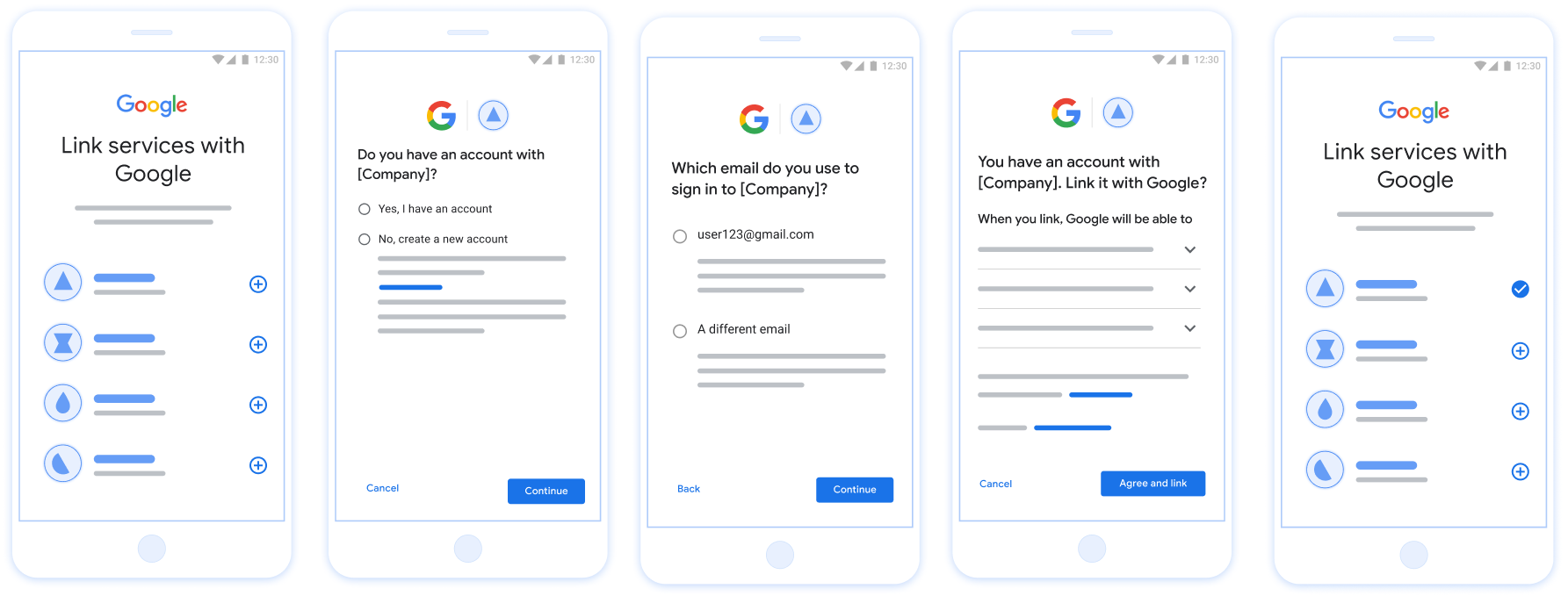
รูปนี้แสดงขั้นตอนที่ผู้ใช้ต้องทำเพื่อลิงก์บัญชี Google โดยใช้ขั้นตอนการลิงก์ที่มีประสิทธิภาพ ภาพหน้าจอแรกแสดงวิธีที่ผู้ใช้เลือกแอปของคุณเพื่อลิงก์ ภาพหน้าจอที่ 2 ช่วยให้ผู้ใช้ยืนยันได้ว่ามีบัญชีในบริการของคุณอยู่แล้วหรือไม่ ภาพหน้าจอที่ 3 ช่วยให้ผู้ใช้เลือกบัญชี Google ที่ต้องการลิงก์ได้ ภาพหน้าจอที่ 4 แสดงการยืนยันการลิงก์บัญชี Google กับแอปของคุณ ภาพหน้าจอที่ 5 แสดงบัญชีผู้ใช้ที่ลิงก์สำเร็จแล้วในแอป Google

รูปที่ 1 การลิงก์บัญชีในโทรศัพท์ของผู้ใช้ด้วยการลิงก์ที่ปรับปรุงแล้ว

ข้อกำหนดสำหรับการลิงก์ที่ง่ายขึ้น

  • ใช้โฟลว์การลิงก์ OAuth บนเว็บพื้นฐาน บริการของคุณต้องรองรับปลายทางการให้สิทธิ์และการแลกเปลี่ยนโทเค็นที่สอดคล้องกับ OAuth 2.0
  • ปลายทางการแลกเปลี่ยนโทเค็นต้องรองรับการยืนยัน JSON Web Token (JWT) และใช้ Intent check, create และ get

ติดตั้งใช้งานเซิร์ฟเวอร์ OAuth

ปลายทางการแลกเปลี่ยนโทเค็นต้องรองรับเจตนา check, create, get ทำตามขั้นตอนต่อไปนี้เพื่อทําขั้นตอนการลิงก์บัญชีให้เสร็จสมบูรณ์และดูว่าเมื่อใดที่ระบบใช้ เจตนาต่างๆ

  1. ผู้ใช้มีบัญชีในระบบการตรวจสอบสิทธิ์ของคุณไหม (ผู้ใช้ตัดสินใจโดยเลือกใช่หรือไม่)
    1. ใช่ : ผู้ใช้ใช้อีเมลที่เชื่อมโยงกับบัญชี Google เพื่อลงชื่อเข้าใช้แพลตฟอร์มของคุณหรือไม่ (ผู้ใช้ตัดสินใจโดยเลือกใช่หรือไม่)
      1. ใช่ : ผู้ใช้มีบัญชีที่ตรงกันในระบบการตรวจสอบสิทธิ์ของคุณไหม (โทรหา check intent เพื่อยืนยัน)
        1. ใช่ : ระบบจะเรียกใช้ get intent และลิงก์บัญชีหากการรับ Intent สำเร็จ
        2. ไม่ : สร้างบัญชีใหม่ใช่ไหม (ผู้ใช้ตัดสินใจโดยเลือกใช่หรือไม่)
          1. ใช่ : ระบบจะเรียกใช้ create intent และลิงก์บัญชีหากการสร้างความตั้งใจสำเร็จ
          2. ไม่ : ระบบจะทริกเกอร์ขั้นตอน OAuth บนเว็บ จากนั้นจะนำผู้ใช้ไปยังเบราว์เซอร์ และให้ตัวเลือกแก่ผู้ใช้ในการลิงก์กับอีเมลอื่น
      2. ไม่ : ระบบจะทริกเกอร์โฟลว์ OAuth ของเว็บ โดยจะนำผู้ใช้ไปยังเบราว์เซอร์ และให้ตัวเลือกแก่ผู้ใช้ในการลิงก์กับอีเมลอื่น
    2. ไม่ : ผู้ใช้มีบัญชีที่ตรงกันในระบบการตรวจสอบสิทธิ์ของคุณหรือไม่ (โทรหา check intent เพื่อยืนยัน)
      1. ใช่ : ระบบจะเรียกใช้ get intent และลิงก์บัญชีหากการรับ Intent สำเร็จ
      2. NO : create intent จะได้รับการเรียกใช้และระบบจะลิงก์บัญชีหาก Intent การสร้างแสดงผลสำเร็จ

Check for an existing user account (check intent)

After the user gives consent to access their Google profile, Google sends a request that contains a signed assertion of the Google user's identity. The assertion contains information that includes the user's Google Account ID, name, and email address. The token exchange endpoint configured for your project handles that request.

If the corresponding Google account is already present in your authentication system, your token exchange endpoint responds with account_found=true. If the Google account doesn't match an existing user, your token exchange endpoint returns an HTTP 404 Not Found error with account_found=false.

The request has the following form:

POST /token HTTP/1.1
Host: oauth2.example.com
Content-Type: application/x-www-form-urlencoded

grant_type=urn:ietf:params:oauth:grant-type:jwt-bearer&intent=check&assertion=JWT&scope=SCOPES&client_id=GOOGLE_CLIENT_ID&client_secret=GOOGLE_CLIENT_SECRET

Your token exchange endpoint must be able to handle the following parameters:

Token endpoint parameters
intent For these requests, the value of this parameter is check.
grant_type The type of token being exchanged. For these requests, this parameter has the value urn:ietf:params:oauth:grant-type:jwt-bearer.
assertion A JSON Web Token (JWT) that provides a signed assertion of the Google user's identity. The JWT contains information that includes the user's Google Account ID, name, and email address.
client_id The client ID you assigned to Google.
client_secret The client secret you assigned to Google.

To respond to the check intent requests, your token exchange endpoint must perform the following steps:

  • Validate and decode the JWT assertion.
  • Check if the Google account is already present in your authentication system.
Validate and decode the JWT assertion

You can validate and decode the JWT assertion by using a JWT-decoding library for your language. Use Google's public keys, available in JWK or PEM formats, to verify the token's signature.

When decoded, the JWT assertion looks like the following example:

{
  "sub": "1234567890",      // The unique ID of the user's Google Account
  "iss": "https://accounts.google.com",        // The assertion's issuer
  "aud": "123-abc.apps.googleusercontent.com", // Your server's client ID
  "iat": 233366400,         // Unix timestamp of the assertion's creation time
  "exp": 233370000,         // Unix timestamp of the assertion's expiration time
  "name": "Jan Jansen",
  "given_name": "Jan",
  "family_name": "Jansen",
  "email": "jan@gmail.com", // If present, the user's email address
  "email_verified": true,   // true, if Google has verified the email address
  "hd": "example.com",      // If present, the host domain of the user's GSuite email address
                            // If present, a URL to user's profile picture
  "picture": "https://lh3.googleusercontent.com/a-/AOh14GjlTnZKHAeb94A-FmEbwZv7uJD986VOF1mJGb2YYQ",
  "locale": "en_US"         // User's locale, from browser or phone settings
}

In addition to verifying the token's signature, verify that the assertion's issuer (iss field) is https://accounts.google.com, that the audience (aud field) is your assigned client ID, and that the token has not expired (exp field).

Using the email, email_verified and hd fields you can determine if Google hosts and is authoritative for an email address. In cases where Google is authoritative the user is currently known to be the legitimate account owner and you may skip password or other challenges methods. Otherwise, these methods can be used to verify the account prior to linking.

Cases where Google is authoritative:

  • email has a @gmail.com suffix, this is a Gmail account.
  • email_verified is true and hd is set, this is a G Suite account.

Users may register for Google Accounts without using Gmail or G Suite. When email does not contain a @gmail.com suffix and hd is absent Google is not authoritative and password or other challenge methods are recommended to verify the user. email_verified can also be true as Google initially verified the user when the Google account was created, however ownership of the third party email account may have since changed.

Check if the Google account is already present in your authentication system

Check whether either of the following conditions are true:

  • The Google Account ID, found in the assertion's sub field, is in your user database.
  • The email address in the assertion matches a user in your user database.

If either condition is true, the user has already signed up. In that case, return a response like the following:

HTTP/1.1 200 Success
Content-Type: application/json;charset=UTF-8

{
  "account_found":"true",
}

If neither the Google Account ID nor the email address specified in the assertion matches a user in your database, the user hasn't signed up yet. In this case, your token exchange endpoint needs to reply with a HTTP 404 error that specifies "account_found": "false", as in the following example:

HTTP/1.1 404 Not found
Content-Type: application/json;charset=UTF-8

{
  "account_found":"false",
}

จัดการการลิงก์อัตโนมัติ (รับ Intent)

หลังจากที่ผู้ใช้ให้ความยินยอมในการเข้าถึงโปรไฟล์ Google แล้ว Google จะส่ง คำขอที่มีการยืนยันข้อมูลประจำตัวของผู้ใช้ Google ที่ลงชื่อ การยืนยันจะมีข้อมูลที่มีรหัสบัญชี Google ของผู้ใช้ ชื่อ และที่อยู่อีเมล ปลายทางการแลกเปลี่ยนโทเค็นที่กำหนดค่าไว้สำหรับ โปรเจ็กต์จะจัดการคำขอนั้น

หากมีบัญชี Google ที่เกี่ยวข้องอยู่ในการตรวจสอบสิทธิ์อยู่แล้ว ปลายทางการแลกเปลี่ยนโทเค็นจะส่งคืนโทเค็นสำหรับผู้ใช้ หาก บัญชี Google ไม่ตรงกับผู้ใช้ที่มีอยู่, ปลายทางการแลกเปลี่ยนโทเค็น แสดงผลข้อผิดพลาด linking_error และเลือก login_hint หรือไม่ก็ได้

คำขอมีแบบฟอร์มต่อไปนี้

POST /token HTTP/1.1
Host: oauth2.example.com
Content-Type: application/x-www-form-urlencoded

grant_type=urn:ietf:params:oauth:grant-type:jwt-bearer&intent=get&assertion=JWT&scope=SCOPES&client_id=GOOGLE_CLIENT_ID&client_secret=GOOGLE_CLIENT_SECRET

ปลายทางการแลกเปลี่ยนโทเค็นต้องจัดการพารามิเตอร์ต่อไปนี้ได้

พารามิเตอร์ปลายทางของโทเค็น
intent สำหรับคำขอเหล่านี้ ค่าของพารามิเตอร์นี้คือ get
grant_type ประเภทของโทเค็นที่แลกเปลี่ยน สำหรับคำขอเหล่านี้ พารามิเตอร์นี้ มีค่า urn:ietf:params:oauth:grant-type:jwt-bearer
assertion JSON Web Token (JWT) ที่แสดงการยืนยันของ Google ข้อมูลประจำตัวของผู้ใช้ JWT มีข้อมูลที่ประกอบด้วย รหัส ชื่อ และอีเมลของบัญชี Google
scope ไม่บังคับ: ขอบเขตที่คุณกำหนดค่าให้ Google ส่งคำขอ ผู้ใช้
client_id รหัสไคลเอ็นต์ที่คุณกำหนดให้กับ Google
client_secret รหัสลับไคลเอ็นต์ที่คุณกำหนดให้กับ Google

หากต้องการตอบกลับคำขอ Intent get ปลายทางการแลกเปลี่ยนโทเค็นต้องทำตามขั้นตอนต่อไปนี้

  • ตรวจสอบและถอดรหัสการยืนยัน JWT
  • ตรวจสอบว่ามีบัญชี Google อยู่ในระบบการตรวจสอบสิทธิ์ของคุณแล้วหรือยัง
Validate and decode the JWT assertion

You can validate and decode the JWT assertion by using a JWT-decoding library for your language. Use Google's public keys, available in JWK or PEM formats, to verify the token's signature.

When decoded, the JWT assertion looks like the following example:

{
  "sub": "1234567890",      // The unique ID of the user's Google Account
  "iss": "https://accounts.google.com",        // The assertion's issuer
  "aud": "123-abc.apps.googleusercontent.com", // Your server's client ID
  "iat": 233366400,         // Unix timestamp of the assertion's creation time
  "exp": 233370000,         // Unix timestamp of the assertion's expiration time
  "name": "Jan Jansen",
  "given_name": "Jan",
  "family_name": "Jansen",
  "email": "jan@gmail.com", // If present, the user's email address
  "email_verified": true,   // true, if Google has verified the email address
  "hd": "example.com",      // If present, the host domain of the user's GSuite email address
                            // If present, a URL to user's profile picture
  "picture": "https://lh3.googleusercontent.com/a-/AOh14GjlTnZKHAeb94A-FmEbwZv7uJD986VOF1mJGb2YYQ",
  "locale": "en_US"         // User's locale, from browser or phone settings
}

In addition to verifying the token's signature, verify that the assertion's issuer (iss field) is https://accounts.google.com, that the audience (aud field) is your assigned client ID, and that the token has not expired (exp field).

Using the email, email_verified and hd fields you can determine if Google hosts and is authoritative for an email address. In cases where Google is authoritative the user is currently known to be the legitimate account owner and you may skip password or other challenges methods. Otherwise, these methods can be used to verify the account prior to linking.

Cases where Google is authoritative:

  • email has a @gmail.com suffix, this is a Gmail account.
  • email_verified is true and hd is set, this is a G Suite account.

Users may register for Google Accounts without using Gmail or G Suite. When email does not contain a @gmail.com suffix and hd is absent Google is not authoritative and password or other challenge methods are recommended to verify the user. email_verified can also be true as Google initially verified the user when the Google account was created, however ownership of the third party email account may have since changed.

ตรวจสอบว่ามีบัญชี Google อยู่ในระบบการตรวจสอบสิทธิ์ของคุณแล้วหรือยัง

ตรวจสอบว่าเงื่อนไขใดเงื่อนไขหนึ่งต่อไปนี้เป็นจริง

  • รหัสบัญชี Google ที่พบในช่อง sub ของการยืนยันนั้นอยู่ในผู้ใช้ของคุณ ฐานข้อมูล
  • อีเมลในการยืนยันตรงกับผู้ใช้ในฐานข้อมูลผู้ใช้

หากพบบัญชีสำหรับผู้ใช้ ให้ออกโทเค็นเพื่อการเข้าถึงและแสดงผลค่าในออบเจ็กต์ JSON ในส่วนเนื้อหาของการตอบกลับ HTTPS ดังตัวอย่างต่อไปนี้

{
  "token_type": "Bearer",
  "access_token": "ACCESS_TOKEN",
  "refresh_token": "REFRESH_TOKEN",
  "expires_in": SECONDS_TO_EXPIRATION
}

ในบางกรณี การลิงก์บัญชีตามโทเค็นรหัสอาจล้มเหลวสำหรับผู้ใช้ หาก ไม่ว่าจะด้วยเหตุผลใดก็ตาม ปลายทางการแลกเปลี่ยนโทเค็นของคุณต้องตอบกลับด้วย HTTP ข้อผิดพลาด 401 ที่ระบุ error=linking_error ตามตัวอย่างต่อไปนี้

HTTP/1.1 401 Unauthorized
Content-Type: application/json;charset=UTF-8

{
  "error":"linking_error",
  "login_hint":"foo@bar.com"
}

เมื่อ Google ได้รับการตอบกลับข้อผิดพลาด 401 ด้วย linking_error ทาง Google จะส่ง ผู้ใช้ไปยังปลายทางการให้สิทธิ์โดยมี login_hint เป็นพารามิเตอร์ ผู้ใช้ลิงก์บัญชีให้เสร็จสมบูรณ์โดยใช้ขั้นตอนการลิงก์ OAuth ในเบราว์เซอร์

จัดการการสร้างบัญชีโดยใช้ฟีเจอร์ลงชื่อเข้าใช้ด้วย Google (สร้าง Intent)

เมื่อผู้ใช้ต้องการสร้างบัญชีในบริการของคุณ Google จะส่งคำขอไปยังปลายทางการแลกเปลี่ยนโทเค็นของคุณซึ่งระบุ intent=create

คำขอมีรูปแบบดังนี้

POST /token HTTP/1.1
Host: oauth2.example.com
Content-Type: application/x-www-form-urlencoded

response_type=token&grant_type=urn:ietf:params:oauth:grant-type:jwt-bearer&scope=SCOPES&intent=create&assertion=JWT&client_id=GOOGLE_CLIENT_ID&client_secret=GOOGLE_CLIENT_SECRET

ปลายทางการแลกเปลี่ยนโทเค็นต้องจัดการพารามิเตอร์ต่อไปนี้ได้

พารามิเตอร์ปลายทางของโทเค็น
intent สำหรับคำขอเหล่านี้ ค่าของพารามิเตอร์นี้คือ create
grant_type ประเภทของโทเค็นที่จะแลกเปลี่ยน สำหรับคำขอเหล่านี้ พารามิเตอร์นี้ จะมีค่าเป็น urn:ietf:params:oauth:grant-type:jwt-bearer
assertion โทเค็นเว็บ JSON (JWT) ที่ให้การยืนยันที่ลงนามแล้วเกี่ยวกับตัวตนของผู้ใช้ Google JWT มีข้อมูลซึ่งรวมถึงรหัสบัญชี Google, ชื่อ และอีเมลของผู้ใช้
client_id รหัสไคลเอ็นต์ที่คุณกำหนดให้กับ Google
client_secret รหัสลับไคลเอ็นต์ที่คุณกำหนดให้กับ Google

JWT ภายในพารามิเตอร์ assertion มีรหัสบัญชี Google ของผู้ใช้ ชื่อ และอีเมล ซึ่งคุณสามารถใช้เพื่อสร้างบัญชีใหม่ใน บริการของคุณได้

หากต้องการตอบกลับคำขอที่มีเจตนา create ปลายทางแลกเปลี่ยนโทเค็นของคุณต้องทำตามขั้นตอนต่อไปนี้

  • ตรวจสอบและถอดรหัสการยืนยัน JWT
  • ตรวจสอบข้อมูลผู้ใช้และสร้างบัญชีใหม่
Validate and decode the JWT assertion

You can validate and decode the JWT assertion by using a JWT-decoding library for your language. Use Google's public keys, available in JWK or PEM formats, to verify the token's signature.

When decoded, the JWT assertion looks like the following example:

{
  "sub": "1234567890",      // The unique ID of the user's Google Account
  "iss": "https://accounts.google.com",        // The assertion's issuer
  "aud": "123-abc.apps.googleusercontent.com", // Your server's client ID
  "iat": 233366400,         // Unix timestamp of the assertion's creation time
  "exp": 233370000,         // Unix timestamp of the assertion's expiration time
  "name": "Jan Jansen",
  "given_name": "Jan",
  "family_name": "Jansen",
  "email": "jan@gmail.com", // If present, the user's email address
  "email_verified": true,   // true, if Google has verified the email address
  "hd": "example.com",      // If present, the host domain of the user's GSuite email address
                            // If present, a URL to user's profile picture
  "picture": "https://lh3.googleusercontent.com/a-/AOh14GjlTnZKHAeb94A-FmEbwZv7uJD986VOF1mJGb2YYQ",
  "locale": "en_US"         // User's locale, from browser or phone settings
}

In addition to verifying the token's signature, verify that the assertion's issuer (iss field) is https://accounts.google.com, that the audience (aud field) is your assigned client ID, and that the token has not expired (exp field).

Using the email, email_verified and hd fields you can determine if Google hosts and is authoritative for an email address. In cases where Google is authoritative the user is currently known to be the legitimate account owner and you may skip password or other challenges methods. Otherwise, these methods can be used to verify the account prior to linking.

Cases where Google is authoritative:

  • email has a @gmail.com suffix, this is a Gmail account.
  • email_verified is true and hd is set, this is a G Suite account.

Users may register for Google Accounts without using Gmail or G Suite. When email does not contain a @gmail.com suffix and hd is absent Google is not authoritative and password or other challenge methods are recommended to verify the user. email_verified can also be true as Google initially verified the user when the Google account was created, however ownership of the third party email account may have since changed.

ตรวจสอบข้อมูลผู้ใช้และสร้างบัญชีใหม่

ตรวจสอบว่าเงื่อนไขใดเงื่อนไขหนึ่งต่อไปนี้เป็นจริง

  • รหัสบัญชี Google ซึ่งอยู่ในฟิลด์ sub ของการยืนยันอยู่ในฐานข้อมูลผู้ใช้
  • อีเมลในการยืนยันตรงกับผู้ใช้ในฐานข้อมูลผู้ใช้

หากเงื่อนไขใดเงื่อนไขหนึ่งเป็นจริง ให้แจ้งให้ผู้ใช้ลิงก์บัญชีที่มีอยู่กับบัญชี Google โดยตอบกลับคำขอด้วยข้อผิดพลาด HTTP 401 ที่ระบุ error=linking_error และระบุอีเมลของผู้ใช้เป็น login_hint ตัวอย่างการตอบกลับมีดังนี้

HTTP/1.1 401 Unauthorized
Content-Type: application/json;charset=UTF-8

{
  "error":"linking_error",
  "login_hint":"foo@bar.com"
}

เมื่อ Google ได้รับการตอบกลับข้อผิดพลาด 401 พร้อม linking_error Google จะส่งผู้ใช้ไปยังปลายทางการให้สิทธิ์ของคุณพร้อม login_hint เป็นพารามิเตอร์ ผู้ใช้ทำการลิงก์บัญชีให้เสร็จสมบูรณ์โดยใช้ขั้นตอนการลิงก์ OAuth ในเบราว์เซอร์

หากไม่มีเงื่อนไขใดเป็นจริง ให้สร้างบัญชีผู้ใช้ใหม่ด้วยข้อมูล ที่ระบุไว้ใน JWT โดยปกติแล้วบัญชีใหม่จะไม่มีการตั้งรหัสผ่าน เราขอแนะนำให้คุณเพิ่มการลงชื่อเข้าใช้ด้วย Google ลงในแพลตฟอร์มอื่นๆ เพื่อให้ผู้ใช้ลงชื่อเข้าใช้ด้วย Google ในแพลตฟอร์มต่างๆ ของแอปพลิเคชันได้ หรือคุณจะส่งอีเมลลิงก์ที่เริ่มขั้นตอนการกู้คืนรหัสผ่านให้ผู้ใช้เพื่ออนุญาตให้ผู้ใช้ตั้งรหัสผ่านสำหรับลงชื่อเข้าใช้ในแพลตฟอร์มอื่นๆ ก็ได้

เมื่อสร้างเสร็จแล้ว ให้ออกโทเค็นเพื่อการเข้าถึง และโทเค็นการรีเฟรช แล้วส่งคืนค่าในออบเจ็กต์ JSON ในเนื้อหาของการตอบกลับ HTTPS เช่น ในตัวอย่างต่อไปนี้

{
  "token_type": "Bearer",
  "access_token": "ACCESS_TOKEN",
  "refresh_token": "REFRESH_TOKEN",
  "expires_in": SECONDS_TO_EXPIRATION
}

รับรหัสไคลเอ็นต์ Google API

คุณจะต้องระบุรหัสไคลเอ็นต์ Google API ในระหว่างกระบวนการลงทะเบียนการลิงก์บัญชี

หากต้องการรับรหัสไคลเอ็นต์ API โดยใช้โปรเจ็กต์ที่คุณสร้างขณะทำตามขั้นตอนการลิงก์ OAuth โดยทำตามขั้นตอนต่อไปนี้

  1. ไปที่หน้าไคลเอ็นต์
  2. สร้างหรือเลือกโปรเจ็กต์ Google API

    หากโปรเจ็กต์ไม่มีรหัสไคลเอ็นต์สำหรับประเภทเว็บแอปพลิเคชัน ให้คลิกสร้างไคลเอ็นต์เพื่อสร้าง อย่าลืมระบุโดเมนของเว็บไซต์ในช่องต้นทางของ JavaScript ที่ได้รับอนุญาต เมื่อทำการทดสอบหรือพัฒนาในเครื่อง คุณต้องเพิ่มทั้ง http://localhost และ http://localhost:<port_number> ลงในช่องต้นทาง JavaScript ที่ได้รับอนุญาต

ตรวจสอบการติดตั้งใช้งาน

คุณสามารถตรวจสอบการติดตั้งใช้งานได้โดยใช้เครื่องมือ OAuth 2.0 Playground

ในเครื่องมือ ให้ทำตามขั้นตอนต่อไปนี้

  1. คลิกการกำหนดค่า เพื่อเปิดหน้าต่างการกำหนดค่า OAuth 2.0
  2. ในช่องโฟลว์ OAuth ให้เลือกฝั่งไคลเอ็นต์
  3. ในช่องปลายทาง OAuth ให้เลือกกำหนดเอง
  4. ระบุปลายทาง OAuth 2.0 และรหัสไคลเอ็นต์ที่คุณกำหนดให้กับ Google ในช่องที่เกี่ยวข้อง
  5. ในส่วนขั้นตอนที่ 1 ไม่ต้องเลือกขอบเขตของ Google แต่ให้เว้นช่องนี้ว่างไว้หรือพิมพ์ขอบเขตที่ใช้ได้กับเซิร์ฟเวอร์ (หรือสตริงที่กำหนดเองหากคุณไม่ได้ใช้ขอบเขต OAuth) เมื่อเสร็จแล้ว ให้คลิกให้สิทธิ์ API
  6. ในส่วนขั้นตอนที่ 2 และขั้นตอนที่ 3 ให้ทำตามโฟลว์ OAuth 2.0 และตรวจสอบว่าแต่ละขั้นตอนทำงานตามที่ตั้งใจไว้

คุณสามารถตรวจสอบการติดตั้งใช้งานได้โดยใช้เครื่องมือสาธิตการลิงก์บัญชี Google

ในเครื่องมือ ให้ทำตามขั้นตอนต่อไปนี้

  1. คลิกปุ่มลงชื่อเข้าใช้ด้วย Google
  2. เลือกบัญชีที่ต้องการลิงก์
  3. ป้อนรหัสบริการ
  4. ป้อนขอบเขตอย่างน้อย 1 รายการที่คุณจะขอสิทธิ์เข้าถึง (ไม่บังคับ)
  5. คลิกเริ่มการสาธิต
  6. เมื่อได้รับข้อความแจ้ง ให้ยืนยันว่าคุณอาจให้ความยินยอมและปฏิเสธคำขอลิงก์
  7. ยืนยันว่าระบบจะนำคุณไปยังแพลตฟอร์มของคุณ