使用 Gemini 和 Vertex AI 分析和标记 Gmail 邮件

此解决方案使用 Vertex AI 和 Gemini 分析 Gmail 邮件,并根据邮件的情绪为其添加标签。

编码水平:中级
时长:30 分钟
项目类型:Google Workspace 插件

  • 在侧边栏中扩展 Gmail 的 Google Workspace 插件。

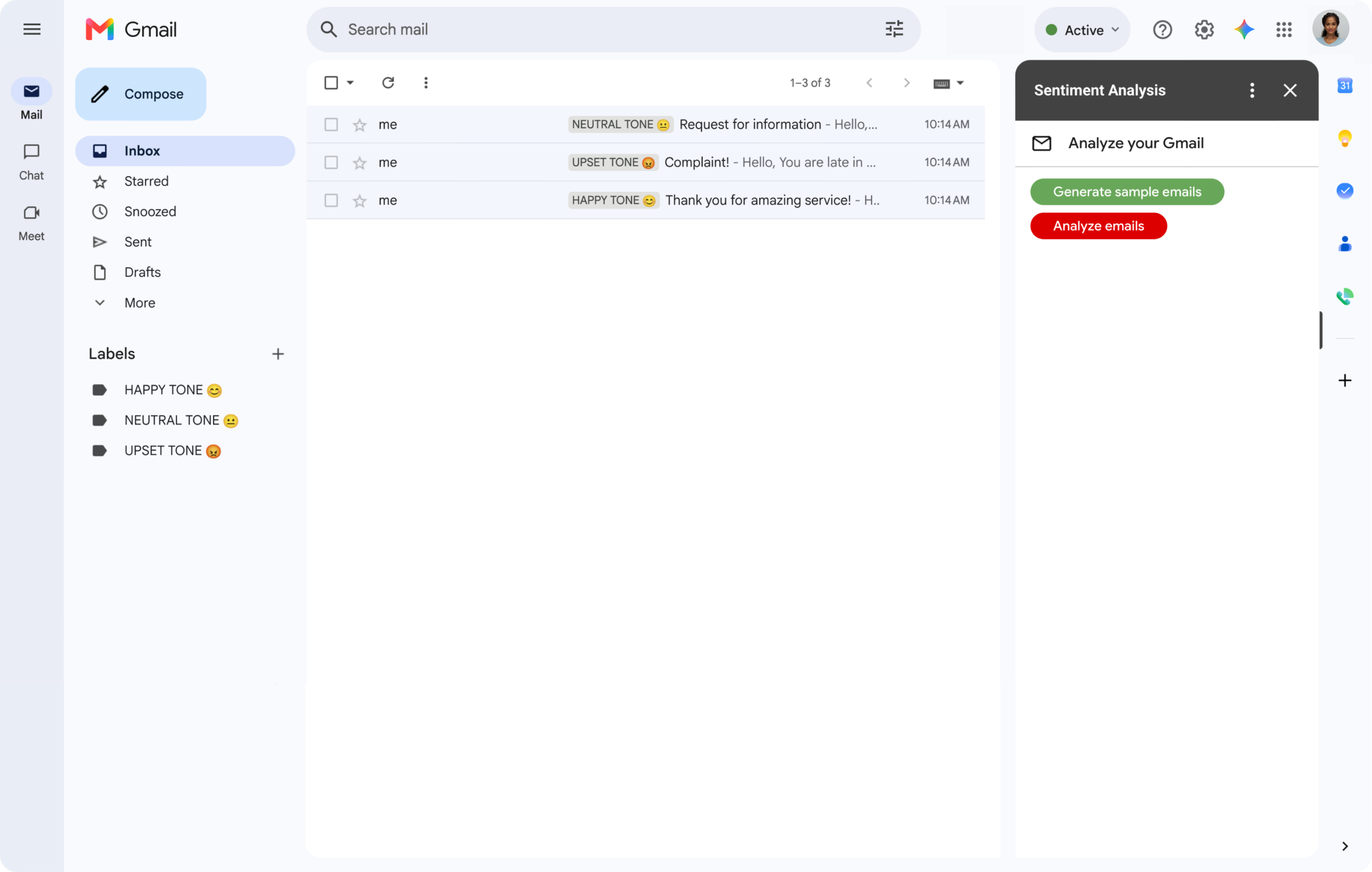
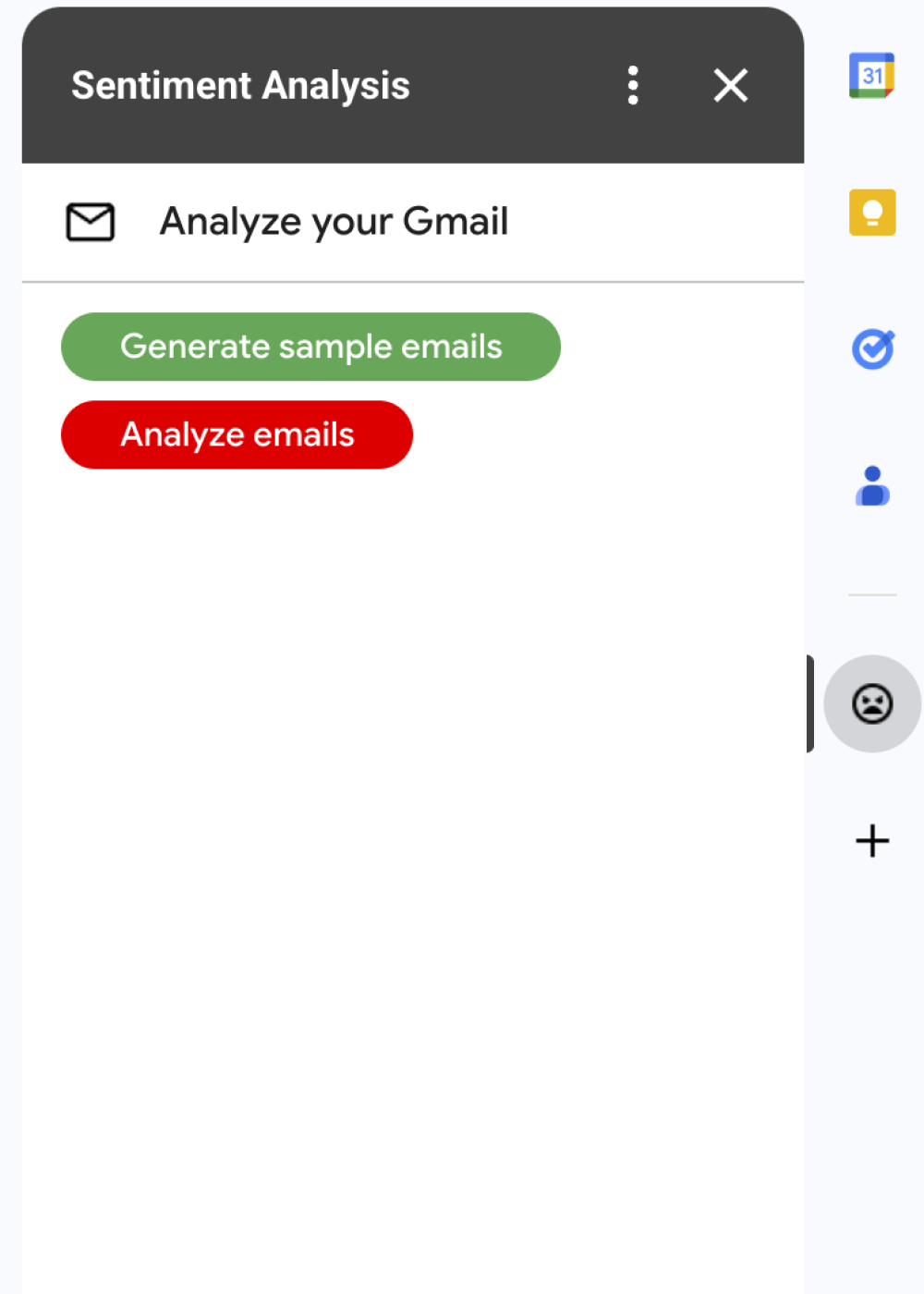
    情绪分析 插件会在 Gmail 中显示一个边栏,用户可以在其中提示 Gemini 根据情绪分析邮件并为其添加标签。

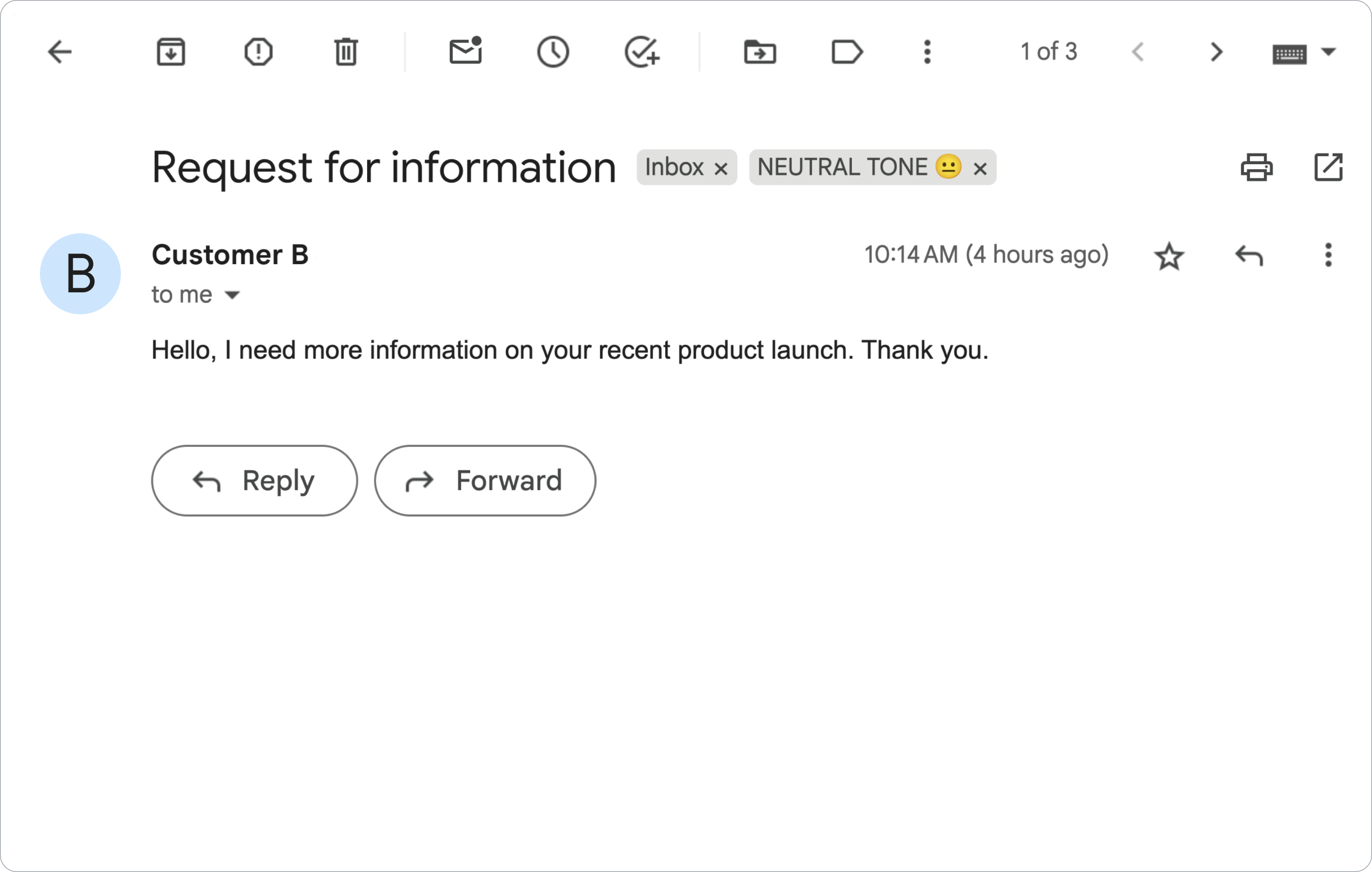
  • 具有中性情感的 Gmail 邮件。

    该插件会为 Gmail 邮件添加 NEUTRAL TONE 😐 标签。

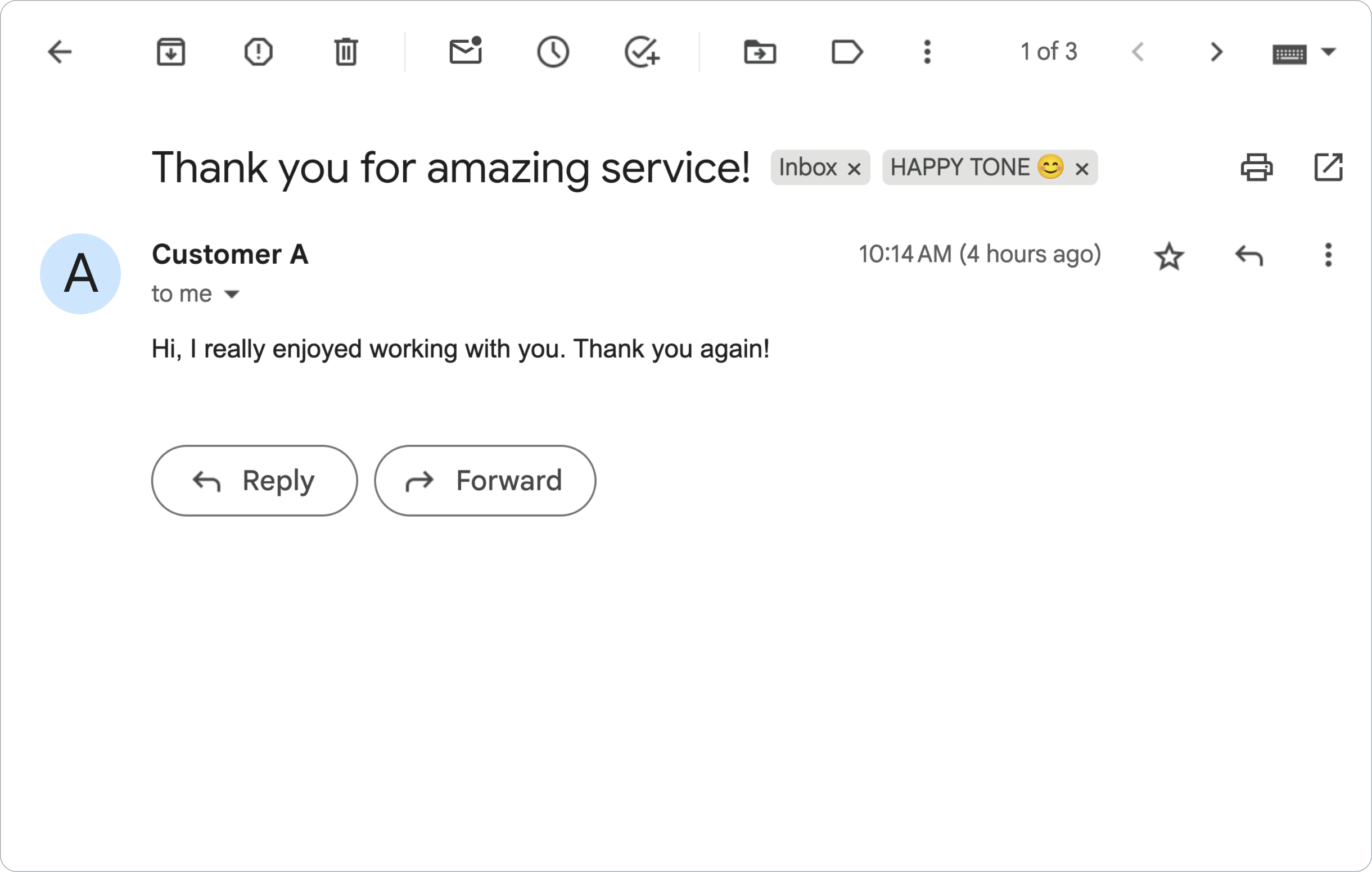
  • 一封带有积极情绪的 Gmail 邮件。

    该插件会为 Gmail 邮件添加 HAPPY TONE 😊 标签。

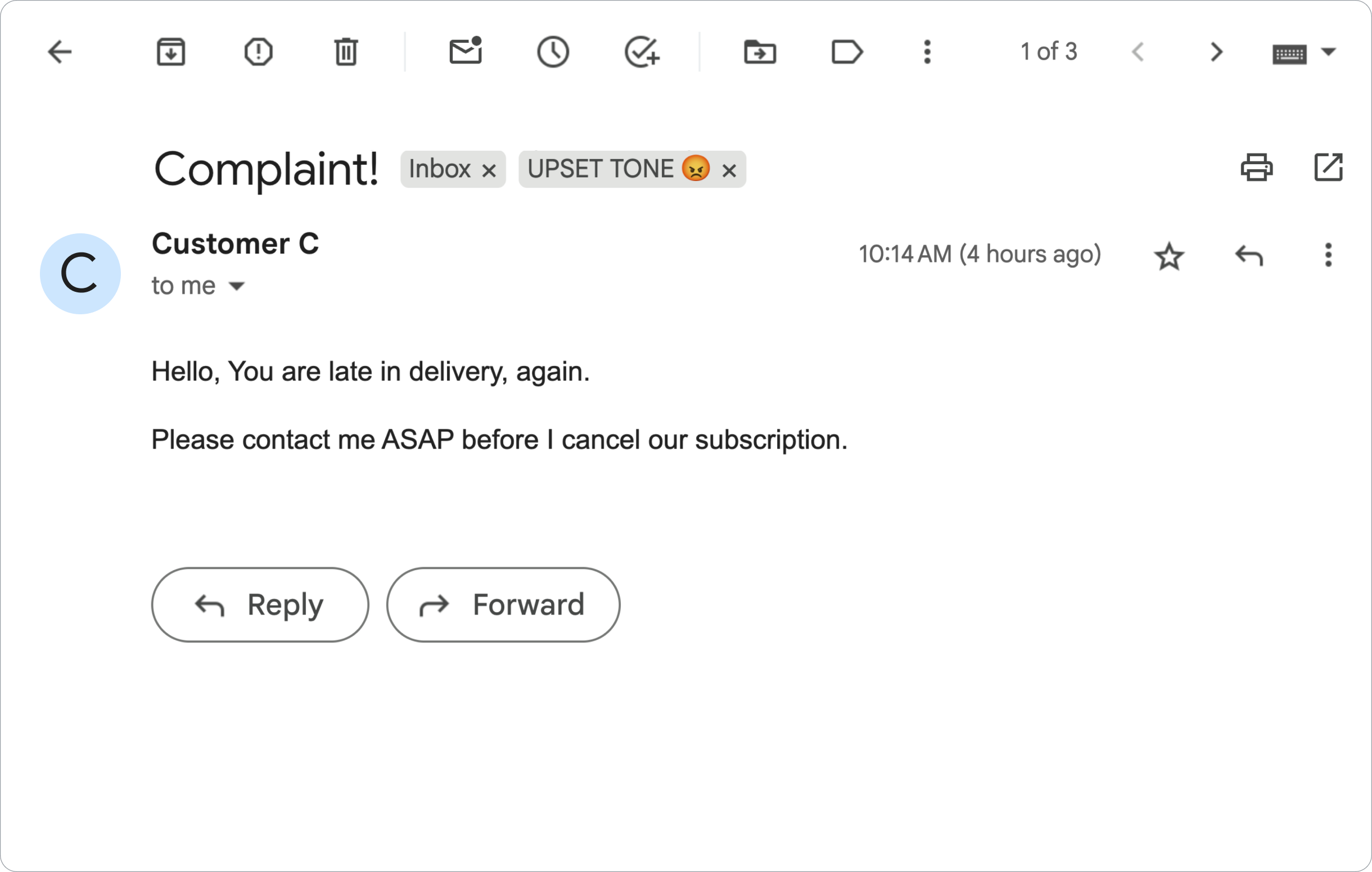
  •  包含负面情绪的 Gmail 邮件。

    该插件会为 Gmail 邮件添加 UPSET TONE 😡 标签。

目标

  • 了解此解决方案的作用。
  • 了解 Google 服务在此解决方案中的作用。
  • 设置环境。
  • 设置 Google Apps 脚本项目。
  • 运行脚本。

关于此解决方案

情感分析 Google Workspace 加购项

情感分析 Google Workspace 加购项

此解决方案是一个 Google Workspace 插件,可根据 Gmail 邮件的情绪添加标签。为了分析邮件内容,该插件使用 Vertex AI 提示 Gemini 2.5 Flash 模型,并返回以下情绪之一:

  • 正面
  • 负面
  • 中性

根据 Gemini 的响应,该插件会为邮件添加相应的 Gmail 标签。

为了限制对 Vertex AI API 的请求,此插件仅分析 Gmail 用户收件箱中最新的 10 封邮件并为其添加标签。如需详细了解 配额和限制,请参阅 Vertex AI 文档

运作方式

此解决方案在 Google Apps 脚本中构建,并使用以下 Google 服务和产品:

  • Vertex AI API - 提示 Gemini 2.5 Flash 模型 分析 Gmail 邮件的内容并识别 情绪。
  • Apps 脚本服务:

    • Gmail 服务 - 检索 Gmail 邮件并为其 添加标签。(可选)创建示例邮件以测试插件。
    • 卡片服务 - 创建插件的用户界面 ,该界面在 Gmail 中显示为边栏。
    • 网址 Fetch 服务 - 连接到 Vertex AI API 以进行情感分析。
    • 脚本服务 - 如需调用 Vertex AI API, 请使用 getOAuthToken 方法为插件获取 OAuth 2.0 访问令牌。

前提条件

设置环境

本部分介绍如何在 Google Cloud 控制台和 Apps 脚本中配置和设置环境。

在 Google Cloud 控制台中配置云项目

本部分介绍如何在云项目中启用 Vertex AI API 并配置 OAuth 权限请求页面。

启用 Vertex AI API

  1. 在 Google Cloud 控制台中,打开您的 Google Cloud 项目并启用 Vertex AI API:

    启用该 API

  2. 确认您要在正确的 Cloud 项目中启用该 API,然后点击 下一步

  3. 确认您要启用正确的 API,然后点击启用

配置 OAuth 权限请求页面

Google Workspace 插件需要配置权限请求页面。配置插件的 OAuth 权限请求页面可定义 Google 向用户显示的内容。

  1. 在 Google API 控制台中,依次点击“菜单”图标 > Google Auth 平台 > 品牌塑造

    前往“品牌塑造”

  2. 如果您已配置 Google Auth 平台,则可以在品牌塑造受众群体数据访问权限中配置以下 OAuth 权限请求页面设置。如果您看到一条消息,提示尚未配置 Google Auth 平台,请点击开始使用
    1. 应用信息 下的应用名称 中,输入应用的名称。
    2. 用户支持邮箱中,选择一个支持邮箱地址,供用户针对其同意情况与您联系。
    3. 点击下一步
    4. 受众群体 下,选择内部
    5. 点击下一步
    6. 联系信息下,输入一个邮箱地址,以便您接收有关项目变更的通知。
    7. 点击下一步
    8. 完成 部分,查看《Google API 服务用户数据政策》,如果您同意,请选择我同意 Google API 服务:用户数据政策
    9. 点击继续
    10. 点击创建
  3. 目前,您可以跳过添加范围。 将来,当您创建应用以供您的 Google Workspace 组织外部使用时,必须将 用户类型 更改为 外部。然后, 添加应用所需的授权范围。如需了解详情,请参阅完整的 配置 OAuth 同意指南。

创建和设置 Apps 脚本项目

如需为插件创建和设置 Apps 脚本项目,请完成以下步骤:

  1. 点击以下按钮,打开 Gmail Sentiment Analysis with Gemini and Vertex AI Apps 脚本项目。
    打开 Apps 脚本项目

  2. 点击 Overview

  3. 在概览页面上,点击“制作副本”图标 用于创建副本的图标

  4. 获取 Cloud 项目的编号:

    1. 在 Google API 控制台中,依次点击“菜单”图标 > IAM 和管理 > 设置

      前往“IAM 和管理”设置

    2. 项目编号 字段中,复制该值。
  5. 将云项目与 Apps 脚本项目关联:

    1. 在复制的 Apps 脚本项目中, 点击 项目设置 项目设置图标
    2. Google Cloud Platform (GCP) 项目 下,点击 更改项目
    3. GCP 项目编号 中,粘贴云项目编号。
    4. 点击设置项目

测试插件

如需试用该插件,请安装测试部署,然后在 Gmail 中打开该插件:

  1. 创建并安装 Apps 脚本测试部署:
    1. 在复制的 Apps 脚本项目中,点击编辑器
    2. 打开 Code.gs 文件,然后点击运行 。根据提示为脚本授权。
    3. 依次点击部署 > 测试部署
    4. 依次点击安装 > 完成
  2. 打开 Gmail。

    进入 Gmail

  3. 在右侧边栏中,打开插件 情绪分析

  4. 如果系统提示,请为插件授权。

  5. (可选)如需创建邮件以测试插件,请点击生成示例电子邮件 。您的收件箱中会显示三封邮件。如果您没有看到这些邮件,请刷新页面。

  6. 如需添加标签,请点击分析电子邮件

该插件会查看收件箱中最新的 10 封邮件,然后根据邮件内容添加以下标签之一:

  • HAPPY TONE 😊
  • NEUTRAL TONE 😐
  • UPSET TONE 😡

查看代码

查看此解决方案的 Apps 脚本代码:

查看源代码

Code.gs

gmail-sentiment-analysis/Code.gs
/*
Copyright 2024 Google LLC

Licensed under the Apache License, Version 2.0 (the "License");
you may not use this file except in compliance with the License.
You may obtain a copy of the License at

    https://www.apache.org/licenses/LICENSE-2.0

Unless required by applicable law or agreed to in writing, software
distributed under the License is distributed on an "AS IS" BASIS,
WITHOUT WARRANTIES OR CONDITIONS OF ANY KIND, either express or implied.
See the License for the specific language governing permissions and
limitations under the License.
*/

/**
 * Triggered when the add-on is opened from the Gmail homepage.
 *
 * @param {Object} e - The event object.
 * @returns {Card} - The homepage card.
 */
function onHomepageTrigger(e) {
  return buildHomepageCard();
}

Cards.gs

gmail-sentiment-analysis/Cards.gs
/*
Copyright 2024-2025 Google LLC

Licensed under the Apache License, Version 2.0 (the "License");
you may not use this file except in compliance with the License.
You may obtain a copy of the License at

    https://www.apache.org/licenses/LICENSE-2.0

Unless required by applicable law or agreed to in writing, software
distributed under the License is distributed on an "AS IS" BASIS,
WITHOUT WARRANTIES OR CONDITIONS OF ANY KIND, either express or implied.
See the License for the specific language governing permissions and
limitations under the License.
*/

/**
 * Builds the main card displayed on the Gmail homepage.
 *
 * @returns {Card} - The homepage card.
 */
function buildHomepageCard() {
  // Create a new card builder
  const cardBuilder = CardService.newCardBuilder();

  // Create a card header
  const cardHeader = CardService.newCardHeader();
  cardHeader.setImageUrl(
    "https://fonts.gstatic.com/s/i/googlematerialicons/mail/v6/black-24dp/1x/gm_mail_black_24dp.png",
  );
  cardHeader.setImageStyle(CardService.ImageStyle.CIRCLE);
  cardHeader.setTitle("Analyze your Gmail");

  // Add the header to the card
  cardBuilder.setHeader(cardHeader);

  // Create a card section
  const cardSection = CardService.newCardSection();

  // Create buttons for generating sample emails and analyzing sentiment
  const buttonSet = CardService.newButtonSet();

  // Create "Generate sample emails" button
  const generateButton = createFilledButton(
    "Generate sample emails",
    "generateSampleEmails",
    "#34A853",
  );
  buttonSet.addButton(generateButton);

  // Create "Analyze emails" button
  const analyzeButton = createFilledButton(
    "Analyze emails",
    "analyzeSentiment",
    "#FF0000",
  );
  buttonSet.addButton(analyzeButton);

  // Add the button set to the section
  cardSection.addWidget(buttonSet);

  // Add the section to the card
  cardBuilder.addSection(cardSection);

  // Build and return the card
  return cardBuilder.build();
}

/**
 * Creates a filled text button with the specified text, function, and color.
 *
 * @param {string} text - The text to display on the button.
 * @param {string} functionName - The name of the function to call when the button is clicked.
 * @param {string} color - The background color of the button.
 * @returns {TextButton} - The created text button.
 */
function createFilledButton(text, functionName, color) {
  // Create a new text button
  const textButton = CardService.newTextButton();

  // Set the button text
  textButton.setText(text);

  // Set the action to perform when the button is clicked
  const action = CardService.newAction();
  action.setFunctionName(functionName);
  textButton.setOnClickAction(action);

  // Set the button style to filled
  textButton.setTextButtonStyle(CardService.TextButtonStyle.FILLED);

  // Set the background color
  textButton.setBackgroundColor(color);

  return textButton;
}

/**
 * Creates a notification response with the specified text.
 *
 * @param {string} notificationText - The text to display in the notification.
 * @returns {ActionResponse} - The created action response.
 */
function buildNotificationResponse(notificationText) {
  // Create a new notification
  const notification = CardService.newNotification();
  notification.setText(notificationText);

  // Create a new action response builder
  const actionResponseBuilder = CardService.newActionResponseBuilder();

  // Set the notification for the action response
  actionResponseBuilder.setNotification(notification);

  // Build and return the action response
  return actionResponseBuilder.build();
}

Gmail.gs

gmail-sentiment-analysis/Gmail.gs
/*
Copyright 2024-2025 Google LLC

Licensed under the Apache License, Version 2.0 (the "License");
you may not use this file except in compliance with the License.
You may obtain a copy of the License at

    https://www.apache.org/licenses/LICENSE-2.0

Unless required by applicable law or agreed to in writing, software
distributed under the License is distributed on an "AS IS" BASIS,
WITHOUT WARRANTIES OR CONDITIONS OF ANY KIND, either express or implied.
See the License for the specific language governing permissions and
limitations under the License.
*/

/**
 * Analyzes the sentiment of the first 10 threads in the inbox
 * and labels them accordingly.
 *
 * @returns {ActionResponse} - A notification confirming completion.
 */
function analyzeSentiment() {
  // Analyze and label emails
  analyzeAndLabelEmailSentiment();

  // Return a notification
  return buildNotificationResponse("Successfully completed sentiment analysis");
}

/**
 * Analyzes the sentiment of emails and applies appropriate labels.
 */
function analyzeAndLabelEmailSentiment() {
  // Define label names
  const labelNames = ["HAPPY TONE 😊", "NEUTRAL TONE 😐", "UPSET TONE 😡"];

  // Get or create labels for each sentiment
  const positiveLabel =
    GmailApp.getUserLabelByName(labelNames[0]) ||
    GmailApp.createLabel(labelNames[0]);
  const neutralLabel =
    GmailApp.getUserLabelByName(labelNames[1]) ||
    GmailApp.createLabel(labelNames[1]);
  const negativeLabel =
    GmailApp.getUserLabelByName(labelNames[2]) ||
    GmailApp.createLabel(labelNames[2]);

  // Get the first 10 threads in the inbox
  const threads = GmailApp.getInboxThreads(0, 10);

  // Iterate through each thread
  for (const thread of threads) {
    // Iterate through each message in the thread
    const messages = thread.getMessages();
    for (const message of messages) {
      // Get the plain text body of the message
      const emailBody = message.getPlainBody();

      // Analyze the sentiment of the email body
      const sentiment = processSentiment(emailBody);

      // Apply the appropriate label based on the sentiment
      if (sentiment === "positive") {
        thread.addLabel(positiveLabel);
      } else if (sentiment === "neutral") {
        thread.addLabel(neutralLabel);
      } else if (sentiment === "negative") {
        thread.addLabel(negativeLabel);
      }
    }
  }
}

/**
 * Generates sample emails for testing the sentiment analysis.
 *
 * @returns {ActionResponse} - A notification confirming email generation.
 */
function generateSampleEmails() {
  // Get the current user's email address
  const userEmail = Session.getActiveUser().getEmail();

  // Define sample emails
  const sampleEmails = [
    {
      subject: "Thank you for amazing service!",
      body: "Hi, I really enjoyed working with you. Thank you again!",
      name: "Customer A",
    },
    {
      subject: "Request for information",
      body: "Hello, I need more information on your recent product launch. Thank you.",
      name: "Customer B",
    },
    {
      subject: "Complaint!",
      body: "",
      htmlBody: `<p>Hello, You are late in delivery, again.</p>
<p>Please contact me ASAP before I cancel our subscription.</p>`,
      name: "Customer C",
    },
  ];

  // Send each sample email
  for (const email of sampleEmails) {
    GmailApp.sendEmail(userEmail, email.subject, email.body, {
      name: email.name,
      htmlBody: email.htmlBody,
    });
  }

  // Return a notification
  return buildNotificationResponse("Successfully generated sample emails");
}

Vertex.gs

gmail-sentiment-analysis/Vertex.gs
/*
Copyright 2024-2025 Google LLC

Licensed under the Apache License, Version 2.0 (the "License");
you may not use this file except in compliance with the License.
You may obtain a copy of the License at

    https://www.apache.org/licenses/LICENSE-2.0

Unless required by applicable law or agreed to in writing, software
distributed under the License is distributed on an "AS IS" BASIS,
WITHOUT WARRANTIES OR CONDITIONS OF ANY KIND, either express or implied.
See the License for the specific language governing permissions and
limitations under the License.
*/

// Replace with your project ID
const PROJECT_ID = "[ADD YOUR GCP PROJECT ID HERE]";

// Location for your Vertex AI model
const VERTEX_AI_LOCATION = "us-central1";

// Model ID to use for sentiment analysis
const MODEL_ID = "gemini-2.5-flash";

/**
 * Sends the email text to Vertex AI for sentiment analysis.
 *
 * @param {string} emailText - The text of the email to analyze.
 * @returns {string} - The sentiment of the email ('positive', 'negative', or 'neutral').
 */
function processSentiment(emailText) {
  // Construct the API endpoint URL
  const apiUrl = `https://${VERTEX_AI_LOCATION}-aiplatform.googleapis.com/v1/projects/${PROJECT_ID}/locations/${VERTEX_AI_LOCATION}/publishers/google/models/${MODEL_ID}:generateContent`;

  // Prepare the request payload
  const payload = {
    contents: [
      {
        role: "user",
        parts: [
          {
            text: `Analyze the sentiment of the following message: ${emailText}`,
          },
        ],
      },
    ],
    generationConfig: {
      temperature: 0.9,
      maxOutputTokens: 1024,
      responseMimeType: "application/json",
      // Expected response format for simpler parsing.
      responseSchema: {
        type: "object",
        properties: {
          response: {
            type: "string",
            enum: ["positive", "negative", "neutral"],
          },
        },
      },
    },
  };

  // Prepare the request options
  const options = {
    method: "POST",
    headers: {
      Authorization: `Bearer ${ScriptApp.getOAuthToken()}`,
    },
    contentType: "application/json",
    muteHttpExceptions: true, // Set to true to inspect the error response
    payload: JSON.stringify(payload),
  };

  // Make the API request
  const response = UrlFetchApp.fetch(apiUrl, options);

  // Parse the response. There are two levels of JSON responses to parse.
  const parsedResponse = JSON.parse(response.getContentText());
  const sentimentResponse = JSON.parse(
    parsedResponse.candidates[0].content.parts[0].text,
  ).response;

  // Return the sentiment
  return sentimentResponse;
}

appsscript.json

gmail-sentiment-analysis/appsscript.json
{
  "timeZone": "America/Toronto",
  "oauthScopes": [
    "https://www.googleapis.com/auth/cloud-platform",
    "https://www.googleapis.com/auth/gmail.addons.execute",
    "https://www.googleapis.com/auth/gmail.labels",
    "https://www.googleapis.com/auth/gmail.modify",
    "https://www.googleapis.com/auth/script.external_request",
    "https://www.googleapis.com/auth/userinfo.email"
  ],
  "addOns": {
    "common": {
      "name": "Sentiment Analysis",
      "logoUrl": "https://fonts.gstatic.com/s/i/googlematerialicons/sentiment_extremely_dissatisfied/v6/black-24dp/1x/gm_sentiment_extremely_dissatisfied_black_24dp.png"
    },
    "gmail": {
      "homepageTrigger": {
        "runFunction": "onHomepageTrigger",
        "enabled": true
      }
    }
  },
  "exceptionLogging": "STACKDRIVER",
  "runtimeVersion": "V8"
}

清理

为避免因本教程中使用的资源而向您的 Google Cloud 账号收取费用,我们建议您删除云项目。

  1. 在 Google API 控制台中,前往管理资源 页面。依次点击 菜单 > IAM 和管理 > 管理资源

    转到 Resource Manager

  2. 在项目列表中,选择要删除的项目,然后点击 删除 .
  3. 在对话框中输入项目 ID,然后点击关停 以删除 项目。

后续步骤