Genel Bakış
OAuth tabanlı Google ile Oturum Açma basitleştirilmiş bağlantısı, OAuth bağlantısının üzerine Google ile Oturum Açma'yı ekler. Bu, Google kullanıcıları için sorunsuz bir bağlantı deneyimi sağlar ve hesap oluşturma özelliğini etkinleştirir. Bu sayede kullanıcı, Google Hesabını kullanarak hizmetinizde yeni bir hesap oluşturabilir.
OAuth ve Google ile oturum açma özelliğini kullanarak hesap bağlama işlemini gerçekleştirmek için aşağıdaki genel adımları uygulayın:
- Öncelikle kullanıcıdan Google profiline erişmek için izin vermesini isteyin.
- Kullanıcı hesabının mevcut olup olmadığını kontrol etmek için profilindeki bilgileri kullanın.
- Mevcut kullanıcılar için hesapları bağlayın.
- Kimlik doğrulama sisteminizde Google kullanıcısıyla eşleşen bir kullanıcı bulamıyorsanız Google'dan alınan kimlik jetonunu doğrulayın. Ardından, kimlik jetonunda bulunan profil bilgilerine göre bir kullanıcı oluşturabilirsiniz.
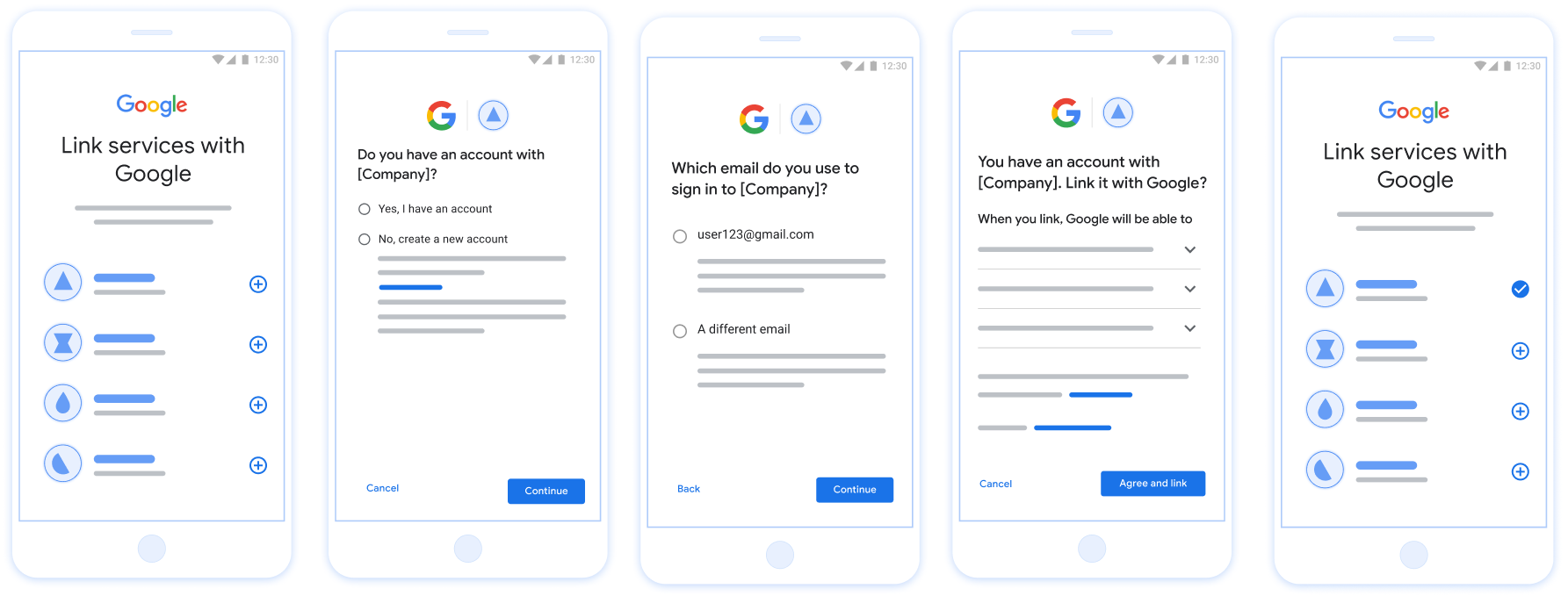
Şekil 1. Basitleştirilmiş Bağlantı ile kullanıcının telefonunda hesap bağlama
Basitleştirilmiş Bağlantı Oluşturma ile İlgili Şartlar
- Temel web OAuth bağlantısı akışını uygulayın. Hizmetiniz, OAuth 2.0 uyumlu yetkilendirme ve jeton değişimi uç noktalarını desteklemelidir.
- Jeton değişimi uç noktanız JSON Web Jetonu (JWT) iddialarını desteklemeli ve
check,createvegetintent'lerini uygulamalıdır.
OAuth sunucunuzu uygulama
Jeton değişimi uç noktanız check, create, get intent'lerini desteklemelidir. Aşağıda, hesap bağlama akışında tamamlanan adımlar gösterilmektedir ve farklı intent'lerin ne zaman çağrıldığı belirtilmektedir:
- Kullanıcının kimlik doğrulama sisteminizde hesabı var mı? (Kullanıcı EVET veya HAYIR'ı seçerek karar verir)
- EVET : Kullanıcı, platformunuzda oturum açmak için Google Hesabı ile ilişkili e-postayı kullanıyor mu? (Kullanıcı EVET veya HAYIR'ı seçerek karar verir)
- EVET : Kullanıcının kimlik doğrulama sisteminizde eşleşen bir hesabı var mı? (
check intentnumaralı telefon onay için aranır)- EVET : get intent başarılı bir şekilde döndürülürse
get intentçağrılır ve hesap bağlanır. - HAYIR : Yeni Hesap Oluştur? (Kullanıcı EVET veya HAYIR'ı seçerek karar verir)
- EVET : create intent başarılı bir şekilde döndürülürse
create intentçağrılır ve hesap bağlanır. - HAYIR : Web OAuth akışı tetiklenir, kullanıcı kendi tarayıcısına yönlendirilir ve kullanıcıya farklı bir e-posta ile bağlantı kurma seçeneği sunulur.
- EVET : create intent başarılı bir şekilde döndürülürse
- EVET : get intent başarılı bir şekilde döndürülürse
- HAYIR : Web OAuth akışı tetiklenir, kullanıcı kendi tarayıcısına yönlendirilir ve farklı bir e-posta ile bağlantı kurma seçeneği sunulur.
- EVET : Kullanıcının kimlik doğrulama sisteminizde eşleşen bir hesabı var mı? (
- HAYIR : Kullanıcının kimlik doğrulama sisteminizde eşleşen bir hesabı var mı? (
check intentnumaralı telefon onay için aranır)- EVET : get intent başarılı bir şekilde döndürülürse
get intentçağrılır ve hesap bağlanır. - HAYIR : create intent başarıyla döndürülürse
create intentçağrılır ve hesap bağlanır.
- EVET : get intent başarılı bir şekilde döndürülürse
- EVET : Kullanıcı, platformunuzda oturum açmak için Google Hesabı ile ilişkili e-postayı kullanıyor mu? (Kullanıcı EVET veya HAYIR'ı seçerek karar verir)
Check for an existing user account (check intent)
After the user gives consent to access their Google profile, Google sends a request that contains a signed assertion of the Google user's identity. The assertion contains information that includes the user's Google Account ID, name, and email address. The token exchange endpoint configured for your project handles that request.
If the corresponding Google account is already present in your authentication
system, your token exchange endpoint responds with account_found=true. If the
Google account doesn't match an existing user, your token exchange endpoint
returns an HTTP 404 Not Found error with account_found=false.
The request has the following form:
POST /token HTTP/1.1 Host: oauth2.example.com Content-Type: application/x-www-form-urlencoded grant_type=urn:ietf:params:oauth:grant-type:jwt-bearer&intent=check&assertion=JWT&scope=SCOPES&client_id=GOOGLE_CLIENT_ID&client_secret=GOOGLE_CLIENT_SECRET
Your token exchange endpoint must be able to handle the following parameters:
| Token endpoint parameters | |
|---|---|
intent |
For these requests, the value of this parameter is
check. |
grant_type |
The type of token being exchanged. For these requests, this
parameter has the value urn:ietf:params:oauth:grant-type:jwt-bearer. |
assertion |
A JSON Web Token (JWT) that provides a signed assertion of the Google user's identity. The JWT contains information that includes the user's Google Account ID, name, and email address. |
client_id |
The client ID you assigned to Google. |
client_secret |
The client secret you assigned to Google. |
To respond to the check intent requests, your token exchange endpoint must perform the following steps:
- Validate and decode the JWT assertion.
- Check if the Google account is already present in your authentication system.
Validate and decode the JWT assertion
You can validate and decode the JWT assertion by using a JWT-decoding library for your language. Use Google's public keys, available in JWK or PEM formats, to verify the token's signature.
When decoded, the JWT assertion looks like the following example:
{ "sub": "1234567890", // The unique ID of the user's Google Account "iss": "https://accounts.google.com", // The assertion's issuer "aud": "123-abc.apps.googleusercontent.com", // Your server's client ID "iat": 233366400, // Unix timestamp of the assertion's creation time "exp": 233370000, // Unix timestamp of the assertion's expiration time "name": "Jan Jansen", "given_name": "Jan", "family_name": "Jansen", "email": "jan@gmail.com", // If present, the user's email address "email_verified": true, // true, if Google has verified the email address "hd": "example.com", // If present, the host domain of the user's GSuite email address // If present, a URL to user's profile picture "picture": "https://lh3.googleusercontent.com/a-/AOh14GjlTnZKHAeb94A-FmEbwZv7uJD986VOF1mJGb2YYQ", "locale": "en_US" // User's locale, from browser or phone settings }
In addition to verifying the token's signature, verify that the assertion's
issuer (iss field) is https://accounts.google.com, that the audience
(aud field) is your assigned client ID, and that the token has not expired
(exp field).
Using the email, email_verified and hd fields you can determine if
Google hosts and is authoritative for an email address. In cases where Google is
authoritative the user is currently known to be the legitimate account owner
and you may skip password or other challenges methods. Otherwise, these methods
can be used to verify the account prior to linking.
Cases where Google is authoritative:
emailhas a@gmail.comsuffix, this is a Gmail account.email_verifiedis true andhdis set, this is a G Suite account.
Users may register for Google Accounts without using Gmail or G Suite. When
email does not contain a @gmail.com suffix and hd is absent Google is not
authoritative and password or other challenge methods are recommended to verify
the user. email_verified can also be true as Google initially verified the
user when the Google account was created, however ownership of the third party
email account may have since changed.
Check if the Google account is already present in your authentication system
Check whether either of the following conditions are true:
- The Google Account ID, found in the assertion's
subfield, is in your user database. - The email address in the assertion matches a user in your user database.
If either condition is true, the user has already signed up. In that case, return a response like the following:
HTTP/1.1 200 Success
Content-Type: application/json;charset=UTF-8
{
"account_found":"true",
}
If neither the Google Account ID nor the email address specified in the
assertion matches a user in your database, the user hasn't signed up yet. In
this case, your token exchange endpoint needs to reply with a HTTP 404 error
that specifies "account_found": "false", as in the following example:
HTTP/1.1 404 Not found
Content-Type: application/json;charset=UTF-8
{
"account_found":"false",
}
Handle automatic linking (get intent)
After the user gives consent to access their Google profile, Google sends a request that contains a signed assertion of the Google user's identity. The assertion contains information that includes the user's Google Account ID, name, and email address. The token exchange endpoint configured for your project handles that request.
If the corresponding Google Account is already present in your authentication
system, your token exchange endpoint returns a token for the user. If the
Google Account doesn't match an existing user, your token exchange endpoint
returns a linking_error error and optional login_hint.
The request has the following form:
POST /token HTTP/1.1 Host: oauth2.example.com Content-Type: application/x-www-form-urlencoded grant_type=urn:ietf:params:oauth:grant-type:jwt-bearer&intent=get&assertion=JWT&scope=SCOPES&client_id=GOOGLE_CLIENT_ID&client_secret=GOOGLE_CLIENT_SECRET
Your token exchange endpoint must be able to handle the following parameters:
| Token endpoint parameters | |
|---|---|
intent |
For these requests, the value of this parameter is get. |
grant_type |
The type of token being exchanged. For these requests, this
parameter has the value urn:ietf:params:oauth:grant-type:jwt-bearer. |
assertion |
A JSON Web Token (JWT) that provides a signed assertion of the Google user's identity. The JWT contains information that includes the user's Google Account ID, name, and email address. |
scope |
Optional: Any scopes that you've configured Google to request from users. |
client_id |
The client ID you assigned to Google. |
client_secret |
The client secret you assigned to Google. |
To respond to the get intent requests, your token exchange endpoint must perform the following steps:
- Validate and decode the JWT assertion.
- Check if the Google account is already present in your authentication system.
Validate and decode the JWT assertion
You can validate and decode the JWT assertion by using a JWT-decoding library for your language. Use Google's public keys, available in JWK or PEM formats, to verify the token's signature.
When decoded, the JWT assertion looks like the following example:
{ "sub": "1234567890", // The unique ID of the user's Google Account "iss": "https://accounts.google.com", // The assertion's issuer "aud": "123-abc.apps.googleusercontent.com", // Your server's client ID "iat": 233366400, // Unix timestamp of the assertion's creation time "exp": 233370000, // Unix timestamp of the assertion's expiration time "name": "Jan Jansen", "given_name": "Jan", "family_name": "Jansen", "email": "jan@gmail.com", // If present, the user's email address "email_verified": true, // true, if Google has verified the email address "hd": "example.com", // If present, the host domain of the user's GSuite email address // If present, a URL to user's profile picture "picture": "https://lh3.googleusercontent.com/a-/AOh14GjlTnZKHAeb94A-FmEbwZv7uJD986VOF1mJGb2YYQ", "locale": "en_US" // User's locale, from browser or phone settings }
In addition to verifying the token's signature, verify that the assertion's
issuer (iss field) is https://accounts.google.com, that the audience
(aud field) is your assigned client ID, and that the token has not expired
(exp field).
Using the email, email_verified and hd fields you can determine if
Google hosts and is authoritative for an email address. In cases where Google is
authoritative the user is currently known to be the legitimate account owner
and you may skip password or other challenges methods. Otherwise, these methods
can be used to verify the account prior to linking.
Cases where Google is authoritative:
emailhas a@gmail.comsuffix, this is a Gmail account.email_verifiedis true andhdis set, this is a G Suite account.
Users may register for Google Accounts without using Gmail or G Suite. When
email does not contain a @gmail.com suffix and hd is absent Google is not
authoritative and password or other challenge methods are recommended to verify
the user. email_verified can also be true as Google initially verified the
user when the Google account was created, however ownership of the third party
email account may have since changed.
Check if the Google account is already present in your authentication system
Check whether either of the following conditions are true:
- The Google Account ID, found in the assertion's
subfield, is in your user database. - The email address in the assertion matches a user in your user database.
If an account is found for the user, issue an access token and return the values in a JSON object in the body of your HTTPS response, like in the following example:
{ "token_type": "Bearer", "access_token": "ACCESS_TOKEN", "refresh_token": "REFRESH_TOKEN", "expires_in": SECONDS_TO_EXPIRATION }
In some cases, account linking based on ID token might fail for the user. If it
does so for any reason, your token exchange endpoint needs to reply with a HTTP
401 error that specifies error=linking_error, as the following example shows:
HTTP/1.1 401 Unauthorized
Content-Type: application/json;charset=UTF-8
{
"error":"linking_error",
"login_hint":"foo@bar.com"
}
When Google receives a 401 error response with linking_error, Google sends
the user to your authorization endpoint with login_hint as a parameter. The
user completes account linking using the OAuth linking flow in their browser.
Google ile Oturum Açma aracılığıyla hesap oluşturma işlemini yönetme (amaç oluşturma)
Kullanıcının hizmetinizde hesap oluşturması gerektiğinde Google bir istekte bulunur
intent=create değerini belirten jeton değişimi uç noktanıza bağlayın.
Talep aşağıdaki biçimdedir:
POST /token HTTP/1.1 Host: oauth2.example.com Content-Type: application/x-www-form-urlencoded response_type=token&grant_type=urn:ietf:params:oauth:grant-type:jwt-bearer&scope=SCOPES&intent=create&assertion=JWT&client_id=GOOGLE_CLIENT_ID&client_secret=GOOGLE_CLIENT_SECRET
Jeton değişimi uç noktanız aşağıdaki parametreleri işleyebilmelidir:
| Jeton uç noktası parametreleri | |
|---|---|
intent |
Bu istekler için bu parametrenin değeri create şeklindedir. |
grant_type |
Değişen jetonun türü. Söz konusu
parametresi urn:ietf:params:oauth:grant-type:jwt-bearer değerine sahiptir. |
assertion |
Google Cloud konsolunun imzalı onayını sağlayan bir JSON Web Token (JWT) kullanıcı kimliği. JWT, kullanıcının Google Hesabı kimliği, adı ve e-posta adresi. |
client_id |
Google'a atadığınız istemci kimliği. |
client_secret |
Google'a atadığınız istemci gizli anahtarı. |
assertion parametresindeki JWT, kullanıcının Google Hesabı kimliğini içerir.
adınızı ve e-posta adresinizi girin. Bu bilgileri
geliştirmenizi sağlar.
create intent isteklerine yanıt vermek için jeton değişimi uç noktanızın aşağıdaki adımları uygulaması gerekir:
- JWT onayını doğrulayın ve kodunu çözün.
- Kullanıcı bilgilerini doğrulayın ve yeni hesap oluşturun.
Validate and decode the JWT assertion
You can validate and decode the JWT assertion by using a JWT-decoding library for your language. Use Google's public keys, available in JWK or PEM formats, to verify the token's signature.
When decoded, the JWT assertion looks like the following example:
{ "sub": "1234567890", // The unique ID of the user's Google Account "iss": "https://accounts.google.com", // The assertion's issuer "aud": "123-abc.apps.googleusercontent.com", // Your server's client ID "iat": 233366400, // Unix timestamp of the assertion's creation time "exp": 233370000, // Unix timestamp of the assertion's expiration time "name": "Jan Jansen", "given_name": "Jan", "family_name": "Jansen", "email": "jan@gmail.com", // If present, the user's email address "email_verified": true, // true, if Google has verified the email address "hd": "example.com", // If present, the host domain of the user's GSuite email address // If present, a URL to user's profile picture "picture": "https://lh3.googleusercontent.com/a-/AOh14GjlTnZKHAeb94A-FmEbwZv7uJD986VOF1mJGb2YYQ", "locale": "en_US" // User's locale, from browser or phone settings }
In addition to verifying the token's signature, verify that the assertion's
issuer (iss field) is https://accounts.google.com, that the audience
(aud field) is your assigned client ID, and that the token has not expired
(exp field).
Using the email, email_verified and hd fields you can determine if
Google hosts and is authoritative for an email address. In cases where Google is
authoritative the user is currently known to be the legitimate account owner
and you may skip password or other challenges methods. Otherwise, these methods
can be used to verify the account prior to linking.
Cases where Google is authoritative:
emailhas a@gmail.comsuffix, this is a Gmail account.email_verifiedis true andhdis set, this is a G Suite account.
Users may register for Google Accounts without using Gmail or G Suite. When
email does not contain a @gmail.com suffix and hd is absent Google is not
authoritative and password or other challenge methods are recommended to verify
the user. email_verified can also be true as Google initially verified the
user when the Google account was created, however ownership of the third party
email account may have since changed.
Kullanıcı bilgilerini doğrulayın ve yeni hesap oluşturun
Aşağıdaki koşullardan herhangi birinin doğru olup olmadığını kontrol edin:
- Onaylamanın
subalanında bulunan Google Hesabı kimliği kullanıcınızda yer alır. - Onaylamadaki e-posta adresi, kullanıcı veritabanınızdaki bir kullanıcıyla eşleşiyor.
İki koşul da doğruysa kullanıcıdan mevcut hesabını bağlamasını isteyin.
oturum açın. Bunu yapmak için isteğe HTTP 401 hatasıyla yanıt verin
error=linking_error belirtir ve kullanıcının e-posta adresini
login_hint. Aşağıda örnek bir yanıt verilmiştir:
HTTP/1.1 401 Unauthorized
Content-Type: application/json;charset=UTF-8
{
"error":"linking_error",
"login_hint":"foo@bar.com"
}
Google linking_error ile ilgili bir 401 hatası yanıtı aldığında, Google
kullanıcıyı parametre olarak login_hint ile yetkilendirme uç noktanıza yönlendirin. İlgili içeriği oluşturmak için kullanılan
Kullanıcı, tarayıcıdaki OAuth bağlantı akışını kullanarak hesap bağlama işlemini tamamladığında.
İki koşul da doğru değilse söz konusu bilgileri kullanarak yeni bir kullanıcı hesabı oluşturun bu formu doldurmanızı öneririm. Yeni hesaplarda genellikle belirlenmiş bir şifre bulunmaz. İnsanların Google ile Oturum Açma'yı diğer platformlara eklemenizi önerdi. uygulamanızın tüm platformlarında Google ile giriş yapın. Alternatif olarak kullanıcıya şifre kurtarma akışınızı başlatan bir bağlantı göndererek diğer platformlarda oturum açmak için şifre belirlemesine izin verin.
Oluşturma işlemi tamamlandığında bir erişim jetonu düzenleyin ve yenilenen jetonu ve değerleri şurada bir JSON nesnesinin içinde döndürür: aşağıdaki örnekte olduğu gibi HTTPS yanıtınızın gövdesini yazın:
{ "token_type": "Bearer", "access_token": "ACCESS_TOKEN", "refresh_token": "REFRESH_TOKEN", "expires_in": SECONDS_TO_EXPIRATION }
Google API istemci kimliğinizi alma
Hesap Bağlama kaydı sırasında Google API istemci kimliğinizi sağlamanız gerekir.
OAuth Bağlantısı adımlarını tamamlarken oluşturduğunuz projeyi kullanarak API istemci kimliğinizi almak için. Bunun için aşağıdaki adımları uygulayın:
Bir Google API'leri projesi oluşturun veya seçin.
Projenizde web uygulaması türü için istemci kimliği yoksa İstemci oluştur'u tıklayarak istemci kimliği oluşturun. Sitenizin alanını Yetkilendirilmiş JavaScript kaynakları kutusuna eklediğinizden emin olun. Yerel testler veya geliştirme yaparken Yetkili JavaScript kaynakları alanına hem
http://localhosthem dehttp://localhost:<port_number>eklemeniz gerekir.
Uygulamanızı doğrulama
You can validate your implementation by using the OAuth 2.0 Playground tool.
In the tool, do the following steps:
- Click Configuration to open the OAuth 2.0 Configuration window.
- In the OAuth flow field, select Client-side.
- In the OAuth Endpoints field, select Custom.
- Specify your OAuth 2.0 endpoint and the client ID you assigned to Google in the corresponding fields.
- In the Step 1 section, don't select any Google scopes. Instead, leave this field blank or type a scope valid for your server (or an arbitrary string if you don't use OAuth scopes). When you're done, click Authorize APIs.
- In the Step 2 and Step 3 sections, go through the OAuth 2.0 flow and verify that each step works as intended.
You can validate your implementation by using the Google Account Linking Demo tool.
In the tool, do the following steps:
- Click the Sign-in with Google button.
- Choose the account you'd like to link.
- Enter the service ID.
- Optionally enter one or more scopes that you will request access for.
- Click Start Demo.
- When prompted, confirm that you may consent and deny the linking request.
- Confirm that you are redirected to your platform.