קישור יעיל באמצעות OAuth וכניסה באמצעות חשבון Google

סקירה כללית

קישור יעיל באמצעות כניסה מבוססת-OAuth עם חשבון Google מוסיף כניסה באמצעות חשבון Google על גבי קישור OAuth. האפשרות הזו מספקת למשתמשי Google חוויית קישור חלקה, והיא גם מאפשרת יצירת חשבון. כך המשתמש יכול ליצור חשבון חדש בשירות שלכם באמצעות חשבון Google שלו.

כדי לקשר חשבונות באמצעות OAuth ו'כניסה באמצעות חשבון Google', צריך לבצע את השלבים הכלליים הבאים:

  1. קודם צריך לבקש מהמשתמש לתת הסכמה לגישה לפרופיל שלו ב-Google.
  2. משתמשים במידע בפרופיל כדי לבדוק אם חשבון המשתמש קיים.
  3. למשתמשים קיימים, מקשרים את החשבונות.
  4. אם לא מצאתם התאמה למשתמש Google במערכת האימות שלכם, צריך לאמת את אסימון הזהות שהתקבל מ-Google. לאחר מכן תוכלו ליצור משתמש על סמך פרטי הפרופיל שכלולים באסימון המזהה.
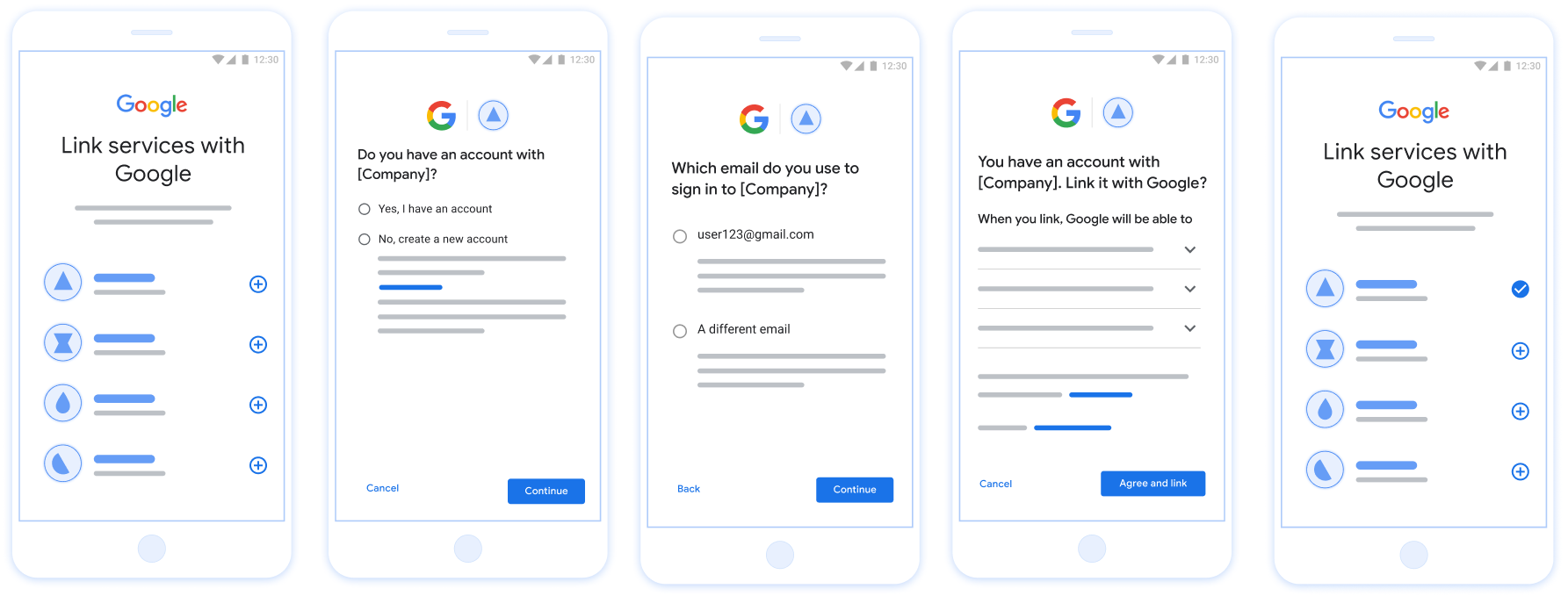
איור שמראה את השלבים שמשתמש צריך לבצע כדי לקשר את חשבון Google שלו באמצעות תהליך הקישור הפשוט. בצילום המסך הראשון אפשר לראות איך משתמש יכול לבחור את האפליקציה שלכם לקישור. בצילום המסך השני, המשתמש יכול לאשר אם יש לו חשבון קיים בשירות שלכם או לא. בצילום המסך השלישי, המשתמש יכול לבחור את חשבון Google שהוא רוצה לקשר. בצילום המסך הרביעי מוצג אישור לקישור חשבון Google לאפליקציה. בצילום המסך החמישי מוצג חשבון משתמש שמקושר בהצלחה באפליקציית Google.
קישור חשבון בטלפון של משתמש באמצעות קישור פשוט

איור 1. קישור חשבון בטלפון של משתמש באמצעות קישור פשוט

קישור יעיל: תהליך OAuth + כניסה באמצעות חשבון Google

תרשים הרצף הבא מציג את האינטראקציות בין המשתמש, Google ונקודת הקצה של החלפת הטוקנים שלכם לקישור פשוט.

משתמש אפליקציית Google / שרת הטוקן שלך נקודת קצה של חילופי מידע ה-API שלך 1. המשתמש יוזם את הקישור 2. שליחת בקשה להפעלת התכונה 'כניסה באמצעות חשבון Google' 3. Sign in with Google 4. check intent (JWT Assertion) 5. account_found: true/false If account found: 6. get intent If no account: 6. create intent 7. access_token, refresh_token 8. טוקנים של משתמשים בחנות 9. גישה למשאבי משתמשים
איור 2. רצף האירועים בתהליך הקישור המשופר.

תפקידים ותחומי אחריות

בטבלה הבאה מוגדרים התפקידים ותחומי האחריות של הגורמים בתהליך המקוצר של קישור החשבונות.

המשתמש / הרכיב תפקיד ב-GAL תחומי אחריות
אפליקציית Google / שרת לקוח OAuth מקבל את הסכמת המשתמש לכניסה באמצעות חשבון Google, מעביר הצהרות זהות (JWT) לשרת שלכם ושומר בצורה מאובטחת את הטוקנים שנוצרו.
נקודת הקצה של חילופי הטוקנים ספק זהויות / שרת הרשאות מאמת את הצהרות הזהות, בודק אם יש חשבונות קיימים, מטפל בכוונות לקישור חשבונות (check,‏ get,‏ create) ומנפיק אסימונים על סמך הכוונות המבוקשות.
Your Service API שרת משאבים מאפשר גישה לנתוני משתמש כשמוצג אסימון גישה תקין.

הדרישות לקישור פשוט

הטמעת שרת OAuth

נקודת הקצה של החלפת הטוקנים צריכה לתמוך בכוונות check, create ו-get. בצע את השלבים הבאים כדי להשלים את תהליך קישור החשבון וללמוד מתי נעשה שימוש בכוונה מסוימת:

  1. האם למשתמש יש חשבון במערכת האימות שלכם? (המשתמש מחליט על ידי בחירה באפשרות 'כן' או 'לא')
    1. כן : המשתמש משתמש בכתובת האימייל שמשויכת לחשבון Google שלו כדי להיכנס לפלטפורמה שלכם. (המשתמש מחליט על ידי בחירה באפשרות 'כן' או 'לא')
      1. כן : האם למשתמש יש חשבון תואם במערכת האימות שלכם? (מתקשרים אל check intent כדי לאשר)
        1. ‫YES : מתבצעת שיחה אל get intent והחשבון מקושר אם הכוונה get מוחזרת בהצלחה.
        2. לא : ליצור חשבון חדש? (המשתמש מחליט על ידי בחירה באפשרות 'כן' או 'לא')
          1. כן : מתבצעת שיחה עם create intent והחשבון מקושר אם כוונת היצירה מוחזרת בהצלחה.
          2. לא : תהליך OAuth באינטרנט מופעל, המשתמש מועבר לדפדפן שלו ומוצגת לו האפשרות לקשר עם כתובת אימייל אחרת.
      2. לא : מופעל תהליך OAuth בדפדפן, המשתמש מועבר לדפדפן שלו ומוצגת לו אפשרות לקשר עם כתובת אימייל אחרת.
    2. לא : האם למשתמש יש חשבון תואם במערכת האימות שלך? (מתקשרים אל check intent כדי לאשר)
      1. ‫YES : מתבצעת שיחה אל get intent והחשבון מקושר אם הכוונה get מוחזרת בהצלחה.
      2. לא : מתבצעת קריאה אל create intent והחשבון מקושר אם כוונת היצירה מוחזרת בהצלחה.

חיפוש חשבון משתמש קיים (בדיקת הכוונה)

אחרי שהמשתמש מביע הסכמה לגשת לפרופיל Google שלו, Google שולחת בקשה שמכילה טענת נכוֹנוּת (assertion) חתומה של זהות המשתמש ב-Google. טענת הנכוֹנוּת (assertion) מכילה מידע שכולל את מספר חשבון Google של המשתמש, שם וכתובת אימייל. נקודת הקצה להחלפת אסימונים שהוגדרה עבור בפרויקט הזה יטפל בבקשה הזו.

אם חשבון Google התואם כבר קיים באימות המערכת, נקודת הקצה של המרת האסימונים מגיבה עם account_found=true. אם חשבון Google לא תואם למשתמש קיים, שהוא נקודת הקצה של המרת האסימונים מחזירה שגיאת HTTP 404 Not Found (לא נמצא) עם account_found=false.

הבקשה מוצגת בפורמט הבא:

POST /token HTTP/1.1
Host: oauth2.example.com
Content-Type: application/x-www-form-urlencoded

grant_type=urn:ietf:params:oauth:grant-type:jwt-bearer&intent=check&assertion=JWT&scope=SCOPES&client_id=GOOGLE_CLIENT_ID&client_secret=GOOGLE_CLIENT_SECRET

נקודת הקצה (endpoint) של המרת האסימונים חייבת להיות מסוגלת לטפל בפרמטרים הבאים:

פרמטרים של נקודת קצה של אסימון
intent בבקשות האלה, הערך של הפרמטר הזה הוא check
grant_type סוג האסימון המוחלף. בבקשות האלה, מכיל את הערך urn:ietf:params:oauth:grant-type:jwt-bearer.
assertion אסימון רשת מבוסס JSON (JWT) שמספק טענת נכוֹנוּת (assertion) חתומה של זהות המשתמש. ה-JWT מכיל מידע שכולל את שם המשתמש מספר חשבון Google, שם וכתובת אימייל.
client_id מזהה הלקוח שהקצית ל-Google.
client_secret סוד הלקוח שהקצית ל-Google.

כדי להגיב לבקשות Intent מסוג check, נקודת הקצה (endpoint) של המרת האסימונים חייבת לבצע את השלבים הבאים:

  • לאמת ולפענח את טענת הנכוֹנוּת (assertion) של JWT.
  • בודקים אם חשבון Google כבר קיים במערכת האימות.
Validate and decode the JWT assertion

You can validate and decode the JWT assertion by using a JWT-decoding library for your language. Use Google's public keys, available in JWK or PEM formats, to verify the token's signature.

When decoded, the JWT assertion looks like the following example:

{
  "sub": "1234567890",      // The unique ID of the user's Google Account
  "iss": "https://accounts.google.com",        // The assertion's issuer
  "aud": "123-abc.apps.googleusercontent.com", // Your server's client ID
  "iat": 233366400,         // Unix timestamp of the assertion's creation time
  "exp": 233370000,         // Unix timestamp of the assertion's expiration time
  "name": "Jan Jansen",
  "given_name": "Jan",
  "family_name": "Jansen",
  "email": "jan@gmail.com", // If present, the user's email address
  "email_verified": true,   // true, if Google has verified the email address
  "hd": "example.com",      // If present, the host domain of the user's GSuite email address
                            // If present, a URL to user's profile picture
  "picture": "https://lh3.googleusercontent.com/a-/AOh14GjlTnZKHAeb94A-FmEbwZv7uJD986VOF1mJGb2YYQ",
  "locale": "en_US"         // User's locale, from browser or phone settings
}

In addition to verifying the token's signature, verify that the assertion's issuer (iss field) is https://accounts.google.com, that the audience (aud field) is your assigned client ID, and that the token has not expired (exp field).

Using the email, email_verified and hd fields you can determine if Google hosts and is authoritative for an email address. In cases where Google is authoritative the user is currently known to be the legitimate account owner and you may skip password or other challenges methods. Otherwise, these methods can be used to verify the account prior to linking.

Cases where Google is authoritative:

  • email has a @gmail.com suffix, this is a Gmail account.
  • email_verified is true and hd is set, this is a G Suite account.

Users may register for Google Accounts without using Gmail or G Suite. When email does not contain a @gmail.com suffix and hd is absent Google is not authoritative and password or other challenge methods are recommended to verify the user. email_verified can also be true as Google initially verified the user when the Google account was created, however ownership of the third party email account may have since changed.

בודקים אם חשבון Google כבר קיים במערכת האימות

בודקים אם אחד מהתנאים הבאים מתקיים:

  • מספר חשבון Google, שנמצא בשדה sub בטענת הנכונות (assertion) שלך, נמצא אצל המשתמש. מסד נתונים.
  • כתובת האימייל בטענת הנכונות (assertion) תואמת למשתמש במסד הנתונים של המשתמשים.

אם אחד מהתנאים מתקיים, המשתמש כבר נרשם. במקרה הזה, תשובה כזו:

HTTP/1.1 200 Success
Content-Type: application/json;charset=UTF-8

{
  "account_found":"true",
}

אם מספר חשבון Google או כתובת האימייל לא צוינו טענת הנכוֹנוּת (assertion) תואמת למשתמש במסד הנתונים, המשתמש עדיין לא נרשם. לחשבון במקרה הזה, נקודת הקצה (endpoint) של המרת האסימון צריכה להשיב עם שגיאת HTTP 404 שמציין את "account_found": "false", כמו בדוגמה הבאה:

HTTP/1.1 404 Not found
Content-Type: application/json;charset=UTF-8

{
  "account_found":"false",
}

טיפול בקישור אוטומטי (השגת כוונה)

אחרי שהמשתמש מביע הסכמה לגשת לפרופיל Google שלו, Google שולחת בקשה שמכילה טענת נכוֹנוּת (assertion) חתומה של זהות המשתמש ב-Google. טענת הנכוֹנוּת (assertion) מכילה מידע שכולל את מספר חשבון Google של המשתמש, שם וכתובת אימייל. נקודת הקצה להחלפת אסימונים שהוגדרה עבור בפרויקט הזה יטפל בבקשה הזו.

אם חשבון Google התואם כבר קיים באימות נקודת הקצה (endpoint) של המרת האסימון מחזירה אסימון עבור המשתמש. אם חשבון Google לא תואם למשתמש קיים, שהוא נקודת הקצה של המרת האסימון מחזירה שגיאת linking_error ושדה login_hint אופציונלי.

הבקשה מוצגת בפורמט הבא:

POST /token HTTP/1.1
Host: oauth2.example.com
Content-Type: application/x-www-form-urlencoded

grant_type=urn:ietf:params:oauth:grant-type:jwt-bearer&intent=get&assertion=JWT&scope=SCOPES&client_id=GOOGLE_CLIENT_ID&client_secret=GOOGLE_CLIENT_SECRET

נקודת הקצה (endpoint) של המרת האסימונים חייבת להיות מסוגלת לטפל בפרמטרים הבאים:

פרמטרים של נקודת קצה של אסימון
intent בבקשות האלה, הערך של הפרמטר הזה הוא get.
grant_type סוג האסימון המוחלף. בבקשות האלה, מכיל את הערך urn:ietf:params:oauth:grant-type:jwt-bearer.
assertion אסימון רשת מבוסס JSON (JWT) שמספק טענת נכוֹנוּת (assertion) חתומה של זהות המשתמש. ה-JWT מכיל מידע שכולל את שם המשתמש מספר חשבון Google, שם וכתובת אימייל.
scope אופציונלי: היקפי הרשאות שהגדרתם ל-Google לבקש מהם משתמשים.
client_id מזהה הלקוח שהקצית ל-Google.
client_secret סוד הלקוח שהקצית ל-Google.

כדי להגיב לבקשות Intent מסוג get, נקודת הקצה (endpoint) של המרת האסימונים חייבת לבצע את השלבים הבאים:

  • לאמת ולפענח את טענת הנכוֹנוּת (assertion) של JWT.
  • בודקים אם חשבון Google כבר קיים במערכת האימות.
Validate and decode the JWT assertion

You can validate and decode the JWT assertion by using a JWT-decoding library for your language. Use Google's public keys, available in JWK or PEM formats, to verify the token's signature.

When decoded, the JWT assertion looks like the following example:

{
  "sub": "1234567890",      // The unique ID of the user's Google Account
  "iss": "https://accounts.google.com",        // The assertion's issuer
  "aud": "123-abc.apps.googleusercontent.com", // Your server's client ID
  "iat": 233366400,         // Unix timestamp of the assertion's creation time
  "exp": 233370000,         // Unix timestamp of the assertion's expiration time
  "name": "Jan Jansen",
  "given_name": "Jan",
  "family_name": "Jansen",
  "email": "jan@gmail.com", // If present, the user's email address
  "email_verified": true,   // true, if Google has verified the email address
  "hd": "example.com",      // If present, the host domain of the user's GSuite email address
                            // If present, a URL to user's profile picture
  "picture": "https://lh3.googleusercontent.com/a-/AOh14GjlTnZKHAeb94A-FmEbwZv7uJD986VOF1mJGb2YYQ",
  "locale": "en_US"         // User's locale, from browser or phone settings
}

In addition to verifying the token's signature, verify that the assertion's issuer (iss field) is https://accounts.google.com, that the audience (aud field) is your assigned client ID, and that the token has not expired (exp field).

Using the email, email_verified and hd fields you can determine if Google hosts and is authoritative for an email address. In cases where Google is authoritative the user is currently known to be the legitimate account owner and you may skip password or other challenges methods. Otherwise, these methods can be used to verify the account prior to linking.

Cases where Google is authoritative:

  • email has a @gmail.com suffix, this is a Gmail account.
  • email_verified is true and hd is set, this is a G Suite account.

Users may register for Google Accounts without using Gmail or G Suite. When email does not contain a @gmail.com suffix and hd is absent Google is not authoritative and password or other challenge methods are recommended to verify the user. email_verified can also be true as Google initially verified the user when the Google account was created, however ownership of the third party email account may have since changed.

בודקים אם חשבון Google כבר קיים במערכת האימות

בודקים אם אחד מהתנאים הבאים מתקיים:

  • מספר חשבון Google, שנמצא בשדה sub בטענת הנכונות (assertion) שלך, נמצא אצל המשתמש. מסד נתונים.
  • כתובת האימייל בטענת הנכונות (assertion) תואמת למשתמש במסד הנתונים של המשתמשים.

אם נמצא חשבון למשתמש, מנפיקים אסימון גישה ומחזירים את הערכים באובייקט JSON בגוף תגובת ה-HTTPS, כמו בדוגמה הבאה:

{
  "token_type": "Bearer",
  "access_token": "ACCESS_TOKEN",
  "refresh_token": "REFRESH_TOKEN",
  "expires_in": SECONDS_TO_EXPIRATION
}

במקרים מסוימים, קישור חשבונות שמבוסס על אסימון מזהה עלול להיכשל עבור המשתמש. אם מכל סיבה שהיא, נקודת הקצה של המרת אסימונים צריכה להשיב באמצעות HTTP שגיאת 401 שמציינת error=linking_error, כמו בדוגמה הבאה:

HTTP/1.1 401 Unauthorized
Content-Type: application/json;charset=UTF-8

{
  "error":"linking_error",
  "login_hint":"foo@bar.com"
}

כש-Google מקבלת תגובה לשגיאה 401 עם linking_error, Google שולחת המשתמש בנקודת הקצה של ההרשאה עם login_hint כפרמטר. משתמש משלים את קישור החשבון באמצעות תהליך הקישור של OAuth בדפדפן שלו.

טיפול ביצירת חשבון באמצעות 'כניסה באמצעות חשבון Google' (יצירת כוונה)

כשמשתמש צריך ליצור חשבון בשירות שלכם, Google שולחת בקשה לנקודת הקצה של החלפת האסימונים שלכם, שמצוין בה intent=create.

הבקשה נראית כך:

POST /token HTTP/1.1
Host: oauth2.example.com
Content-Type: application/x-www-form-urlencoded

response_type=token&grant_type=urn:ietf:params:oauth:grant-type:jwt-bearer&scope=SCOPES&intent=create&assertion=JWT&client_id=GOOGLE_CLIENT_ID&client_secret=GOOGLE_CLIENT_SECRET

נקודת הקצה (endpoint) של החלפת האסימון צריכה להיות מסוגלת לטפל בפרמטרים הבאים:

פרמטרים של נקודת הקצה של הטוקן
intent בבקשות האלה, הערך של הפרמטר הזה הוא create.
grant_type סוג הטוקן שמוחלף. בבקשות האלה, הערך של הפרמטר הזה הוא urn:ietf:params:oauth:grant-type:jwt-bearer.
assertion אסימון JWT (‏JSON Web Token) שמספק טענה חתומה לגבי הזהות של משתמש Google. ה-JWT מכיל מידע שכולל את מזהה חשבון Google של המשתמש, השם וכתובת האימייל.
client_id מזהה הלקוח שהקציתם ל-Google.
client_secret סוד הלקוח שהקציתם ל-Google.

ה-JWT בפרמטר assertion מכיל את מזהה חשבון Google של המשתמש, את השם וכתובת האימייל שלו, ואפשר להשתמש בו כדי ליצור חשבון חדש בשירות שלכם.

כדי להגיב לבקשות של Intent create, נקודת הקצה להחלפת טוקנים צריכה לבצע את השלבים הבאים:

  • מאמתים ומפענחים את הצהרת ה-JWT.
  • מאמתים את פרטי המשתמש ויוצרים חשבון חדש.
Validate and decode the JWT assertion

You can validate and decode the JWT assertion by using a JWT-decoding library for your language. Use Google's public keys, available in JWK or PEM formats, to verify the token's signature.

When decoded, the JWT assertion looks like the following example:

{
  "sub": "1234567890",      // The unique ID of the user's Google Account
  "iss": "https://accounts.google.com",        // The assertion's issuer
  "aud": "123-abc.apps.googleusercontent.com", // Your server's client ID
  "iat": 233366400,         // Unix timestamp of the assertion's creation time
  "exp": 233370000,         // Unix timestamp of the assertion's expiration time
  "name": "Jan Jansen",
  "given_name": "Jan",
  "family_name": "Jansen",
  "email": "jan@gmail.com", // If present, the user's email address
  "email_verified": true,   // true, if Google has verified the email address
  "hd": "example.com",      // If present, the host domain of the user's GSuite email address
                            // If present, a URL to user's profile picture
  "picture": "https://lh3.googleusercontent.com/a-/AOh14GjlTnZKHAeb94A-FmEbwZv7uJD986VOF1mJGb2YYQ",
  "locale": "en_US"         // User's locale, from browser or phone settings
}

In addition to verifying the token's signature, verify that the assertion's issuer (iss field) is https://accounts.google.com, that the audience (aud field) is your assigned client ID, and that the token has not expired (exp field).

Using the email, email_verified and hd fields you can determine if Google hosts and is authoritative for an email address. In cases where Google is authoritative the user is currently known to be the legitimate account owner and you may skip password or other challenges methods. Otherwise, these methods can be used to verify the account prior to linking.

Cases where Google is authoritative:

  • email has a @gmail.com suffix, this is a Gmail account.
  • email_verified is true and hd is set, this is a G Suite account.

Users may register for Google Accounts without using Gmail or G Suite. When email does not contain a @gmail.com suffix and hd is absent Google is not authoritative and password or other challenge methods are recommended to verify the user. email_verified can also be true as Google initially verified the user when the Google account was created, however ownership of the third party email account may have since changed.

אימות פרטי המשתמש ויצירת חשבון חדש

בודקים אם אחד מהתנאים הבאים מתקיים:

  • מזהה חשבון Google, שמופיע בשדה sub של הצהרת הזהות, נמצא במסד נתוני המשתמשים.
  • כתובת האימייל בהצהרה תואמת למשתמש במסד הנתונים של המשתמשים.

אם אחד מהתנאים מתקיים, מציגים למשתמש בקשה לקשר את החשבון הקיים שלו לחשבון Google. כדי לעשות זאת, צריך להגיב לבקשה עם שגיאת HTTP 401 שמציינת את error=linking_error ומציגה את כתובת האימייל של המשתמש כlogin_hint. זוהי דוגמה לתשובה:

HTTP/1.1 401 Unauthorized
Content-Type: application/json;charset=UTF-8

{
  "error":"linking_error",
  "login_hint":"foo@bar.com"
}

כש-Google מקבלת תגובת שגיאה 401 עם linking_error, ‏ Google שולחת את המשתמש לנקודת הקצה (endpoint) של ההרשאה עם login_hint כפרמטר. המשתמש משלים את קישור החשבון באמצעות תהליך הקישור של OAuth בדפדפן.

אם אף אחד מהתנאים לא מתקיים, צריך ליצור חשבון משתמש חדש עם המידע שמופיע ב-JWT. בדרך כלל, לא מוגדרת סיסמה לחשבונות חדשים. מומלץ להוסיף את 'כניסה באמצעות חשבון Google' לפלטפורמות אחרות כדי לאפשר למשתמשים להיכנס באמצעות חשבון Google בכל הפלטפורמות של האפליקציה. לחלופין, אפשר לשלוח למשתמש באימייל קישור שמתחיל את תהליך שחזור הסיסמה, כדי לאפשר לו להגדיר סיסמה לכניסה לפלטפורמות אחרות.

בסיום היצירה, צריך להנפיק טוקן גישה וטוקן רענון ולהחזיר את הערכים באובייקט JSON בגוף תגובת ה-HTTPS, כמו בדוגמה הבאה:

{
  "token_type": "Bearer",
  "access_token": "ACCESS_TOKEN",
  "refresh_token": "REFRESH_TOKEN",
  "expires_in": SECONDS_TO_EXPIRATION
}

איך מקבלים את מזהה הלקוח ב-Google API

תצטרכו לספק את מזהה הלקוח של Google API במהלך תהליך ההרשמה לקישור החשבון. כדי לקבל את מזהה הלקוח של ה-API באמצעות הפרויקט שיצרתם במהלך השלבים של קישור OAuth. כדי לעשות זאת, מבצעים את השלבים הבאים:

  1. עוברים אל דף הלקוחות.
  2. יוצרים פרויקט ב-Google APIs או בוחרים פרויקט קיים.

    אם בפרויקט שלכם אין מזהה לקוח מסוג אפליקציית אינטרנט, לוחצים על יצירת לקוח כדי ליצור אחד. חשוב להוסיף את הדומיין של האתר לתיבה מקורות מורשים של JavaScript. כשמבצעים בדיקות מקומיות או פיתוח, צריך להוסיף את http://localhost ואת http://localhost:<port_number> לשדה מקורות JavaScript מורשים.

אימות ההטמעה

You can validate your implementation by using the OAuth 2.0 Playground tool.

In the tool, do the following steps:

  1. Click Configuration to open the OAuth 2.0 Configuration window.
  2. In the OAuth flow field, select Client-side.
  3. In the OAuth Endpoints field, select Custom.
  4. Specify your OAuth 2.0 endpoint and the client ID you assigned to Google in the corresponding fields.
  5. In the Step 1 section, don't select any Google scopes. Instead, leave this field blank or type a scope valid for your server (or an arbitrary string if you don't use OAuth scopes). When you're done, click Authorize APIs.
  6. In the Step 2 and Step 3 sections, go through the OAuth 2.0 flow and verify that each step works as intended.

You can validate your implementation by using the Google Account Linking Demo tool.

In the tool, do the following steps:

  1. Click the Sign in with Google button.
  2. Choose the account you'd like to link.
  3. Enter the service ID.
  4. Optionally enter one or more scopes that you will request access for.
  5. Click Start Demo.
  6. When prompted, confirm that you may consent and deny the linking request.
  7. Confirm that you are redirected to your platform.