
概要
OAuth ベースの Google ログインの簡素化されたリンクでは、Google ログインを OAuth リンクの上層に追加します。これにより、Google ユーザーはシームレスにリンクできるようになります。また、必要に応じてアカウント作成を有効にすることで、ユーザーは Google アカウントを使用してサービスで新しいアカウントを作成できます。
OAuth と Google ログインを使用してアカウント リンクを行うには、次の一般的な手順に従います。
- まず、ユーザーの Google プロフィールにアクセスすることについてユーザーに同意を求めます。
- プロフィールの情報を使用して、ユーザー アカウントが存在するかどうかを確認します。
- 既存のユーザーの場合は、アカウントをリンクします。
- 認証システムで Google ユーザーの一致が見つからない場合は、Google から受信した ID トークンを検証します。サービスがアカウント作成をサポートしている場合は、ID トークンに含まれているプロフィール情報に基づいてユーザー アカウントを作成できます。
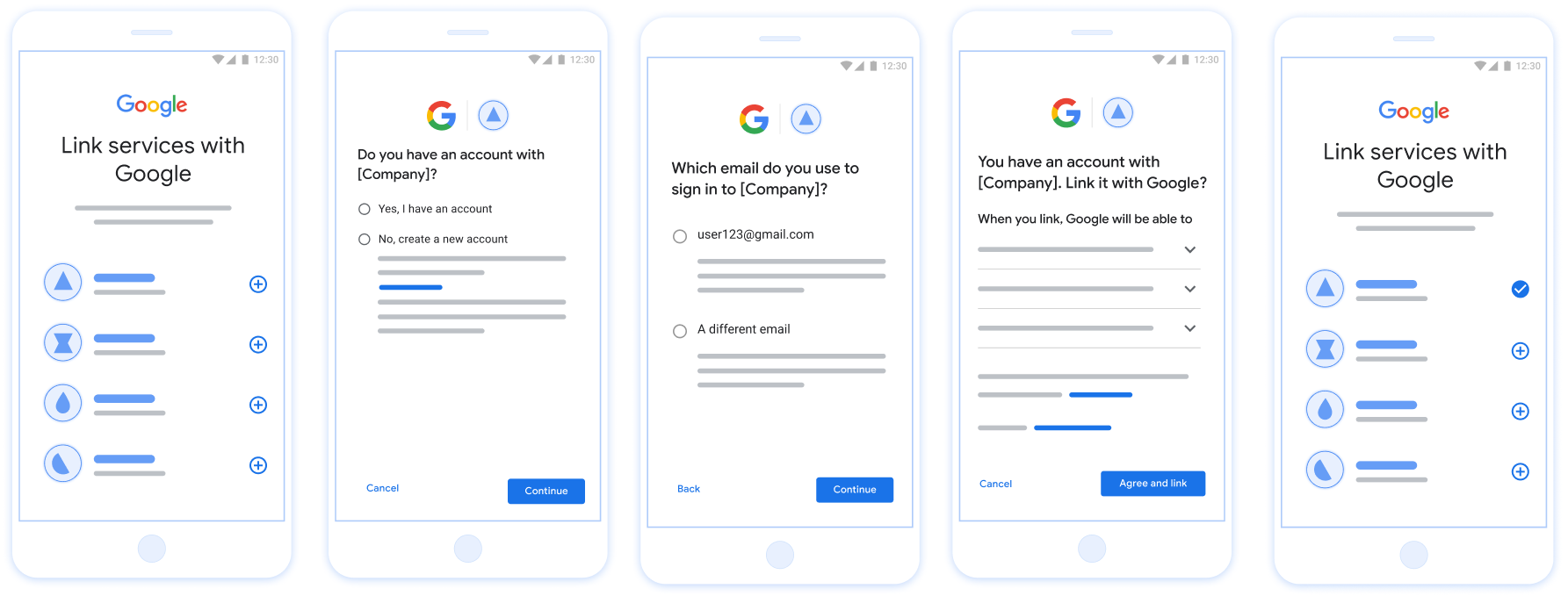
図 1 。ユーザーのスマートフォンでの簡素化されたリンクによるアカウント リンク
簡素化されたリンク: OAuth + Google ログインフロー
次のシーケンス図は、簡素化されたリンクにおけるユーザー、Google、トークン交換エンドポイント間のインタラクションの詳細を示しています。
役割と責任
次の表に、簡素化されたリンクフローにおけるアクターの役割と責任を示します。
| アクター / コンポーネント | GAL ロール | 責任 |
|---|---|---|
| Google アプリ / サーバー | OAuth クライアント | Google ログインのユーザーの同意を取得し、ID アサーション (JWT)をサーバーに渡し、結果のトークンを安全に保存します。 |
| トークン交換エンドポイント | アイデンティティ プロバイダ / 認可サーバー | ID アサーションを検証し、既存のアカウントを確認し、必要なアカウント リンク インテント(check、get) とオプションの create インテントを処理し、リクエストされたインテントに基づいてトークンを発行します。 |
| サービス API | リソース サーバー | 有効なアクセス トークンが提示されたときに、ユーザーデータへのアクセスを提供します。 |
簡素化されたリンクの要件
- 基本的な OAuth リンクフローを実装します。サービスは、OAuth 2.0 準拠の認可エンドポイントとトークン交換エンドポイントをサポートしている必要があります。
- トークン交換エンドポイントは、
JSON ウェブトークン(JWT)
アサーションをサポートし、必要な
checkインテントとgetインテント、 および必要に応じてcreateインテントを実装する必要があります。
簡素化されたリンクの判断ロジック
次のロジックは、簡素化されたリンクフローでインテントが呼び出される方法を決定します。
- ユーザーは認証システムにアカウントを持っていますか?(ユーザーが [はい] または [いいえ] を選択して決定)
- [はい]: ユーザーは Google アカウントに関連付けられたメールアドレスを使用してプラットフォームにログインしますか?(ユーザーが [はい] または [いいえ] を選択して決定)
- [はい]: ユーザーは認証システムに一致するアカウントを持っていますか?(
checkインテント が呼び出されて確認されます)- [はい]:
getインテントが呼び出され、 get インテントが正常に返された場合はアカウントがリンクされます。 - [いいえ]: 新しいアカウントを作成しますか?(ユーザーが [はい] または [いいえ] を選択して決定します。サービスがアカウント作成をサポートしている場合にのみ適用されます)
- [はい]:
createインテントが呼び出され、create インテントが正常に返された場合はアカウントが リンクされます。 - [いいえ]: OAuth リンクフローがトリガーされ、ユーザーはブラウザにリダイレクトされ、別のメールアドレスでリンクするオプションが表示されます。
- [はい]:
- [はい]:
- [いいえ]: OAuth リンクフローがトリガーされ、ユーザー はブラウザにリダイレクトされ、別のメールアドレスで リンクするオプションが表示されます。
- [はい]: ユーザーは認証システムに一致するアカウントを持っていますか?(
- [いいえ]: ユーザーは認証システムに一致するアカウントを持っていますか?(
checkインテント が呼び出されて確認されます)- [はい]:
getインテントが呼び出され、get インテントが正常に返された場合はアカウントがリンクされます。 - [いいえ]: サービスがアカウント作成をサポートしている場合は、
createインテントが呼び出され、create インテントが正常に返された場合はアカウントがリンクされます。アカウント作成がサポートされていない場合、エンドポイントは HTTP 401 linking_error を返して、フォールバック OAuth リンクフローをトリガーする必要があります。
- [はい]:
- [はい]: ユーザーは Google アカウントに関連付けられたメールアドレスを使用してプラットフォームにログインしますか?(ユーザーが [はい] または [いいえ] を選択して決定)
実装レシピ
トークン交換エンドポイントは、簡素化されたリンクをサポートするために、必要な check インテントと get インテント、および必要に応じて create インテントを実装する必要があります。
さまざまなインテントを処理する手順は次のとおりです。
既存のユーザー アカウントを確認する(check インテント)
Google はトークン交換エンドポイントを呼び出して、Google ユーザーがシステムに存在するかどうかを確認します。パラメータの詳細については、簡素化されたリンク インテントをご覧ください。
実装レシピ
必要な check インテントを処理するには、次の操作を行います。
リクエストを検証する:
client_id、client_secret、grant_type(urn:ietf:params:oauth:grant-type:jwt-bearerである必要があります)を確認します。- JWT
の検証の基準を使用して
assertion(JWT)を検証します。
ユーザーを検索する:
- JWT の Google アカウント ID(
sub)またはメールアドレスがデータベース内のユーザーと一致するかどうかを確認します。
- JWT の Google アカウント ID(
応答する:
- 見つかった場合:
200 OKを含む HTTP{"account_found": "true"}を返します。 - 見つからなかった場合:
{"account_found": "false"}を含む HTTP404 Not Foundを返します。
- 見つかった場合:
自動リンクの処理(インテントの取得)
アカウントが存在する場合、Google は intent=get を使用してエンドポイントを呼び出し、トークンを取得します。パラメータの詳細については、簡素化されたリンク
インテントをご覧ください。
実装レシピ
必要な get インテントを処理するには、次の操作を行います。
リクエストを検証する:
client_id、client_secret、grant_typeを確認します。assertion(JWT)を検証します。
ユーザーを検索する:
subまたはemailクレームを使用して、ユーザーが存在することを確認します。
応答する:
- 成功した場合: JSON レスポンス(HTTP
200 OK)でaccess_token、refresh_token、expires_inを生成して返します。 - リンクに失敗した場合: HTTP
401 Unauthorizedと{"error": "linking_error"}を返し、必要に応じてlogin_hintを指定して標準の OAuth リンクにフォールバックします。
- 成功した場合: JSON レスポンス(HTTP
Google でログインを使用したアカウント作成を処理する(create インテント)
サービスがアカウント作成をサポートしていて、アカウントが存在しない場合、Google は intent=create を使用してエンドポイントを呼び出し、新しいユーザーを作成します。パラメータの詳細については、
簡素化されたリンク
のインテントをご覧ください。
実装レシピ
省略可能な create インテントを処理するには、次の操作を行います。
リクエストを検証する:
client_id、client_secret、grant_typeを確認します。assertion(JWT)を検証します。
ユーザーが存在しないことを確認する:
subまたはemailがデータベースにすでに存在するかどうかを確認します。- ユーザーが存在する場合、OAuth リンクへのフォールバックを強制するために、
{"error": "linking_error", "login_hint": "USER_EMAIL"}を含む HTTP401 Unauthorizedを返します。
アカウントを作成する:
- JWT の
sub、email、name、pictureクレームを使用して、新しいユーザー レコードを作成します。
- JWT の
応答する:
- JSON レスポンス(HTTP
200 OK)でトークンを生成して返します。
- JSON レスポンス(HTTP
Google API クライアント ID を取得する
アカウント リンク 登録プロセスでは、Google API クライアント ID を指定する必要があります。OAuth リンクの手順を完了する際に作成したプロジェクトを使用して API クライアント ID を取得するには、次の手順を完了します。
- [クライアント] ページに移動します。
Google API プロジェクトを作成または選択します。
プロジェクトにウェブ アプリケーション タイプのクライアント ID がない場合は、[クライアントを作成] をクリックして作成します。[承認済みの JavaScript 生成元] ボックスにサイトのドメインを含めるようにしてください。ローカル テストまたは 開発を行う場合は、
http://localhostとhttp://localhost:<port_number>の両方を [承認済みの JavaScript 生成元] フィールドに追加する必要があります。
実装を検証する
OAuth 2.0 Playground ツールを使用して、実装を検証できます。
このツールで、次の手順を行います。
- [構成] 設定をクリックして、[OAuth 2.0 構成] ウィンドウを開きます。
- [OAuth flow] フィールドで、[クライアントサイド] を選択します。
- [OAuth Endpoints] フィールドで、[Custom] を選択します。
- 対応するフィールドに、OAuth 2.0 エンドポイントと Google に割り当てたクライアント ID を指定します。
- [Step 1] セクションで、Google スコープを選択しないでください。代わりに、このフィールドを空白のままにするか、サーバーで有効なスコープを入力します(OAuth スコープを使用しない場合は任意の文字列を入力します)。完了したら、[Authorize APIs] をクリックします。
- [Step 2] セクションと [Step 3] セクションで、OAuth 2.0 フローを確認し、各ステップが意図したとおりに動作することを確認します。
Google アカウント リンク デモツールを使用して、実装を検証できます。
このツールで、次の手順を行います。
- [Google でログイン] ボタンをクリックします。
- リンクするアカウントを選択します。
- サービス ID を入力します。
- 必要に応じて、アクセスをリクエストするスコープを 1 つ以上入力します。
- [Start Demo] をクリックします。
- 確認のメッセージが表示されたら、リンク リクエストに同意または拒否できることを確認します。
- プラットフォームにリダイレクトされることを確認します。