Übersicht
Optimierte Verknüpfung über „Mit Google anmelden“ auf OAuth-Basis fügt „Mit Google anmelden“ zusätzlich zu r OAuth-Verknüpfung hinzu. So können Google-Nutzer ihre Konten nahtlos verknüpfen und auch ein Konto erstellen, mit dem sie über ihr Google-Konto auf Ihren Dienst zugreifen können.
So verknüpfen Sie Konten mit OAuth und „Mit Google anmelden“:
- Bitten Sie den Nutzer zuerst um die Einwilligung, auf sein Google-Profil zuzugreifen.
- Prüfen Sie anhand der Informationen im Profil, ob das Nutzerkonto vorhanden ist.
- Verknüpfen Sie die Konten für bestehende Nutzer.
- Wenn Sie im Authentifizierungssystem keine Übereinstimmung für den Google-Nutzer finden, validieren Sie das von Google erhaltene ID-Token. Anschließend können Sie einen Nutzer anhand der im ID-Token enthaltenen Profilinformationen erstellen.
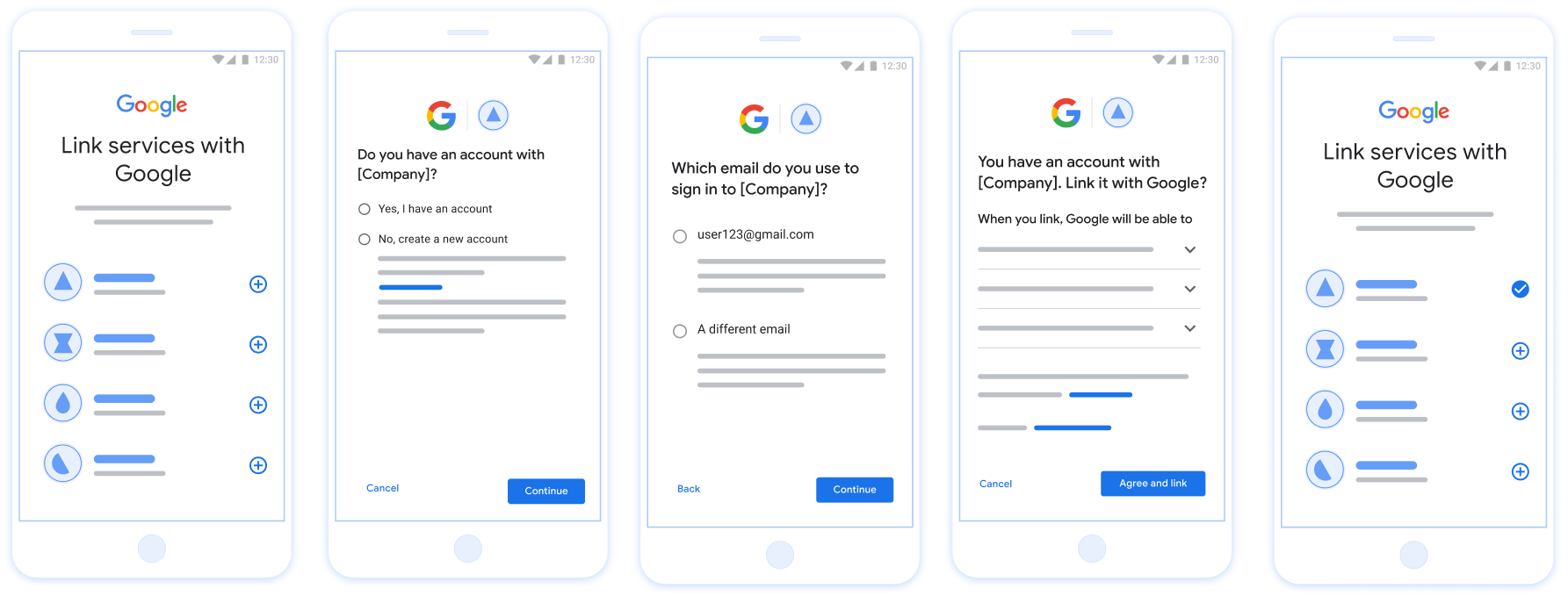
Abbildung 1. Kontoverknüpfung auf dem Smartphone eines Nutzers mit optimierter Verknüpfung
Optimierte Verknüpfung: OAuth + „Mit Google anmelden“
Das folgende Sequenzdiagramm zeigt die Interaktionen zwischen dem Nutzer, Google und Ihrem Tokenaustausch-Endpunkt für die optimierte Verknüpfung.
Rollen und Verantwortlichkeiten
In der folgenden Tabelle sind die Rollen und Verantwortlichkeiten der Akteure im optimierten Verknüpfungsvorgang definiert.
| Akteur / Komponente | GAL-Rolle | Verantwortlichkeiten |
|---|---|---|
| Google-App / Server | OAuth-Client | Holt die Einwilligung des Nutzers für „Mit Google anmelden“ ein, übergibt Identitätsassertions (JWT) an Ihren Server und speichert die resultierenden Tokens sicher. |
| Ihr Tokenaustausch-Endpunkt | Identitätsanbieter / Autorisierungsserver | Validiert Identitätsassertions, prüft auf vorhandene Konten, verarbeitet
die Intents zur Kontoverknüpfung (check, get,
create) und stellt Tokens basierend auf den angeforderten
Intents aus. |
| Ihre Dienst-API | Ressourcenserver | Gewährt Zugriff auf Nutzerdaten, wenn ein gültiges Zugriff token vorgelegt wird. |
Anforderungen für die optimierte Verknüpfung
- Implementieren Sie den grundlegenden OAuth-Verknüpfungsvorgang für das Web. Ihr Dienst muss OAuth 2.0-konforme Autorisierungs - und Tokenaustausch -Endpunkte unterstützen.
- Ihr Tokenaustausch-Endpunkt muss JSON Web Token (JWT)-Assertions unterstützen und die Intents
check,createundgetimplementieren.
OAuth-Server implementieren
Ihr Tokenaustausch -Endpunkt muss die Intents check, create und get unterstützen.
Führen Sie die folgenden Schritte aus, um den Kontoverknüpfungsvorgang abzuschließen und zu erfahren, wann die verschiedenen Intents verwendet werden:
- Hat der Nutzer ein Konto in Ihrem Authentifizierungssystem? (Der Nutzer entscheidet, indem er JA oder NEIN auswählt.)
- JA : Meldet sich der Nutzer mit der E-Mail-Adresse an, die mit seinem Google-Konto verknüpft ist? (Der Nutzer entscheidet, indem er JA oder NEIN auswählt.)
- JA : Hat der Nutzer ein entsprechendes Konto in Ihrem Authentifizierungssystem? (
check intentwird aufgerufen, um dies zu bestätigen)- JA :
get intentwird aufgerufen und das Konto wird verknüpft, wenn „get intent“ erfolgreich zurückgegeben wird. - NEIN : Neues Konto erstellen? (Der Nutzer entscheidet, indem er JA oder NEIN auswählt.)
- JA :
create intentwird aufgerufen und das Konto wird verknüpft, wenn „create intent“ erfolgreich zurückgegeben wird. - NEIN : Der Web-OAuth-Vorgang wird ausgelöst, der Nutzer wird zu seinem Browser weitergeleitet und hat die Möglichkeit, eine Verknüpfung mit einer anderen E-Mail-Adresse herzustellen.
- JA :
- JA :
- NEIN : Der Web-OAuth-Vorgang wird ausgelöst, der Nutzer wird zu seinem Browser weitergeleitet und hat die Möglichkeit, eine Verknüpfung mit einer anderen E-Mail-Adresse herzustellen.
- JA : Hat der Nutzer ein entsprechendes Konto in Ihrem Authentifizierungssystem? (
- NEIN : Hat der Nutzer ein entsprechendes Konto in Ihrem Authentifizierungssystem? (
check intentwird aufgerufen, um dies zu bestätigen)- JA :
get intentwird aufgerufen und das Konto wird verknüpft, wenn „get intent“ erfolgreich zurückgegeben wird. - NEIN :
create intentwird aufgerufen und das Konto wird verknüpft, wenn „create intent“ erfolgreich zurückgegeben wird.
- JA :
- JA : Meldet sich der Nutzer mit der E-Mail-Adresse an, die mit seinem Google-Konto verknüpft ist? (Der Nutzer entscheidet, indem er JA oder NEIN auswählt.)
Check for an existing user account (check intent)
After the user gives consent to access their Google profile, Google sends a request that contains a signed assertion of the Google user's identity. The assertion contains information that includes the user's Google Account ID, name, and email address. The token exchange endpoint configured for your project handles that request.
If the corresponding Google account is already present in your authentication
system, your token exchange endpoint responds with account_found=true. If the
Google account doesn't match an existing user, your token exchange endpoint
returns an HTTP 404 Not Found error with account_found=false.
The request has the following form:
POST /token HTTP/1.1 Host: oauth2.example.com Content-Type: application/x-www-form-urlencoded grant_type=urn:ietf:params:oauth:grant-type:jwt-bearer&intent=check&assertion=JWT&scope=SCOPES&client_id=GOOGLE_CLIENT_ID&client_secret=GOOGLE_CLIENT_SECRET
Your token exchange endpoint must be able to handle the following parameters:
| Token endpoint parameters | |
|---|---|
intent |
For these requests, the value of this parameter is
check. |
grant_type |
The type of token being exchanged. For these requests, this
parameter has the value urn:ietf:params:oauth:grant-type:jwt-bearer. |
assertion |
A JSON Web Token (JWT) that provides a signed assertion of the Google user's identity. The JWT contains information that includes the user's Google Account ID, name, and email address. |
client_id |
The client ID you assigned to Google. |
client_secret |
The client secret you assigned to Google. |
To respond to the check intent requests, your token exchange endpoint must perform the following steps:
- Validate and decode the JWT assertion.
- Check if the Google account is already present in your authentication system.
Validate and decode the JWT assertion
You can validate and decode the JWT assertion by using a JWT-decoding library for your language. Use Google's public keys, available in JWK or PEM formats, to verify the token's signature.
When decoded, the JWT assertion looks like the following example:
{ "sub": "1234567890", // The unique ID of the user's Google Account "iss": "https://accounts.google.com", // The assertion's issuer "aud": "123-abc.apps.googleusercontent.com", // Your server's client ID "iat": 233366400, // Unix timestamp of the assertion's creation time "exp": 233370000, // Unix timestamp of the assertion's expiration time "name": "Jan Jansen", "given_name": "Jan", "family_name": "Jansen", "email": "jan@gmail.com", // If present, the user's email address "email_verified": true, // true, if Google has verified the email address "hd": "example.com", // If present, the host domain of the user's GSuite email address // If present, a URL to user's profile picture "picture": "https://lh3.googleusercontent.com/a-/AOh14GjlTnZKHAeb94A-FmEbwZv7uJD986VOF1mJGb2YYQ", "locale": "en_US" // User's locale, from browser or phone settings }
In addition to verifying the token's signature, verify that the assertion's
issuer (iss field) is https://accounts.google.com, that the audience
(aud field) is your assigned client ID, and that the token has not expired
(exp field).
Using the email, email_verified and hd fields you can determine if
Google hosts and is authoritative for an email address. In cases where Google is
authoritative the user is currently known to be the legitimate account owner
and you may skip password or other challenges methods. Otherwise, these methods
can be used to verify the account prior to linking.
Cases where Google is authoritative:
emailhas a@gmail.comsuffix, this is a Gmail account.email_verifiedis true andhdis set, this is a G Suite account.
Users may register for Google Accounts without using Gmail or G Suite. When
email does not contain a @gmail.com suffix and hd is absent Google is not
authoritative and password or other challenge methods are recommended to verify
the user. email_verified can also be true as Google initially verified the
user when the Google account was created, however ownership of the third party
email account may have since changed.
Check if the Google account is already present in your authentication system
Check whether either of the following conditions are true:
- The Google Account ID, found in the assertion's
subfield, is in your user database. - The email address in the assertion matches a user in your user database.
If either condition is true, the user has already signed up. In that case, return a response like the following:
HTTP/1.1 200 Success
Content-Type: application/json;charset=UTF-8
{
"account_found":"true",
}
If neither the Google Account ID nor the email address specified in the
assertion matches a user in your database, the user hasn't signed up yet. In
this case, your token exchange endpoint needs to reply with a HTTP 404 error
that specifies "account_found": "false", as in the following example:
HTTP/1.1 404 Not found
Content-Type: application/json;charset=UTF-8
{
"account_found":"false",
}
Handle automatic linking (get intent)
After the user gives consent to access their Google profile, Google sends a request that contains a signed assertion of the Google user's identity. The assertion contains information that includes the user's Google Account ID, name, and email address. The token exchange endpoint configured for your project handles that request.
If the corresponding Google Account is already present in your authentication
system, your token exchange endpoint returns a token for the user. If the
Google Account doesn't match an existing user, your token exchange endpoint
returns a linking_error error and optional login_hint.
The request has the following form:
POST /token HTTP/1.1 Host: oauth2.example.com Content-Type: application/x-www-form-urlencoded grant_type=urn:ietf:params:oauth:grant-type:jwt-bearer&intent=get&assertion=JWT&scope=SCOPES&client_id=GOOGLE_CLIENT_ID&client_secret=GOOGLE_CLIENT_SECRET
Your token exchange endpoint must be able to handle the following parameters:
| Token endpoint parameters | |
|---|---|
intent |
For these requests, the value of this parameter is get. |
grant_type |
The type of token being exchanged. For these requests, this
parameter has the value urn:ietf:params:oauth:grant-type:jwt-bearer. |
assertion |
A JSON Web Token (JWT) that provides a signed assertion of the Google user's identity. The JWT contains information that includes the user's Google Account ID, name, and email address. |
scope |
Optional: Any scopes that you've configured Google to request from users. |
client_id |
The client ID you assigned to Google. |
client_secret |
The client secret you assigned to Google. |
To respond to the get intent requests, your token exchange endpoint must perform the following steps:
- Validate and decode the JWT assertion.
- Check if the Google account is already present in your authentication system.
Validate and decode the JWT assertion
You can validate and decode the JWT assertion by using a JWT-decoding library for your language. Use Google's public keys, available in JWK or PEM formats, to verify the token's signature.
When decoded, the JWT assertion looks like the following example:
{ "sub": "1234567890", // The unique ID of the user's Google Account "iss": "https://accounts.google.com", // The assertion's issuer "aud": "123-abc.apps.googleusercontent.com", // Your server's client ID "iat": 233366400, // Unix timestamp of the assertion's creation time "exp": 233370000, // Unix timestamp of the assertion's expiration time "name": "Jan Jansen", "given_name": "Jan", "family_name": "Jansen", "email": "jan@gmail.com", // If present, the user's email address "email_verified": true, // true, if Google has verified the email address "hd": "example.com", // If present, the host domain of the user's GSuite email address // If present, a URL to user's profile picture "picture": "https://lh3.googleusercontent.com/a-/AOh14GjlTnZKHAeb94A-FmEbwZv7uJD986VOF1mJGb2YYQ", "locale": "en_US" // User's locale, from browser or phone settings }
In addition to verifying the token's signature, verify that the assertion's
issuer (iss field) is https://accounts.google.com, that the audience
(aud field) is your assigned client ID, and that the token has not expired
(exp field).
Using the email, email_verified and hd fields you can determine if
Google hosts and is authoritative for an email address. In cases where Google is
authoritative the user is currently known to be the legitimate account owner
and you may skip password or other challenges methods. Otherwise, these methods
can be used to verify the account prior to linking.
Cases where Google is authoritative:
emailhas a@gmail.comsuffix, this is a Gmail account.email_verifiedis true andhdis set, this is a G Suite account.
Users may register for Google Accounts without using Gmail or G Suite. When
email does not contain a @gmail.com suffix and hd is absent Google is not
authoritative and password or other challenge methods are recommended to verify
the user. email_verified can also be true as Google initially verified the
user when the Google account was created, however ownership of the third party
email account may have since changed.
Check if the Google account is already present in your authentication system
Check whether either of the following conditions are true:
- The Google Account ID, found in the assertion's
subfield, is in your user database. - The email address in the assertion matches a user in your user database.
If an account is found for the user, issue an access token and return the values in a JSON object in the body of your HTTPS response, like in the following example:
{ "token_type": "Bearer", "access_token": "ACCESS_TOKEN", "refresh_token": "REFRESH_TOKEN", "expires_in": SECONDS_TO_EXPIRATION }
In some cases, account linking based on ID token might fail for the user. If it
does so for any reason, your token exchange endpoint needs to reply with a HTTP
401 error that specifies error=linking_error, as the following example shows:
HTTP/1.1 401 Unauthorized
Content-Type: application/json;charset=UTF-8
{
"error":"linking_error",
"login_hint":"foo@bar.com"
}
When Google receives a 401 error response with linking_error, Google sends
the user to your authorization endpoint with login_hint as a parameter. The
user completes account linking using the OAuth linking flow in their browser.
Handle account creation using Sign in with Google (create intent)
When a user needs to create an account on your service, Google makes a request
to your token exchange endpoint that specifies intent=create.
The request has the following form:
POST /token HTTP/1.1 Host: oauth2.example.com Content-Type: application/x-www-form-urlencoded response_type=token&grant_type=urn:ietf:params:oauth:grant-type:jwt-bearer&scope=SCOPES&intent=create&assertion=JWT&client_id=GOOGLE_CLIENT_ID&client_secret=GOOGLE_CLIENT_SECRET
Your token exchange endpoint must able to handle the following parameters:
| Token endpoint parameters | |
|---|---|
intent |
For these requests, the value of this parameter is create. |
grant_type |
The type of token being exchanged. For these requests, this
parameter has the value urn:ietf:params:oauth:grant-type:jwt-bearer. |
assertion |
A JSON Web Token (JWT) that provides a signed assertion of the Google user's identity. The JWT contains information that includes the user's Google Account ID, name, and email address. |
client_id |
The client ID you assigned to Google. |
client_secret |
The client secret you assigned to Google. |
The JWT within the assertion parameter contains the user's Google Account ID,
name, and email address, which you can use to create a new account on your
service.
To respond to the create intent requests, your token exchange endpoint must perform the following steps:
- Validate and decode the JWT assertion.
- Validate user information and create new account.
Validate and decode the JWT assertion
You can validate and decode the JWT assertion by using a JWT-decoding library for your language. Use Google's public keys, available in JWK or PEM formats, to verify the token's signature.
When decoded, the JWT assertion looks like the following example:
{ "sub": "1234567890", // The unique ID of the user's Google Account "iss": "https://accounts.google.com", // The assertion's issuer "aud": "123-abc.apps.googleusercontent.com", // Your server's client ID "iat": 233366400, // Unix timestamp of the assertion's creation time "exp": 233370000, // Unix timestamp of the assertion's expiration time "name": "Jan Jansen", "given_name": "Jan", "family_name": "Jansen", "email": "jan@gmail.com", // If present, the user's email address "email_verified": true, // true, if Google has verified the email address "hd": "example.com", // If present, the host domain of the user's GSuite email address // If present, a URL to user's profile picture "picture": "https://lh3.googleusercontent.com/a-/AOh14GjlTnZKHAeb94A-FmEbwZv7uJD986VOF1mJGb2YYQ", "locale": "en_US" // User's locale, from browser or phone settings }
In addition to verifying the token's signature, verify that the assertion's
issuer (iss field) is https://accounts.google.com, that the audience
(aud field) is your assigned client ID, and that the token has not expired
(exp field).
Using the email, email_verified and hd fields you can determine if
Google hosts and is authoritative for an email address. In cases where Google is
authoritative the user is currently known to be the legitimate account owner
and you may skip password or other challenges methods. Otherwise, these methods
can be used to verify the account prior to linking.
Cases where Google is authoritative:
emailhas a@gmail.comsuffix, this is a Gmail account.email_verifiedis true andhdis set, this is a G Suite account.
Users may register for Google Accounts without using Gmail or G Suite. When
email does not contain a @gmail.com suffix and hd is absent Google is not
authoritative and password or other challenge methods are recommended to verify
the user. email_verified can also be true as Google initially verified the
user when the Google account was created, however ownership of the third party
email account may have since changed.
Validate user information and create new account
Check whether either of the following conditions are true:
- The Google Account ID, found in the assertion's
subfield, is in your user database. - The email address in the assertion matches a user in your user database.
If either condition is true, prompt the user to link their existing account
with their Google Account. To do so, respond to the request with an HTTP 401 error
that specifies error=linking_error and gives the user's email address as the
login_hint. The following is a sample response:
HTTP/1.1 401 Unauthorized
Content-Type: application/json;charset=UTF-8
{
"error":"linking_error",
"login_hint":"foo@bar.com"
}
When Google receives a 401 error response with linking_error, Google sends
the user to your authorization endpoint with login_hint as a parameter. The
user completes account linking using the OAuth linking flow in their browser.
If neither condition is true, create a new user account with the information provided in the JWT. New accounts don't typically have a password set. It's recommended that you add Sign in with Google to other platforms to enable users to sign in with Google across the surfaces of your application. Alternatively, you can email the user a link that starts your password recovery flow to allow the user to set a password to sign in on other platforms.
When the creation is completed, issue an access token and refresh token and return the values in a JSON object in the body of your HTTPS response, like in the following example:
{ "token_type": "Bearer", "access_token": "ACCESS_TOKEN", "refresh_token": "REFRESH_TOKEN", "expires_in": SECONDS_TO_EXPIRATION }
Google API-Client-ID abrufen
Sie müssen Ihre Google API-Client-ID während der Kontoverknüpfung Registrierung Prozess angeben. So rufen Sie Ihre API-Client-ID mit dem Projekt ab, das Sie beim Ausführen der Schritte zur OAuth-Verknüpfung erstellt haben: Führen Sie dazu die folgenden Schritte aus:
- Rufen Sie die Seite „Clients“ auf.
Erstellen oder wählen Sie ein Google APIs-Projekt aus.
Wenn Ihr Projekt keine Client-ID für den Webanwendungstyp hat, klicken Sie auf Client erstellen , um eine zu erstellen. Fügen Sie die Domain Ihrer Website in das Feld Autorisierte JavaScript-Quellen ein. Wenn Sie lokale Tests oder Entwicklungen durchführen, müssen Sie sowohl
http://localhostals auchhttp://localhost:<port_number>in das Feld Autorisierte JavaScript-Quellen eingeben.
Implementierung validieren
You can validate your implementation by using the OAuth 2.0 Playground tool.
In the tool, do the following steps:
- Click Configuration to open the OAuth 2.0 Configuration window.
- In the OAuth flow field, select Client-side.
- In the OAuth Endpoints field, select Custom.
- Specify your OAuth 2.0 endpoint and the client ID you assigned to Google in the corresponding fields.
- In the Step 1 section, don't select any Google scopes. Instead, leave this field blank or type a scope valid for your server (or an arbitrary string if you don't use OAuth scopes). When you're done, click Authorize APIs.
- In the Step 2 and Step 3 sections, go through the OAuth 2.0 flow and verify that each step works as intended.
You can validate your implementation by using the Google Account Linking Demo tool.
In the tool, do the following steps:
- Click the Sign in with Google button.
- Choose the account you'd like to link.
- Enter the service ID.
- Optionally enter one or more scopes that you will request access for.
- Click Start Demo.
- When prompted, confirm that you may consent and deny the linking request.
- Confirm that you are redirected to your platform.