
يتم ربط الحسابات باستخدام عملية رمز التفويض المتوافقة مع معيار الصناعة OAuth 2.0.
بروتوكول OAuth 2.1 ومفتاح حماية تبادل الرموز (PKCE) للوكلاء
بالنسبة إلى وكلاء الذكاء الاصطناعي غير المرتبطين بحالة معيّنة وعمليات نقل البيانات المتعددة الوسائط، يُنصح بفرض استخدام بروتوكول OAuth 2.1.
- Proof Key for Code Exchange (PKCE): يجب استخدامه لتأمين مسار رمز التفويض، ما يمنع هجمات الاعتراض.
- لا توجد عملية ضمنية: يعرّض التدفّق الضمني رموز الدخول في عنوان URL، ما يمثّل خطرًا أمنيًا على بيئات الوكلاء.
يجب أن تتيح خدمتك نقاط نهاية متوافقة مع بروتوكولَي OAuth 2.0 و2.1 للتفويض و تبادل الرموز.
إنشاء المشروع
لإنشاء مشروعك لاستخدام ميزة ربط الحسابات، اتّبِع الخطوات التالية:
- انتقِل إلى وحدة التحكم في واجهة Google API.
- انقر على إنشاء مشروع.
- أدخِل اسمًا أو اقبل الاقتراح الذي تم إنشاؤه.
- أكِّد أي حقول متبقية أو عدِّلها.
- انقر على إنشاء.
للاطّلاع على رقم تعريف مشروعك، اتّبِع الخطوات التالية:
- انتقِل إلى وحدة التحكم في واجهة Google API.
- ابحث عن مشروعك في الجدول على الصفحة المقصودة. يظهر رقم تعريف المشروع في العمود المعرّف.
ضبط شاشة طلب الموافقة المتعلّقة ببروتوكول OAuth
تتضمّن عملية ربط حساب Google شاشة طلب الموافقة التي تُطلع المستخدمين على التطبيق الذي يطلب الوصول إلى بياناتهم، ونوع البيانات التي يطلبها، والبنود السارية. عليك ضبط شاشة طلب الموافقة المتعلّقة ببروتوكول OAuth قبل إنشاء معرّف عميل لواجهة Google API.
- افتح صفحة شاشة طلب الموافقة المتعلّقة ببروتوكول OAuth في وحدة تحكّم Google APIs.
- إذا طُلب منك ذلك، اختَر المشروع الذي أنشأته للتو.
في صفحة "شاشة طلب الموافقة المتعلّقة ببروتوكول OAuth"، املأ النموذج وانقر على الزر "حفظ".
اسم التطبيق: اسم التطبيق الذي يطلب الموافقة. يجب أن يوضّح الاسم تطبيقك بدقة وأن يكون متوافقًا مع اسم التطبيق الذي يظهر للمستخدمين في أماكن أخرى. سيظهر اسم التطبيق على شاشة طلب الموافقة على ربط الحساب.
شعار التطبيق: صورة تظهر على شاشة طلب الموافقة وتساعد المستخدمين في التعرّف على تطبيقك. يظهر الشعار على شاشة طلب الموافقة على ربط الحساب وعلى إعدادات الحساب.
عنوان البريد الإلكتروني المخصّص للدعم: يمكن للمستخدمين التواصل معك من خلاله لطرح أسئلة حول موافقتهم.
نطاقات واجهات Google API: تتيح النطاقات لتطبيقك الوصول إلى بيانات المستخدم على Google الخاصة بالمستخدم. بالنسبة إلى حالة استخدام ربط حساب Google، يكون النطاق التلقائي (البريد الإلكتروني، والملف الشخصي، وopenid) كافيًا، ولا تحتاج إلى إضافة أي نطاقات حساسة. من أفضل الممارسات عمومًا طلب النطاقات بشكل تدريجي، عند الحاجة إلى إذن الوصول، بدلاً من طلبها مسبقًا. مزيد من المعلومات
النطاقات المعتمَدة: لحمايتك وحماية المستخدمين، لا تسمح Google إلا للتطبيقات التي تتم مصادقتها باستخدام OAuth باستخدام النطاقات المعتمَدة. يجب أن تكون روابط تطبيقاتك مستضافة على نطاقات معتمَدة. مزيد من المعلومات
رابط الصفحة الرئيسية للتطبيق: الصفحة الرئيسية لتطبيقك يجب أن تتم استضافته على نطاق معتمَد.
رابط سياسة الخصوصية للتطبيق: يظهر على شاشة طلب الموافقة على ربط حساب Google. يجب أن تتم استضافته على نطاق معتمَد.
رابط بنود خدمة التطبيق (اختياري): يجب أن تتم استضافته على نطاق معتمَد.
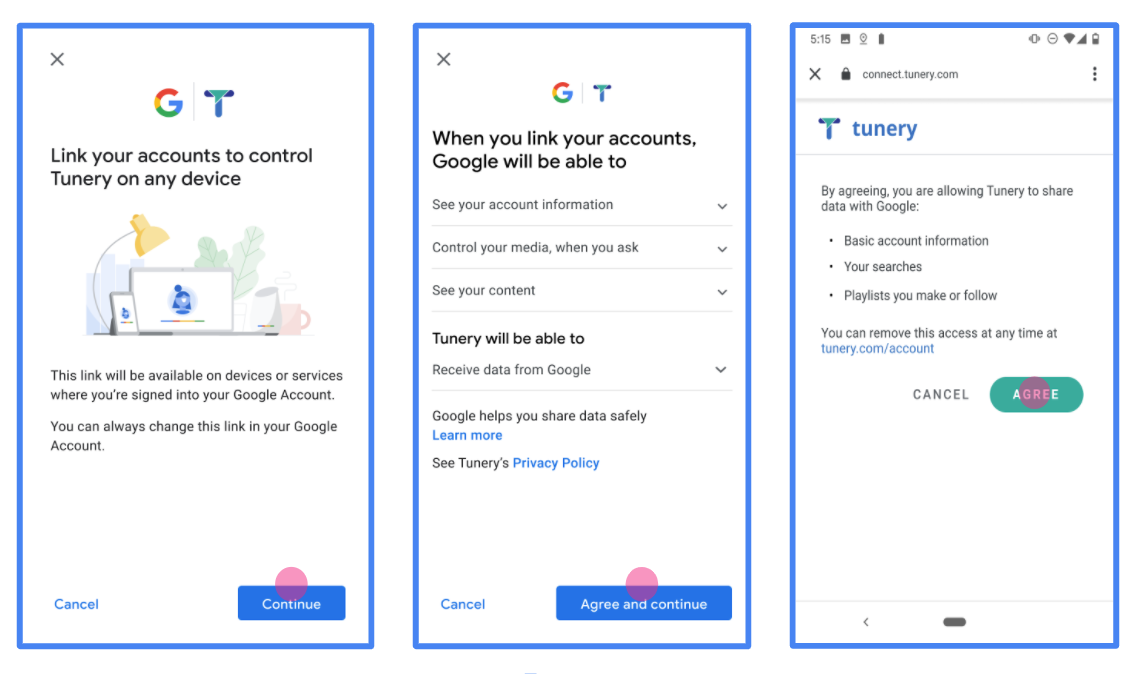
الشكل 1 شاشة الموافقة على ربط حساب Google بتطبيق وهمي، Tunery
تحقَّق من "حالة التحقّق"، وإذا كان طلبك بحاجة إلى التحقّق، انقر على الزر "إرسال طلب التحقّق" لإرسال طلبك. يُرجى الاطّلاع على متطلبات إثبات الأهلية في OAuth للحصول على التفاصيل.
تنفيذ خادم OAuth
يتضمّن تنفيذ خادم OAuth 2.0 لمسار رمز التفويض نقطتَي نهاية، وتوفّر خدمتك هاتين النقطتَين من خلال HTTPS. نقطة النهاية الأولى هي نقطة نهاية التفويض، وهي المسؤولة عن العثور على موافقة المستخدمين أو الحصول عليها للوصول إلى البيانات. تعرض نقطة نهاية التفويض واجهة مستخدم لتسجيل الدخول للمستخدمين الذين لم يسجّلوا الدخول بعد، وتسجّل الموافقة على إذن الوصول المطلوب. نقطة النهاية الثانية هي نقطة نهاية تبادل الرموز المميزة، والتي تُستخدَم للحصول على سلاسل مشفّرة تُعرف بالرموز المميزة، وتسمح للمستخدم بالوصول إلى خدمتك.
عندما يحتاج أحد تطبيقات Google إلى طلب بيانات من إحدى واجهات برمجة التطبيقات الخاصة بخدمتك، تستخدم Google نقاط النهاية هذه معًا للحصول على إذن من المستخدمين لطلب البيانات من واجهات برمجة التطبيقات هذه نيابةً عنهم.
ربط حساب Google: مسار رمز التفويض في OAuth
يوضّح مخطط التسلسل التالي تفاعلات بين المستخدم وGoogle ونقاط نهاية خدمتك.
الأدوار والمسؤوليات
يحدّد الجدول التالي أدوار ومسؤوليات الجهات الفاعلة في مسار OAuth لربط حساب Google (GAL). يُرجى العِلم أنّه في GAL، تعمل Google بصفتها عميل OAuth، بينما تعمل خدمتك بصفتها مقدّم خدمة/هوية.
| الجهة الفاعلة / المكوّن | دور قائمة العناوين العمومية | المسؤوليات |
|---|---|---|
| تطبيق / خادم Google | عميل OAuth | يبدأ عملية المصادقة، ويتلقّى رمز التفويض، ويستبدله برموز مميّزة، ويخزّنها بشكل آمن للوصول إلى واجهات برمجة التطبيقات الخاصة بخدمتك. |
| نقطة نهاية التفويض | خادم التفويض | تتم مصادقة المستخدمين والحصول على موافقتهم على مشاركة بياناتهم مع Google. |
| نقطة نهاية تبادل الرموز المميزة | خادم التفويض | يتحقّق من صحة رموز التفويض ورموز إعادة التحميل، ويصدر رموز دخول إلى خادم Google. |
| معرّف الموارد المنتظم (URI) الخاص بإعادة التوجيه من Google | نقطة نهاية معاودة الاتصال | تتلقّى عملية إعادة توجيه المستخدم من خدمة التفويض مع القيمتَين code وstate. |
تتضمّن جلسة مسار رمز التفويض في OAuth 2.0 التي بدأتها Google الخطوات التالية:
- يفتح Google نقطة نهاية التفويض في متصفّح المستخدم. إذا بدأت عملية التنفيذ على جهاز مزوّد بميزة التفاعل الصوتي فقط، ينقل Google عملية التنفيذ إلى هاتف.
- يسجّل المستخدم الدخول، إذا لم يكن قد سجّل الدخول من قبل، ويمنح Google الإذن بالوصول إلى بياناته باستخدام واجهة برمجة التطبيقات، إذا لم يكن قد منح الإذن من قبل.
- تنشئ خدمتك رمز تفويض وتعرضه على Google. لإجراء ذلك، أعِد توجيه متصفّح المستخدم إلى Google مع تضمين رمز التفويض في الطلب.
- ترسل Google رمز التفويض إلى نقطة نهاية تبادل الرموز المميّزة، والتي تتحقّق من صحة الرمز وتعرض رمز دخول والرمز المميز لإعادة التحميل. رمز الدخول هو رمز مميز قصير الأمد تقبله خدمتك كبيانات اعتماد للوصول إلى واجهات برمجة التطبيقات. الرمز المميز لإعادة التحميل هو رمز مميز طويل الأمد يمكن أن تخزّنه Google وتستخدمه للحصول على رموز دخول جديدة عند انتهاء صلاحيتها.
- بعد أن يكمل المستخدم مسار ربط الحساب، سيحتوي كل طلب لاحق ترسله Google على رمز دخول.
وصفة التنفيذ
اتّبِع الخطوات التالية لتنفيذ مسار رمز التفويض.
الخطوة 1: التعامل مع طلبات التفويض
عندما تبدأ Google عملية ربط الحساب، تعيد توجيه المستخدم إلى نقطة نهاية التفويض. للحصول على عقود البروتوكول التفصيلية ومتطلبات المعلمات، اطّلِع على نقطة نهاية التفويض.
للتعامل مع الطلب، يُرجى اتّخاذ الإجراءات التالية:
التحقّق من صحة الطلب:
- تأكَّد من أنّ
client_idيتطابق مع معرّف العميل الذي تمّ تعيينه لـ Google. - تأكَّد من أنّ
redirect_uriيتطابق مع عنوان URL المتوقّع لإعادة التوجيه من Google:- المنتج:
https://oauth-redirect.googleusercontent.com/r/YOUR_PARTNER_ID - وضع الحماية:
https://oauth-redirect-sandbox.googleusercontent.com/r/YOUR_PARTNER_ID
- المنتج:
- تأكَّد من أنّ قيمة
response_typeهيcode.
- تأكَّد من أنّ
مصادقة المستخدم:
- تحقَّق مما إذا كان المستخدم قد سجّل الدخول إلى خدمتك.
- إذا لم يكن المستخدم مسجّلاً الدخول، اطلب منه إكمال عملية تسجيل الدخول أو الاشتراك.
إنشاء رمز تفويض:
- أنشئ رمز تفويض فريدًا لا يمكن تخمينه ومرتبطًا بالمستخدم والعميل.
- اضبط الرمز على أن تنتهي صلاحيته بعد 10 دقائق تقريبًا.
إعادة التوجيه إلى Google:
- أعِد توجيه المتصفّح إلى عنوان URL المقدَّم في
redirect_uri. - أضِف مَعلمات طلب البحث التالية:
code: رمز التفويض الذي أنشأتهstate: قيمة الحالة غير المعدَّلة التي تم تلقّيها من Google
- أعِد توجيه المتصفّح إلى عنوان URL المقدَّم في
الخطوة 2: التعامل مع طلبات استبدال الرموز المميزة
تعالج نقطة نهاية تبادل الرموز المميزة نوعَين من الطلبات: تبادل الرموز مقابل الرموز المميزة، وتجديد رموز الدخول المنتهية الصلاحية. للحصول على تفاصيل حول عقود البروتوكول ومتطلبات المَعلمات، يُرجى الاطّلاع على نقطة نهاية Token Exchange.
أ. تبديل رموز التفويض بالرموز المميّزة
عندما تتلقّى Google رمز التفويض، فإنّها تتصل بنقطة نهاية تبادل الرموز المميّزة (POST) لاسترداد الرموز المميّزة.
التحقّق من صحة الطلب:
- تأكَّد من
client_idوclient_secret. - تأكَّد من أنّ رمز التفويض صالح ولم تنتهِ صلاحيته.
- تأكَّد من أنّ الرقم
redirect_uriيتطابق مع القيمة المستخدَمة في الخطوة 1. - إذا تعذّر التحقّق، أرسِل الرمز
400 Bad Requestلبروتوكول نقل الروابط النصية (HTTP) مع{"error": "invalid_grant"}.
- تأكَّد من
إصدار الرموز المميزة:
- أنشئ
refresh_tokenطويل الأمد وaccess_tokenقصير الأمد (عادةً ساعة واحدة). - أرسِل استجابة HTTP
200 OKمع استجابة الرمز المميز JSON العادية.
- أنشئ
ب. إعادة تحميل رموز الدخول
عند انتهاء صلاحية رمز الدخول المميز، تطلب Google رمزًا جديدًا باستخدام رمز إعادة التحميل.
التحقّق من صحة الطلب:
- تحقَّق من
client_idوclient_secretوrefresh_token. - إذا تعذّر التحقّق، أرسِل الرمز
400 Bad Requestلبروتوكول نقل الروابط النصية (HTTP) مع{"error": "invalid_grant"}.
- تحقَّق من
إصدار رمز دخول جديد:
- إنشاء
access_tokenجديد صالح لفترة قصيرة - إرجاع رمز HTTP
200 OKمع استجابة الرمز المميّز JSON (يمكنك اختياريًا تضمين الرمز المميز لإعادة التحميل جديد).
- إنشاء
التعامل مع طلبات معلومات المستخدم
نقطة نهاية userinfo هي مورد OAuth 2.0 محمي يعرض مطالبات بشأن المستخدم المرتبط. يُعد تنفيذ نقطة نهاية userinfo واستضافتها اختياريًا، باستثناء حالات الاستخدام التالية:
- تسجيل الدخول إلى حساب مرتبط باستخدام Google One Tap.
- اشتراك سلس على AndroidTV.
بعد استرداد رمز الدخول بنجاح من نقطة نهاية الرمز المميّز، ترسل Google طلبًا إلى نقطة نهاية معلومات المستخدم لاسترداد معلومات الملف الشخصي الأساسية عن المستخدم المرتبط.
| عناوين طلبات نقطة نهاية userinfo | |
|---|---|
Authorization header |
رمز الدخول من النوع "الحامل". |
على سبيل المثال، إذا كانت نقطة نهاية userinfo متاحة على
https://myservice.example.com/userinfo، قد يظهر الطلب على النحو التالي:
GET /userinfo HTTP/1.1
Host: myservice.example.com
Authorization: Bearer ACCESS_TOKEN
لتتمكّن نقطة نهاية معلومات المستخدم من معالجة الطلبات، عليك اتّباع الخطوات التالية:
- يمكنك استخراج رمز الدخول من عنوان التفويض ومعلومات الإرجاع للمستخدم المرتبط برمز الدخول.
- إذا كان رمز الدخول غير صالح، يمكنك عرض الخطأ HTTP 401 "غير مصرح به" مع استخدام عنوان الاستجابة
WWW-Authenticate. في ما يلي مثال على استجابة خطأ في معلومات المستخدم:HTTP/1.1 401 Unauthorized WWW-Authenticate: error="invalid_token", error_description="The Access Token expired"
إذا كان رمز الدخول صالحًا، يتم عرض الاستجابة HTTP 200 مع كائن JSON التالي في نص HTTPS. الرد:
{ "sub": "USER_UUID", "email": "EMAIL_ADDRESS", "given_name": "FIRST_NAME", "family_name": "LAST_NAME", "name": "FULL_NAME", "picture": "PROFILE_PICTURE", }استجابة نقطة نهاية لمعلومات المستخدم subمعرّف فريد يعرّف المستخدِم في نظامك. emailعنوان البريد الإلكتروني للمستخدم. given_nameاختياري: الاسم الأول للمستخدم. family_nameاختياري: اسم العائلة للمستخدم. nameاختياري: اسم المستخدم الكامل. pictureاختياري: صورة الملف الشخصي للمستخدم.
التحقّق من صحة عملية التنفيذ
يمكنك التحقّق من صحة التنفيذ باستخدام أداة مساحة بروتوكول OAuth 2.0.
في الأداة، اتّبِع الخطوات التالية:
- انقر على الإعداد لفتح نافذة "إعدادات OAuth 2.0".
- في حقل مسار OAuth، اختَر من جهة العميل.
- في حقل نقاط نهاية OAuth، اختَر مخصّص.
- حدِّد نقطة نهاية OAuth 2.0 ومعرّف العميل الذي خصّصته لـ Google في الحقلَين المناسبَين.
- في قسم الخطوة 1، لا تحدّد أي نطاقات Google. بدلاً من ذلك، اترك هذا الحقل فارغًا أو اكتب نطاقًا صالحًا لخادمك (أو سلسلة عشوائية إذا كنت لا تستخدم نطاقات OAuth). عند الانتهاء، انقر على تفويض واجهات برمجة التطبيقات.
- في القسمَين الخطوة 2 والخطوة 3، اتّبِع مسار OAuth 2.0 وتأكَّد من أنّ كل خطوة تعمل على النحو المطلوب.
يمكنك التحقّق من صحة عملية التنفيذ باستخدام أداة عرض توضيحي لربط حساب Google.
في الأداة، اتّبِع الخطوات التالية:
- انقر على الزر تسجيل الدخول باستخدام حساب Google.
- اختَر الحساب الذي تريد ربطه.
- أدخِل رقم تعريف الخدمة.
- يمكنك اختياريًا إدخال نطاق واحد أو أكثر ستطلب الوصول إليه.
- انقر على بدء العرض التوضيحي.
- أكِّد أنّه يمكنك الموافقة على طلب ربط الحساب ورفضه عندما يُطلب منك ذلك.
- تأكَّد من إعادة توجيهك إلى منصتك.