使用 OAuth 連結 Google 帳戶

帳戶連結會使用業界標準的 OAuth 2.0 隱含授權碼流程。您的服務必須支援符合 OAuth 2.0 標準的授權權杖交換端點。

隱含流程中,Google 會在使用者的瀏覽器中開啟授權端點。成功登入後,會將長期存取權杖傳回 Google。這個存取權杖現在已納入 Google 發出的每項要求。

授權碼流程中,您需要兩個端點:

  • 授權端點,會為尚未登入的使用者顯示登入 UI。授權端點也會建立短效授權碼,記錄使用者對所要求存取權的同意聲明。

  • 權杖交換端點,負責兩種交換:

    1. 交換授權碼用於長期更新權杖和短期存取權杖。使用者進行帳戶連結流程時,就會發生這個交換。
    2. 這個外掛程式能使用長期更新權杖做為短期存取權杖。 如果 Google 需要新的存取權存證,因為舊的存證已過期,就會發生此交換。

選擇 OAuth 2.0 流程

雖然隱含流程的實作方式較簡單,但 Google 建議隱含流程發出的存取權杖永遠不會過期。這是因為權杖過期後,系統必須要求使用者再次連結帳戶。如果您基於安全性考量而需要代碼到期,強烈建議您改用授權程式碼流程。

設計指南

本節說明針對 OAuth 連結流程所託管使用者畫面的設計需求和建議。Google 的應用程式呼叫後,您的平台會向使用者顯示登入 Google 頁面和帳戶連結同意畫面。使用者同意連結帳戶後,系統會將他們導向 Google 的應用程式。

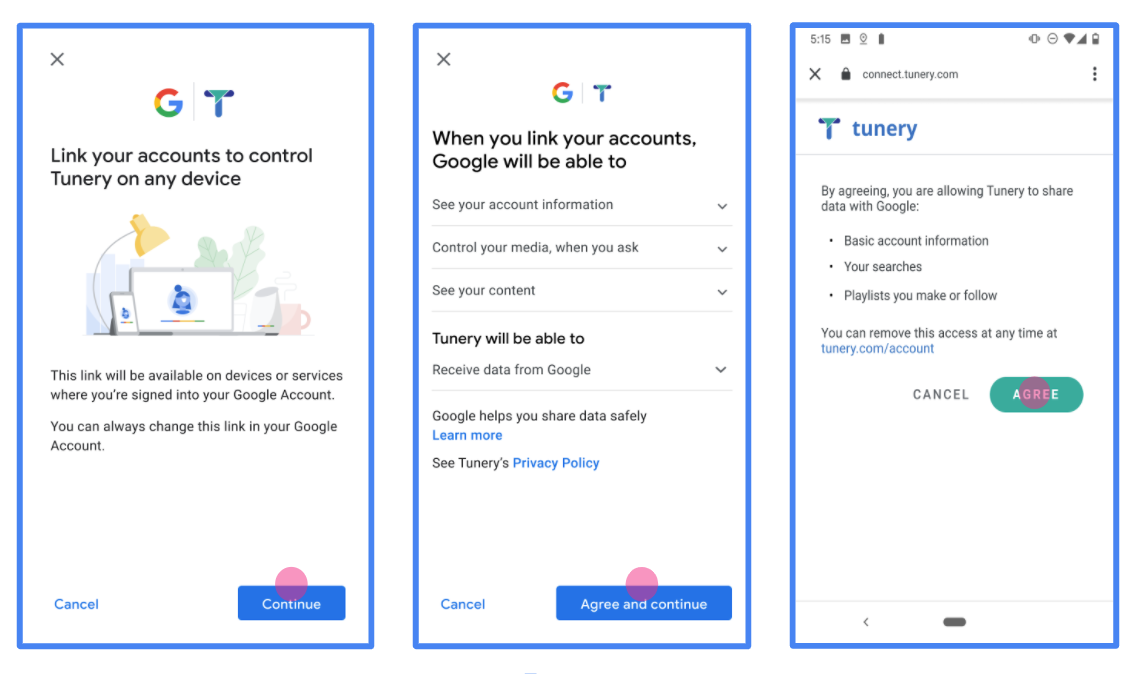
這張圖片顯示使用者將 Google 帳戶連結至驗證系統的步驟。第一張螢幕截圖顯示使用者從平台啟動的連結。第二張圖片顯示使用者登入 Google,第三張圖片則顯示使用者同意並確認將 Google 帳戶連結至您的應用程式。最後一張螢幕截圖顯示 Google 應用程式中已成功連結使用者帳戶。
圖 1. 帳戶連結使用者登入 Google 和同意畫面。

需求條件

  1. 您必須說明使用者的帳戶將連結至 Google,而不是 Google Home 或 Google 助理等特定 Google 產品。

建議

建議您採取以下做法:

  1. 顯示《Google 隱私權政策》。在同意畫面加入 Google 隱私權政策連結。

  2. 要共用的資料。使用簡潔明瞭的表達方式,向使用者說明 Google 需要他們的哪些資料,以及原因。

  3. 明確的行動號召。在同意聲明畫面上明確列出行動號召,例如「同意並連結」。這是因為使用者需要瞭解自己必須與 Google 分享哪些資料,才能連結帳戶。

  4. 可取消訂閱。如果使用者選擇不連結,請提供返回或取消的選項。

  5. 清除登入程序。請確認使用者有明確的方法登入 Google 帳戶,例如使用者名稱和密碼欄位,或使用 Google 帳戶登入

  6. 可取消連結。提供使用者解除連結的機制,例如平台上帳戶設定的網址。或者,您也可以加入 Google 帳戶的連結,讓使用者能管理已連結帳戶。

  7. 變更使用者帳戶的功能。建議使用者切換帳戶的方法。如果使用者傾向擁有多個帳戶,這項功能就特別實用。

    • 如果使用者必須關閉同意畫面才能切換帳戶,請將可復原的錯誤傳送給 Google,方便使用者透過 OAuth 連結隱含流程登入所需帳戶。
  8. 加入標誌。在同意畫面上顯示公司標誌。 請依照您的樣式規範放置標誌。如果您也想顯示 Google 的標誌,請參閱標誌和商標

建立專案

如要建立專案以使用帳戶連結,請按照下列步驟操作:

  1. 按一下 [Create Project]
  2. 輸入名稱或接受系統產生的建議。
  3. 確認或編輯其餘欄位。
  4. 點選「建立」

如要查看專案 ID,請按照下列步驟操作:

  1. 在到達網頁的表格中找出專案。專案 ID 會顯示在「ID」欄中。

Google 帳戶連結程序會顯示同意畫面,告知使用者要求存取資料的應用程式、要求存取的資料類型,以及適用條款。您必須先設定 OAuth 同意畫面,才能產生 Google API 用戶端 ID。

  1. 開啟 Google API 控制台的「OAuth 同意畫面」頁面。
  2. 如果出現提示,請選取您剛建立的專案。
  3. 在「OAuth 同意畫面」頁面中填寫表單,然後按一下「儲存」按鈕。

    應用程式名稱:要求同意的應用程式名稱。名稱應如實反映應用程式,且與使用者在其他地方看到的應用程式名稱一致。應用程式名稱會顯示在帳戶連結同意畫面上。

    應用程式標誌:同意畫面上的圖片,可協助使用者識別您的應用程式。標誌會顯示在帳戶連結同意畫面和帳戶設定頁面。

    支援電子郵件地址:方便使用者與您聯絡,洽詢同意聲明相關事宜。

    Google API 的範圍:範圍可讓應用程式存取使用者的私人 Google 資料。如果是 Google 帳戶連結用途,預設範圍 (電子郵件、個人資料、openid) 就已足夠,不需要新增任何敏感範圍。一般而言,最佳做法是在需要存取權時,逐步要求範圍,而非預先要求。瞭解詳情

    授權網域:為保障您與使用者的安全,Google 只允許應用程式透過 OAuth 驗證,使用授權網域。應用程式的連結必須託管於授權網域。瞭解詳情

    應用程式首頁連結:應用程式的首頁。必須託管在授權網域。

    應用程式隱私權政策連結:顯示在 Google 帳戶連結同意畫面上。必須託管在授權網域。

    應用程式服務條款連結 (選填):必須代管於授權網域。

    圖 1. 虛構應用程式 Tunery 的 Google 帳戶連結同意畫面

  4. 查看「驗證狀態」,如果應用程式需要驗證,請點按「送交驗證」按鈕,將應用程式送交驗證。詳情請參閱 OAuth 驗證規定

實作 OAuth 伺服器

An OAuth 2.0 server implementation of the authorization code flow consists of two endpoints, which your service makes available by HTTPS. The first endpoint is the authorization endpoint, which is responsible for finding or obtaining consent from users for data access. The authorization endpoint presents a sign-in UI to your users that aren't already signed in and records consent to the requested access. The second endpoint is the token exchange endpoint, which is used to obtain encrypted strings, called tokens, that authorize a user to access your service.

When a Google application needs to call one of your service's APIs, Google uses these endpoints together to get permission from your users to call these APIs on their behalf.

An OAuth 2.0 authorization code flow session initiated by Google has the following flow:

  1. Google opens your authorization endpoint in the user's browser. If the flow started on a voice-only device for an Action, Google transfers the execution to a phone.
  2. The user signs in, if not signed in already, and grants Google permission to access their data with your API, if they haven't already granted permission.
  3. Your service creates an authorization code and returns it to Google. To do so, redirect the user's browser back to Google with the authorization code attached to the request.
  4. Google sends the authorization code to your token exchange endpoint, which verifies the authenticity of the code and returns an access token and a refresh token. The access token is a short-lived token that your service accepts as credentials to access APIs. The refresh token is a long-lived token that Google can store and use to acquire new access tokens when they expire.
  5. After the user has completed the account linking flow, every subsequent request sent from Google contains an access token.

Handle authorization requests

When you need to perform account linking using the OAuth 2.0 authorization code flow, Google sends the user to your authorization endpoint with a request that includes the following parameters:

Authorization endpoint parameters
client_id The Client ID you assigned to Google.
redirect_uri The URL to which you send the response to this request.
state A bookkeeping value that is passed back to Google unchanged in the redirect URI.
scope Optional: A space-delimited set of scope strings that specify the data Google is requesting authorization for.
response_type The type of value to return in the response. For the OAuth 2.0 authorization code flow, the response type is always code.
user_locale The Google Account language setting in RFC5646 format, used to localize your content in the user's preferred language.

For example, if your authorization endpoint is available at https://myservice.example.com/auth, a request might look like the following:

GET https://myservice.example.com/auth?client_id=GOOGLE_CLIENT_ID&redirect_uri=REDIRECT_URI&state=STATE_STRING&scope=REQUESTED_SCOPES&response_type=code&user_locale=LOCALE

For your authorization endpoint to handle sign-in requests, do the following steps:

  1. Verify that the client_id matches the Client ID you assigned to Google, and that the redirect_uri matches the redirect URL provided by Google for your service. These checks are important to prevent granting access to unintended or misconfigured client apps. If you support multiple OAuth 2.0 flows, also confirm that the response_type is code.
  2. Check if the user is signed in to your service. If the user isn't signed in, complete your service's sign-in or sign-up flow.
  3. Generate an authorization code for Google to use to access your API. The authorization code can be any string value, but it must uniquely represent the user, the client the token is for, and the code's expiration time, and it must not be guessable. You typically issue authorization codes that expire after approximately 10 minutes.
  4. Confirm that the URL specified by the redirect_uri parameter has the following form:
      https://oauth-redirect.googleusercontent.com/r/YOUR_PROJECT_ID
      https://oauth-redirect-sandbox.googleusercontent.com/r/YOUR_PROJECT_ID
      
  5. Redirect the user's browser to the URL specified by the redirect_uri parameter. Include the authorization code you just generated and the original, unmodified state value when you redirect by appending the code and state parameters. The following is an example of the resulting URL:
    https://oauth-redirect.googleusercontent.com/r/YOUR_PROJECT_ID?code=AUTHORIZATION_CODE&state=STATE_STRING

Handle token exchange requests

Your service's token exchange endpoint is responsible for two kinds of token exchanges:

  • Exchange authorization codes for access tokens and refresh tokens
  • Exchange refresh tokens for access tokens

Token exchange requests include the following parameters:

Token exchange endpoint parameters
client_id A string that identifies the request origin as Google. This string must be registered within your system as Google's unique identifier.
client_secret A secret string that you registered with Google for your service.
grant_type The type of token being exchanged. It's either authorization_code or refresh_token.
code When grant_type=authorization_code, this parameter is the code Google received from either your sign-in or token exchange endpoint.
redirect_uri When grant_type=authorization_code, this parameter is the URL used in the initial authorization request.
refresh_token When grant_type=refresh_token, this parameter is the refresh token Google received from your token exchange endpoint.
Exchange authorization codes for access tokens and refresh tokens

After the user signs in and your authorization endpoint returns a short-lived authorization code to Google, Google sends a request to your token exchange endpoint to exchange the authorization code for an access token and a refresh token.

For these requests, the value of grant_type is authorization_code, and the value of code is the value of the authorization code you previously granted to Google. The following is an example of a request to exchange an authorization code for an access token and a refresh token:

POST /token HTTP/1.1
Host: oauth2.example.com
Content-Type: application/x-www-form-urlencoded

client_id=GOOGLE_CLIENT_ID&client_secret=GOOGLE_CLIENT_SECRET&grant_type=authorization_code&code=AUTHORIZATION_CODE&redirect_uri=REDIRECT_URI

To exchange authorization codes for an access token and a refresh token, your token exchange endpoint responds to POST requests by executing the following steps:

  1. Verify that the client_id identifies the request origin as an authorized origin, and that the client_secret matches the expected value.
  2. Verify that the authorization code is valid and not expired, and that the client ID specified in the request matches the client ID associated with the authorization code.
  3. Confirm that the URL specified by the redirect_uri parameter is identical to the value used in the initial authorization request.
  4. If you can't verify all of the above criteria, return an HTTP 400 Bad Request error with {"error": "invalid_grant"} as the body.
  5. Otherwise, use the user ID from the authorization code to generate a refresh token and an access token. These tokens can be any string value, but they must uniquely represent the user and the client the token is for, and they must not be guessable. For access tokens, also record the expiration time of the token, which is typically an hour after you issue the token. Refresh tokens don't expire.
  6. Return the following JSON object in the body of the HTTPS response:
    {
    "token_type": "Bearer",
    "access_token": "ACCESS_TOKEN",
    "refresh_token": "REFRESH_TOKEN",
    "expires_in": SECONDS_TO_EXPIRATION
    }

Google stores the access token and the refresh token for the user and records the expiration of the access token. When the access token expires, Google uses the refresh token to get a new access token from your token exchange endpoint.

Exchange refresh tokens for access tokens

When an access token expires, Google sends a request to your token exchange endpoint to exchange a refresh token for a new access token.

For these requests, the value of grant_type is refresh_token, and the value of refresh_token is the value of the refresh token you previously granted to Google. The following is an example of a request to exchange a refresh token for an access token:

POST /token HTTP/1.1
Host: oauth2.example.com
Content-Type: application/x-www-form-urlencoded

client_id=GOOGLE_CLIENT_ID&client_secret=GOOGLE_CLIENT_SECRET&grant_type=refresh_token&refresh_token=REFRESH_TOKEN

To exchange a refresh token for an access token, your token exchange endpoint responds to POST requests by executing the following steps:

  1. Verify that the client_id identifies the request origin as Google, and that the client_secret matches the expected value.
  2. Verify that the refresh token is valid, and that the client ID specified in the request matches the client ID associated with the refresh token.
  3. If you can't verify all of the above criteria, return an HTTP 400 Bad Request error with {"error": "invalid_grant"} as the body.
  4. Otherwise, use the user ID from the refresh token to generate an access token. These tokens can be any string value, but they must uniquely represent the user and the client the token is for, and they must not be guessable. For access tokens, also record the expiration time of the token, typically an hour after you issue the token.
  5. Return the following JSON object in the body of the HTTPS response:
    {
    "token_type": "Bearer",
    "access_token": "ACCESS_TOKEN",
    "expires_in": SECONDS_TO_EXPIRATION
    }
Handle userinfo requests

The userinfo endpoint is an OAuth 2.0 protected resource that return claims about the linked user. Implementing and hosting the userinfo endpoint is optional, except for the following use cases:

After the access token has been successfully retrieved from your token endpoint, Google sends a request to your userinfo endpoint to retrieve basic profile information about the linked user.

userinfo endpoint request headers
Authorization header The access token of type Bearer.

For example, if your userinfo endpoint is available at https://myservice.example.com/userinfo, a request might look like the following:

GET /userinfo HTTP/1.1
Host: myservice.example.com
Authorization: Bearer ACCESS_TOKEN

For your userinfo endpoint to handle requests, do the following steps:

  1. Extract access token from the Authorization header and return information for the user associated with the access token.
  2. If the access token is invalid, return an HTTP 401 Unauthorized error with using the WWW-Authenticate Response Header. Below is an example of a userinfo error response:
    HTTP/1.1 401 Unauthorized
    WWW-Authenticate: error="invalid_token",
    error_description="The Access Token expired"
    
    If a 401 Unauthorized, or any other unsuccessful error response is returned during the linking process, the error will be non-recoverable, the retrieved token will be discarded and the user will have to initiate the linking process again.
  3. If the access token is valid, return and HTTP 200 response with the following JSON object in the body of the HTTPS response:

    {
    "sub": "USER_UUID",
    "email": "EMAIL_ADDRESS",
    "given_name": "FIRST_NAME",
    "family_name": "LAST_NAME",
    "name": "FULL_NAME",
    "picture": "PROFILE_PICTURE",
    }
    If your userinfo endpoint returns an HTTP 200 success response, the retrieved token and claims are registered against the user's Google account.

    userinfo endpoint response
    sub A unique ID that identifies the user in your system.
    email Email address of the user.
    given_name Optional: First name of the user.
    family_name Optional: Last name of the user.
    name Optional: Full name of the user.
    picture Optional: Profile picture of the user.

驗證實作

您可以使用 OAuth 2.0 Playground 工具驗證實作結果。

請在工具中按照下列步驟操作:

  1. 點選「Configuration」圖示 ,開啟 OAuth 2.0 設定視窗。
  2. 在「OAuth 流程」欄位中,選取「用戶端」
  3. 在「OAuth 端點」欄位中,選取「自訂」
  4. 在對應的欄位中指定 OAuth 2.0 端點,以及您指派給 Google 的用戶端 ID。
  5. 在「步驟 1」部分中,請勿選取任何 Google 範圍。請改為將這個欄位留空,或輸入有效的伺服器範圍 (如果您不使用 OAuth 範圍,則輸入任意字串)。完成後,按一下「授權 API」
  6. 在「步驟 2」和「步驟 3」部分,請完成 OAuth 2.0 流程,並確認每個步驟都能正常運作。

您可以使用 Google 帳戶連結示範工具驗證實作成果。

在工具中執行下列步驟:

  1. 按一下「使用 Google 帳戶登入」按鈕。
  2. 選擇要連結的帳戶。
  3. 輸入服務 ID。
  4. 您可以選擇輸入一或多個要申請存取權的範圍。
  5. 按一下「開始試用」
  6. 系統顯示提示時,請確認您可以同意或拒絕連結要求。
  7. 確認系統是否會將你重新導向至平台。