حسابها با استفاده از استاندارد صنعتی OAuth 2.0 ضمنی و جریانهای کد مجوز مرتبط هستند. سرویس شما باید از مجوز سازگار با OAuth 2.0 و نقاط پایانی تبادل رمز پشتیبانی کند.
در جریان ضمنی ، Google نقطه پایانی مجوز شما را در مرورگر کاربر باز میکند. پس از ورود موفقیت آمیز به سیستم، یک توکن دسترسی طولانی مدت به Google برمی گردانید. این نشانه دسترسی اکنون در هر درخواست ارسال شده از Google گنجانده شده است.
در جریان کد مجوز ، به دو نقطه پایانی نیاز دارید:
نقطه پایان مجوز ، که رابط کاربری ورود به سیستم را به کاربرانی که قبلاً وارد سیستم نشدهاند ارائه میکند. نقطه پایانی مجوز همچنین یک کد مجوز کوتاه مدت ایجاد میکند تا رضایت کاربران را به دسترسی درخواستی ثبت کند.
نقطه پایانی تبادل توکن ، که مسئول دو نوع مبادله است:
- یک کد مجوز را برای یک نشانه رفرش طولانی مدت و یک رمز دسترسی کوتاه مدت مبادله می کند. این تبادل زمانی اتفاق میافتد که کاربر از جریان پیوند حساب عبور کند.
- یک نشانه رفرش طولانی مدت را با یک توکن دسترسی کوتاه مدت مبادله می کند. این مبادله زمانی اتفاق میافتد که گوگل به یک توکن دسترسی جدید نیاز دارد، زیرا رمز دسترسی منقضی شده است.
یک جریان OAuth 2.0 را انتخاب کنید
اگرچه اجرای جریان ضمنی سادهتر است، اما گوگل توصیه میکند که نشانههای دسترسی صادر شده توسط جریان ضمنی هرگز منقضی نمیشوند. این به این دلیل است که کاربر مجبور است پس از انقضای یک توکن با جریان ضمنی، حساب خود را دوباره پیوند دهد. اگر به دلایل امنیتی نیاز به انقضای توکن دارید، اکیداً توصیه می کنیم که به جای آن از جریان کد مجوز استفاده کنید.
دستورالعمل های طراحی
این بخش الزامات طراحی و توصیههایی را برای صفحه کاربری که برای جریانهای پیوند OAuth میزبانی میکنید، توضیح میدهد. پس از فراخوانی آن توسط برنامه Google، پلتفرم شما یک صفحه ورود به سیستم گوگل و صفحه رضایت حساب کاربری را نمایش می دهد. کاربر پس از رضایت خود برای پیوند دادن حساب ها به برنامه Google هدایت می شود.

الزامات
- باید اعلام کنید که حساب کاربر به Google مرتبط خواهد شد، نه یک محصول خاص Google مانند Google Home یا Google Assistant.
توصیه ها
توصیه می کنیم موارد زیر را انجام دهید:
سیاست حفظ حریم خصوصی Google را نمایش دهید. پیوندی به خطمشی رازداری Google در صفحه رضایت اضافه کنید.
داده ها به اشتراک گذاشته شود. از زبان واضح و مختصر استفاده کنید تا به کاربر بگویید گوگل به چه اطلاعاتی از او نیاز دارد و چرا.
فراخوانی برای اقدام را پاک کنید. یک فراخوان برای اقدام واضح در صفحه رضایت خود، مانند «موافق و پیوند» بیان کنید. این به این دلیل است که کاربران باید بدانند چه دادههایی را باید با Google به اشتراک بگذارند تا حسابهای خود را پیوند دهند.
قابلیت لغو. راهی برای کاربران فراهم کنید که در صورت عدم پیوند، به عقب برگردند یا لغو کنند.
فرآیند ورود به سیستم را پاک کنید. مطمئن شوید که کاربران روشهای واضحی برای ورود به حساب Google خود دارند، مانند فیلدهایی برای نام کاربری و رمز عبور یا ورود با Google .
قابلیت قطع لینک مکانیزمی را برای لغو پیوند به کاربران ارائه دهید، مانند URL به تنظیمات حساب آنها در پلتفرم شما. از طرف دیگر، میتوانید پیوندی به حساب Google اضافه کنید تا کاربران بتوانند حساب پیوند شده خود را مدیریت کنند.
امکان تغییر حساب کاربری روشی را به کاربران پیشنهاد کنید تا حساب(های) خود را تغییر دهند. این به ویژه در صورتی مفید است که کاربران تمایل به داشتن چندین حساب داشته باشند.
- اگر کاربر باید صفحه رضایت را برای تغییر حساب ببندد، یک خطای قابل بازیابی به Google ارسال کنید تا کاربر بتواند با پیوند OAuth و جریان ضمنی به حساب مورد نظر وارد شود.
لوگوی خود را درج کنید. لوگوی شرکت خود را روی صفحه رضایت نمایش دهید. از دستورالعمل های سبک خود برای قرار دادن لوگوی خود استفاده کنید. اگر میخواهید نشانواره Google را نیز نمایش دهید، نشانها و علائم تجاری را ببینید.

در جریان ضمنی ، Google نقطه پایانی مجوز شما را در مرورگر کاربر باز میکند. پس از ورود موفقیت آمیز به سیستم، یک توکن دسترسی طولانی مدت به Google برمی گردانید. این نشانه دسترسی اکنون در هر درخواست ارسال شده از Google گنجانده شده است.
در جریان کد مجوز ، به دو نقطه پایانی نیاز دارید:
نقطه پایان مجوز ، که رابط کاربری ورود به سیستم را به کاربرانی که قبلاً وارد سیستم نشدهاند ارائه میکند. نقطه پایانی مجوز همچنین یک کد مجوز کوتاه مدت ایجاد میکند تا رضایت کاربران را به دسترسی درخواستی ثبت کند.
نقطه پایانی تبادل توکن ، که مسئول دو نوع مبادله است:
- یک کد مجوز را برای یک نشانه رفرش طولانی مدت و یک رمز دسترسی کوتاه مدت مبادله می کند. این تبادل زمانی اتفاق میافتد که کاربر از جریان پیوند حساب عبور کند.
- یک نشانه رفرش طولانی مدت را با یک توکن دسترسی کوتاه مدت مبادله می کند. این مبادله زمانی اتفاق میافتد که گوگل به یک توکن دسترسی جدید نیاز دارد، زیرا رمز دسترسی منقضی شده است.
یک جریان OAuth 2.0 را انتخاب کنید
اگرچه اجرای جریان ضمنی سادهتر است، اما گوگل توصیه میکند که نشانههای دسترسی صادر شده توسط جریان ضمنی هرگز منقضی نمیشوند. این به این دلیل است که کاربر مجبور است پس از انقضای یک توکن با جریان ضمنی، حساب خود را دوباره پیوند دهد. اگر به دلایل امنیتی نیاز به انقضای توکن دارید، اکیداً توصیه می کنیم که به جای آن از جریان کد مجوز استفاده کنید.
دستورالعمل های طراحی
این بخش الزامات طراحی و توصیههایی را برای صفحه کاربری که برای جریانهای پیوند OAuth میزبانی میکنید، توضیح میدهد. پس از فراخوانی آن توسط برنامه Google، پلتفرم شما یک صفحه ورود به سیستم گوگل و صفحه رضایت حساب کاربری را نمایش می دهد. کاربر پس از رضایت خود برای پیوند دادن حساب ها به برنامه Google هدایت می شود.

الزامات
- باید اعلام کنید که حساب کاربر به Google مرتبط خواهد شد، نه یک محصول خاص Google مانند Google Home یا Google Assistant.
توصیه ها
توصیه می کنیم موارد زیر را انجام دهید:
سیاست حفظ حریم خصوصی Google را نمایش دهید. پیوندی به خطمشی رازداری Google در صفحه رضایت اضافه کنید.
داده ها به اشتراک گذاشته شود. از زبان واضح و مختصر استفاده کنید تا به کاربر بگویید گوگل به چه اطلاعاتی از او نیاز دارد و چرا.
فراخوانی برای اقدام را پاک کنید. یک فراخوان برای اقدام واضح در صفحه رضایت خود، مانند «موافق و پیوند» بیان کنید. این به این دلیل است که کاربران باید بدانند چه دادههایی را باید با Google به اشتراک بگذارند تا حسابهای خود را پیوند دهند.
قابلیت لغو. راهی برای کاربران فراهم کنید که در صورت عدم پیوند، به عقب برگردند یا لغو کنند.
فرآیند ورود به سیستم را پاک کنید. مطمئن شوید که کاربران روشهای واضحی برای ورود به حساب Google خود دارند، مانند فیلدهایی برای نام کاربری و رمز عبور یا ورود با Google .
قابلیت قطع لینک مکانیزمی را برای لغو پیوند به کاربران ارائه دهید، مانند URL به تنظیمات حساب آنها در پلتفرم شما. از طرف دیگر، میتوانید پیوندی به حساب Google اضافه کنید تا کاربران بتوانند حساب پیوند شده خود را مدیریت کنند.
امکان تغییر حساب کاربری روشی را به کاربران پیشنهاد کنید تا حساب(های) خود را تغییر دهند. این به ویژه در صورتی مفید است که کاربران تمایل به داشتن چندین حساب داشته باشند.
- اگر کاربر باید صفحه رضایت را برای تغییر حساب ببندد، یک خطای قابل بازیابی به Google ارسال کنید تا کاربر بتواند با پیوند OAuth و جریان ضمنی به حساب مورد نظر وارد شود.
لوگوی خود را درج کنید. لوگوی شرکت خود را روی صفحه رضایت نمایش دهید. از دستورالعمل های سبک خود برای قرار دادن لوگوی خود استفاده کنید. اگر میخواهید نشانواره Google را نیز نمایش دهید، نشانها و علائم تجاری را ببینید.

در جریان ضمنی ، Google نقطه پایانی مجوز شما را در مرورگر کاربر باز میکند. پس از ورود موفقیت آمیز به سیستم، یک توکن دسترسی طولانی مدت به Google برمی گردانید. این نشانه دسترسی اکنون در هر درخواست ارسال شده از Google گنجانده شده است.
در جریان کد مجوز ، به دو نقطه پایانی نیاز دارید:
نقطه پایان مجوز ، که رابط کاربری ورود به سیستم را به کاربرانی که قبلاً وارد سیستم نشدهاند ارائه میکند. نقطه پایانی مجوز همچنین یک کد مجوز کوتاه مدت ایجاد میکند تا رضایت کاربران را به دسترسی درخواستی ثبت کند.
نقطه پایانی تبادل توکن ، که مسئول دو نوع مبادله است:
- یک کد مجوز را برای یک نشانه رفرش طولانی مدت و یک رمز دسترسی کوتاه مدت مبادله می کند. این تبادل زمانی اتفاق میافتد که کاربر از جریان پیوند حساب عبور کند.
- یک نشانه رفرش طولانی مدت را با یک توکن دسترسی کوتاه مدت مبادله می کند. این مبادله زمانی اتفاق میافتد که گوگل به یک توکن دسترسی جدید نیاز دارد، زیرا رمز دسترسی منقضی شده است.
یک جریان OAuth 2.0 را انتخاب کنید
اگرچه اجرای جریان ضمنی سادهتر است، اما گوگل توصیه میکند که نشانههای دسترسی صادر شده توسط جریان ضمنی هرگز منقضی نمیشوند. این به این دلیل است که کاربر مجبور است پس از انقضای یک توکن با جریان ضمنی، حساب خود را دوباره پیوند دهد. اگر به دلایل امنیتی نیاز به انقضای توکن دارید، اکیداً توصیه می کنیم که به جای آن از جریان کد مجوز استفاده کنید.
دستورالعمل های طراحی
این بخش الزامات طراحی و توصیههایی را برای صفحه کاربری که برای جریانهای پیوند OAuth میزبانی میکنید، توضیح میدهد. پس از فراخوانی آن توسط برنامه Google، پلتفرم شما یک صفحه ورود به سیستم گوگل و صفحه رضایت حساب کاربری را نمایش می دهد. کاربر پس از رضایت خود برای پیوند دادن حساب ها به برنامه Google هدایت می شود.

الزامات
- باید اعلام کنید که حساب کاربر به Google مرتبط خواهد شد، نه یک محصول خاص Google مانند Google Home یا Google Assistant.
توصیه ها
توصیه می کنیم موارد زیر را انجام دهید:
سیاست حفظ حریم خصوصی Google را نمایش دهید. پیوندی به خطمشی رازداری Google در صفحه رضایت اضافه کنید.
داده ها به اشتراک گذاشته شود. از زبان واضح و مختصر استفاده کنید تا به کاربر بگویید گوگل به چه اطلاعاتی از او نیاز دارد و چرا.
فراخوانی برای اقدام را پاک کنید. یک فراخوان برای اقدام واضح در صفحه رضایت خود، مانند «موافق و پیوند» بیان کنید. این به این دلیل است که کاربران باید بدانند چه دادههایی را باید با Google به اشتراک بگذارند تا حسابهای خود را پیوند دهند.
قابلیت لغو. راهی برای کاربران فراهم کنید که در صورت عدم پیوند، به عقب برگردند یا لغو کنند.
فرآیند ورود به سیستم را پاک کنید. مطمئن شوید که کاربران روشهای واضحی برای ورود به حساب Google خود دارند، مانند فیلدهایی برای نام کاربری و رمز عبور یا ورود با Google .
قابلیت قطع لینک مکانیزمی را برای لغو پیوند به کاربران ارائه دهید، مانند URL به تنظیمات حساب آنها در پلتفرم شما. از طرف دیگر، میتوانید پیوندی به حساب Google اضافه کنید تا کاربران بتوانند حساب پیوند شده خود را مدیریت کنند.
امکان تغییر حساب کاربری روشی را به کاربران پیشنهاد کنید تا حساب(های) خود را تغییر دهند. این به ویژه در صورتی مفید است که کاربران تمایل به داشتن چندین حساب داشته باشند.
- اگر کاربر باید صفحه رضایت را برای تغییر حساب ببندد، یک خطای قابل بازیابی به Google ارسال کنید تا کاربر بتواند با پیوند OAuth و جریان ضمنی به حساب مورد نظر وارد شود.
لوگوی خود را درج کنید. لوگوی شرکت خود را روی صفحه رضایت نمایش دهید. از دستورالعمل های سبک خود برای قرار دادن لوگوی خود استفاده کنید. اگر میخواهید نشانواره Google را نیز نمایش دهید، نشانها و علائم تجاری را ببینید.

در جریان ضمنی ، Google نقطه پایانی مجوز شما را در مرورگر کاربر باز میکند. پس از ورود موفقیت آمیز به سیستم، یک توکن دسترسی طولانی مدت به Google برمی گردانید. این نشانه دسترسی اکنون در هر درخواست ارسال شده از Google گنجانده شده است.
در جریان کد مجوز ، به دو نقطه پایانی نیاز دارید:
نقطه پایان مجوز ، که رابط کاربری ورود به سیستم را به کاربرانی که قبلاً وارد سیستم نشدهاند ارائه میکند. نقطه پایانی مجوز همچنین یک کد مجوز کوتاه مدت ایجاد میکند تا رضایت کاربران را به دسترسی درخواستی ثبت کند.
نقطه پایانی تبادل توکن ، که مسئول دو نوع مبادله است:
- یک کد مجوز را برای یک نشانه رفرش طولانی مدت و یک رمز دسترسی کوتاه مدت مبادله می کند. این تبادل زمانی اتفاق میافتد که کاربر از جریان پیوند حساب عبور کند.
- یک نشانه رفرش طولانی مدت را با یک توکن دسترسی کوتاه مدت مبادله می کند. این مبادله زمانی اتفاق میافتد که گوگل به یک توکن دسترسی جدید نیاز دارد، زیرا رمز دسترسی منقضی شده است.
یک جریان OAuth 2.0 را انتخاب کنید
اگرچه اجرای جریان ضمنی سادهتر است، اما گوگل توصیه میکند که نشانههای دسترسی صادر شده توسط جریان ضمنی هرگز منقضی نمیشوند. این به این دلیل است که کاربر مجبور است پس از انقضای یک توکن با جریان ضمنی، حساب خود را دوباره پیوند دهد. اگر به دلایل امنیتی نیاز به انقضای توکن دارید، اکیداً توصیه می کنیم که به جای آن از جریان کد مجوز استفاده کنید.
دستورالعمل های طراحی
این بخش الزامات طراحی و توصیههایی را برای صفحه کاربری که برای جریانهای پیوند OAuth میزبانی میکنید، توضیح میدهد. پس از فراخوانی آن توسط برنامه Google، پلتفرم شما یک صفحه ورود به سیستم گوگل و صفحه رضایت حساب کاربری را نمایش می دهد. کاربر پس از رضایت خود برای پیوند دادن حساب ها به برنامه Google هدایت می شود.

الزامات
- باید اعلام کنید که حساب کاربر به Google مرتبط خواهد شد، نه یک محصول خاص Google مانند Google Home یا Google Assistant.
توصیه ها
توصیه می کنیم موارد زیر را انجام دهید:
سیاست حفظ حریم خصوصی Google را نمایش دهید. پیوندی به خطمشی رازداری Google در صفحه رضایت اضافه کنید.
داده ها به اشتراک گذاشته شود. از زبان واضح و مختصر استفاده کنید تا به کاربر بگویید گوگل به چه اطلاعاتی از او نیاز دارد و چرا.
فراخوانی برای اقدام را پاک کنید. یک فراخوان برای اقدام واضح در صفحه رضایت خود، مانند «موافق و پیوند» بیان کنید. این به این دلیل است که کاربران باید بدانند چه دادههایی را باید با Google به اشتراک بگذارند تا حسابهای خود را پیوند دهند.
قابلیت لغو. راهی برای کاربران فراهم کنید که در صورت عدم پیوند، به عقب برگردند یا لغو کنند.
فرآیند ورود به سیستم را پاک کنید. مطمئن شوید که کاربران روشهای واضحی برای ورود به حساب Google خود دارند، مانند فیلدهایی برای نام کاربری و رمز عبور یا ورود با Google .
قابلیت قطع لینک مکانیزمی را برای لغو پیوند به کاربران ارائه دهید، مانند URL به تنظیمات حساب آنها در پلتفرم شما. از طرف دیگر، میتوانید پیوندی به حساب Google اضافه کنید تا کاربران بتوانند حساب پیوند شده خود را مدیریت کنند.
امکان تغییر حساب کاربری روشی را به کاربران پیشنهاد کنید تا حساب(های) خود را تغییر دهند. این به ویژه در صورتی مفید است که کاربران تمایل به داشتن چندین حساب داشته باشند.
- اگر کاربر باید صفحه رضایت را برای تغییر حساب ببندد، یک خطای قابل بازیابی به Google ارسال کنید تا کاربر بتواند با پیوند OAuth و جریان ضمنی به حساب مورد نظر وارد شود.
لوگوی خود را درج کنید. لوگوی شرکت خود را روی صفحه رضایت نمایش دهید. از دستورالعمل های سبک خود برای قرار دادن لوگوی خود استفاده کنید. اگر میخواهید نشانواره Google را نیز نمایش دهید، نشانها و علائم تجاری را ببینید.

Create the project
To create your project to use account linking:
- Go to the Google API Console.
- Click Create project.
- Enter a name or accept the generated suggestion.
- Confirm or edit any remaining fields.
- Click Create.
To view your project ID:
- Go to the Google API Console.
- Find your project in the table on the landing page. The project ID appears in the ID column.
Configure your OAuth Consent Screen
The Google Account Linking process includes a consent screen which tells users the application requesting access to their data, what kind of data they are asking for and the terms that apply. You will need to configure your OAuth consent screen before generating a Google API client ID.
- Open the OAuth consent screen page of the Google APIs console.
- If prompted, select the project you just created.
On the "OAuth consent screen" page, fill out the form and click the “Save” button.
Application name: The name of the application asking for consent. The name should accurately reflect your application and be consistent with the application name users see elsewhere. The application name will be shown on the Account Linking consent screen.
Application logo: An image on the consent screen that will help users recognize your app. The logo is shown on Account linking consent screen and on account settings
Support email: For users to contact you with questions about their consent.
Scopes for Google APIs: Scopes allow your application to access your user's private Google data. For the Google Account Linking use case, default scope (email, profile, openid) is sufficient, you don’t need to add any sensitive scopes. It is generally a best practice to request scopes incrementally, at the time access is required, rather than up front. Learn more.
Authorized domains: To protect you and your users, Google only allows applications that authenticate using OAuth to use Authorized Domains. Your applications' links must be hosted on Authorized Domains. Learn more.
Application Homepage link: Home page for your application. Must be hosted on an Authorized Domain.
Application Privacy Policy link: Shown on Google Account Linking consent screen. Must be hosted on an Authorized Domain.
Application Terms of Service link (Optional): Must be hosted on an Authorized Domain.
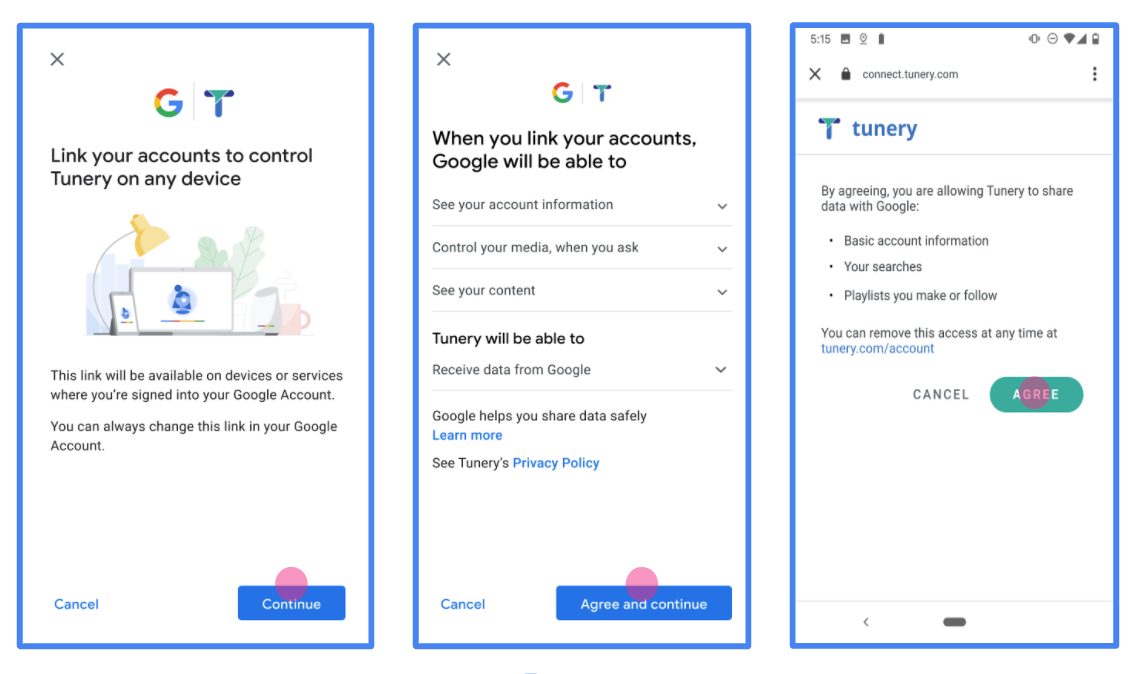
Figure 1. Google Account Linking Consent Screen for a fictitious Application, Tunery
Check "Verification Status", if your application needs verification then click the "Submit For Verification" button to submit your application for verification. Refer to OAuth verification requirements for details.
سرور OAuth خود را پیاده سازی کنید
An OAuth 2.0 server implementation of the authorization code flow consists of two endpoints, which your service makes available by HTTPS. The first endpoint is the authorization endpoint, which is responsible for finding or obtaining consent from users for data access. The authorization endpoint presents a sign-in UI to your users that aren't already signed in and records consent to the requested access. The second endpoint is the token exchange endpoint, which is used to obtain encrypted strings, called tokens, that authorize a user to access your service.
When a Google application needs to call one of your service's APIs, Google uses these endpoints together to get permission from your users to call these APIs on their behalf.
An OAuth 2.0 authorization code flow session initiated by Google has the following flow:
- Google opens your authorization endpoint in the user's browser. If the flow started on a voice-only device for an Action, Google transfers the execution to a phone.
- The user signs in, if not signed in already, and grants Google permission to access their data with your API, if they haven't already granted permission.
- Your service creates an authorization code and returns it to Google. To do so, redirect the user's browser back to Google with the authorization code attached to the request.
- Google sends the authorization code to your token exchange endpoint, which verifies the authenticity of the code and returns an access token and a refresh token. The access token is a short-lived token that your service accepts as credentials to access APIs. The refresh token is a long-lived token that Google can store and use to acquire new access tokens when they expire.
- After the user has completed the account linking flow, every subsequent request sent from Google contains an access token.
Handle authorization requests
When you need to perform account linking using the OAuth 2.0 authorization code flow, Google sends the user to your authorization endpoint with a request that includes the following parameters:
| Authorization endpoint parameters | |
|---|---|
client_id |
The Client ID you assigned to Google. |
redirect_uri |
The URL to which you send the response to this request. |
state |
A bookkeeping value that is passed back to Google unchanged in the redirect URI. |
scope |
Optional: A space-delimited set of scope strings that specify the data Google is requesting authorization for. |
response_type |
The type of value to return in the response. For the OAuth 2.0
authorization code flow, the response type is always code.
|
user_locale |
The Google Account language setting in RFC5646 format, used to localize your content in the user's preferred language. |
For example, if your authorization endpoint is available at
https://myservice.example.com/auth, a request might look like the following:
GET https://myservice.example.com/auth?client_id=GOOGLE_CLIENT_ID&redirect_uri=REDIRECT_URI&state=STATE_STRING&scope=REQUESTED_SCOPES&response_type=code&user_locale=LOCALE
For your authorization endpoint to handle sign-in requests, do the following steps:
- Verify that the
client_idmatches the Client ID you assigned to Google, and that theredirect_urimatches the redirect URL provided by Google for your service. These checks are important to prevent granting access to unintended or misconfigured client apps. If you support multiple OAuth 2.0 flows, also confirm that theresponse_typeiscode. - Check if the user is signed in to your service. If the user isn't signed in, complete your service's sign-in or sign-up flow.
- Generate an authorization code for Google to use to access your API. The authorization code can be any string value, but it must uniquely represent the user, the client the token is for, and the code's expiration time, and it must not be guessable. You typically issue authorization codes that expire after approximately 10 minutes.
- Confirm that the URL specified by the
redirect_uriparameter has the following form:https://oauth-redirect.googleusercontent.com/r/YOUR_PROJECT_ID https://oauth-redirect-sandbox.googleusercontent.com/r/YOUR_PROJECT_ID
- Redirect the user's browser to the URL specified by the
redirect_uriparameter. Include the authorization code you just generated and the original, unmodified state value when you redirect by appending thecodeandstateparameters. The following is an example of the resulting URL:https://oauth-redirect.googleusercontent.com/r/YOUR_PROJECT_ID?code=AUTHORIZATION_CODE&state=STATE_STRING
Handle token exchange requests
Your service's token exchange endpoint is responsible for two kinds of token exchanges:
- Exchange authorization codes for access tokens and refresh tokens
- Exchange refresh tokens for access tokens
Token exchange requests include the following parameters:
| Token exchange endpoint parameters | |
|---|---|
client_id |
A string that identifies the request origin as Google. This string must be registered within your system as Google's unique identifier. |
client_secret |
A secret string that you registered with Google for your service. |
grant_type |
The type of token being exchanged. It's either
authorization_code or refresh_token. |
code |
When grant_type=authorization_code, this parameter is the
code Google received from either your sign-in or token exchange
endpoint. |
redirect_uri |
When grant_type=authorization_code, this parameter is the
URL used in the initial authorization request. |
refresh_token |
When grant_type=refresh_token, this parameter is the
refresh token Google received from your token exchange endpoint. |
Exchange authorization codes for access tokens and refresh tokens
After the user signs in and your authorization endpoint returns a short-lived authorization code to Google, Google sends a request to your token exchange endpoint to exchange the authorization code for an access token and a refresh token.
For these requests, the value of grant_type is authorization_code, and the
value of code is the value of the authorization code you previously granted
to Google. The following is an example of a request to exchange an
authorization code for an access token and a refresh token:
POST /token HTTP/1.1 Host: oauth2.example.com Content-Type: application/x-www-form-urlencoded client_id=GOOGLE_CLIENT_ID&client_secret=GOOGLE_CLIENT_SECRET&grant_type=authorization_code&code=AUTHORIZATION_CODE&redirect_uri=REDIRECT_URI
To exchange authorization codes for an access token and a refresh token, your
token exchange endpoint responds to POST requests by executing the following
steps:
- Verify that the
client_ididentifies the request origin as an authorized origin, and that theclient_secretmatches the expected value. - Verify that the authorization code is valid and not expired, and that the client ID specified in the request matches the client ID associated with the authorization code.
- Confirm that the URL specified by the
redirect_uriparameter is identical to the value used in the initial authorization request. - If you can't verify all of the above criteria, return an HTTP
400 Bad Request error with
{"error": "invalid_grant"}as the body. - Otherwise, use the user ID from the authorization code to generate a refresh token and an access token. These tokens can be any string value, but they must uniquely represent the user and the client the token is for, and they must not be guessable. For access tokens, also record the expiration time of the token, which is typically an hour after you issue the token. Refresh tokens don't expire.
- Return the following JSON object in the body of the HTTPS response:
{ "token_type": "Bearer", "access_token": "ACCESS_TOKEN", "refresh_token": "REFRESH_TOKEN", "expires_in": SECONDS_TO_EXPIRATION }
Google stores the access token and the refresh token for the user and records the expiration of the access token. When the access token expires, Google uses the refresh token to get a new access token from your token exchange endpoint.
Exchange refresh tokens for access tokens
When an access token expires, Google sends a request to your token exchange endpoint to exchange a refresh token for a new access token.
For these requests, the value of grant_type is refresh_token, and the value
of refresh_token is the value of the refresh token you previously granted to
Google. The following is an example of a request to exchange a refresh token
for an access token:
POST /token HTTP/1.1 Host: oauth2.example.com Content-Type: application/x-www-form-urlencoded client_id=GOOGLE_CLIENT_ID&client_secret=GOOGLE_CLIENT_SECRET&grant_type=refresh_token&refresh_token=REFRESH_TOKEN
To exchange a refresh token for an access token, your token exchange endpoint
responds to POST requests by executing the following steps:
- Verify that the
client_ididentifies the request origin as Google, and that theclient_secretmatches the expected value. - Verify that the refresh token is valid, and that the client ID specified in the request matches the client ID associated with the refresh token.
- If you can't verify all of the above criteria, return an HTTP 400
Bad Request error with
{"error": "invalid_grant"}as the body. - Otherwise, use the user ID from the refresh token to generate an access token. These tokens can be any string value, but they must uniquely represent the user and the client the token is for, and they must not be guessable. For access tokens, also record the expiration time of the token, typically an hour after you issue the token.
- Return the following JSON object in the body of the HTTPS
response:
{ "token_type": "Bearer", "access_token": "ACCESS_TOKEN", "expires_in": SECONDS_TO_EXPIRATION }
Handle userinfo requests
The userinfo endpoint is an OAuth 2.0 protected resource that return claims about the linked user. Implementing and hosting the userinfo endpoint is optional, except for the following use cases:
- Linked Account Sign-In with Google One Tap.
- Frictionless subscription on AndroidTV.
After the access token has been successfully retrieved from your token endpoint, Google sends a request to your userinfo endpoint to retrieve basic profile information about the linked user.
| userinfo endpoint request headers | |
|---|---|
Authorization header |
The access token of type Bearer. |
For example, if your userinfo endpoint is available at
https://myservice.example.com/userinfo, a request might look like the following:
GET /userinfo HTTP/1.1 Host: myservice.example.com Authorization: Bearer ACCESS_TOKEN
For your userinfo endpoint to handle requests, do the following steps:
- Extract access token from the Authorization header and return information for the user associated with the access token.
- If the access token is invalid, return an HTTP 401 Unauthorized error with using the
WWW-AuthenticateResponse Header. Below is an example of a userinfo error response: If a 401 Unauthorized, or any other unsuccessful error response is returned during the linking process, the error will be non-recoverable, the retrieved token will be discarded and the user will have to initiate the linking process again.HTTP/1.1 401 Unauthorized WWW-Authenticate: error="invalid_token", error_description="The Access Token expired"
If the access token is valid, return and HTTP 200 response with the following JSON object in the body of the HTTPS response:
If your userinfo endpoint returns an HTTP 200 success response, the retrieved token and claims are registered against the user's Google account.{ "sub": "USER_UUID", "email": "EMAIL_ADDRESS", "given_name": "FIRST_NAME", "family_name": "LAST_NAME", "name": "FULL_NAME", "picture": "PROFILE_PICTURE", }userinfo endpoint response subA unique ID that identifies the user in your system. emailEmail address of the user. given_nameOptional: First name of the user. family_nameOptional: Last name of the user. nameOptional: Full name of the user. pictureOptional: Profile picture of the user.
اعتبار بخشیدن به اجرای شما
You can validate your implementation by using the OAuth 2.0 Playground tool.
In the tool, do the following steps:
- Click Configuration to open the OAuth 2.0 Configuration window.
- In the OAuth flow field, select Client-side.
- In the OAuth Endpoints field, select Custom.
- Specify your OAuth 2.0 endpoint and the client ID you assigned to Google in the corresponding fields.
- In the Step 1 section, don't select any Google scopes. Instead, leave this field blank or type a scope valid for your server (or an arbitrary string if you don't use OAuth scopes). When you're done, click Authorize APIs.
- In the Step 2 and Step 3 sections, go through the OAuth 2.0 flow and verify that each step works as intended.
You can validate your implementation by using the Google Account Linking Demo tool.
In the tool, do the following steps:
- Click the Sign-in with Google button.
- Choose the account you'd like to link.
- Enter the service ID.
- Optionally enter one or more scopes that you will request access for.
- Click Start Demo.
- When prompted, confirm that you may consent and deny the linking request.
- Confirm that you are redirected to your platform.
حسابها با استفاده از استاندارد صنعتی OAuth 2.0 ضمنی و جریانهای کد مجوز مرتبط هستند. سرویس شما باید از مجوز سازگار با OAuth 2.0 و نقاط پایانی تبادل رمز پشتیبانی کند.
در جریان ضمنی ، Google نقطه پایانی مجوز شما را در مرورگر کاربر باز میکند. پس از ورود موفقیت آمیز به سیستم، یک توکن دسترسی طولانی مدت به Google برمی گردانید. این نشانه دسترسی اکنون در هر درخواست ارسال شده از Google گنجانده شده است.
در جریان کد مجوز ، به دو نقطه پایانی نیاز دارید:
نقطه پایان مجوز ، که رابط کاربری ورود به سیستم را به کاربرانی که قبلاً وارد سیستم نشدهاند ارائه میکند. نقطه پایانی مجوز همچنین یک کد مجوز کوتاه مدت ایجاد میکند تا رضایت کاربران را به دسترسی درخواستی ثبت کند.
نقطه پایانی تبادل توکن ، که مسئول دو نوع مبادله است:
- یک کد مجوز را برای یک نشانه رفرش طولانی مدت و یک رمز دسترسی کوتاه مدت مبادله می کند. این تبادل زمانی اتفاق میافتد که کاربر از جریان پیوند حساب عبور کند.
- یک نشانه رفرش طولانی مدت را با یک توکن دسترسی کوتاه مدت مبادله می کند. این مبادله زمانی اتفاق میافتد که گوگل به یک توکن دسترسی جدید نیاز دارد، زیرا رمز دسترسی منقضی شده است.
یک جریان OAuth 2.0 را انتخاب کنید
اگرچه اجرای جریان ضمنی سادهتر است، اما گوگل توصیه میکند که نشانههای دسترسی صادر شده توسط جریان ضمنی هرگز منقضی نمیشوند. این به این دلیل است که کاربر مجبور است پس از انقضای یک توکن با جریان ضمنی، حساب خود را دوباره پیوند دهد. اگر به دلایل امنیتی نیاز به انقضای توکن دارید، اکیداً توصیه می کنیم که به جای آن از جریان کد مجوز استفاده کنید.
دستورالعمل های طراحی
این بخش الزامات طراحی و توصیههایی را برای صفحه کاربری که برای جریانهای پیوند OAuth میزبانی میکنید، توضیح میدهد. پس از فراخوانی آن توسط برنامه Google، پلتفرم شما یک صفحه ورود به سیستم گوگل و صفحه رضایت حساب کاربری را نمایش می دهد. کاربر پس از رضایت خود برای پیوند دادن حساب ها به برنامه Google هدایت می شود.

الزامات
- باید اعلام کنید که حساب کاربر به Google مرتبط خواهد شد، نه یک محصول خاص Google مانند Google Home یا Google Assistant.
توصیه ها
توصیه می کنیم موارد زیر را انجام دهید:
سیاست حفظ حریم خصوصی Google را نمایش دهید. پیوندی به خطمشی رازداری Google در صفحه رضایت اضافه کنید.
داده ها به اشتراک گذاشته شود. از زبان واضح و مختصر استفاده کنید تا به کاربر بگویید گوگل به چه اطلاعاتی از او نیاز دارد و چرا.
فراخوانی برای اقدام را پاک کنید. یک فراخوان برای اقدام واضح در صفحه رضایت خود، مانند «موافق و پیوند» بیان کنید. این به این دلیل است که کاربران باید بدانند چه دادههایی را باید با Google به اشتراک بگذارند تا حسابهای خود را پیوند دهند.
قابلیت لغو. راهی برای کاربران فراهم کنید که در صورت عدم پیوند، به عقب برگردند یا لغو کنند.
فرآیند ورود به سیستم را پاک کنید. مطمئن شوید که کاربران روشهای واضحی برای ورود به حساب Google خود دارند، مانند فیلدهایی برای نام کاربری و رمز عبور یا ورود با Google .
قابلیت قطع لینک مکانیزمی را برای لغو پیوند به کاربران ارائه دهید، مانند URL به تنظیمات حساب آنها در پلتفرم شما. از طرف دیگر، میتوانید پیوندی به حساب Google اضافه کنید تا کاربران بتوانند حساب پیوند شده خود را مدیریت کنند.
امکان تغییر حساب کاربری روشی را به کاربران پیشنهاد کنید تا حساب(های) خود را تغییر دهند. این به ویژه در صورتی مفید است که کاربران تمایل به داشتن چندین حساب داشته باشند.
- اگر کاربر باید صفحه رضایت را برای تغییر حساب ببندد، یک خطای قابل بازیابی به Google ارسال کنید تا کاربر بتواند با پیوند OAuth و جریان ضمنی به حساب مورد نظر وارد شود.
لوگوی خود را درج کنید. لوگوی شرکت خود را روی صفحه رضایت نمایش دهید. از دستورالعمل های سبک خود برای قرار دادن لوگوی خود استفاده کنید. اگر میخواهید نشانواره Google را نیز نمایش دهید، نشانها و علائم تجاری را ببینید.

در جریان ضمنی ، Google نقطه پایانی مجوز شما را در مرورگر کاربر باز میکند. پس از ورود موفقیت آمیز به سیستم، یک توکن دسترسی طولانی مدت به Google برمی گردانید. این نشانه دسترسی اکنون در هر درخواست ارسال شده از Google گنجانده شده است.
در جریان کد مجوز ، به دو نقطه پایانی نیاز دارید:
نقطه پایان مجوز ، که رابط کاربری ورود به سیستم را به کاربرانی که قبلاً وارد سیستم نشدهاند ارائه میکند. نقطه پایانی مجوز همچنین یک کد مجوز کوتاه مدت ایجاد میکند تا رضایت کاربران را به دسترسی درخواستی ثبت کند.
نقطه پایانی تبادل توکن ، که مسئول دو نوع مبادله است:
- یک کد مجوز را برای یک نشانه رفرش طولانی مدت و یک رمز دسترسی کوتاه مدت مبادله می کند. این تبادل زمانی اتفاق میافتد که کاربر از جریان پیوند حساب عبور کند.
- یک نشانه رفرش طولانی مدت را با یک توکن دسترسی کوتاه مدت مبادله می کند. این مبادله زمانی اتفاق میافتد که گوگل به یک توکن دسترسی جدید نیاز دارد، زیرا رمز دسترسی منقضی شده است.
یک جریان OAuth 2.0 را انتخاب کنید
اگرچه اجرای جریان ضمنی سادهتر است، اما گوگل توصیه میکند که نشانههای دسترسی صادر شده توسط جریان ضمنی هرگز منقضی نمیشوند. این به این دلیل است که کاربر مجبور است پس از انقضای یک توکن با جریان ضمنی، حساب خود را دوباره پیوند دهد. اگر به دلایل امنیتی نیاز به انقضای توکن دارید، اکیداً توصیه می کنیم که به جای آن از جریان کد مجوز استفاده کنید.
دستورالعمل های طراحی
این بخش الزامات طراحی و توصیههایی را برای صفحه کاربری که برای جریانهای پیوند OAuth میزبانی میکنید، توضیح میدهد. پس از فراخوانی آن توسط برنامه Google، پلتفرم شما یک صفحه ورود به سیستم گوگل و صفحه رضایت حساب کاربری را نمایش می دهد. کاربر پس از رضایت خود برای پیوند دادن حساب ها به برنامه Google هدایت می شود.

الزامات
- باید اعلام کنید که حساب کاربر به Google مرتبط خواهد شد، نه یک محصول خاص Google مانند Google Home یا Google Assistant.
توصیه ها
توصیه می کنیم موارد زیر را انجام دهید:
سیاست حفظ حریم خصوصی Google را نمایش دهید. پیوندی به خطمشی رازداری Google در صفحه رضایت اضافه کنید.
داده ها به اشتراک گذاشته شود. از زبان واضح و مختصر استفاده کنید تا به کاربر بگویید گوگل به چه اطلاعاتی از او نیاز دارد و چرا.
فراخوانی برای اقدام را پاک کنید. یک فراخوان برای اقدام واضح در صفحه رضایت خود، مانند «موافق و پیوند» بیان کنید. این به این دلیل است که کاربران باید بدانند چه دادههایی را باید با Google به اشتراک بگذارند تا حسابهای خود را پیوند دهند.
قابلیت لغو. راهی برای کاربران فراهم کنید که در صورت عدم پیوند، به عقب برگردند یا لغو کنند.
فرآیند ورود به سیستم را پاک کنید. مطمئن شوید که کاربران روشهای واضحی برای ورود به حساب Google خود دارند، مانند فیلدهایی برای نام کاربری و رمز عبور یا ورود با Google .
قابلیت قطع لینک مکانیزمی را برای لغو پیوند به کاربران ارائه دهید، مانند URL به تنظیمات حساب آنها در پلتفرم شما. از طرف دیگر، میتوانید پیوندی به حساب Google اضافه کنید تا کاربران بتوانند حساب پیوند شده خود را مدیریت کنند.
امکان تغییر حساب کاربری روشی را به کاربران پیشنهاد کنید تا حساب(های) خود را تغییر دهند. این به ویژه در صورتی مفید است که کاربران تمایل به داشتن چندین حساب داشته باشند.
- اگر کاربر باید صفحه رضایت را برای تغییر حساب ببندد، یک خطای قابل بازیابی به Google ارسال کنید تا کاربر بتواند با پیوند OAuth و جریان ضمنی به حساب مورد نظر وارد شود.
لوگوی خود را درج کنید. لوگوی شرکت خود را روی صفحه رضایت نمایش دهید. از دستورالعمل های سبک خود برای قرار دادن لوگوی خود استفاده کنید. اگر میخواهید نشانواره Google را نیز نمایش دهید، نشانها و علائم تجاری را ببینید.

در جریان ضمنی ، Google نقطه پایانی مجوز شما را در مرورگر کاربر باز میکند. پس از ورود موفقیت آمیز به سیستم، یک توکن دسترسی طولانی مدت به Google برمی گردانید. این نشانه دسترسی اکنون در هر درخواست ارسال شده از Google گنجانده شده است.
در جریان کد مجوز ، به دو نقطه پایانی نیاز دارید:
نقطه پایان مجوز ، که رابط کاربری ورود به سیستم را به کاربرانی که قبلاً وارد سیستم نشدهاند ارائه میکند. نقطه پایانی مجوز همچنین یک کد مجوز کوتاه مدت ایجاد میکند تا رضایت کاربران را به دسترسی درخواستی ثبت کند.
نقطه پایانی تبادل توکن ، که مسئول دو نوع مبادله است:
- یک کد مجوز را برای یک نشانه رفرش طولانی مدت و یک رمز دسترسی کوتاه مدت مبادله می کند. این تبادل زمانی اتفاق میافتد که کاربر از جریان پیوند حساب عبور کند.
- یک نشانه رفرش طولانی مدت را با یک توکن دسترسی کوتاه مدت مبادله می کند. این مبادله زمانی اتفاق میافتد که گوگل به یک توکن دسترسی جدید نیاز دارد، زیرا رمز دسترسی منقضی شده است.
یک جریان OAuth 2.0 را انتخاب کنید
اگرچه اجرای جریان ضمنی سادهتر است، اما گوگل توصیه میکند که نشانههای دسترسی صادر شده توسط جریان ضمنی هرگز منقضی نمیشوند. این به این دلیل است که کاربر مجبور است پس از انقضای یک توکن با جریان ضمنی، حساب خود را دوباره پیوند دهد. اگر به دلایل امنیتی نیاز به انقضای توکن دارید، اکیداً توصیه می کنیم که به جای آن از جریان کد مجوز استفاده کنید.
دستورالعمل های طراحی
این بخش الزامات طراحی و توصیههایی را برای صفحه کاربری که برای جریانهای پیوند OAuth میزبانی میکنید، توضیح میدهد. پس از فراخوانی آن توسط برنامه Google، پلتفرم شما یک صفحه ورود به سیستم گوگل و صفحه رضایت حساب کاربری را نمایش می دهد. کاربر پس از رضایت خود برای پیوند دادن حساب ها به برنامه Google هدایت می شود.

الزامات
- باید اعلام کنید که حساب کاربر به Google مرتبط خواهد شد، نه یک محصول خاص Google مانند Google Home یا Google Assistant.
توصیه ها
توصیه می کنیم موارد زیر را انجام دهید:
سیاست حفظ حریم خصوصی Google را نمایش دهید. پیوندی به خطمشی رازداری Google در صفحه رضایت اضافه کنید.
داده ها به اشتراک گذاشته شود. از زبان واضح و مختصر استفاده کنید تا به کاربر بگویید گوگل به چه اطلاعاتی از او نیاز دارد و چرا.
فراخوانی برای اقدام را پاک کنید. یک فراخوان برای اقدام واضح در صفحه رضایت خود، مانند «موافق و پیوند» بیان کنید. این به این دلیل است که کاربران باید بدانند چه دادههایی را باید با Google به اشتراک بگذارند تا حسابهای خود را پیوند دهند.
قابلیت لغو. راهی برای کاربران فراهم کنید که در صورت عدم پیوند، به عقب برگردند یا لغو کنند.
فرآیند ورود به سیستم را پاک کنید. مطمئن شوید که کاربران روشهای واضحی برای ورود به حساب Google خود دارند، مانند فیلدهایی برای نام کاربری و رمز عبور یا ورود با Google .
قابلیت قطع لینک مکانیزمی را برای لغو پیوند به کاربران ارائه دهید، مانند URL به تنظیمات حساب آنها در پلتفرم شما. از طرف دیگر، میتوانید پیوندی به حساب Google اضافه کنید تا کاربران بتوانند حساب پیوند شده خود را مدیریت کنند.
امکان تغییر حساب کاربری روشی را به کاربران پیشنهاد کنید تا حساب(های) خود را تغییر دهند. این به ویژه در صورتی مفید است که کاربران تمایل به داشتن چندین حساب داشته باشند.
- اگر کاربر باید صفحه رضایت را برای تغییر حساب ببندد، یک خطای قابل بازیابی به Google ارسال کنید تا کاربر بتواند با پیوند OAuth و جریان ضمنی به حساب مورد نظر وارد شود.
لوگوی خود را درج کنید. لوگوی شرکت خود را روی صفحه رضایت نمایش دهید. از دستورالعمل های سبک خود برای قرار دادن لوگوی خود استفاده کنید. اگر میخواهید نشانواره Google را نیز نمایش دهید، نشانها و علائم تجاری را ببینید.

در جریان ضمنی ، Google نقطه پایانی مجوز شما را در مرورگر کاربر باز میکند. پس از ورود موفقیت آمیز به سیستم، یک توکن دسترسی طولانی مدت به Google برمی گردانید. این نشانه دسترسی اکنون در هر درخواست ارسال شده از Google گنجانده شده است.
در جریان کد مجوز ، به دو نقطه پایانی نیاز دارید:
نقطه پایان مجوز ، که رابط کاربری ورود به سیستم را به کاربرانی که قبلاً وارد سیستم نشدهاند ارائه میکند. نقطه پایانی مجوز همچنین یک کد مجوز کوتاه مدت ایجاد میکند تا رضایت کاربران را به دسترسی درخواستی ثبت کند.
نقطه پایانی تبادل توکن ، که مسئول دو نوع مبادله است:
- یک کد مجوز را برای یک نشانه رفرش طولانی مدت و یک رمز دسترسی کوتاه مدت مبادله می کند. این تبادل زمانی اتفاق میافتد که کاربر از جریان پیوند حساب عبور کند.
- یک نشانه رفرش طولانی مدت را با یک توکن دسترسی کوتاه مدت مبادله می کند. این مبادله زمانی اتفاق میافتد که گوگل به یک توکن دسترسی جدید نیاز دارد، زیرا رمز دسترسی منقضی شده است.
یک جریان OAuth 2.0 را انتخاب کنید
اگرچه اجرای جریان ضمنی سادهتر است، اما گوگل توصیه میکند که نشانههای دسترسی صادر شده توسط جریان ضمنی هرگز منقضی نمیشوند. این به این دلیل است که کاربر مجبور است پس از انقضای یک توکن با جریان ضمنی، حساب خود را دوباره پیوند دهد. اگر به دلایل امنیتی نیاز به انقضای توکن دارید، اکیداً توصیه می کنیم که به جای آن از جریان کد مجوز استفاده کنید.
دستورالعمل های طراحی
این بخش الزامات طراحی و توصیههایی را برای صفحه کاربری که برای جریانهای پیوند OAuth میزبانی میکنید، توضیح میدهد. پس از فراخوانی آن توسط برنامه Google، پلتفرم شما یک صفحه ورود به سیستم گوگل و صفحه رضایت حساب کاربری را نمایش می دهد. کاربر پس از رضایت خود برای پیوند دادن حساب ها به برنامه Google هدایت می شود.

الزامات
- باید اعلام کنید که حساب کاربر به Google مرتبط خواهد شد، نه یک محصول خاص Google مانند Google Home یا Google Assistant.
توصیه ها
توصیه می کنیم موارد زیر را انجام دهید:
سیاست حفظ حریم خصوصی Google را نمایش دهید. پیوندی به خطمشی رازداری Google در صفحه رضایت اضافه کنید.
داده ها به اشتراک گذاشته شود. از زبان واضح و مختصر استفاده کنید تا به کاربر بگویید گوگل به چه اطلاعاتی از او نیاز دارد و چرا.
فراخوانی برای اقدام را پاک کنید. یک فراخوان برای اقدام واضح در صفحه رضایت خود، مانند «موافق و پیوند» بیان کنید. این به این دلیل است که کاربران باید بدانند چه دادههایی را باید با Google به اشتراک بگذارند تا حسابهای خود را پیوند دهند.
قابلیت لغو. راهی برای کاربران فراهم کنید که در صورت عدم پیوند، به عقب برگردند یا لغو کنند.
فرآیند ورود به سیستم را پاک کنید. مطمئن شوید که کاربران روشهای واضحی برای ورود به حساب Google خود دارند، مانند فیلدهایی برای نام کاربری و رمز عبور یا ورود با Google .
قابلیت قطع لینک مکانیزمی را برای لغو پیوند به کاربران ارائه دهید، مانند URL به تنظیمات حساب آنها در پلتفرم شما. از طرف دیگر، میتوانید پیوندی به حساب Google اضافه کنید تا کاربران بتوانند حساب پیوند شده خود را مدیریت کنند.
امکان تغییر حساب کاربری روشی را به کاربران پیشنهاد کنید تا حساب(های) خود را تغییر دهند. این به ویژه در صورتی مفید است که کاربران تمایل به داشتن چندین حساب داشته باشند.
- اگر کاربر باید صفحه رضایت را برای تغییر حساب ببندد، یک خطای قابل بازیابی به Google ارسال کنید تا کاربر بتواند با پیوند OAuth و جریان ضمنی به حساب مورد نظر وارد شود.
لوگوی خود را درج کنید. لوگوی شرکت خود را روی صفحه رضایت نمایش دهید. از دستورالعمل های سبک خود برای قرار دادن لوگوی خود استفاده کنید. اگر میخواهید نشانواره Google را نیز نمایش دهید، نشانها و علائم تجاری را ببینید.

Create the project
To create your project to use account linking:
- Go to the Google API Console.
- Click Create project.
- Enter a name or accept the generated suggestion.
- Confirm or edit any remaining fields.
- Click Create.
To view your project ID:
- Go to the Google API Console.
- Find your project in the table on the landing page. The project ID appears in the ID column.
Configure your OAuth Consent Screen
The Google Account Linking process includes a consent screen which tells users the application requesting access to their data, what kind of data they are asking for and the terms that apply. You will need to configure your OAuth consent screen before generating a Google API client ID.
- Open the OAuth consent screen page of the Google APIs console.
- If prompted, select the project you just created.
On the "OAuth consent screen" page, fill out the form and click the “Save” button.
Application name: The name of the application asking for consent. The name should accurately reflect your application and be consistent with the application name users see elsewhere. The application name will be shown on the Account Linking consent screen.
Application logo: An image on the consent screen that will help users recognize your app. The logo is shown on Account linking consent screen and on account settings
Support email: For users to contact you with questions about their consent.
Scopes for Google APIs: Scopes allow your application to access your user's private Google data. For the Google Account Linking use case, default scope (email, profile, openid) is sufficient, you don’t need to add any sensitive scopes. It is generally a best practice to request scopes incrementally, at the time access is required, rather than up front. Learn more.
Authorized domains: To protect you and your users, Google only allows applications that authenticate using OAuth to use Authorized Domains. Your applications' links must be hosted on Authorized Domains. Learn more.
Application Homepage link: Home page for your application. Must be hosted on an Authorized Domain.
Application Privacy Policy link: Shown on Google Account Linking consent screen. Must be hosted on an Authorized Domain.
Application Terms of Service link (Optional): Must be hosted on an Authorized Domain.
Figure 1. Google Account Linking Consent Screen for a fictitious Application, Tunery
Check "Verification Status", if your application needs verification then click the "Submit For Verification" button to submit your application for verification. Refer to OAuth verification requirements for details.
سرور OAuth خود را پیاده سازی کنید
An OAuth 2.0 server implementation of the authorization code flow consists of two endpoints, which your service makes available by HTTPS. The first endpoint is the authorization endpoint, which is responsible for finding or obtaining consent from users for data access. The authorization endpoint presents a sign-in UI to your users that aren't already signed in and records consent to the requested access. The second endpoint is the token exchange endpoint, which is used to obtain encrypted strings, called tokens, that authorize a user to access your service.
When a Google application needs to call one of your service's APIs, Google uses these endpoints together to get permission from your users to call these APIs on their behalf.
An OAuth 2.0 authorization code flow session initiated by Google has the following flow:
- Google opens your authorization endpoint in the user's browser. If the flow started on a voice-only device for an Action, Google transfers the execution to a phone.
- The user signs in, if not signed in already, and grants Google permission to access their data with your API, if they haven't already granted permission.
- Your service creates an authorization code and returns it to Google. To do so, redirect the user's browser back to Google with the authorization code attached to the request.
- Google sends the authorization code to your token exchange endpoint, which verifies the authenticity of the code and returns an access token and a refresh token. The access token is a short-lived token that your service accepts as credentials to access APIs. The refresh token is a long-lived token that Google can store and use to acquire new access tokens when they expire.
- After the user has completed the account linking flow, every subsequent request sent from Google contains an access token.
Handle authorization requests
When you need to perform account linking using the OAuth 2.0 authorization code flow, Google sends the user to your authorization endpoint with a request that includes the following parameters:
| Authorization endpoint parameters | |
|---|---|
client_id |
The Client ID you assigned to Google. |
redirect_uri |
The URL to which you send the response to this request. |
state |
A bookkeeping value that is passed back to Google unchanged in the redirect URI. |
scope |
Optional: A space-delimited set of scope strings that specify the data Google is requesting authorization for. |
response_type |
The type of value to return in the response. For the OAuth 2.0
authorization code flow, the response type is always code.
|
user_locale |
The Google Account language setting in RFC5646 format, used to localize your content in the user's preferred language. |
For example, if your authorization endpoint is available at
https://myservice.example.com/auth, a request might look like the following:
GET https://myservice.example.com/auth?client_id=GOOGLE_CLIENT_ID&redirect_uri=REDIRECT_URI&state=STATE_STRING&scope=REQUESTED_SCOPES&response_type=code&user_locale=LOCALE
For your authorization endpoint to handle sign-in requests, do the following steps:
- Verify that the
client_idmatches the Client ID you assigned to Google, and that theredirect_urimatches the redirect URL provided by Google for your service. These checks are important to prevent granting access to unintended or misconfigured client apps. If you support multiple OAuth 2.0 flows, also confirm that theresponse_typeiscode. - Check if the user is signed in to your service. If the user isn't signed in, complete your service's sign-in or sign-up flow.
- Generate an authorization code for Google to use to access your API. The authorization code can be any string value, but it must uniquely represent the user, the client the token is for, and the code's expiration time, and it must not be guessable. You typically issue authorization codes that expire after approximately 10 minutes.
- Confirm that the URL specified by the
redirect_uriparameter has the following form:https://oauth-redirect.googleusercontent.com/r/YOUR_PROJECT_ID https://oauth-redirect-sandbox.googleusercontent.com/r/YOUR_PROJECT_ID
- Redirect the user's browser to the URL specified by the
redirect_uriparameter. Include the authorization code you just generated and the original, unmodified state value when you redirect by appending thecodeandstateparameters. The following is an example of the resulting URL:https://oauth-redirect.googleusercontent.com/r/YOUR_PROJECT_ID?code=AUTHORIZATION_CODE&state=STATE_STRING
Handle token exchange requests
Your service's token exchange endpoint is responsible for two kinds of token exchanges:
- Exchange authorization codes for access tokens and refresh tokens
- Exchange refresh tokens for access tokens
Token exchange requests include the following parameters:
| Token exchange endpoint parameters | |
|---|---|
client_id |
A string that identifies the request origin as Google. This string must be registered within your system as Google's unique identifier. |
client_secret |
A secret string that you registered with Google for your service. |
grant_type |
The type of token being exchanged. It's either
authorization_code or refresh_token. |
code |
When grant_type=authorization_code, this parameter is the
code Google received from either your sign-in or token exchange
endpoint. |
redirect_uri |
When grant_type=authorization_code, this parameter is the
URL used in the initial authorization request. |
refresh_token |
When grant_type=refresh_token, this parameter is the
refresh token Google received from your token exchange endpoint. |
Exchange authorization codes for access tokens and refresh tokens
After the user signs in and your authorization endpoint returns a short-lived authorization code to Google, Google sends a request to your token exchange endpoint to exchange the authorization code for an access token and a refresh token.
For these requests, the value of grant_type is authorization_code, and the
value of code is the value of the authorization code you previously granted
to Google. The following is an example of a request to exchange an
authorization code for an access token and a refresh token:
POST /token HTTP/1.1 Host: oauth2.example.com Content-Type: application/x-www-form-urlencoded client_id=GOOGLE_CLIENT_ID&client_secret=GOOGLE_CLIENT_SECRET&grant_type=authorization_code&code=AUTHORIZATION_CODE&redirect_uri=REDIRECT_URI
To exchange authorization codes for an access token and a refresh token, your
token exchange endpoint responds to POST requests by executing the following
steps:
- Verify that the
client_ididentifies the request origin as an authorized origin, and that theclient_secretmatches the expected value. - Verify that the authorization code is valid and not expired, and that the client ID specified in the request matches the client ID associated with the authorization code.
- Confirm that the URL specified by the
redirect_uriparameter is identical to the value used in the initial authorization request. - If you can't verify all of the above criteria, return an HTTP
400 Bad Request error with
{"error": "invalid_grant"}as the body. - Otherwise, use the user ID from the authorization code to generate a refresh token and an access token. These tokens can be any string value, but they must uniquely represent the user and the client the token is for, and they must not be guessable. For access tokens, also record the expiration time of the token, which is typically an hour after you issue the token. Refresh tokens don't expire.
- Return the following JSON object in the body of the HTTPS response:
{ "token_type": "Bearer", "access_token": "ACCESS_TOKEN", "refresh_token": "REFRESH_TOKEN", "expires_in": SECONDS_TO_EXPIRATION }
Google stores the access token and the refresh token for the user and records the expiration of the access token. When the access token expires, Google uses the refresh token to get a new access token from your token exchange endpoint.
Exchange refresh tokens for access tokens
When an access token expires, Google sends a request to your token exchange endpoint to exchange a refresh token for a new access token.
For these requests, the value of grant_type is refresh_token, and the value
of refresh_token is the value of the refresh token you previously granted to
Google. The following is an example of a request to exchange a refresh token
for an access token:
POST /token HTTP/1.1 Host: oauth2.example.com Content-Type: application/x-www-form-urlencoded client_id=GOOGLE_CLIENT_ID&client_secret=GOOGLE_CLIENT_SECRET&grant_type=refresh_token&refresh_token=REFRESH_TOKEN
To exchange a refresh token for an access token, your token exchange endpoint
responds to POST requests by executing the following steps:
- Verify that the
client_ididentifies the request origin as Google, and that theclient_secretmatches the expected value. - Verify that the refresh token is valid, and that the client ID specified in the request matches the client ID associated with the refresh token.
- If you can't verify all of the above criteria, return an HTTP 400
Bad Request error with
{"error": "invalid_grant"}as the body. - Otherwise, use the user ID from the refresh token to generate an access token. These tokens can be any string value, but they must uniquely represent the user and the client the token is for, and they must not be guessable. For access tokens, also record the expiration time of the token, typically an hour after you issue the token.
- Return the following JSON object in the body of the HTTPS
response:
{ "token_type": "Bearer", "access_token": "ACCESS_TOKEN", "expires_in": SECONDS_TO_EXPIRATION }
Handle userinfo requests
The userinfo endpoint is an OAuth 2.0 protected resource that return claims about the linked user. Implementing and hosting the userinfo endpoint is optional, except for the following use cases:
- Linked Account Sign-In with Google One Tap.
- Frictionless subscription on AndroidTV.
After the access token has been successfully retrieved from your token endpoint, Google sends a request to your userinfo endpoint to retrieve basic profile information about the linked user.
| userinfo endpoint request headers | |
|---|---|
Authorization header |
The access token of type Bearer. |
For example, if your userinfo endpoint is available at
https://myservice.example.com/userinfo, a request might look like the following:
GET /userinfo HTTP/1.1 Host: myservice.example.com Authorization: Bearer ACCESS_TOKEN
For your userinfo endpoint to handle requests, do the following steps:
- Extract access token from the Authorization header and return information for the user associated with the access token.
- If the access token is invalid, return an HTTP 401 Unauthorized error with using the
WWW-AuthenticateResponse Header. Below is an example of a userinfo error response: If a 401 Unauthorized, or any other unsuccessful error response is returned during the linking process, the error will be non-recoverable, the retrieved token will be discarded and the user will have to initiate the linking process again.HTTP/1.1 401 Unauthorized WWW-Authenticate: error="invalid_token", error_description="The Access Token expired"
If the access token is valid, return and HTTP 200 response with the following JSON object in the body of the HTTPS response:
If your userinfo endpoint returns an HTTP 200 success response, the retrieved token and claims are registered against the user's Google account.{ "sub": "USER_UUID", "email": "EMAIL_ADDRESS", "given_name": "FIRST_NAME", "family_name": "LAST_NAME", "name": "FULL_NAME", "picture": "PROFILE_PICTURE", }userinfo endpoint response subA unique ID that identifies the user in your system. emailEmail address of the user. given_nameOptional: First name of the user. family_nameOptional: Last name of the user. nameOptional: Full name of the user. pictureOptional: Profile picture of the user.
اعتبار بخشیدن به اجرای شما
You can validate your implementation by using the OAuth 2.0 Playground tool.
In the tool, do the following steps:
- Click Configuration to open the OAuth 2.0 Configuration window.
- In the OAuth flow field, select Client-side.
- In the OAuth Endpoints field, select Custom.
- Specify your OAuth 2.0 endpoint and the client ID you assigned to Google in the corresponding fields.
- In the Step 1 section, don't select any Google scopes. Instead, leave this field blank or type a scope valid for your server (or an arbitrary string if you don't use OAuth scopes). When you're done, click Authorize APIs.
- In the Step 2 and Step 3 sections, go through the OAuth 2.0 flow and verify that each step works as intended.
You can validate your implementation by using the Google Account Linking Demo tool.
In the tool, do the following steps:
- Click the Sign-in with Google button.
- Choose the account you'd like to link.
- Enter the service ID.
- Optionally enter one or more scopes that you will request access for.
- Click Start Demo.
- When prompted, confirm that you may consent and deny the linking request.
- Confirm that you are redirected to your platform.