
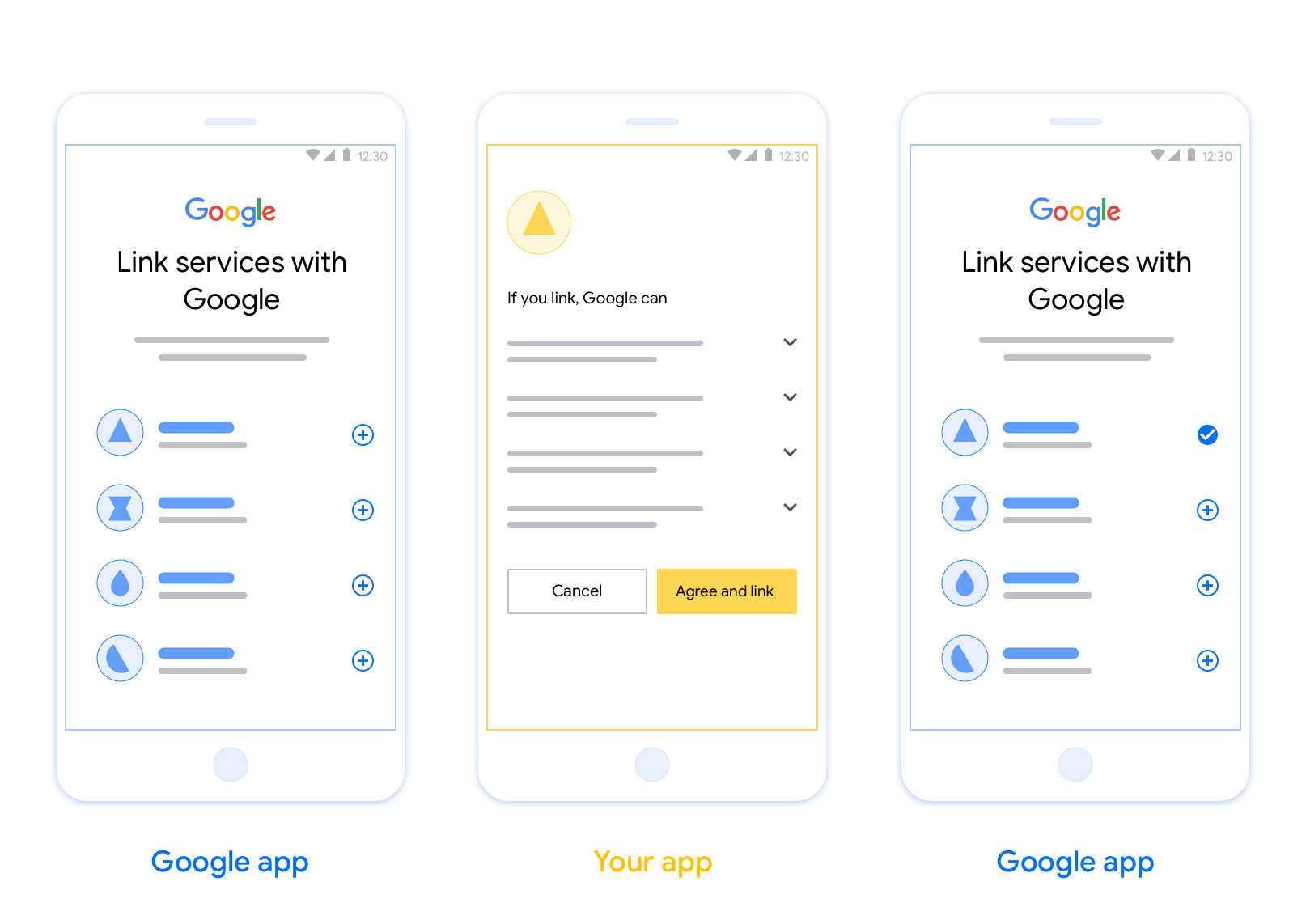
Il collegamento basato su OAuth (App Flip) consente agli utenti di collegare rapidamente i propri account nel tuo sistema di autenticazione ai loro Account Google. Se l'app è installata sullo smartphone dell'utente quando avvia la procedura di collegamento dell'account, viene reindirizzato senza problemi all'app per ottenere l'autorizzazione utente.
Questo approccio offre una procedura di collegamento più rapida, in quanto l'utente non deve reinserire il nome utente e la password per l'autenticazione. Al contrario, App Flip utilizza le credenziali dell'account dell'utente nella tua app. Una volta collegato il proprio Account Google alla tua app, l'utente può usufruire di tutte le integrazioni che hai sviluppato.
Puoi configurare App Flip sia per le app per iOS che per Android.
Requisiti
Per implementare App Flip, devi soddisfare i seguenti requisiti:
- Devi avere un'app per Android o iOS.
- Devi possedere, gestire e mantenere un server OAuth 2.0 che supporti il flusso del codice di autorizzazione OAuth 2.0.
Flusso di cambio app basato su OAuth
Il seguente diagramma di sequenza descrive in dettaglio l'interazione tra l'utente, l'app Google, la tua app e il tuo server di autorizzazione per App Flip.
Ruoli e responsabilità
La tabella seguente definisce i ruoli e le responsabilità degli attori nel flusso di cambio app.
| Attore / componente | Ruolo GAL | Responsabilità |
|---|---|---|
| App / server Google | Client OAuth | Avvia la procedura di collegamento, attiva un deep link alla tua app mobile, scambia il codice di autorizzazione con i token e li archivia in modo sicuro per accedere alle API del tuo servizio. |
| La tua app | Agente autorizzato | Autentica l'utente (in genere utilizzando le credenziali dell'app esistenti), ottiene il consenso e recupera un codice di autorizzazione dal tuo server. |
| Il server di autorizzazione | Server di autorizzazione | Convalida i codici di autorizzazione e i token di aggiornamento ed emette token di accesso al server Google. |
Istruzioni sul design
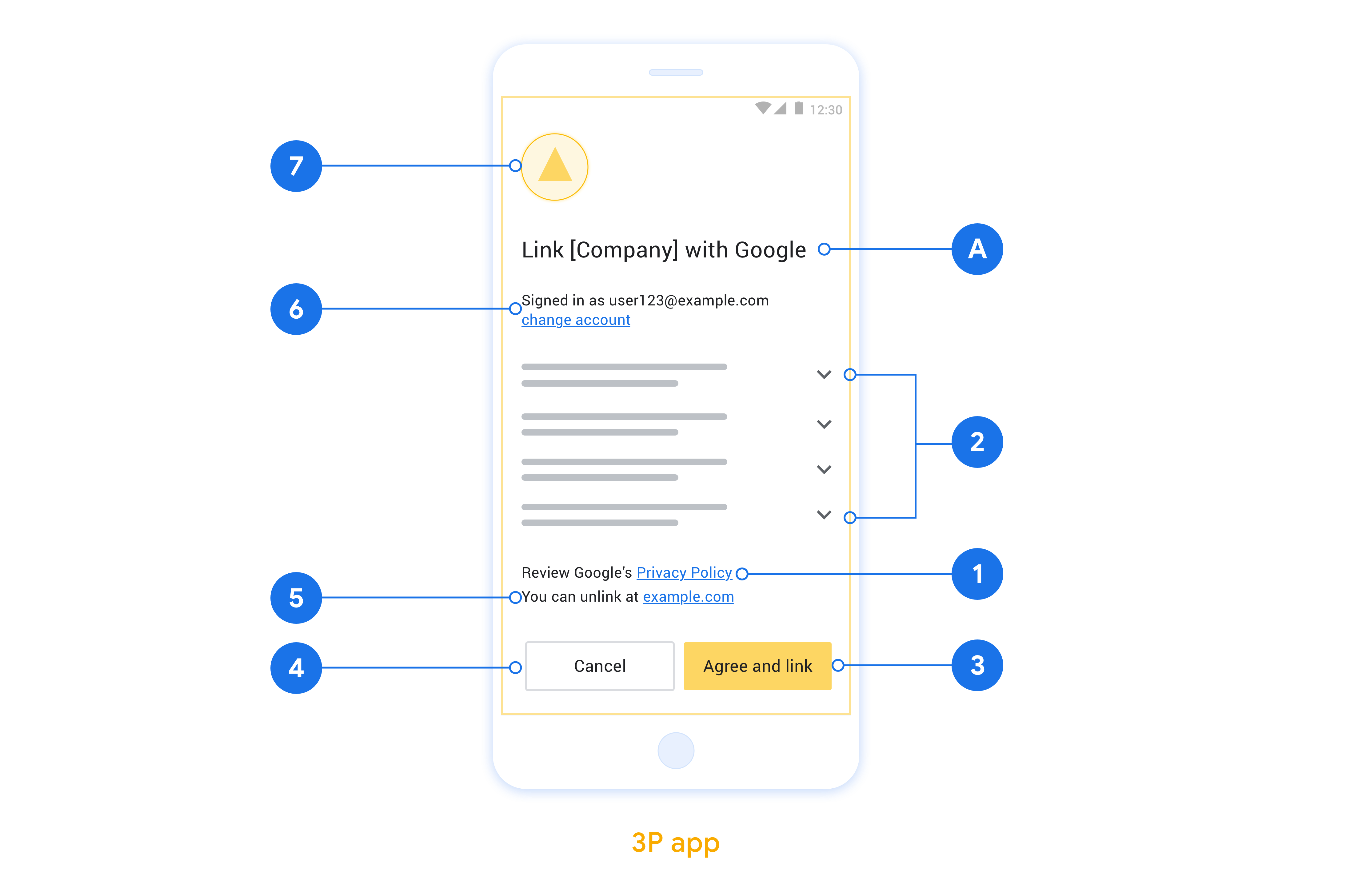
Questa sezione descrive i requisiti e i consigli di progettazione per la schermata di consenso per il collegamento dell'account App Flip. Dopo che Google chiama la tua app, quest'ultima mostra la schermata di consenso all'utente.
Requisiti
- Devi comunicare che l'account dell'utente viene collegato a Google, non a un prodotto Google specifico, come Google Home o l'Assistente Google.
Consigli
Ti consigliamo di procedere come segue:
Visualizza le Norme sulla privacy di Google. Includi un link alle Norme sulla privacy di Google nella schermata per il consenso.
Dati da condividere. Utilizza un linguaggio chiaro e conciso per comunicare all'utente quali dati di sua proprietà sono richiesti da Google e perché.
Invito all'azione chiaro. Indica un invito all'azione chiaro nella schermata del consenso, ad esempio "Accetta e collega". Questo perché gli utenti devono capire quali dati sono tenuti a condividere con Google per collegare i propri account.
Possibilità di rifiutare o annullare. Offri agli utenti un modo per tornare indietro, rifiutare o annullare, se scelgono di non collegare.
Possibilità di scollegare. Offri agli utenti un meccanismo per scollegare l'account, ad esempio un URL alle impostazioni dell'account sulla tua piattaforma. In alternativa, puoi includere un link all'Account Google in cui gli utenti possono gestire il proprio account collegato.
Possibilità di cambiare account utente. Suggerisci un metodo per consentire agli utenti di cambiare i propri account. Ciò è particolarmente utile se gli utenti tendono ad avere più account.
- Se un utente deve chiudere la schermata del consenso per cambiare account, invia un errore recuperabile a Google in modo che l'utente possa accedere all'account desiderato con il collegamento OAuth e il flusso implicito.
Includi il tuo logo. Mostrare il logo della tua azienda nella schermata del consenso. Utilizza le linee guida di stile per posizionare il logo. Se vuoi mostrare anche il logo di Google, consulta Loghi e marchi.
Implementare App Flip nelle tue app
Per implementare App Flip, devi modificare il codice di autorizzazione utente nella tua app in modo che accetti un link diretto da Google.
Per supportare app flip nella tua app per Android, segui le istruzioni riportate nella guida all'implementazione per Android.
Per supportare App Flip nella tua app iOS, segui le istruzioni riportate nella guida all'implementazione per iOS.
Testare App Flip
App Flip può essere simulato utilizzando app di esempio e di test prima che siano disponibili app di produzione verificate e un server OAuth 2.0 funzionante.
Durante App Flip, un'app Google aprirà prima la tua app, che poi richiederà una risposta del codice di autorizzazione dal tuo server OAuth 2.0. Nell'ultimo passaggio, la risposta viene restituita all'app Google.
Prerequisiti
Per simulare un'app Google e attivare l'intent che avvia la tua app, scarica e installa lo strumento di test di App Flip per Android e iOS.
Scarica e installa l'esempio di App Flip per Android e iOS per simulare la tua app e selezionare un tipo di risposta OAuth 2.0.
Sequenza di test
- Apri lo strumento di test di App Flip.
- Premi
Try Flip!per avviare l'app di esempio di App Flip. - Seleziona una risposta dai pulsanti di opzione nell'app di esempio.
- Premi
Sendper restituire una risposta OAuth 2.0 simulata allo strumento di test. - Controlla i messaggi di log dello strumento di test per i dettagli di auth_code o di errore.
Test in produzione
App Flip può essere testato in produzione dopo aver completato la registrazione e l'implementazione del server OAuth 2.0.
Per i test automatici è consigliabile utilizzare un singolo Account Google e un indirizzo email specifico per l'attività
Lo stato del collegamento degli account può essere visualizzato utilizzando Account collegati quando hai eseguito l'accesso come titolare dell'Account Google. Da qui puoi anche scollegare gli account tra test ripetuti.
Facoltativamente, puoi scegliere di implementare RISC per scollegare gli account a livello di programmazione e informare Google della modifica.