
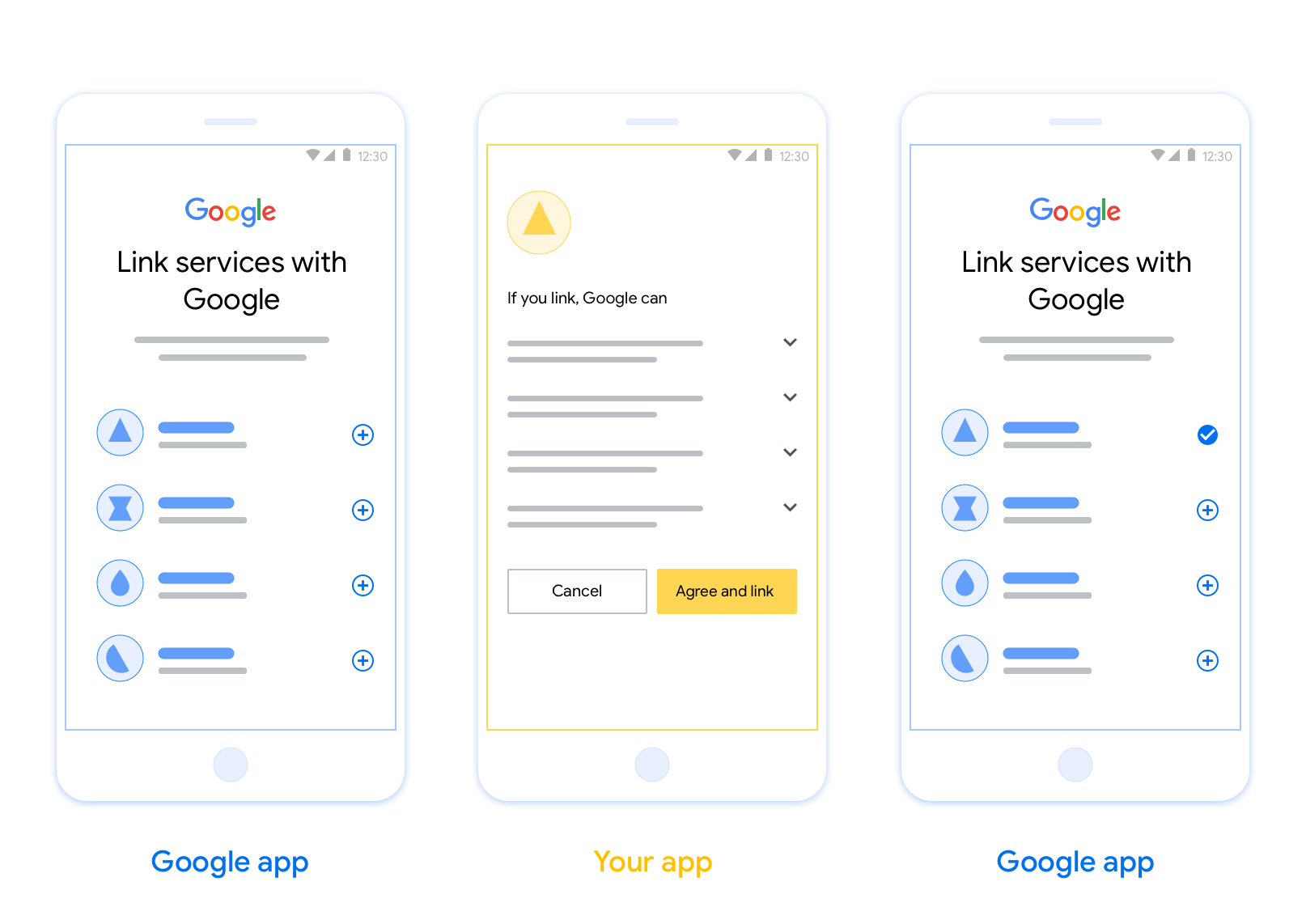
การลิงก์การสลับแอป (App Flip) ที่ใช้ OAuth ช่วยให้ผู้ใช้ลิงก์บัญชีในระบบการตรวจสอบสิทธิ์กับบัญชี Google ได้อย่างรวดเร็ว หากติดตั้งแอปในโทรศัพท์ของผู้ใช้เมื่อเริ่มกระบวนการเชื่อมต่อบัญชี ระบบจะเปลี่ยนเส้นทางผู้ใช้ไปยังแอปของคุณอย่างราบรื่นเพื่อขอรับการให้สิทธิ์จากผู้ใช้
วิธีนี้ช่วยให้กระบวนการเชื่อมต่อเร็วขึ้น เนื่องจากผู้ใช้ไม่ต้องป้อนชื่อผู้ใช้และรหัสผ่านอีกครั้งเพื่อตรวจสอบสิทธิ์ แต่ App Flip จะใช้ประโยชน์จากข้อมูลเข้าสู่ระบบจากบัญชีของผู้ใช้ในแอปของคุณ เมื่อผู้ใช้ลิงก์บัญชี Google กับแอปของคุณแล้ว ผู้ใช้จะใช้ประโยชน์จากการผสานรวมที่คุณพัฒนาขึ้นได้
คุณตั้งค่า App Flip ได้ทั้งสำหรับแอป iOS และ Android
ข้อกำหนด
หากต้องการใช้ App Flip คุณต้องมีคุณสมบัติตรงตามข้อกำหนดต่อไปนี้
- คุณต้องมีแอป Android หรือ iOS
- คุณต้องเป็นเจ้าของ จัดการ และดูแลเซิร์ฟเวอร์ OAuth 2.0 ที่รองรับขั้นตอนรหัสการให้สิทธิ์ OAuth 2.0
โฟลว์การสลับแอปที่อิงตาม OAuth
แผนภาพลำดับต่อไปนี้แสดงรายละเอียดการโต้ตอบระหว่างผู้ใช้ แอป Google, แอปของคุณ และเซิร์ฟเวอร์การให้สิทธิ์ของคุณสำหรับการสลับแอป
บทบาทและความรับผิดชอบ
ตารางต่อไปนี้จะกำหนดบทบาทและความรับผิดชอบของผู้เกี่ยวข้องในขั้นตอนการสลับแอป
| ผู้ดำเนินการ / คอมโพเนนต์ | บทบาท GAL | หน้าที่รับผิดชอบ |
|---|---|---|
| แอป / เซิร์ฟเวอร์ของ Google | ไคลเอ็นต์ OAuth | เริ่มกระบวนการเชื่อมต่อ ทริกเกอร์ Deep Link ไปยังแอปบนอุปกรณ์เคลื่อนที่ แลกรหัสการให้สิทธิ์เป็นโทเค็น และจัดเก็บโทเค็นอย่างปลอดภัย เพื่อเข้าถึง API ของบริการ |
| แอปของคุณ | ตัวแทนการให้สิทธิ์ | ตรวจสอบสิทธิ์ผู้ใช้ (โดยปกติจะใช้ข้อมูลเข้าสู่ระบบของแอปที่มีอยู่) ขอรับความยินยอม และดึงรหัสการให้สิทธิ์จากเซิร์ฟเวอร์ ของคุณ |
| เซิร์ฟเวอร์การให้สิทธิ์ของคุณ | เซิร์ฟเวอร์การให้สิทธิ์ | ตรวจสอบรหัสการให้สิทธิ์และโทเค็นการรีเฟรช และออกโทเค็นเพื่อการเข้าถึง ไปยังเซิร์ฟเวอร์ของ Google |
หลักเกณฑ์การออกแบบ
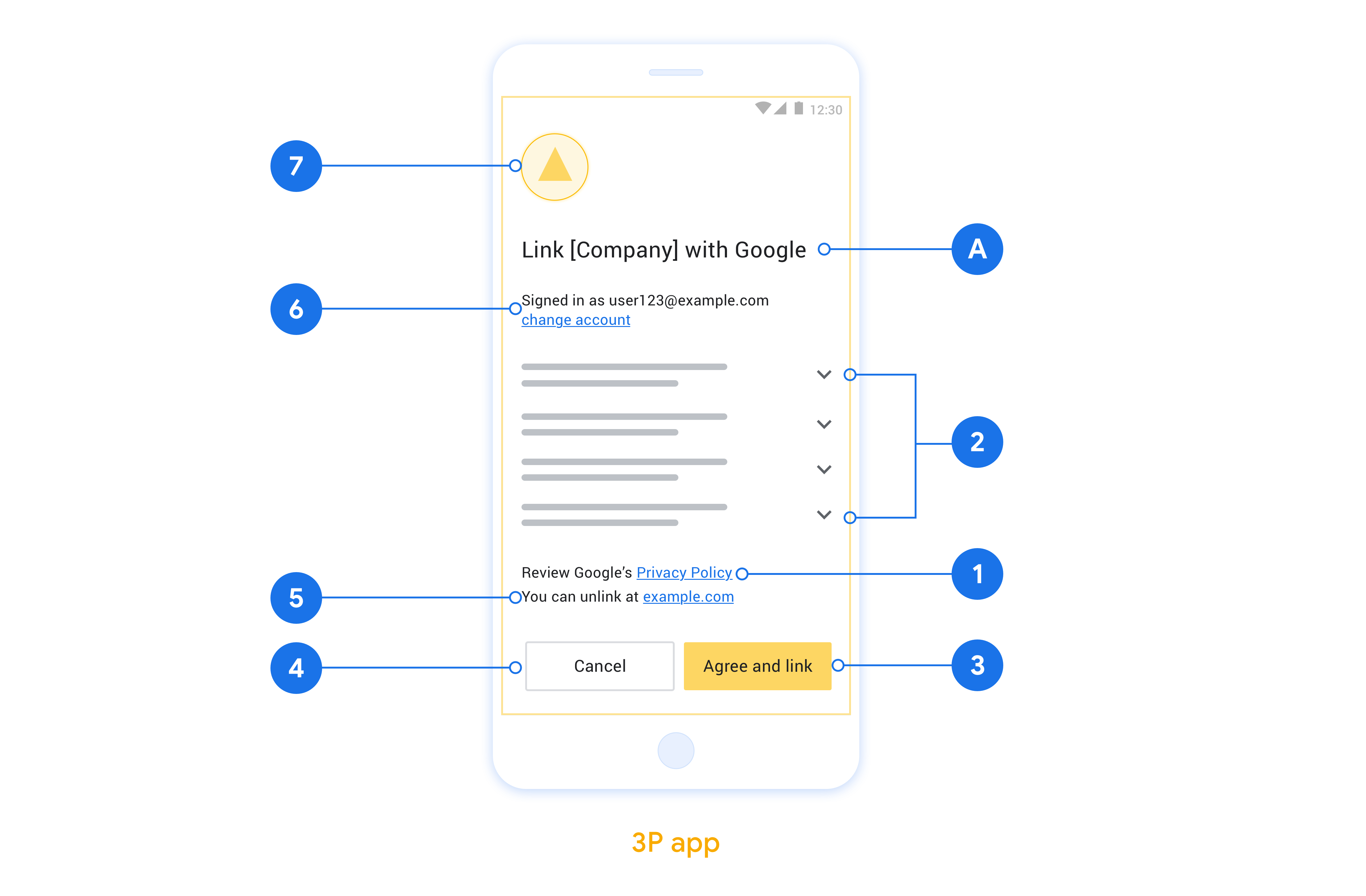
ส่วนนี้อธิบายข้อกำหนดและคำแนะนำในการออกแบบหน้าจอขอความยินยอมในการลิงก์บัญชี App Flip หลังจากที่ Google เรียกใช้แอปของคุณแล้ว แอปจะแสดงหน้าจอขอความยินยอมต่อผู้ใช้
ข้อกำหนด
- คุณต้องแจ้งว่าระบบกำลังลิงก์บัญชีของผู้ใช้กับ Google ไม่ใช่กับผลิตภัณฑ์ Google ใดผลิตภัณฑ์หนึ่ง เช่น Google Home หรือ Google Assistant
คำแนะนำ
เราขอแนะนำให้คุณทำดังนี้
แสดงนโยบายความเป็นส่วนตัวของ Google ระบุลิงก์ไปยังนโยบายความเป็นส่วนตัวของ Google ในหน้าจอขอความยินยอม
ข้อมูลที่จะแชร์ ใช้ภาษาที่ชัดเจนและกระชับเพื่อบอกผู้ใช้ว่า Google ต้องการข้อมูลใดของผู้ใช้และเพราะเหตุใด
คำกระตุ้นการตัดสินใจที่ชัดเจน ระบุคำกระตุ้นให้ดำเนินการที่ชัดเจนในหน้าจอความยินยอม เช่น "ยอมรับและลิงก์" เนื่องจากผู้ใช้จำเป็นต้องเข้าใจว่าต้องแชร์ข้อมูลใดกับ Google เพื่อลิงก์บัญชี
ความสามารถในการปฏิเสธหรือยกเลิก จัดให้ผู้ใช้มีตัวเลือกในการย้อนกลับ ปฏิเสธ หรือยกเลิก หากเลือกที่จะไม่ลิงก์
ความสามารถในการยกเลิกการลิงก์ มีกลไกให้ผู้ใช้ยกเลิกการลิงก์ เช่น URL ไปยังการตั้งค่าบัญชีในแพลตฟอร์มของคุณ หรือคุณจะใส่ลิงก์ไปยังบัญชี Google ที่ผู้ใช้ สามารถจัดการบัญชีที่ลิงก์ได้ก็ได้
ความสามารถในการเปลี่ยนบัญชีผู้ใช้ แนะนำวิธีให้ผู้ใช้เปลี่ยนบัญชี ซึ่งจะเป็นประโยชน์อย่างยิ่งหากผู้ใช้มีแนวโน้มที่จะมี หลายบัญชี
- หากผู้ใช้ต้องปิดหน้าจอขอความยินยอมเพื่อเปลี่ยนบัญชี ให้ส่งข้อผิดพลาดที่กู้คืนได้ไปยัง Google เพื่อให้ผู้ใช้ลงชื่อเข้าใช้บัญชีที่ต้องการได้ด้วยการลิงก์ OAuth และโฟลว์โดยนัย
ใส่โลโก้ของคุณ แสดงโลโก้บริษัทในหน้าจอขอความยินยอม ใช้หลักเกณฑ์ด้านสไตล์เพื่อวางโลโก้ หากต้องการแสดงโลโก้ของ Google ด้วย โปรดดูโลโก้และเครื่องหมายการค้า
ใช้ App Flip ในแอป
หากต้องการใช้ App Flip คุณต้องแก้ไขรหัสการให้สิทธิ์ผู้ใช้ในแอปเพื่อยอมรับ Deep Link จาก Google
หากต้องการรองรับ App Flip ในแอป Android ให้ทำตามวิธีการในคู่มือการติดตั้งใช้งาน Android
หากต้องการรองรับ App Flip ในแอป iOS ให้ทำตามวิธีการในคู่มือการติดตั้งใช้งาน iOS
ทดสอบ App Flip
คุณอาจจำลองการพลิกแอปโดยใช้แอปตัวอย่างและแอปทดสอบก่อนที่จะมีแอปเวอร์ชันที่ใช้งานจริงที่ผ่านการยืนยันและเซิร์ฟเวอร์ OAuth 2.0 ที่ใช้งานได้
ในระหว่าง App Flip แอป Google จะเปิดแอปของคุณก่อน จากนั้นจะขอการตอบกลับรหัสการให้สิทธิ์จากเซิร์ฟเวอร์ OAuth 2.0 ของคุณ ในขั้นตอนสุดท้าย ระบบจะส่งการตอบกลับไปยังแอป Google
ข้อกำหนดเบื้องต้น
หากต้องการจำลองแอป Google และทริกเกอร์ Intent ที่เปิดแอปของคุณ ให้ดาวน์โหลดและติดตั้ง App Flip Test Tool สำหรับ Android และ iOS
ดาวน์โหลดและติดตั้ง App Flip Sample สำหรับ Android และ iOS เพื่อจำลองแอปและเลือกประเภทการตอบกลับ OAuth 2.0
ลำดับการทดสอบ
- เปิดเครื่องมือทดสอบการสลับแอป
- กด
Try Flip!เพื่อเปิดแอปตัวอย่าง App Flip - เลือกคำตอบจากปุ่มตัวเลือกในแอปตัวอย่าง
- กด
Sendเพื่อส่งการตอบกลับ OAuth 2.0 ที่จำลองกลับไปยังเครื่องมือทดสอบ - ตรวจสอบข้อความบันทึกของเครื่องมือทดสอบเพื่อดูรายละเอียด auth_code หรือข้อผิดพลาด
การทดสอบเวอร์ชันที่ใช้งานจริง
คุณอาจทดสอบ App Flip ในเวอร์ชันที่ใช้งานจริงได้หลังจากทำการลงทะเบียนและการติดตั้งใช้งานเซิร์ฟเวอร์ OAuth 2.0 เสร็จสมบูรณ์
เราขอแนะนำให้ใช้บัญชี Google เดียวและ อีเมลเฉพาะงาน สำหรับการทดสอบอัตโนมัติ
คุณดูสถานะการลิงก์บัญชีได้โดยใช้บัญชีที่ลิงก์เมื่อลงชื่อเข้าใช้ในฐานะ ผู้ถือบัญชี Google นอกจากนี้ ระบบอาจยกเลิกการลิงก์บัญชีระหว่างการทดสอบซ้ำๆ จาก ที่นี่ด้วย
คุณอาจเลือกใช้ RISC เพื่อ ยกเลิกการลิงก์และแจ้งให้ Google ทราบถึงการเปลี่ยนแปลงโดยอัตโนมัติ