개요
OAuth 기반 Google로 로그인 간소화된 연결은 OAuth 연결 위에 Google로 로그인을 추가합니다. 이를 통해 Google 사용자는 원활한 연결 환경을 이용할 수 있으며 계정 생성도 가능하므로 사용자는 Google 계정을 사용하여 서비스에 새 계정을 만들 수 있습니다.
OAuth 및 Google로 로그인을 사용하여 계정 연결을 실행하려면 다음 일반 단계를 따르세요.
- 먼저 사용자에게 Google 프로필에 액세스할 수 있는 동의를 요청합니다.
- 프로필의 정보를 사용하여 사용자 계정이 있는지 확인합니다.
- 기존 사용자의 경우 계정을 연결합니다.
- 인증 시스템에서 Google 사용자와 일치하는 항목을 찾을 수 없는 경우 Google에서 수신한 ID 토큰을 확인합니다. 그런 다음 ID 토큰에 포함된 프로필 정보를 기반으로 사용자를 만들 수 있습니다.
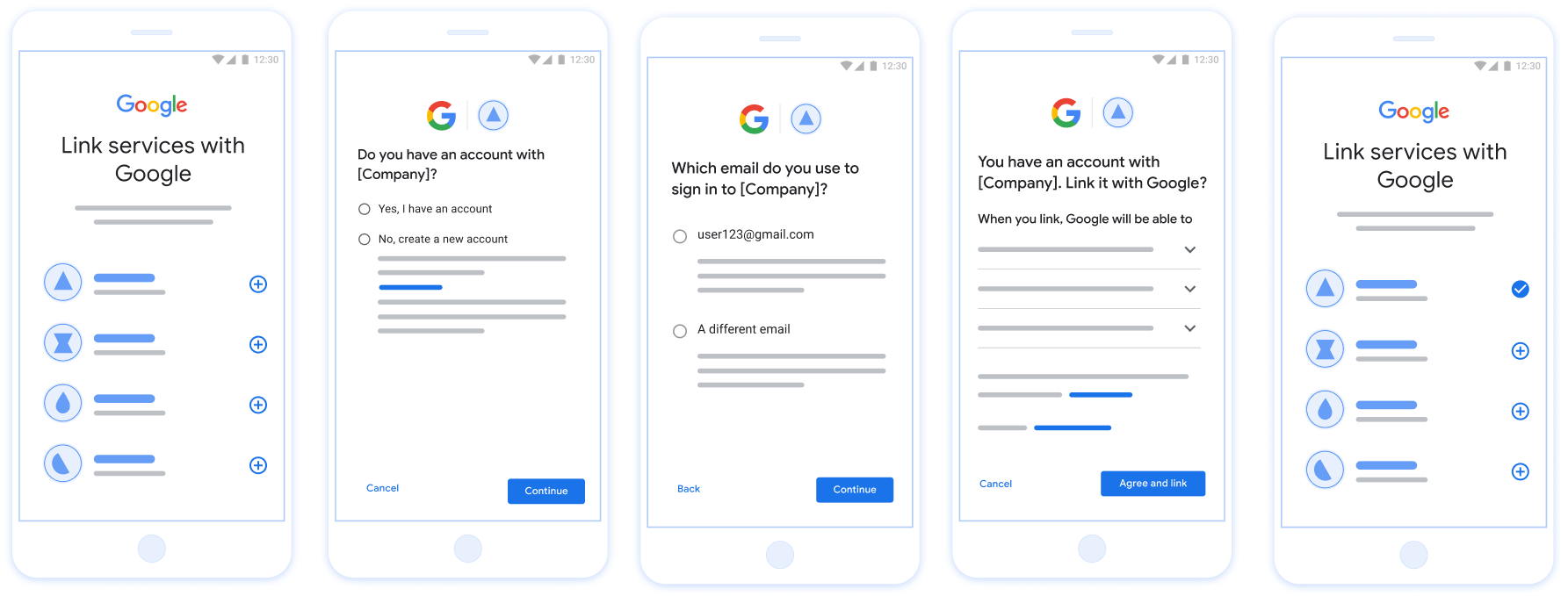
그림 1. 간소화된 연결을 사용하여 사용자 휴대전화에서 계정 연결
간소화된 연결: OAuth + Google로 로그인 흐름
다음 시퀀스 다이어그램은 간소화된 연결을 위한 사용자, Google, 토큰 교환 엔드포인트 간의 상호작용을 자세히 보여줍니다.
역할 및 책임
다음 표에서는 간소화된 연결 흐름에서 액터의 역할과 책임을 정의합니다.
| 액터 / 구성요소 | 전체 주소록 역할 | 책임 |
|---|---|---|
| Google 앱 / 서버 | OAuth 클라이언트 | Google로 로그인에 대한 사용자 동의를 얻고, ID 어설션 (JWT)을 서버에 전달하고, 결과 토큰을 안전하게 저장합니다. |
| 토큰 교환 엔드포인트 | ID 공급업체 / 승인 서버 | ID 어설션을 확인하고, 기존 계정을 확인하고, 계정 연결 인텐트 (check, get, create)를 처리하고, 요청된 인텐트를 기반으로 토큰을 발급합니다. |
| 서비스 API | 리소스 서버 | 유효한 액세스 토큰이 제공되면 사용자 데이터에 대한 액세스 권한을 제공합니다. |
간소화된 연결 요구사항
- 기본 웹 OAuth 연결 흐름을 구현합니다. 서비스는 OAuth 2.0 호환 승인 및 토큰 교환 엔드포인트를 지원해야 합니다.
- 토큰 교환 엔드포인트는 JSON 웹 토큰 (JWT) 어설션을 지원하고
check,create, 및get인텐트를 구현해야 합니다.
OAuth 서버 구현
토큰 교환 엔드포인트는 check, create, get 인텐트를 지원해야 합니다.
다음 단계에 따라 계정 연결 흐름을 완료하고 다양한 인텐트가 사용되는 시점을 알아보세요.
- 사용자가 인증 시스템에 계정을 보유하고 있나요? (사용자가 '예' 또는 '아니요'를 선택하여 결정)
- 예 : 사용자가 Google 계정과 연결된 이메일을 사용하여 플랫폼에 로그인하나요? (사용자가 '예' 또는 '아니요'를 선택하여 결정)
- 예 : 사용자가 인증 시스템에 일치하는 계정을 보유하고 있나요? (
check intent가 호출되어 확인)- 예 :
get intent가 호출되고 get intent가 성공적으로 반환되면 계정이 연결됩니다. - 아니요 : 새 계정을 만드시겠어요? (사용자가 '예' 또는 '아니요'를 선택하여 결정)
- 예 :
create intent가 호출되고 create intent가 성공적으로 반환되면 계정이 연결됩니다. - 아니요 : 웹 OAuth 흐름이 트리거되고 사용자가 브라우저로 리디렉션되며 사용자에게 다른 이메일로 연결할 수 있는 옵션이 제공됩니다.
- 예 :
- 예 :
- 아니요 : 웹 OAuth 흐름이 트리거되고 사용자가 브라우저로 리디렉션되며 사용자에게 다른 이메일로 연결할 수 있는 옵션이 제공됩니다.
- 예 : 사용자가 인증 시스템에 일치하는 계정을 보유하고 있나요? (
- 아니요 : 사용자가 인증 시스템에 일치하는 계정을 보유하고 있나요? (
check intent가 호출되어 확인)- 예 :
get intent가 호출되고 get intent가 성공적으로 반환되면 계정이 연결됩니다. - 아니요 :
create intent가 호출되고 create intent가 성공적으로 반환되면 계정이 연결됩니다.
- 예 :
- 예 : 사용자가 Google 계정과 연결된 이메일을 사용하여 플랫폼에 로그인하나요? (사용자가 '예' 또는 '아니요'를 선택하여 결정)
Check for an existing user account (check intent)
After the user gives consent to access their Google profile, Google sends a request that contains a signed assertion of the Google user's identity. The assertion contains information that includes the user's Google Account ID, name, and email address. The token exchange endpoint configured for your project handles that request.
If the corresponding Google account is already present in your authentication
system, your token exchange endpoint responds with account_found=true. If the
Google account doesn't match an existing user, your token exchange endpoint
returns an HTTP 404 Not Found error with account_found=false.
The request has the following form:
POST /token HTTP/1.1 Host: oauth2.example.com Content-Type: application/x-www-form-urlencoded grant_type=urn:ietf:params:oauth:grant-type:jwt-bearer&intent=check&assertion=JWT&scope=SCOPES&client_id=GOOGLE_CLIENT_ID&client_secret=GOOGLE_CLIENT_SECRET
Your token exchange endpoint must be able to handle the following parameters:
| Token endpoint parameters | |
|---|---|
intent |
For these requests, the value of this parameter is
check. |
grant_type |
The type of token being exchanged. For these requests, this
parameter has the value urn:ietf:params:oauth:grant-type:jwt-bearer. |
assertion |
A JSON Web Token (JWT) that provides a signed assertion of the Google user's identity. The JWT contains information that includes the user's Google Account ID, name, and email address. |
client_id |
The client ID you assigned to Google. |
client_secret |
The client secret you assigned to Google. |
To respond to the check intent requests, your token exchange endpoint must perform the following steps:
- Validate and decode the JWT assertion.
- Check if the Google account is already present in your authentication system.
Validate and decode the JWT assertion
You can validate and decode the JWT assertion by using a JWT-decoding library for your language. Use Google's public keys, available in JWK or PEM formats, to verify the token's signature.
When decoded, the JWT assertion looks like the following example:
{ "sub": "1234567890", // The unique ID of the user's Google Account "iss": "https://accounts.google.com", // The assertion's issuer "aud": "123-abc.apps.googleusercontent.com", // Your server's client ID "iat": 233366400, // Unix timestamp of the assertion's creation time "exp": 233370000, // Unix timestamp of the assertion's expiration time "name": "Jan Jansen", "given_name": "Jan", "family_name": "Jansen", "email": "jan@gmail.com", // If present, the user's email address "email_verified": true, // true, if Google has verified the email address "hd": "example.com", // If present, the host domain of the user's GSuite email address // If present, a URL to user's profile picture "picture": "https://lh3.googleusercontent.com/a-/AOh14GjlTnZKHAeb94A-FmEbwZv7uJD986VOF1mJGb2YYQ", "locale": "en_US" // User's locale, from browser or phone settings }
In addition to verifying the token's signature, verify that the assertion's
issuer (iss field) is https://accounts.google.com, that the audience
(aud field) is your assigned client ID, and that the token has not expired
(exp field).
Using the email, email_verified and hd fields you can determine if
Google hosts and is authoritative for an email address. In cases where Google is
authoritative the user is currently known to be the legitimate account owner
and you may skip password or other challenges methods. Otherwise, these methods
can be used to verify the account prior to linking.
Cases where Google is authoritative:
emailhas a@gmail.comsuffix, this is a Gmail account.email_verifiedis true andhdis set, this is a G Suite account.
Users may register for Google Accounts without using Gmail or G Suite. When
email does not contain a @gmail.com suffix and hd is absent Google is not
authoritative and password or other challenge methods are recommended to verify
the user. email_verified can also be true as Google initially verified the
user when the Google account was created, however ownership of the third party
email account may have since changed.
Check if the Google account is already present in your authentication system
Check whether either of the following conditions are true:
- The Google Account ID, found in the assertion's
subfield, is in your user database. - The email address in the assertion matches a user in your user database.
If either condition is true, the user has already signed up. In that case, return a response like the following:
HTTP/1.1 200 Success
Content-Type: application/json;charset=UTF-8
{
"account_found":"true",
}
If neither the Google Account ID nor the email address specified in the
assertion matches a user in your database, the user hasn't signed up yet. In
this case, your token exchange endpoint needs to reply with a HTTP 404 error
that specifies "account_found": "false", as in the following example:
HTTP/1.1 404 Not found
Content-Type: application/json;charset=UTF-8
{
"account_found":"false",
}
Handle automatic linking (get intent)
After the user gives consent to access their Google profile, Google sends a request that contains a signed assertion of the Google user's identity. The assertion contains information that includes the user's Google Account ID, name, and email address. The token exchange endpoint configured for your project handles that request.
If the corresponding Google Account is already present in your authentication
system, your token exchange endpoint returns a token for the user. If the
Google Account doesn't match an existing user, your token exchange endpoint
returns a linking_error error and optional login_hint.
The request has the following form:
POST /token HTTP/1.1 Host: oauth2.example.com Content-Type: application/x-www-form-urlencoded grant_type=urn:ietf:params:oauth:grant-type:jwt-bearer&intent=get&assertion=JWT&scope=SCOPES&client_id=GOOGLE_CLIENT_ID&client_secret=GOOGLE_CLIENT_SECRET
Your token exchange endpoint must be able to handle the following parameters:
| Token endpoint parameters | |
|---|---|
intent |
For these requests, the value of this parameter is get. |
grant_type |
The type of token being exchanged. For these requests, this
parameter has the value urn:ietf:params:oauth:grant-type:jwt-bearer. |
assertion |
A JSON Web Token (JWT) that provides a signed assertion of the Google user's identity. The JWT contains information that includes the user's Google Account ID, name, and email address. |
scope |
Optional: Any scopes that you've configured Google to request from users. |
client_id |
The client ID you assigned to Google. |
client_secret |
The client secret you assigned to Google. |
To respond to the get intent requests, your token exchange endpoint must perform the following steps:
- Validate and decode the JWT assertion.
- Check if the Google account is already present in your authentication system.
Validate and decode the JWT assertion
You can validate and decode the JWT assertion by using a JWT-decoding library for your language. Use Google's public keys, available in JWK or PEM formats, to verify the token's signature.
When decoded, the JWT assertion looks like the following example:
{ "sub": "1234567890", // The unique ID of the user's Google Account "iss": "https://accounts.google.com", // The assertion's issuer "aud": "123-abc.apps.googleusercontent.com", // Your server's client ID "iat": 233366400, // Unix timestamp of the assertion's creation time "exp": 233370000, // Unix timestamp of the assertion's expiration time "name": "Jan Jansen", "given_name": "Jan", "family_name": "Jansen", "email": "jan@gmail.com", // If present, the user's email address "email_verified": true, // true, if Google has verified the email address "hd": "example.com", // If present, the host domain of the user's GSuite email address // If present, a URL to user's profile picture "picture": "https://lh3.googleusercontent.com/a-/AOh14GjlTnZKHAeb94A-FmEbwZv7uJD986VOF1mJGb2YYQ", "locale": "en_US" // User's locale, from browser or phone settings }
In addition to verifying the token's signature, verify that the assertion's
issuer (iss field) is https://accounts.google.com, that the audience
(aud field) is your assigned client ID, and that the token has not expired
(exp field).
Using the email, email_verified and hd fields you can determine if
Google hosts and is authoritative for an email address. In cases where Google is
authoritative the user is currently known to be the legitimate account owner
and you may skip password or other challenges methods. Otherwise, these methods
can be used to verify the account prior to linking.
Cases where Google is authoritative:
emailhas a@gmail.comsuffix, this is a Gmail account.email_verifiedis true andhdis set, this is a G Suite account.
Users may register for Google Accounts without using Gmail or G Suite. When
email does not contain a @gmail.com suffix and hd is absent Google is not
authoritative and password or other challenge methods are recommended to verify
the user. email_verified can also be true as Google initially verified the
user when the Google account was created, however ownership of the third party
email account may have since changed.
Check if the Google account is already present in your authentication system
Check whether either of the following conditions are true:
- The Google Account ID, found in the assertion's
subfield, is in your user database. - The email address in the assertion matches a user in your user database.
If an account is found for the user, issue an access token and return the values in a JSON object in the body of your HTTPS response, like in the following example:
{ "token_type": "Bearer", "access_token": "ACCESS_TOKEN", "refresh_token": "REFRESH_TOKEN", "expires_in": SECONDS_TO_EXPIRATION }
In some cases, account linking based on ID token might fail for the user. If it
does so for any reason, your token exchange endpoint needs to reply with a HTTP
401 error that specifies error=linking_error, as the following example shows:
HTTP/1.1 401 Unauthorized
Content-Type: application/json;charset=UTF-8
{
"error":"linking_error",
"login_hint":"foo@bar.com"
}
When Google receives a 401 error response with linking_error, Google sends
the user to your authorization endpoint with login_hint as a parameter. The
user completes account linking using the OAuth linking flow in their browser.
Handle account creation using Sign in with Google (create intent)
When a user needs to create an account on your service, Google makes a request
to your token exchange endpoint that specifies intent=create.
The request has the following form:
POST /token HTTP/1.1 Host: oauth2.example.com Content-Type: application/x-www-form-urlencoded response_type=token&grant_type=urn:ietf:params:oauth:grant-type:jwt-bearer&scope=SCOPES&intent=create&assertion=JWT&client_id=GOOGLE_CLIENT_ID&client_secret=GOOGLE_CLIENT_SECRET
Your token exchange endpoint must able to handle the following parameters:
| Token endpoint parameters | |
|---|---|
intent |
For these requests, the value of this parameter is create. |
grant_type |
The type of token being exchanged. For these requests, this
parameter has the value urn:ietf:params:oauth:grant-type:jwt-bearer. |
assertion |
A JSON Web Token (JWT) that provides a signed assertion of the Google user's identity. The JWT contains information that includes the user's Google Account ID, name, and email address. |
client_id |
The client ID you assigned to Google. |
client_secret |
The client secret you assigned to Google. |
The JWT within the assertion parameter contains the user's Google Account ID,
name, and email address, which you can use to create a new account on your
service.
To respond to the create intent requests, your token exchange endpoint must perform the following steps:
- Validate and decode the JWT assertion.
- Validate user information and create new account.
Validate and decode the JWT assertion
You can validate and decode the JWT assertion by using a JWT-decoding library for your language. Use Google's public keys, available in JWK or PEM formats, to verify the token's signature.
When decoded, the JWT assertion looks like the following example:
{ "sub": "1234567890", // The unique ID of the user's Google Account "iss": "https://accounts.google.com", // The assertion's issuer "aud": "123-abc.apps.googleusercontent.com", // Your server's client ID "iat": 233366400, // Unix timestamp of the assertion's creation time "exp": 233370000, // Unix timestamp of the assertion's expiration time "name": "Jan Jansen", "given_name": "Jan", "family_name": "Jansen", "email": "jan@gmail.com", // If present, the user's email address "email_verified": true, // true, if Google has verified the email address "hd": "example.com", // If present, the host domain of the user's GSuite email address // If present, a URL to user's profile picture "picture": "https://lh3.googleusercontent.com/a-/AOh14GjlTnZKHAeb94A-FmEbwZv7uJD986VOF1mJGb2YYQ", "locale": "en_US" // User's locale, from browser or phone settings }
In addition to verifying the token's signature, verify that the assertion's
issuer (iss field) is https://accounts.google.com, that the audience
(aud field) is your assigned client ID, and that the token has not expired
(exp field).
Using the email, email_verified and hd fields you can determine if
Google hosts and is authoritative for an email address. In cases where Google is
authoritative the user is currently known to be the legitimate account owner
and you may skip password or other challenges methods. Otherwise, these methods
can be used to verify the account prior to linking.
Cases where Google is authoritative:
emailhas a@gmail.comsuffix, this is a Gmail account.email_verifiedis true andhdis set, this is a G Suite account.
Users may register for Google Accounts without using Gmail or G Suite. When
email does not contain a @gmail.com suffix and hd is absent Google is not
authoritative and password or other challenge methods are recommended to verify
the user. email_verified can also be true as Google initially verified the
user when the Google account was created, however ownership of the third party
email account may have since changed.
Validate user information and create new account
Check whether either of the following conditions are true:
- The Google Account ID, found in the assertion's
subfield, is in your user database. - The email address in the assertion matches a user in your user database.
If either condition is true, prompt the user to link their existing account
with their Google Account. To do so, respond to the request with an HTTP 401 error
that specifies error=linking_error and gives the user's email address as the
login_hint. The following is a sample response:
HTTP/1.1 401 Unauthorized
Content-Type: application/json;charset=UTF-8
{
"error":"linking_error",
"login_hint":"foo@bar.com"
}
When Google receives a 401 error response with linking_error, Google sends
the user to your authorization endpoint with login_hint as a parameter. The
user completes account linking using the OAuth linking flow in their browser.
If neither condition is true, create a new user account with the information provided in the JWT. New accounts don't typically have a password set. It's recommended that you add Sign in with Google to other platforms to enable users to sign in with Google across the surfaces of your application. Alternatively, you can email the user a link that starts your password recovery flow to allow the user to set a password to sign in on other platforms.
When the creation is completed, issue an access token and return the values in a JSON object in the body of your HTTPS response, like in the following example:
{ "token_type": "Bearer", "access_token": "ACCESS_TOKEN", "refresh_token": "REFRESH_TOKEN", "expires_in": SECONDS_TO_EXPIRATION }
Google API 클라이언트 ID 가져오기
계정 연결 등록 절차 중에 Google API 클라이언트 ID를 제공해야 합니다. OAuth 연결 단계를 완료하는 동안 만든 프로젝트를 사용하여 API 클라이언트 ID를 가져오려면 OAuth 연결 그러려면 다음 단계를 완료하세요.
- 클라이언트 페이지로 이동합니다.
Google API 프로젝트를 만들거나 선택합니다.
프로젝트에 웹 애플리케이션 유형의 클라이언트 ID가 없는 경우 클라이언트 만들기 를 클릭하여 클라이언트 ID를 만듭니다. 사이트의 도메인을 승인된 자바스크립트 원본 상자에 포함해야 합니다. 로컬 테스트 또는 개발을 실행할 때는
http://localhost와http://localhost:<port_number>를 승인된 자바스크립트 원본 필드에 모두 추가해야 합니다.
구현 확인
OAuth 2.0 Playground 도구를 사용하여 구현의 유효성을 검사할 수 있습니다.
도구에서 다음 단계를 수행합니다.
- 구성 을 클릭하여 OAuth 2.0 구성 창을 엽니다.
- OAuth 흐름 필드에서 클라이언트 측 을 선택합니다.
- OAuth 엔드포인트 필드에서 맞춤 을 선택합니다.
- 해당 필드에서 OAuth 2.0 엔드포인트와 Google에 할당한 클라이언트 ID를 지정합니다.
- 1단계 섹션에서 Google 범위를 선택하지 않습니다. 대신 이 필드를 비워 두거나 서버에 유효한 범위 (또는 OAuth 범위를 사용하지 않는 경우 임의의 문자열)를 입력합니다. 완료되면 API 승인 을 클릭합니다.
- 2단계 및 3단계 섹션에서 OAuth 2.0 흐름을 진행하고 각 단계가 의도한 대로 작동하는지 확인합니다.
Google 계정 연결 데모 도구를 사용하여 구현의 유효성을 검사할 수 있습니다.
도구에서 다음 단계를 수행합니다.
- Google 계정으로 로그인 버튼을 클릭합니다.
- 연결하려는 계정을 선택합니다.
- 서비스 ID를 입력합니다.
- 액세스 권한을 요청할 범위를 하나 이상 입력합니다(선택사항).
- 데모 시작 을 클릭합니다.
- 메시지가 표시되면 연결 요청에 동의하거나 거부할 수 있음을 확인합니다.
- 플랫폼으로 리디렉션되는지 확인합니다.