
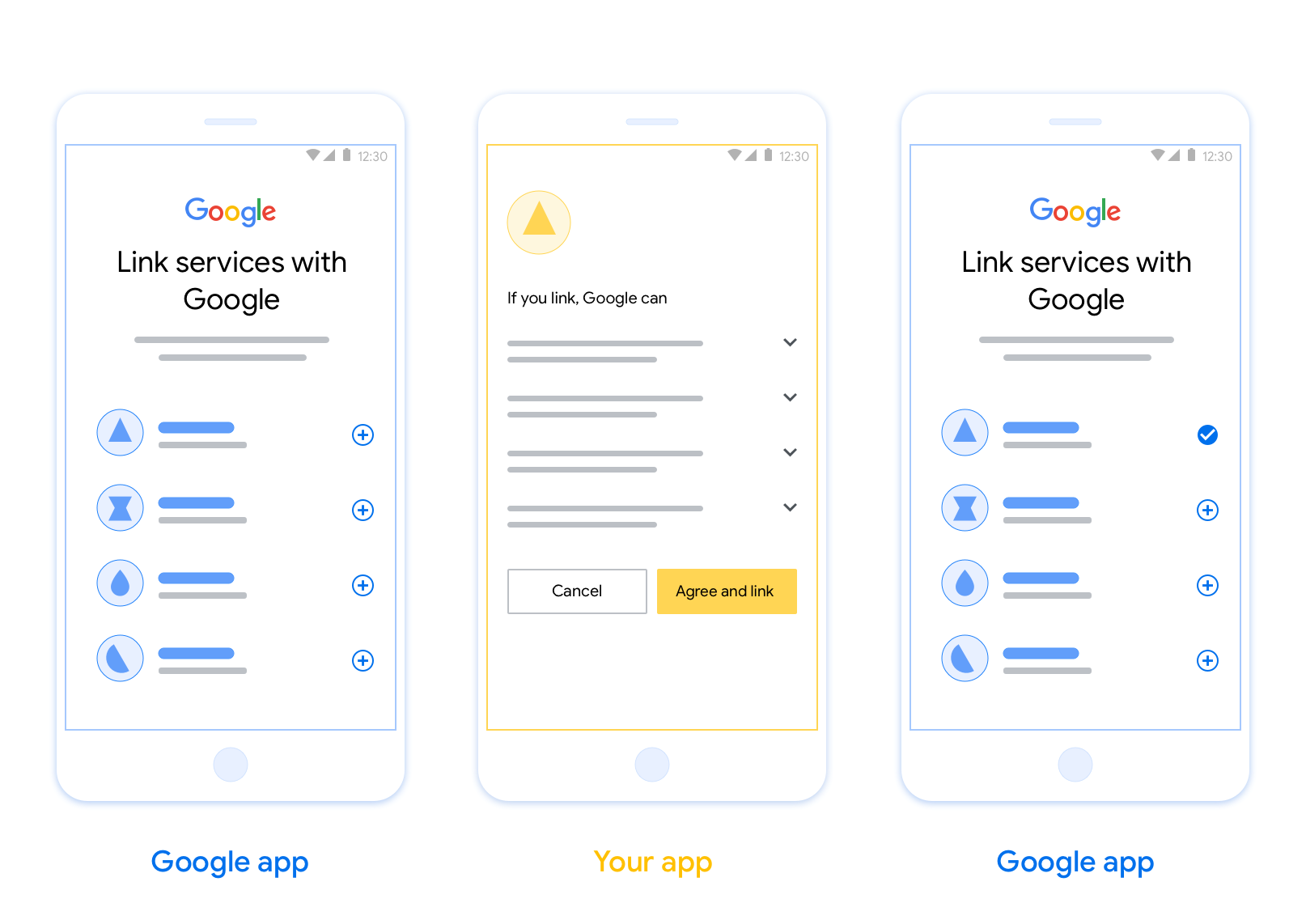
Tính năng Liên kết bằng cách chuyển đổi ứng dụng (App Flip) dựa trên OAuth cho phép người dùng nhanh chóng liên kết tài khoản của họ trong hệ thống xác thực của bạn với Tài khoản Google. Nếu ứng dụng của bạn được cài đặt trên điện thoại của người dùng khi họ bắt đầu quy trình liên kết tài khoản, thì họ sẽ được chuyển đổi liền mạch sang ứng dụng của bạn để được cấp quyền của người dùng.
Phương pháp này giúp quy trình liên kết diễn ra nhanh hơn vì người dùng không phải nhập lại tên người dùng và mật khẩu để xác thực. Thay vào đó, tính năng App Flip tận dụng thông tin xác thực từ tài khoản của người dùng trên ứng dụng của bạn. Sau khi liên kết Tài khoản Google với ứng dụng của bạn, người dùng có thể tận dụng mọi tính năng tích hợp mà bạn đã phát triển.
Bạn có thể thiết lập tính năng App Flip cho cả ứng dụng iOS và Android.
Yêu cầu
Để triển khai tính năng App Flip, bạn phải đáp ứng các yêu cầu sau:
- Bạn phải có một ứng dụng Android hoặc iOS.
- Bạn phải sở hữu, quản lý và duy trì một máy chủ OAuth 2.0 hỗ trợ quy trình sử dụng mã uỷ quyền OAuth 2.0.
Quy trình App Flip dựa trên OAuth
Sơ đồ trình tự sau đây trình bày chi tiết về sự tương tác giữa Người dùng, ứng dụng Google, Ứng dụng của bạn và Máy chủ uỷ quyền của bạn cho tính năng lật ứng dụng.
Vai trò và trách nhiệm
Bảng sau đây xác định vai trò và trách nhiệm của những người thực hiện trong quy trình App Flip.
| Người thực hiện / Thành phần | Vai trò GAL | Trách nhiệm |
|---|---|---|
| Ứng dụng / Máy chủ Google | Ứng dụng OAuth | Bắt đầu quy trình liên kết, kích hoạt một liên kết sâu đến ứng dụng di động app, trao đổi mã uỷ quyền để lấy mã thông báo và lưu trữ các mã này một cách an toàn để truy cập vào các API của dịch vụ. |
| Ứng dụng của bạn | Đại diện uỷ quyền | Xác thực người dùng (thường là bằng thông tin xác thực hiện có của ứng dụng), lấy được sự đồng ý và truy xuất mã uỷ quyền từ máy chủ của bạn. |
| Máy chủ uỷ quyền của bạn | Máy chủ uỷ quyền | Xác thực mã uỷ quyền và mã làm mới, đồng thời cấp mã truy cập cho Máy chủ Google. |
Hướng dẫn thiết kế
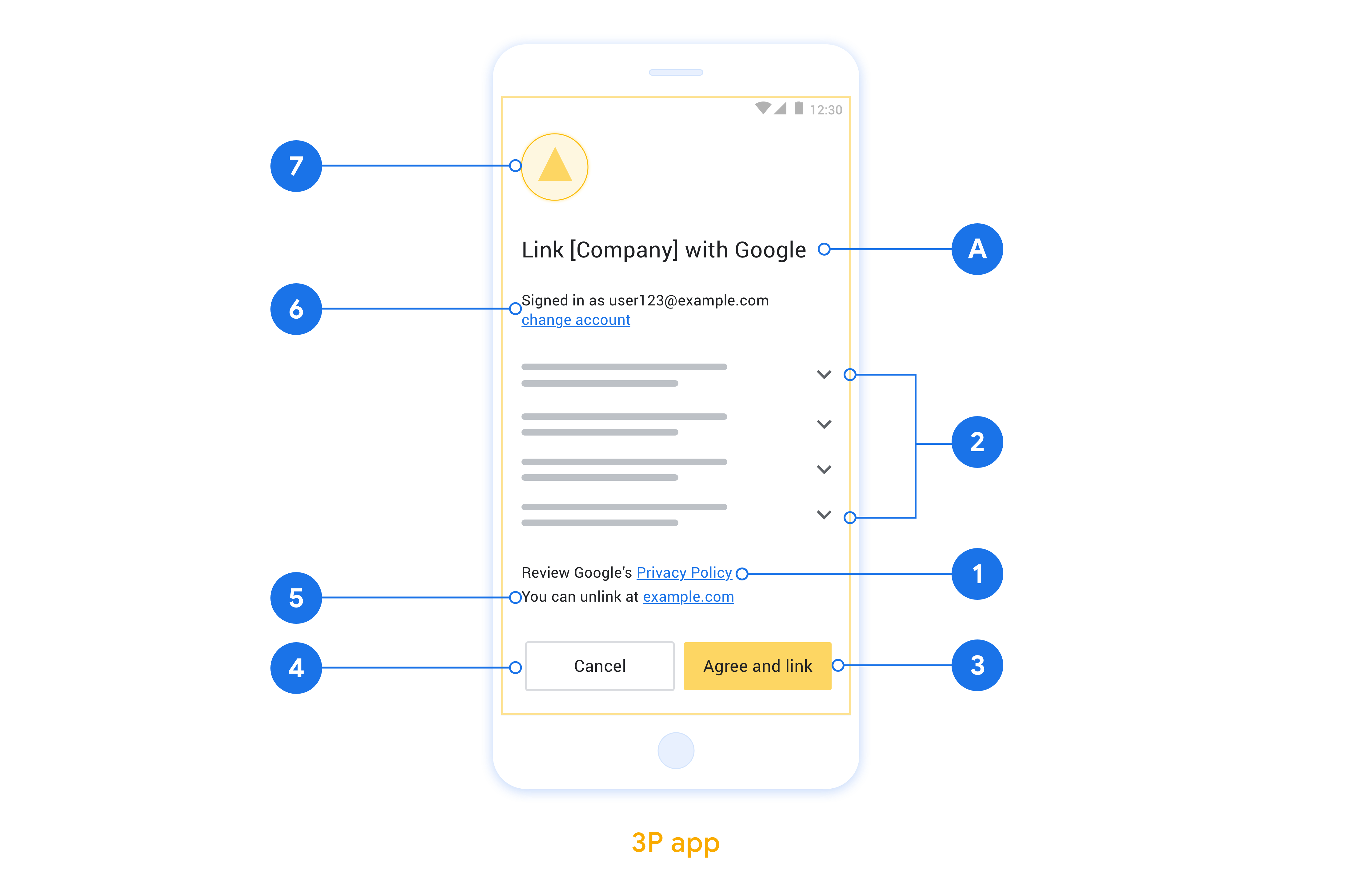
Phần này mô tả các yêu cầu và đề xuất về thiết kế cho màn hình đồng ý liên kết tài khoản AppFlip. Sau khi Google gọi ứng dụng của bạn, ứng dụng sẽ hiển thị màn hình yêu cầu sự đồng ý cho người dùng.
Yêu cầu
- Bạn phải thông báo rằng tài khoản của người dùng đang được liên kết với Google, chứ không phải với một sản phẩm cụ thể của Google, chẳng hạn như Google Home hoặc Trợ lý Google.
Đề xuất
Bạn nên thực hiện những điều sau:
Hiển thị Chính sách quyền riêng tư của Google. Cung cấp một đường liên kết đến Chính sách quyền riêng tư của Google trên màn hình xin phép.
Dữ liệu sẽ được chia sẻ. Dùng ngôn ngữ rõ ràng và súc tích để cho người dùng biết Google yêu cầu dữ liệu nào của họ và lý do tại sao.
Lời kêu gọi hành động rõ ràng. Nêu rõ lời kêu gọi hành động trên màn hình đồng ý, chẳng hạn như "Đồng ý và liên kết". Điều này là do người dùng cần hiểu rõ những dữ liệu mà họ bắt buộc phải chia sẻ với Google để liên kết tài khoản.
Có thể từ chối hoặc huỷ. Cung cấp cho người dùng cách quay lại, từ chối hoặc huỷ nếu họ chọn không liên kết.
Có thể huỷ liên kết. Cung cấp một cơ chế để người dùng huỷ liên kết, chẳng hạn như một URL đến phần cài đặt tài khoản của họ trên nền tảng của bạn. Ngoài ra, bạn có thể thêm một đường liên kết đến Tài khoản Google để người dùng có thể quản lý tài khoản được liên kết của họ.
Có thể thay đổi tài khoản người dùng. Đề xuất một phương thức để người dùng chuyển đổi(các) tài khoản của họ. Điều này đặc biệt có lợi nếu người dùng có xu hướng có nhiều tài khoản.
- Nếu người dùng phải đóng màn hình đồng ý để chuyển đổi tài khoản, hãy gửi một lỗi có thể khôi phục đến Google để người dùng có thể đăng nhập vào tài khoản mong muốn bằng tính năng liên kết OAuth và quy trình ngầm ẩn.
Thêm biểu trưng của bạn. Hiển thị biểu trưng công ty của bạn trên màn hình đồng ý. Sử dụng nguyên tắc về phong cách để đặt biểu trưng. Nếu bạn cũng muốn hiển thị biểu trưng của Google, hãy xem phần Biểu trưng và nhãn hiệu.
Triển khai tính năng Lật ứng dụng trong ứng dụng
Để triển khai tính năng Lật ứng dụng, bạn cần sửa đổi mã uỷ quyền người dùng trong ứng dụng để chấp nhận đường liên kết sâu từ Google.
Để hỗ trợ tính năng Lật ứng dụng trên ứng dụng Android, hãy làm theo hướng dẫn trong hướng dẫn triển khai Android.
Để hỗ trợ tính năng Lật ứng dụng trên ứng dụng iOS, hãy làm theo hướng dẫn trong hướng dẫn triển khai iOS.
Kiểm thử tính năng Lật ứng dụng
Bạn có thể mô phỏng tính năng Lật ứng dụng bằng các ứng dụng mẫu và ứng dụng kiểm thử trước khi có các ứng dụng sản xuất đã xác minh và một máy chủ OAuth 2.0 đang hoạt động.
Trong quá trình Lật ứng dụng, một ứng dụng Google sẽ mở ứng dụng của bạn trước tiên, sau đó yêu cầu phản hồi mã uỷ quyền từ máy chủ OAuth 2.0. Ở bước cuối cùng, phản hồi sẽ được trả về ứng dụng Google.
Điều kiện tiên quyết
Để mô phỏng một ứng dụng Google và kích hoạt ý định khởi chạy ứng dụng, hãy tải xuống và cài đặt Công cụ kiểm thử tính năng lật ứng dụng cho Android và iOS.
Tải xuống và cài đặt Ứng dụng mẫu tính năng Lật ứng dụng cho Android và iOS để mô phỏng ứng dụng của bạn và chọn một loại phản hồi OAuth 2.0.
Trình tự kiểm thử
- Mở Công cụ kiểm thử tính năng Lật ứng dụng.
- Nhấn vào
Try Flip!(Thử lật!) để khởi chạy ứng dụng mẫu tính năng Lật ứng dụng. - Chọn một phản hồi từ các nút chọn trong ứng dụng mẫu.
- Nhấn vào
Send(Gửi) để trả về phản hồi OAuth 2.0 được mô phỏng cho Công cụ kiểm thử. - Kiểm tra thông báo nhật ký của Công cụ kiểm thử để biết auth_code hoặc thông tin chi tiết về lỗi.
Kiểm thử trong môi trường sản xuất
Bạn có thể kiểm thử tính năng Lật ứng dụng trong môi trường sản xuất sau khi hoàn tất quá trình đăng ký và triển khai máy chủ OAuth 2.0.
Bạn nên sử dụng một Tài khoản Google và một địa chỉ email dành riêng cho tác vụ để kiểm thử tự động.
Bạn có thể xem trạng thái liên kết tài khoản bằng cách sử dụng Tài khoản được liên kết khi đăng nhập với tư cách là chủ sở hữu Tài khoản Google. Bạn cũng có thể huỷ liên kết tài khoản giữa các lần kiểm thử lặp lại từ đây.
Ngoài ra, bạn có thể chọn triển khai RISC để huỷ liên kết theo phương thức lập trình và thông báo cho Google về thay đổi này.