
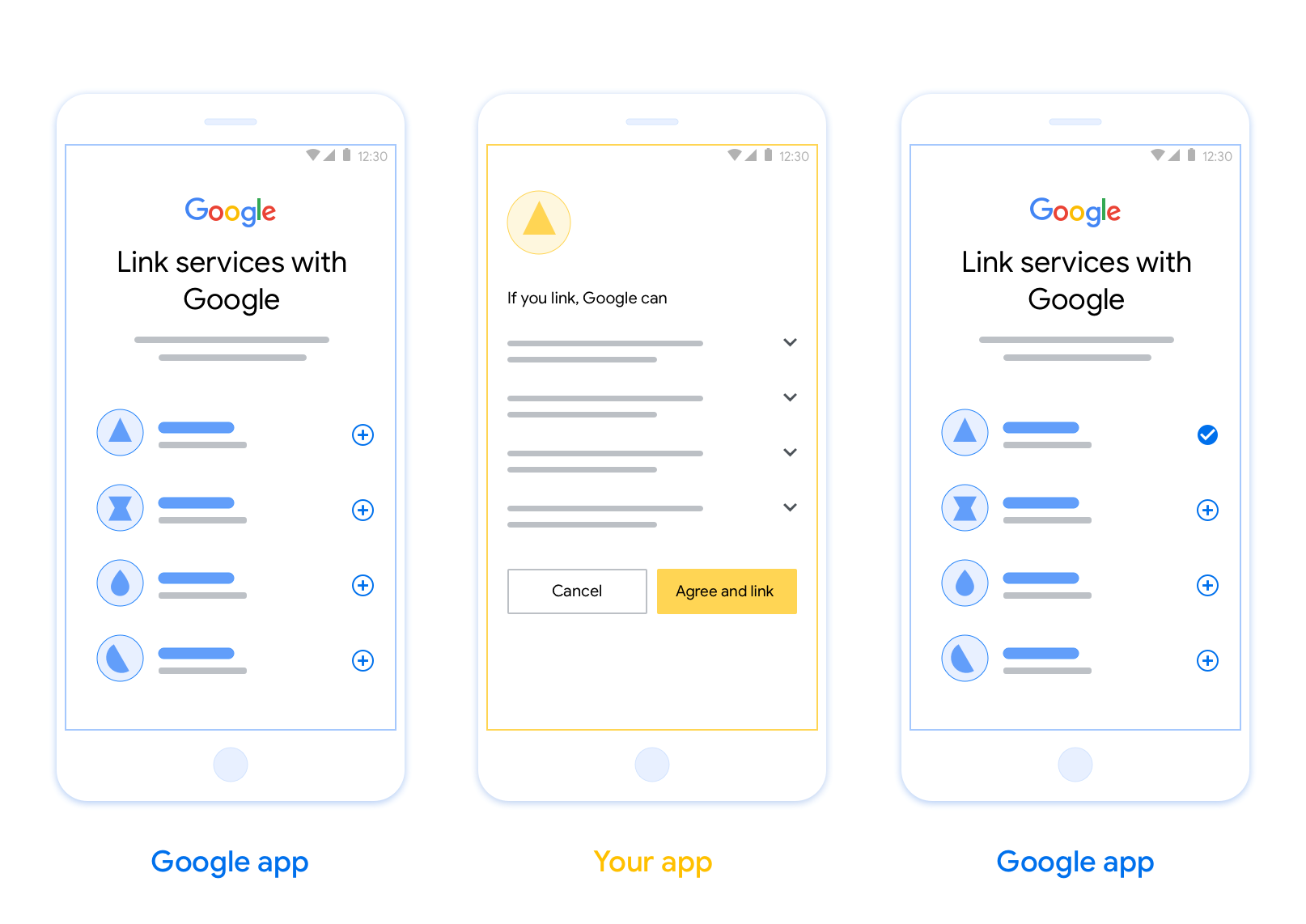
OAuth-based App Flip Linking (App Flip) allows your users to quickly link their accounts in your authentication system to their Google Accounts. If your app is installed on your user's phone when they initiate the account linking process, they are seamlessly flipped to your app to obtain user authorization.
This approach provides a faster linking process since the user does not have to re-enter their username and password to authenticate; instead, App Flip leverages the credentials from the user's account on your app. Once a user has linked their Google Account with your app, they can take advantage of any integrations that you have developed.
You can set up App Flip for both iOS and Android apps.
Requirements
To implement App Flip, you must fulfill the following requirements:
- You must have an Android or iOS app.
- You must own, manage and maintain an OAuth 2.0 server which supports the OAuth 2.0 authorization code flow.
OAuth-based App Flip Flow
The following sequence diagram details the interaction between the User, Google App, Your App, and Your Authorization Server for App Flip.
Roles and responsibilities
The following table defines the roles and responsibilities of the actors in the App Flip flow.
| Actor / Component | GAL Role | Responsibilities |
|---|---|---|
| Google App / Server | OAuth Client | Initiates the linking process, triggers a deep link to your mobile app, exchanges the authorization code for tokens, and securely stores them to access your service's APIs. |
| Your App | Authorization Agent | Authenticates the user (typically using existing app credentials), obtains consent, and retrieves an authorization code from your server. |
| Your Authorization Server | Authorization Server | Validates authorization codes and refresh tokens, and issues access tokens to the Google Server. |
Design guidelines
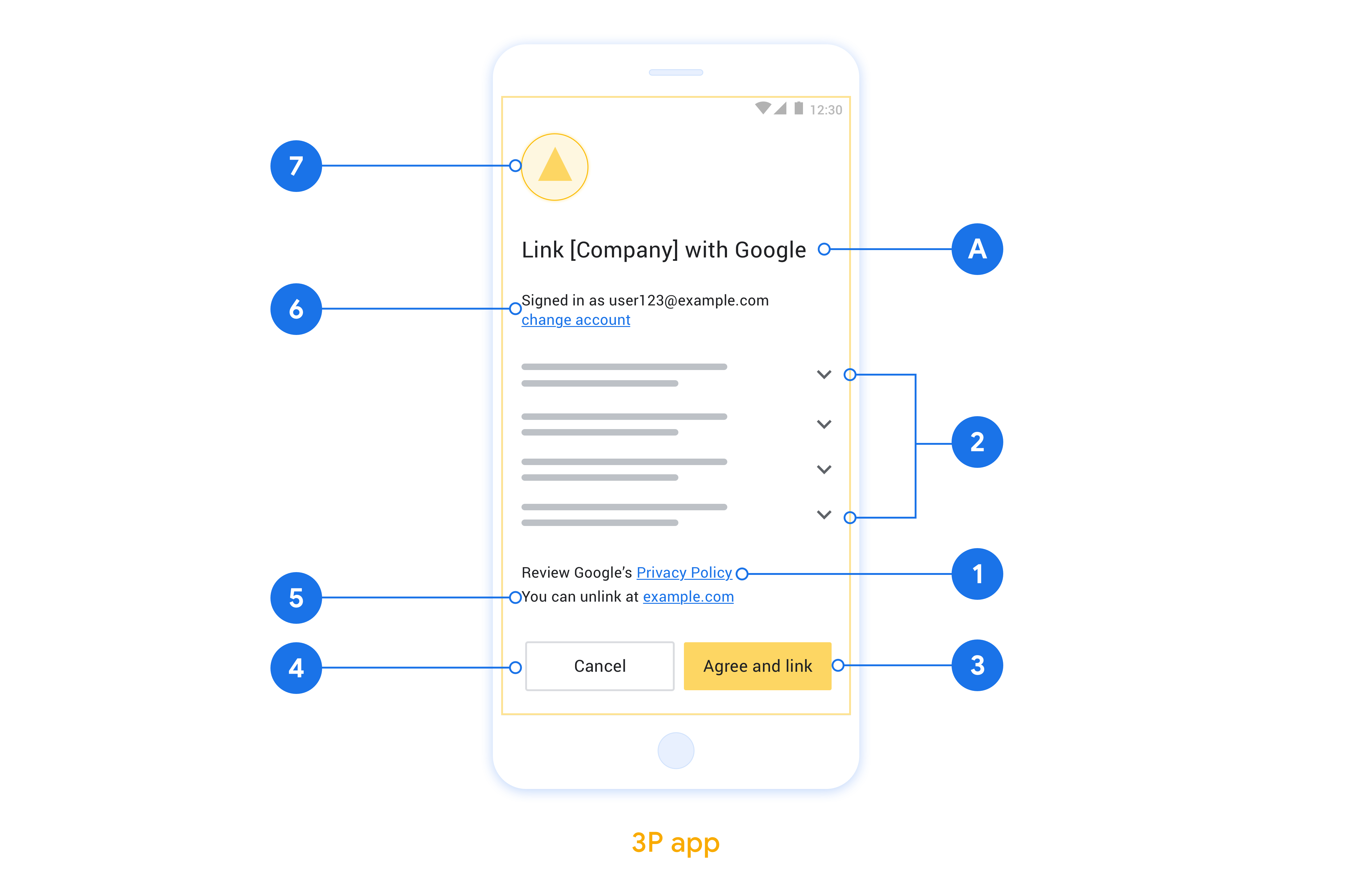
This section describes the design requirements and recommendations for the App Flip account linking consent screen. After Google calls your app, your app displays the consent screen to the user.
Requirements
- You must communicate that the user’s account is being linked to Google, not to a specific Google product, such as Google Home or Google Assistant.
Recommendations
We recommend that you do the following:
Display Google's Privacy Policy. Include a link to Google’s Privacy Policy on the consent screen.
Data to be shared. Use clear and concise language to tell the user what data of theirs Google requires and why.
Clear call-to-action. State a clear call-to-action on your consent screen, such as “Agree and link.” This is because users need to understand what data they're required to share with Google to link their accounts.
Ability to deny or cancel. Provide a way for users to go back, deny, or cancel, if they choose not to link.
Ability to unlink. Offer a mechanism for users to unlink, such as a URL to their account settings on your platform. Alternatively, you can include a link to Google Account where users can manage their linked account.
Ability to change user account. Suggest a method for users to switch their account(s). This is especially beneficial if users tend to have multiple accounts.
- If a user must close the consent screen to switch accounts, send a recoverable error to Google so the user can sign in to the desired account with OAuth linking and the implicit flow.
Include your logo. Display your company logo on the consent screen. Use your style guidelines to place your logo. If you wish to also display Google's logo, see Logos and trademarks.
Implémenter App Flip dans vos applications
Pour implémenter App Flip, vous devez modifier le code d'autorisation de l'utilisateur dans votre application afin d'accepter un lien profond de Google.
Pour prendre en charge App Flip dans votre application Android, suivez les instructions du guide d'implémentation Android.
Pour prendre en charge App Flip dans votre application iOS, suivez les instructions du guide d'implémentation iOS.
Tester l'app flip
Vous pouvez simuler l'échange d'applications à l'aide d'applications exemples et de test avant de disposer d'applications de production validées et d'un serveur OAuth 2.0 fonctionnel.
Lors du changement d'application, une application Google ouvre d'abord votre application, qui demande ensuite une réponse de code d'autorisation à votre serveur OAuth 2.0. Lors de la dernière étape, la réponse est renvoyée à l'application Google.
Prérequis
Pour simuler une application Google et déclencher l'intent qui lance votre application, téléchargez et installez l'outil de test App Flip pour Android et iOS.
Téléchargez et installez l'exemple App Flip pour Android et iOS afin de simuler votre application et de sélectionner un type de réponse OAuth 2.0.
Séquence de test
- Ouvrez l'outil de test App Flip.
- Appuyez sur
Try Flip!pour lancer l'application exemple App Flip. - Sélectionnez une réponse parmi les boutons radio de l'application exemple.
- Appuyez sur
Sendpour renvoyer une réponse OAuth 2.0 simulée à l'outil de test. - Consultez les messages du journal de l'outil de test pour obtenir un auth_code ou des informations sur les erreurs.
Tests en production
Vous pouvez tester App Flip en production après avoir terminé l'enregistrement et l'implémentation de votre serveur OAuth 2.0.
Il est recommandé d'utiliser un seul compte Google et une adresse e-mail spécifique à la tâche pour les tests automatisés.
L'état de l'association de comptes peut être consulté dans la section Comptes associés lorsque vous êtes connecté en tant que titulaire du compte Google. Vous pouvez également dissocier les comptes entre les tests répétés.
Vous pouvez éventuellement choisir d'implémenter RISC pour dissocier le compte de manière programmatique et informer Google de la modification.