
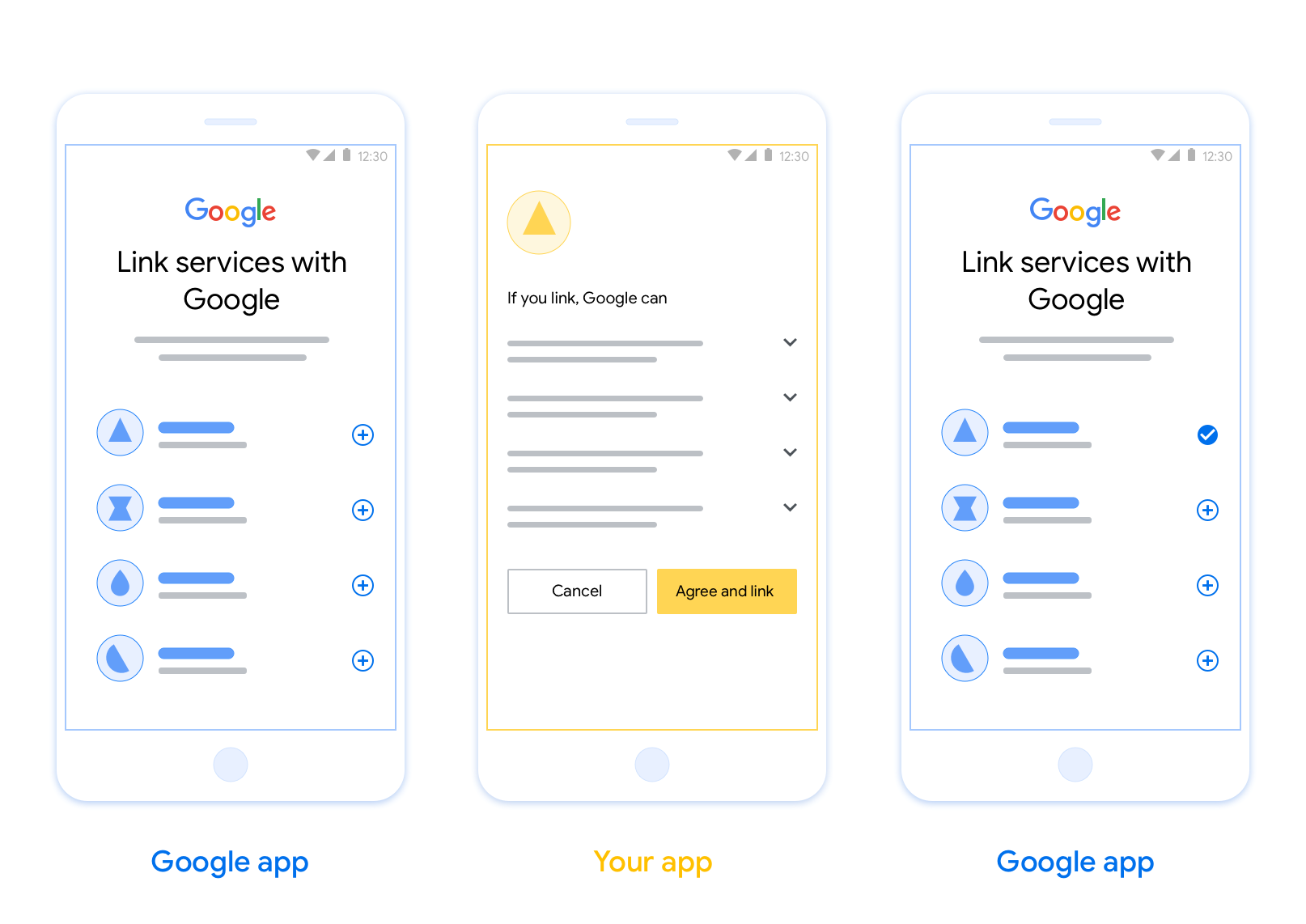
Połączenie kont za pomocą aplikacji opartej na OAuth (App Flip) umożliwia użytkownikom szybkie połączenie kont w Twoim systemie uwierzytelniania z kontami Google. Jeśli w momencie rozpoczęcia procesu łączenia konta aplikacja jest zainstalowana na telefonie użytkownika, zostanie on płynnie przekierowany do aplikacji, aby uzyskać autoryzację.
Takie podejście przyspiesza proces łączenia, ponieważ użytkownik nie musi ponownie wpisywać nazwy użytkownika i hasła, aby się uwierzytelnić. Zamiast tego funkcja App Flip wykorzystuje dane logowania z konta użytkownika w Twojej aplikacji. Gdy użytkownik połączy swoje konto Google z Twoją aplikacją, będzie mógł korzystać z dowolnych opracowanych przez Ciebie integracji.
Przejście do aplikacji możesz skonfigurować w przypadku aplikacji na iOS i Androida.
Wymagania
Aby wdrożyć App Flip, musisz spełniać te wymagania:
- Musisz mieć aplikację na Androida lub iOS.
- Musisz mieć własny serwer OAuth 2.0, który obsługuje przepływ kodu autoryzacji OAuth 2.0, oraz nim zarządzać i go utrzymywać.
Przepływ przełączania aplikacji oparty na OAuth
Poniższy diagram sekwencji przedstawia interakcję między użytkownikiem, aplikacją Google, Twoją aplikacją i Twoim serwerem autoryzacji w przypadku przełączania aplikacji.
Role i obowiązki
W tabeli poniżej znajdziesz role i obowiązki podmiotów w procesie przekierowania do aplikacji.
| Użytkownik, który wykonał czynność lub komponent | Rola GAL | Podmiot odpowiedzialny |
|---|---|---|
| Aplikacja / serwer Google | Klient OAuth | Rozpoczyna proces łączenia, wywołuje precyzyjny link do Twojej aplikacji mobilnej, wymienia kod autoryzacji na tokeny i bezpiecznie je przechowuje, aby uzyskać dostęp do interfejsów API Twojej usługi. |
| Twoja aplikacja | Agent autoryzacji | Uwierzytelnia użytkownika (zwykle za pomocą istniejących danych logowania do aplikacji), uzyskuje zgodę i pobiera kod autoryzacyjny z Twojego serwera. |
| Serwer autoryzacji | Serwer autoryzacji | Weryfikuje kody autoryzacji i tokeny odświeżania oraz wydaje tokeny dostępu serwerowi Google. |
Wskazówki dotyczące wyglądu
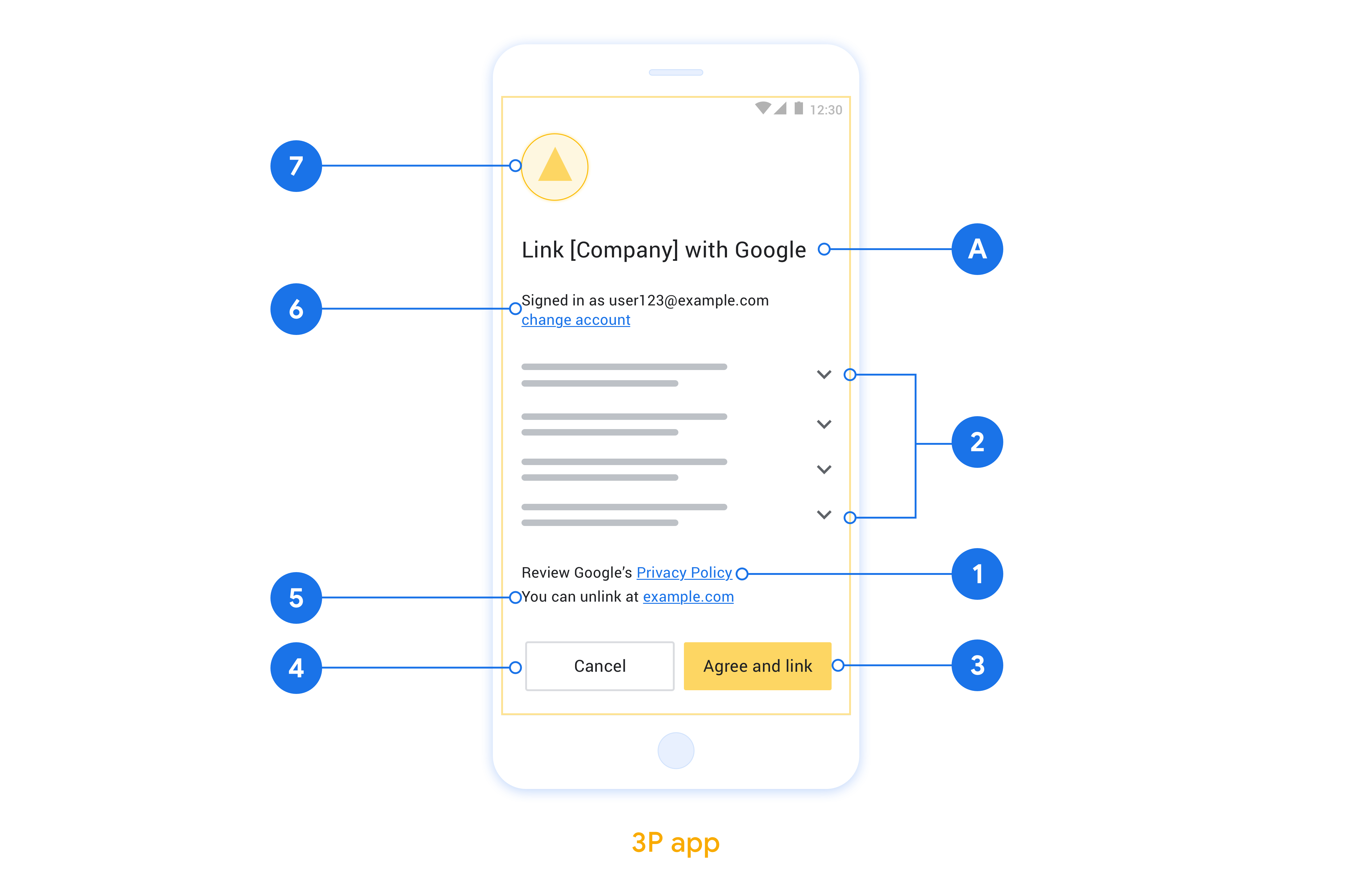
W tej sekcji opisujemy wymagania i zalecenia dotyczące projektu ekranu zgody na połączenie konta w przypadku aplikacji App Flip. Gdy Google wywoła Twoją aplikację, wyświetli ona użytkownikowi ekran zgody.
Wymagania
- Musisz poinformować użytkownika, że jego konto jest łączone z Google, a nie z konkretną usługą Google, np. Google Home lub Asystentem Google.
Rekomendacje
Zalecamy wykonanie tych czynności:
Wyświetl Politykę prywatności Google. Na ekranie zgody umieść link do Polityki prywatności Google.
Dane, które mają być udostępniane. Używaj jasnego i zwięzłego języka, aby poinformować użytkownika, jakich danych wymaga Google i dlaczego.
Jednoznaczne wezwanie do działania Na ekranie zgody umieść jasne wezwanie do działania, np. „Zgadzam się i łączę”. Użytkownicy muszą wiedzieć, jakie dane muszą udostępnić Google, aby połączyć swoje konta.
Możliwość odrzucenia lub anulowania. Zapewnij użytkownikom możliwość powrotu, odrzucenia lub anulowania połączenia, jeśli nie chcą go nawiązać.
Możliwość odłączenia Udostępniać użytkownikom mechanizm odłączania, np. adres URL do ustawień konta na Twojej platformie. Możesz też dodać link do konta Google, na którym użytkownicy mogą zarządzać połączonym kontem.
Możliwość zmiany konta użytkownika. Zaproponuj użytkownikom metodę przełączania kont. Jest to szczególnie korzystne, jeśli użytkownicy mają zwykle kilka kont.
- Jeśli użytkownik musi zamknąć ekran akceptacji, aby przełączyć konta, wyślij do Google błąd, który można naprawić, aby użytkownik mógł zalogować się na wybrane konto za pomocą połączenia OAuth i przepływu niejawnego.
Dodaj logo. Wyświetlanie logo firmy na ekranie zgody. Umieść logo zgodnie z wytycznymi dotyczącymi stylu. Jeśli chcesz wyświetlać logo Google, zapoznaj się z sekcją Loga i znaki towarowe.
Wdrażanie funkcji App Flip w aplikacjach
Aby wdrożyć App Flip, musisz zmodyfikować kod autoryzacji użytkownika w aplikacji, aby akceptować precyzyjny link z Google.
Aby wdrożyć w aplikacji na Androida funkcję App Flip, postępuj zgodnie z instrukcjami podanymi w przewodniku po implementacji na Androidzie.
Aby obsługiwać przełączanie aplikacji w aplikacji na iOS, postępuj zgodnie z instrukcjami w przewodniku po implementacji na iOS.
Testowanie przejścia do aplikacji
Przed udostępnieniem zweryfikowanych aplikacji produkcyjnych i działającego serwera OAuth 2.0 można symulować App Flip za pomocą aplikacji przykładowych i testowych.
Podczas przejścia do aplikacji najpierw otworzy się aplikacja Google, która następnie wyśle do serwera protokołu OAuth 2.0 żądanie kodu autoryzacji. W ostatnim kroku odpowiedź zostanie zwrócona do aplikacji Google.
Wymagania wstępne
Aby zasymulować aplikację Google i wywołać intencję, która uruchamia Twoją aplikację, pobierz i zainstaluj narzędzie App Flip Test Tool na Android i iOS.
Pobierz i zainstaluj przykładową aplikację App Flip na Android i iOS, aby zasymulować działanie aplikacji i wybrać typ odpowiedzi OAuth 2.0.
Sekwencja testowa
- Otwórz narzędzie do testowania przełączania aplikacji.
- Naciśnij
Try Flip!, aby uruchomić przykładową aplikację App Flip. - Wybierz odpowiedź z przycisków opcji w przykładowej aplikacji.
- Naciśnij
Send, aby zwrócić do narzędzia testowego symulowaną odpowiedź OAuth 2.0. - Sprawdź komunikaty dziennika narzędzia testowego, aby znaleźć kod autoryzacji lub szczegóły błędu.
Testowanie w wersji produkcyjnej
Funkcję App Flip można testować w środowisku produkcyjnym po zakończeniu rejestracji i wdrożeniu serwera OAuth 2.0.
Do testów automatycznych zalecamy używanie jednego konta Google i adresu e-mail przeznaczonego do konkretnego zadania.
Stan połączenia kont można sprawdzić w sekcji Połączone konta po zalogowaniu się jako właściciel konta Google. Konta można też rozłączyć między powtarzanymi testami.
Opcjonalnie możesz wdrożyć RISC, aby programowo odłączyć usługę i powiadomić Google o zmianie.